AI assistance
Scoring, triage, drafting and summaries — using your own provider and your own key.
Connecting a provider
Settings → AI assistance. This is the screen on an install that runs one business. On a SaaS install the provider belongs to the super admin, and a workspace sees a smaller page, or none — see On a SaaS install.
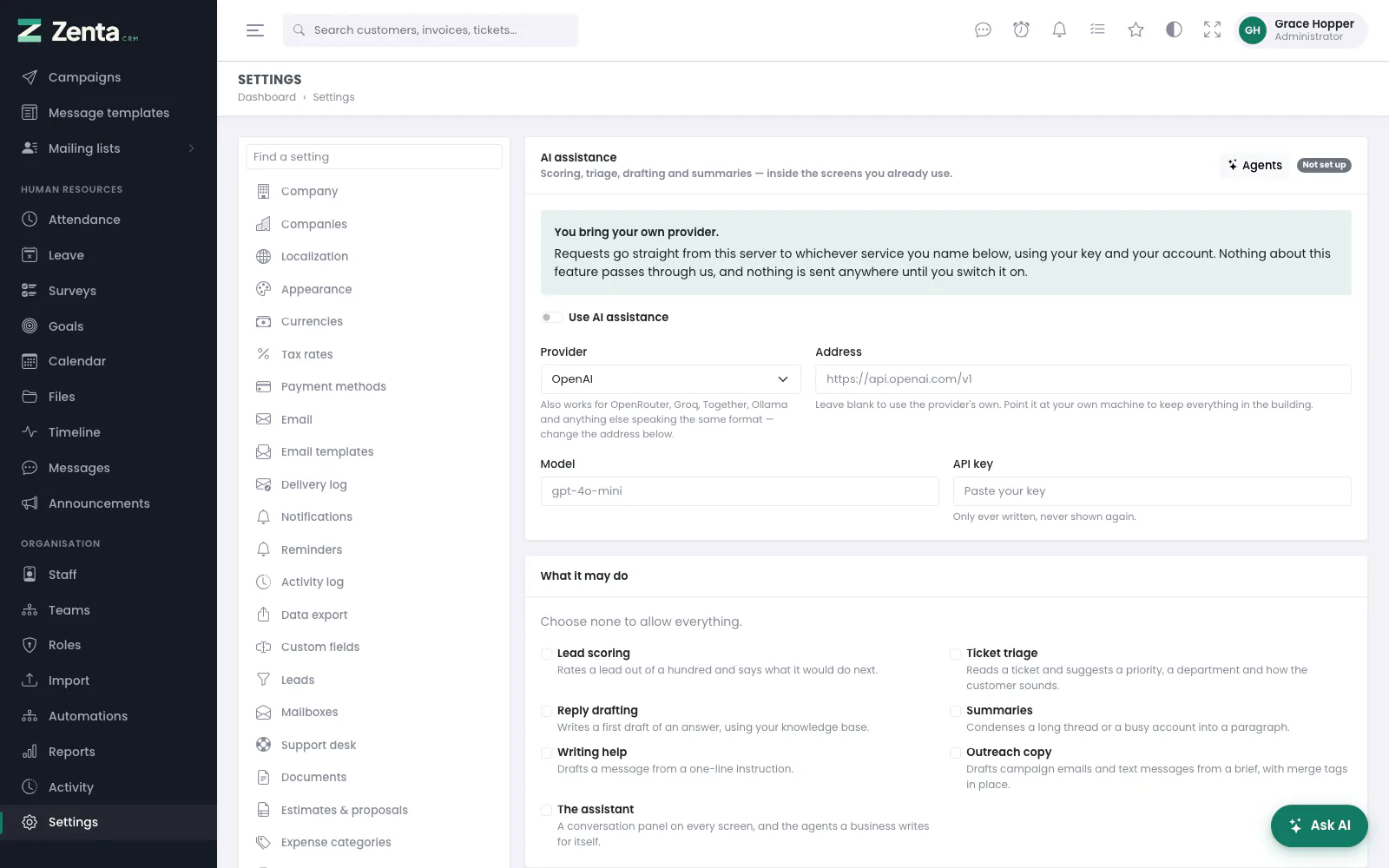 Settings → AI assistance on a single-business install: the provider, the key, and what it may do.
| Provider | Notes |
|---|---|
| OpenAI | The default. The same driver reaches OpenRouter, Groq, Together and anything else speaking the OpenAI chat format — just change the address. |
| Anthropic | Uses the Messages API. |
| Anything OpenAI-compatible | Point it at a model running on your own machine — Ollama, LM Studio — and nothing leaves the building at all. |
| Setting | What it does |
|---|---|
| Use AI assistance | The main switch. Nothing is sent anywhere while it is off. |
| Provider, Address, Model | Which service, where it is (blank uses the provider's own address), and which of its models. |
| API key | Only ever written, never shown again. |
| What it may do | Tick the features you allow: Lead scoring, Ticket triage, Reply drafting, Summaries, Writing help, Outreach copy, The assistant. Choose none to allow everything. |
| Monthly token allowance | 0 means no limit. See Cost. |
| Longest answer | The most tokens one answer may use (64 to 32,000). |
| Temperature | 0 to 2. Lower is steadier; 0.2 suits classification. |
| Take contact details out before sending | See Privacy. |
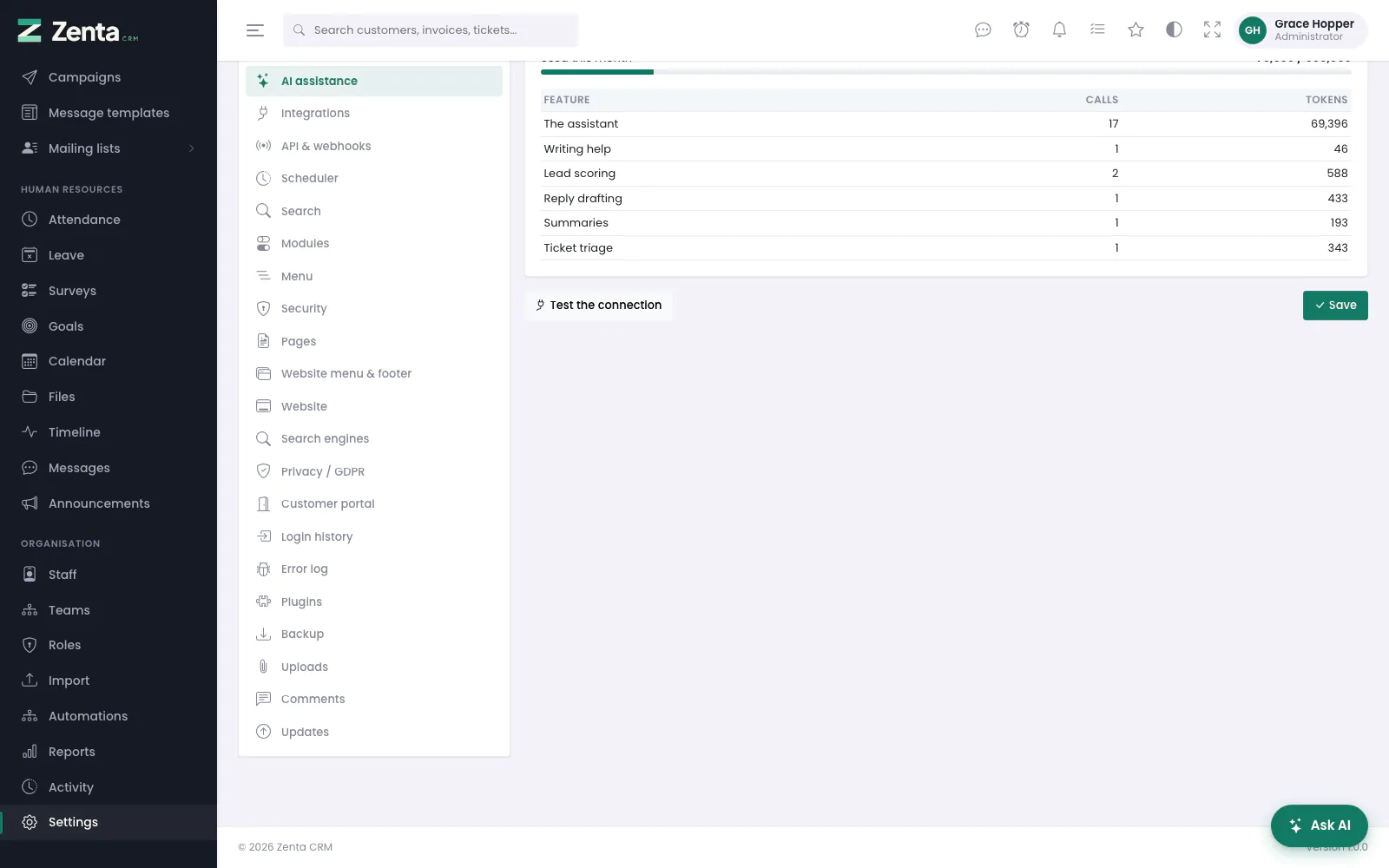 The foot of the page: this month's usage by feature, the connection test and Save.
Enter your key, switch it on, press Save, then Test the connection. It asks the provider for one short answer and tells you what came back: Connected — (model) answered, or the provider's own reason for refusing. A failed test is not recorded as a fault. Opening the page needs permission to view settings; saving, testing and disconnecting need permission to edit them.
Disconnect, beside the test button once a key is stored, removes the key, switches AI assistance off and deletes every answer already stored against a record, after you confirm. The usage figures are kept.
What it does
| Feature | Where | What you get |
|---|---|---|
| Lead scoring | On a lead | A score out of a hundred, a hot/warm/cold band, the reasons, and a suggested next step. |
| Ticket triage | On a ticket | A suggested priority, a category, how the customer sounds, and a one-line summary. |
| Reply drafting | On a ticket | A first answer written from the thread and your knowledge base, put in the reply box for you to edit. |
| Summaries | Customers, projects | A paragraph for whoever picks the account up next. |
| Writing help | — | A message drafted from a one-line instruction. The address exists (POST admin/ai/compose), but no built-in screen calls it at present. |
| Outreach copy | Email and SMS campaigns and templates | A draft from a one-line brief, with merge tags in place and no invented prices or dates. See Marketing campaigns. |
| The assistant | Every screen | A conversation panel, optionally about the record you are looking at, optionally running as an agent you wrote. |
 The score sits above the lead's own details, with its reasoning shown.
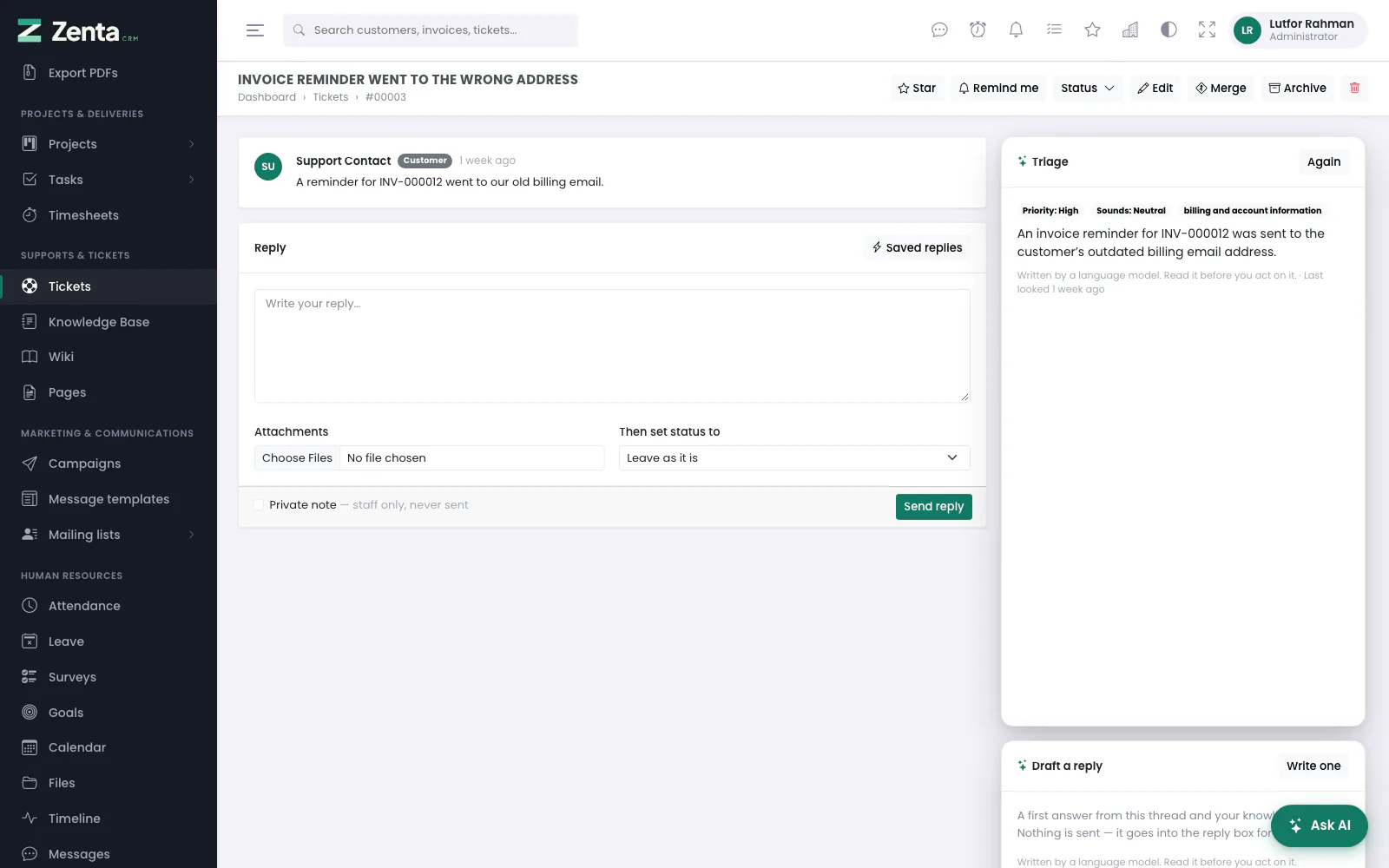 Triage and drafting sit beside the thread. The draft lands in the reply box, never in the customer's inbox.
Each panel has one button — Score it, Summarise and so on — and Again once there is an answer, to ask afresh. Scores, triage and summaries are kept against the record, so opening the page again shows the last answer without another request. Pressing a panel needs Use the AI features and the record's own permission (viewing a lead to score it, editing tickets to triage or draft).
The assistant
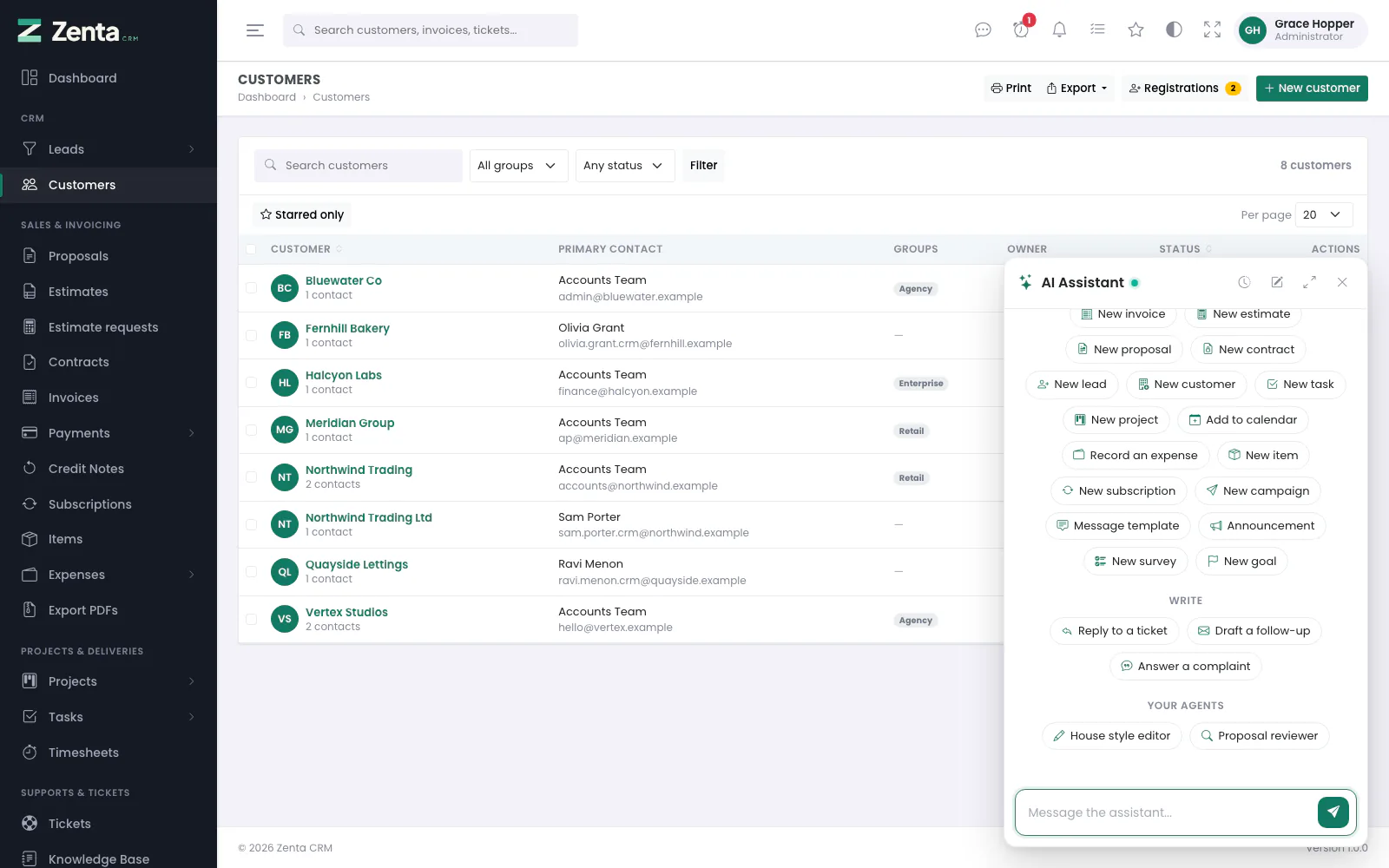 The assistant open over the customer list: one-click actions, and the agents your business wrote.
The round Ask AI button in the bottom corner of every screen opens the AI Assistant panel over whatever you are looking at; ⌘K (Ctrl+K on Windows and Linux) opens and closes it too, and Esc closes it. Hover the button and up to six quick starters fan out above it — Summarise this (only on a screen about a record), Leads update, Unpaid invoices, Open tickets, New invoice, New lead, New task and My week, less any the person's role does not allow. Click an update and the panel opens with that question already asked; click a New one and it opens with the start of the sentence in the box.
Type in Message the assistant... and send. The panel's header has four buttons: Recent conversations, New conversation, Expand (a larger panel for a long answer) and Close. The green dot beside the title means a provider is connected and the assistant is ready. The last few turns travel with each new question — which is what makes it a conversation rather than a series of unrelated requests. On a phone it takes the whole screen.
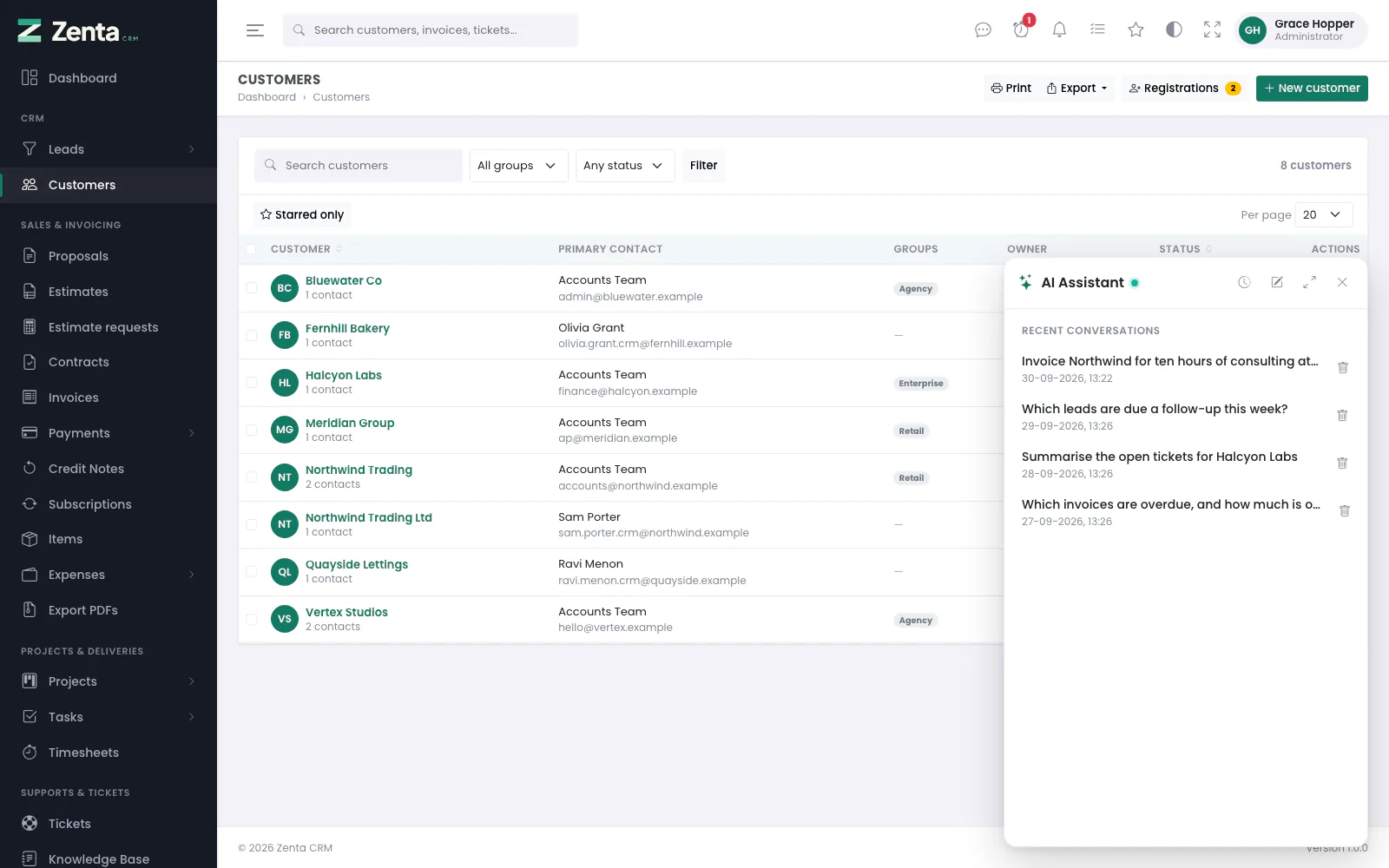 Recent conversations: open one again, or delete it.
It keeps your conversations, so a question worth asking once is one you can come back to. Recent conversations lists your last thirty, newest first, with the agent that ran each one. Click one to open it where you left off; the button beside it deletes it after you confirm.
The opening screen groups one-click actions under Get an update (leads, unpaid invoices, proposals and estimates, contracts, open tickets, goals, your week, attendance and leave), Create (an invoice, estimate, proposal, contract, lead, customer, task, project, calendar event, expense, item, subscription, campaign, message template, announcement, survey or goal) and Write. An update asks straight away. A Create action puts the start of the sentence in the box — "Create an invoice for " — for you to finish. Each one appears only for people whose role allows it.
They live in config/ai.php under starters, and
launcher chooses the six that fan out beside the button. Agents your business
writes appear under Your agents.
Open it from a lead, a customer, a ticket or a project and that record is put in front of the model, described exactly as the summary feature describes it. Open it from anywhere else and it is a general assistant.
What the assistant can do with your data
Once a provider is connected, the assistant can read your records and prepare new ones — always as the person asking, and only what their role allows on screen.
| Ask it about | What it reads |
|---|---|
| Leads | Open leads and their value by status, new and converted this month, lost, follow-ups due or overdue, and the leads themselves. |
| Proposals, estimates, invoices, contracts | How many in each status and what they are worth, unpaid and overdue invoices with the balance outstanding, contracts expiring or awaiting signature. For everyone, or one customer. |
| Tickets | Open tickets by status and priority, which ones are waiting on staff, and one ticket's whole conversation. |
| Goals | Each goal's target, how much is achieved, the percentage and the days left. |
| Calendar | The events coming up that you can see. |
| Attendance and leave | Who clocked in today and who is in now, leave waiting for approval, who is away today and approved leave coming up. |
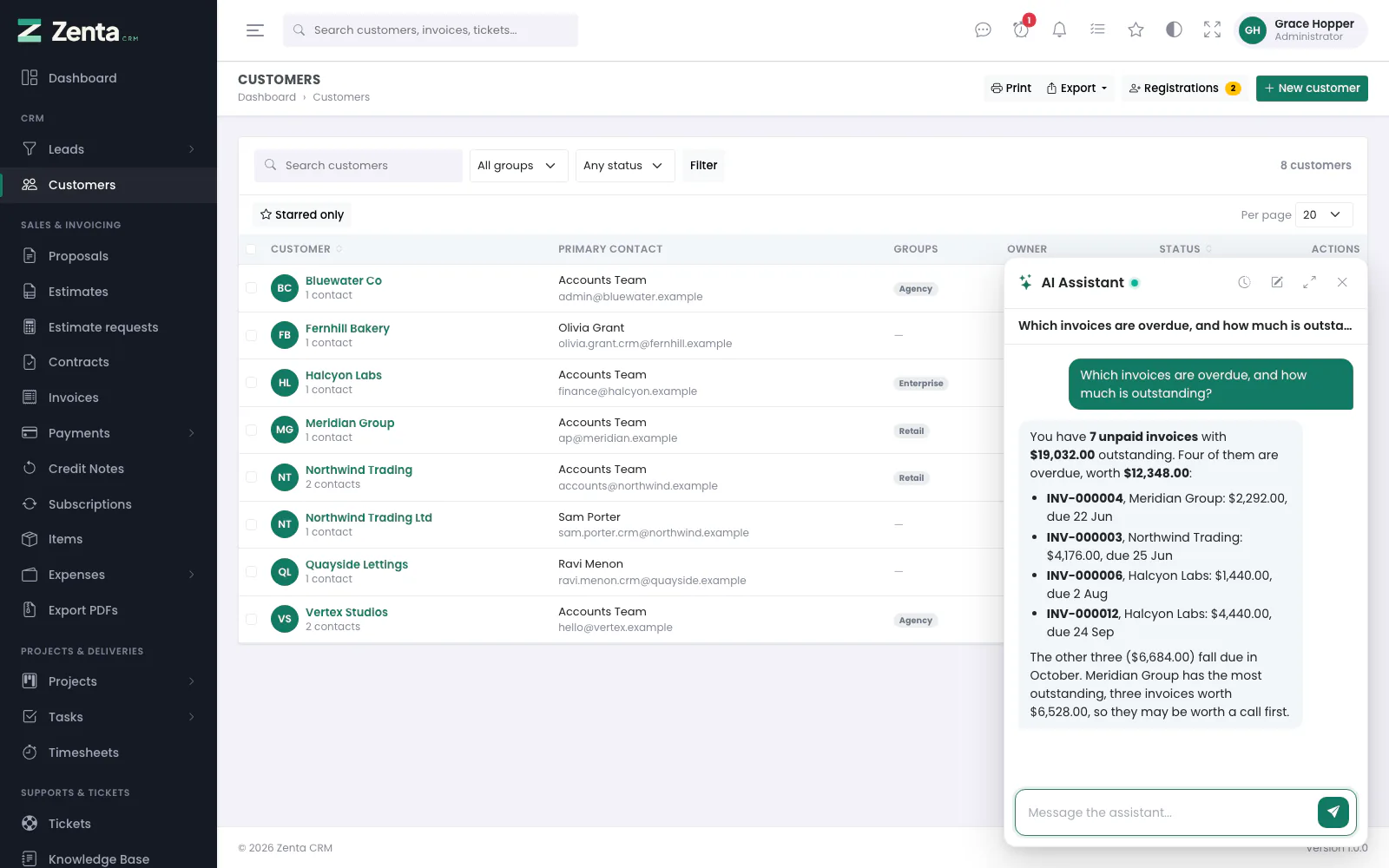 Asking about unpaid invoices: the answer comes from your own records, with the figures and the invoices behind them.
It can also prepare: a reply to a ticket; a new item, expense, subscription, lead, customer, proposal, estimate, contract or invoice; a project, task, campaign, message template, staff announcement, survey or goal; and a calendar event.
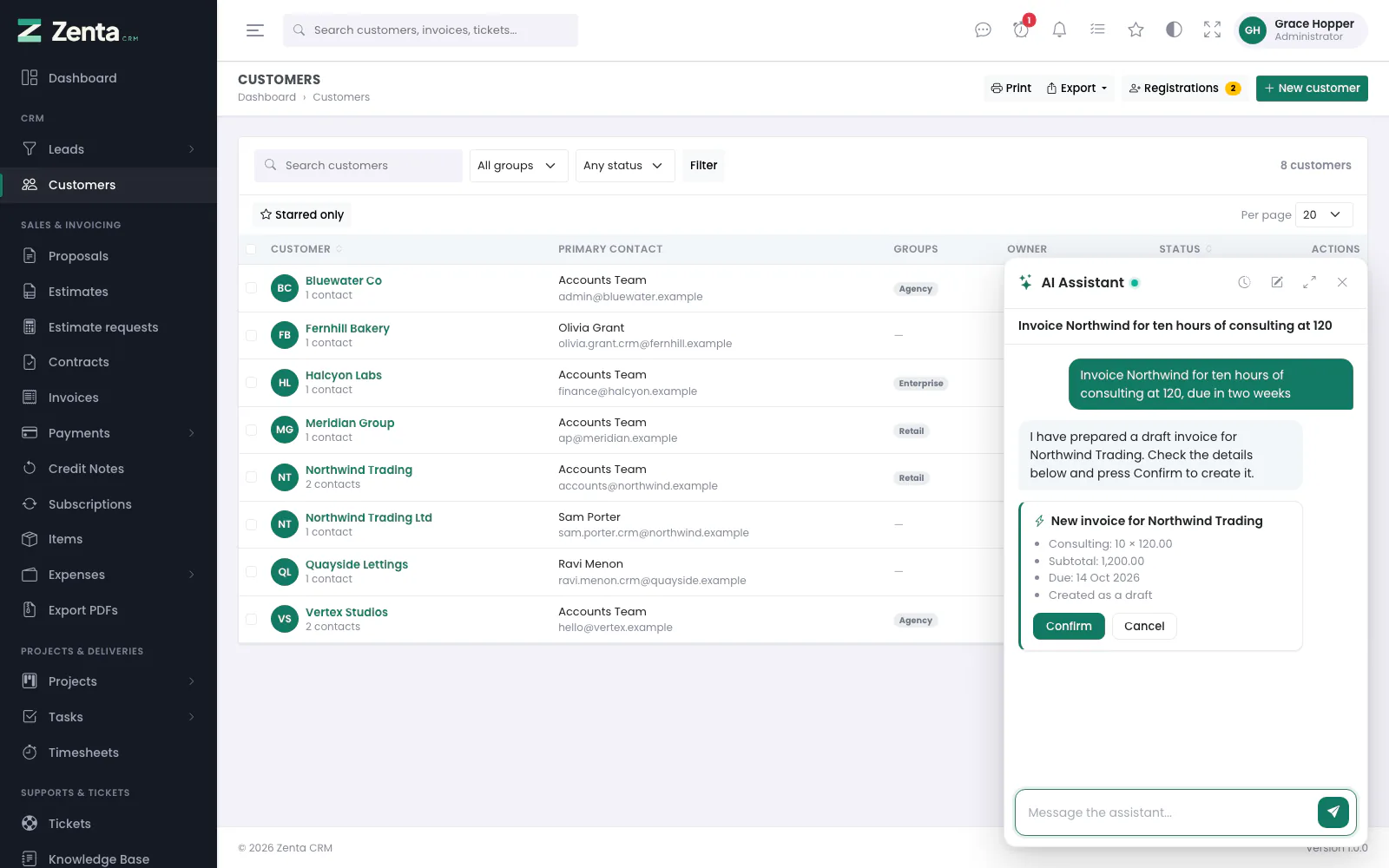 A prepared invoice waiting for Confirm or Cancel.
Anything else in the CRM
Beyond those, the assistant can do anything you can do in the CRM admin: read any list or record, and change, move, approve, send or delete anything your role allows — "mark the most recent open lead as lost, they went with a competitor", "add a note to Bluewater: they want a quote by Friday", "create a ticket department called Billing". It finds the action among everything the CRM admin can do, looks up the record it is about, and prepares a card. The card's title is the product's own description of the action, not the model's words, and names the records it touches.
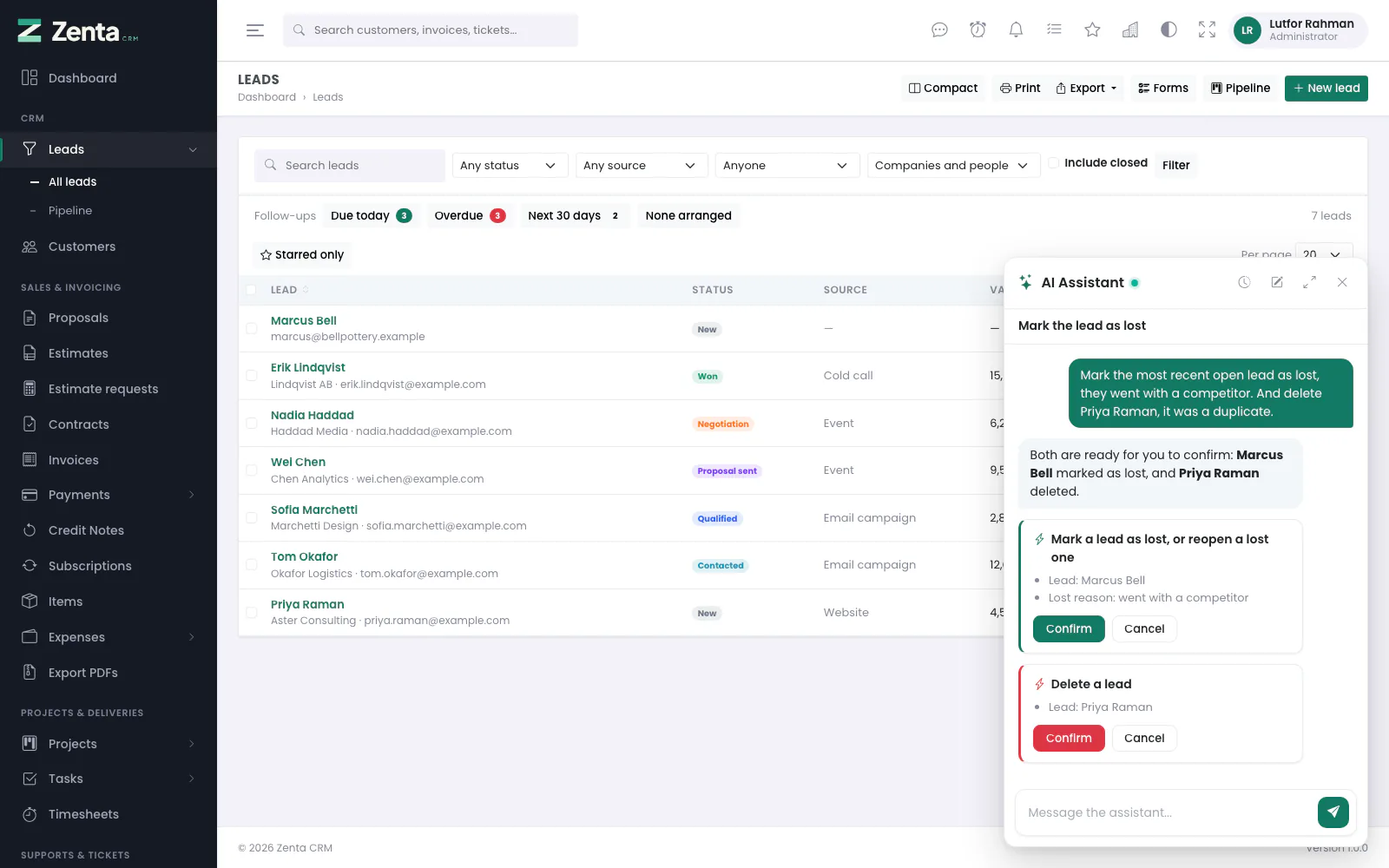 A lead marked as lost, found and prepared by the assistant; a delete is drawn in red.
| Card | What it means |
|---|---|
| Green | An ordinary change. Confirm carries it out. |
| Red | Something that cannot be taken back: a delete, an anonymisation, revoking access. |
| With a box | An action that takes a password or a key — a vault entry, a mailbox, your own password, the AI key. You type it into the card, and it goes straight to the form on Confirm: it never passes through the AI provider and is stored nowhere. If you typed it into the conversation anyway, it is left out of the card. |
A few things the assistant does not do, each on purpose: reading out a vault password or a token's secret (they would go to the AI provider), uploading or downloading files, exports and PDFs (it has no way to attach a file, and a download is for you rather than a model), installing plugins or updates, and anything to do with AI itself. Ask for one and it says so.
Say what you want in your own words — "invoice Northwind for ten hours of consulting at 120, due in two weeks". Names are matched to the customers, leads, staff and statuses you can see; when a name could mean two things, the assistant asks. Anything left out gets the screen's usual default rather than a question.
With contact details taken out (the default), an email address or phone number you type
reaches the provider only as a marker such as [email 1]. The card and the
saved record carry the real one.
Models differ in what they accept. Some of OpenAI's newer ones refuse the usual
max_tokens, a temperature other than their default, or tools without their
reasoning switched off; Zenta reads the refusal, adjusts the request and remembers the
adjustment for that model, so nothing needs configuring.
A conversation belongs to the person who started it. There is no permission that opens a colleague's, on purpose: one that could be read by a manager is one nobody would use for the questions the assistant is most useful for.
Things to try
Plain sentences work best. These are the kind of questions it answers well; the names are examples — use your own customers and colleagues.
| To | Try |
|---|---|
| Catch up on leads | "Which lead follow-ups are overdue?" · "How many leads did we convert this month?" |
| Chase money | "Which invoices are overdue, and how much is outstanding?" · "What does Northwind still owe us?" |
| Check sales documents | "Which proposals are still waiting for an answer?" · "Which contracts expire in the next month?" |
| See support | "Which tickets are waiting on us?" · "How many high-priority tickets are open?" |
| Plan the week | "What's in my calendar this week?" · "Who is on leave next week?" · "Which leave requests need approving?" |
| Track goals | "How close are we to this quarter's goals?" |
| Add a lead | "Add a lead: Jane Doe from Acme, worth 5,000, follow up on Friday." |
| Bill a customer | "Invoice Northwind for ten hours of consulting at 120, due in two weeks." |
| Hand out work | "Create a task to call Northwind about the renewal, due tomorrow, for Grace." |
| Book time | "Add a team meeting on Thursday at 10 with Ada and Grace." |
| Log spending | "Record an expense: printer paper, 24.50, billable to Northwind." |
| Write | On a ticket: "Draft a reply apologising for the delay." · Anywhere: "Help me write a friendly follow-up to a customer who has gone quiet." |
| Understand a record | On a lead, customer, ticket or project: "Summarise this and suggest the next step." |
A few habits get better answers:
- Open it from the record. On a customer or ticket, "this" means that record, so you need not name it.
- Relative dates are fine. It knows today's date, so Friday, tomorrow and in two weeks all work, in your own timezone.
- Leave out what you do not care about. Anything you do not mention gets the screen's usual default.
- Read the card before you press Confirm. It shows exactly what will be saved. If something is wrong, press Cancel and say what to change — "make it 150 an hour" — and it prepares a new card.
- Start a new conversation for a new subject. The last few turns go with every question, so an old subject can colour the answer to a new one.
What it answers still follows your role: if you cannot open invoices, it cannot tell you about them either.
Agents you write yourself
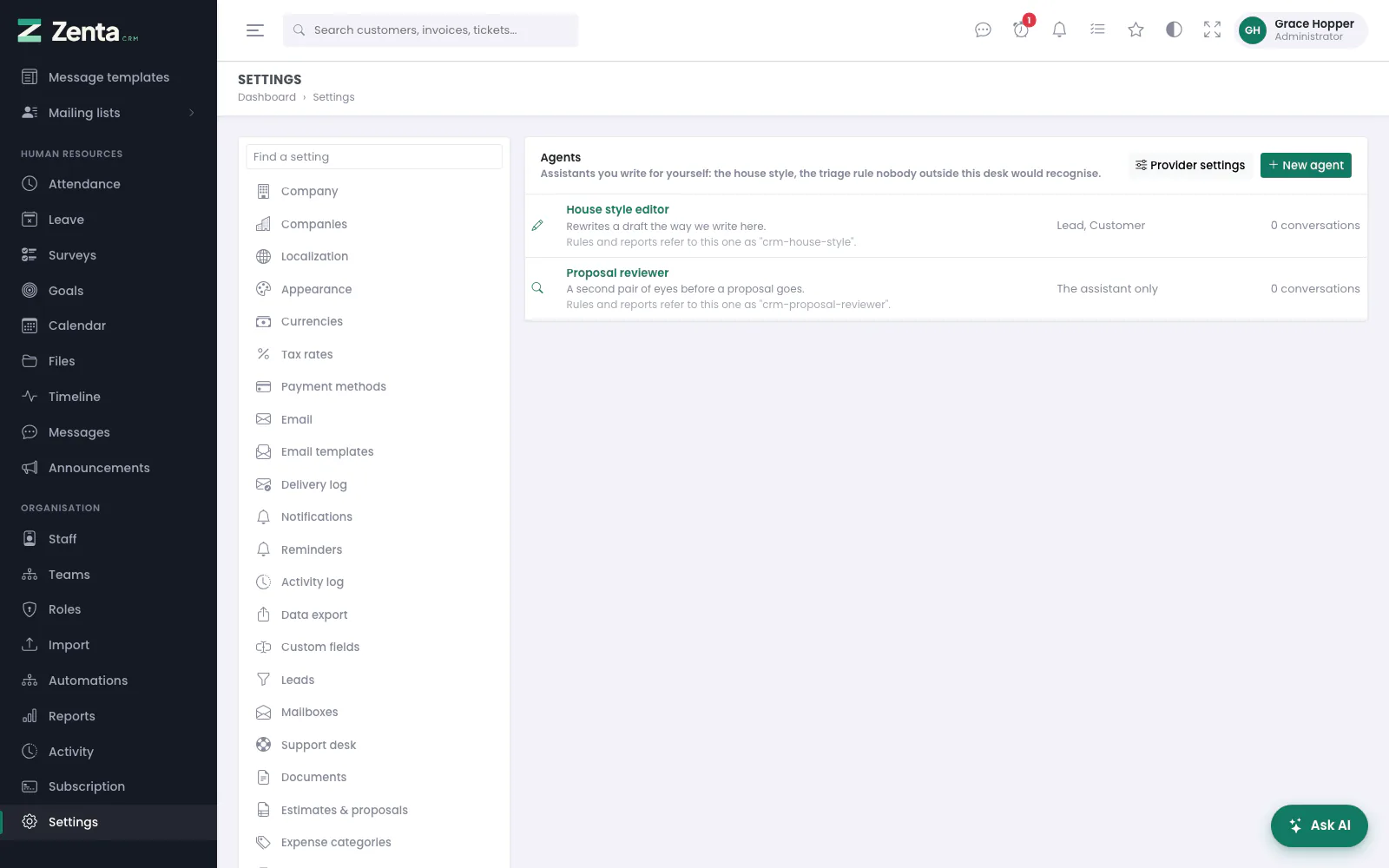 Settings → AI assistance → Agents.
Settings → AI assistance → Agents. The features above cover what every business wants. An agent covers what one business wants: the house style, the triage rule nobody outside this desk would recognise, the second pair of eyes on a proposal before it goes.
The list shows each agent with its description, the handle rules and reports use, where it is offered (The assistant only, or the kinds of record) and how many conversations it has run. Provider settings goes back to the AI settings. Writing agents needs the Write agents permission; on a SaaS install the page exists only for a workspace given its own AI settings.
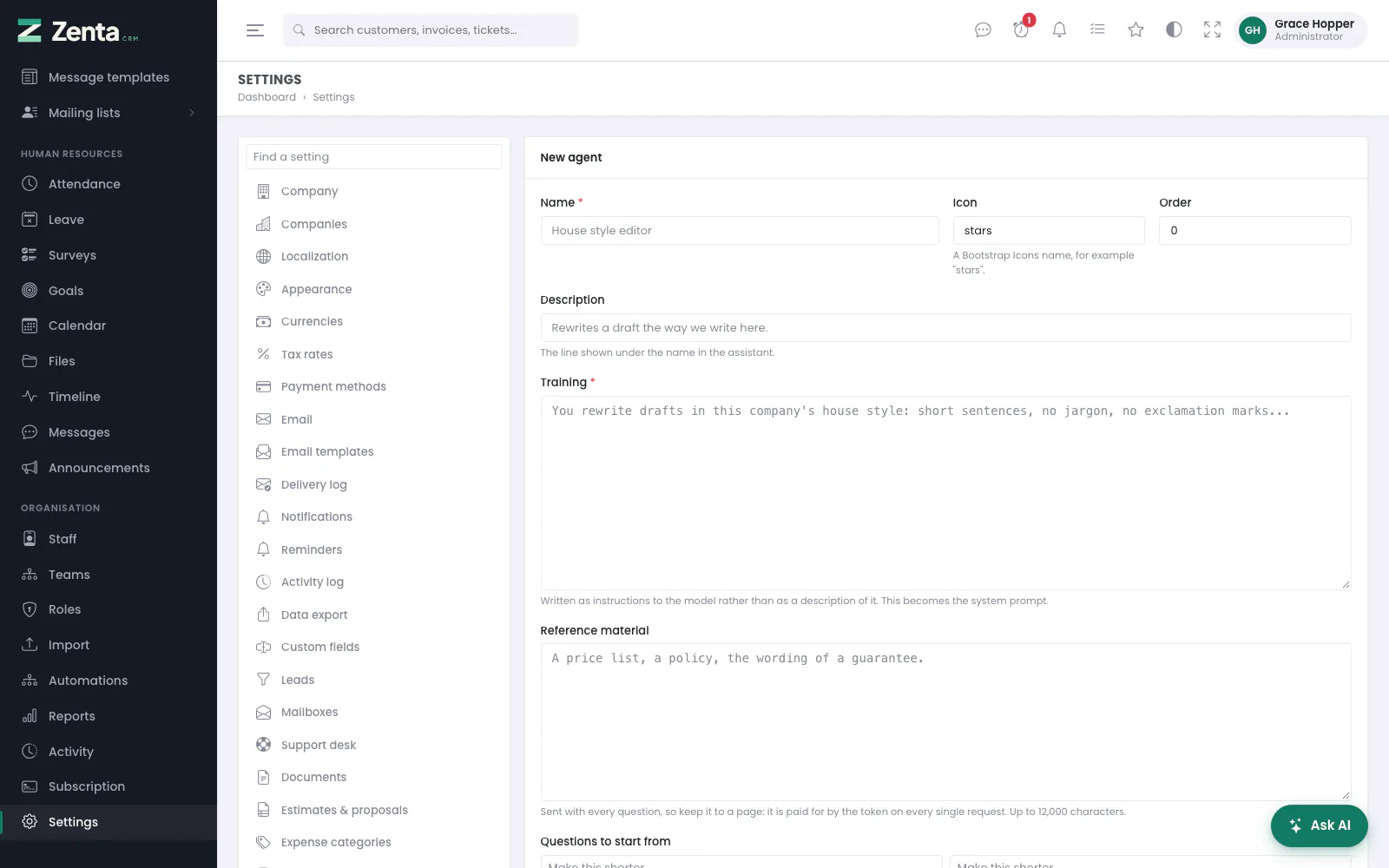 A new agent.
New agent opens the form; click an agent's name to edit it. Press Save agent.
| Field | What it is for |
|---|---|
| Name | Required. How it appears in the assistant. |
| Icon, Order | A Bootstrap Icons name (stars when left blank), and its place in the list. |
| Description | The line shown under the name in the assistant. |
| Training | Required. The instructions the agent follows. Written as instructions to a model, not as a description of one — it becomes the system prompt. |
| Reference material | A price list, a policy, the wording of a guarantee. Sent with every question, so keep it to a page. Up to 12,000 characters. |
| Questions to start from | Offered as buttons in an empty chat, so nobody is looking at a blank box. Up to six. |
| Where it is offered | An agent is always available in the assistant. Tick Lead, Customer, Ticket or Project and it is also offered when the assistant is opened from one of those pages, with that record already in front of it. |
| Its own settings | Model, Temperature and Longest answer for this agent alone. Blank uses the workspace's. |
| Offer this agent | Untick to take it out of the assistant without deleting it; the list marks it Off. |
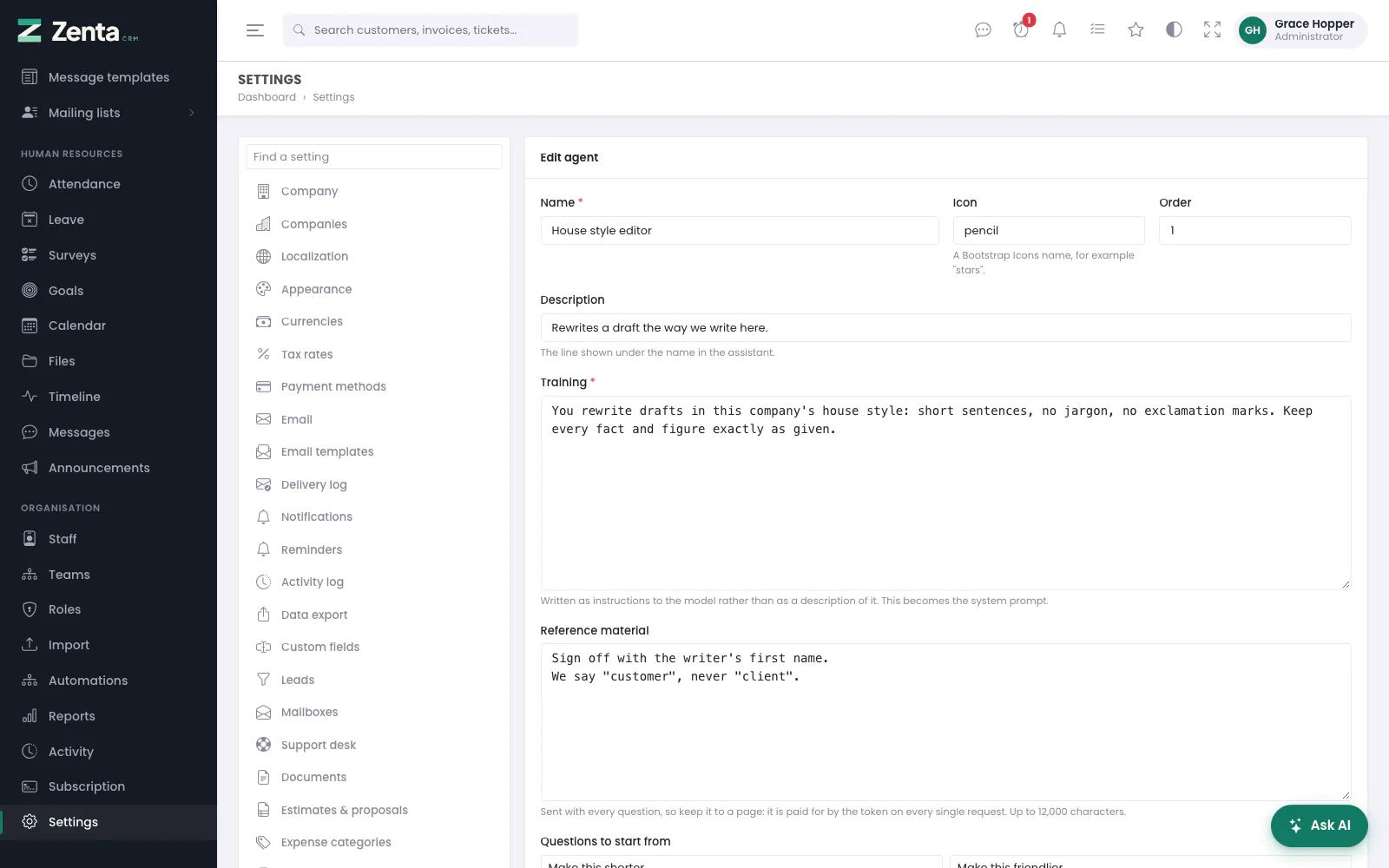 Editing an agent: its training and reference material.
 The foot of an agent's form: where it is offered, its own settings, and Delete.
Renaming an agent never breaks anything: behind the name is a fixed handle, shown on the list, and that is what anything written against it holds on to. Delete, on an agent's form, removes it after you confirm and keeps the conversations it ran — what was said is what somebody may have acted on.
Who may use it
AI assistance is a permission module of its own, with three abilities, so a business can give it to the people it is for and leave it off for everybody else:
| Ability | Lets somebody |
|---|---|
| Use the AI features | See and press the panels beside a lead, a ticket, a customer or a project. |
| Use the assistant | See the Ask AI button and open the panel. What it can read or prepare for them follows the rest of their role. |
| Write agents | Create and edit the agents everybody else then uses. |
There is also a restriction, alongside "only these customer groups" and "only these project categories": only these AI agents. An agent that answers from the pricing sheet is not one everybody needs. Tick the agents under the AI module's restrictions on a role, or on one person's own permissions; nothing ticked means every agent.
On upgrade, every role that already existed is given use and chat — which is exactly what it could already do, since the AI buttons used to ask only for the record's own permission. Writing agents is not granted: that is new, and it is an administrator's job.
Inside your automations
This is the part worth setting up. Four of the actions in the automation builder are AI steps:
| Action | Useful with |
|---|---|
| AI: score the lead | Lead created — every lead is rated, banded and explained before anyone opens it. |
| AI: triage the ticket | Ticket opened — sorted the moment it lands, out of hours included. |
| AI: draft a reply | Ticket opened — a first answer waiting as a private note. |
| AI: summarise | Project finished, Lead converted — a handover written for you. |
A model behind a button needs somebody to press it. A model inside a rule reads every lead that arrives at three in the morning.
The triage step applies nothing unless you tick the boxes that let it. Left alone, it writes what it found as a private note and changes nothing.
Privacy
Take contact details out before sending is on by default. Email
addresses, phone numbers, card numbers and IBANs are replaced with markers such as
[email] before anything leaves your server. The sentence still reads, and
the model can still tell that a customer gave a number.
Two more things worth knowing:
- Private staff notes are never sent to the drafting prompt. An aside written for colleagues should not come back, paraphrased, in the answer the customer reads.
- The usage log holds no prompts and no answers — only how many tokens went where. A log that archived every customer email sent to a third party would be a bigger liability than the feature it was measuring.
Disconnect removes the key and deletes every answer already stored against a record.
Cost
You pay your provider directly, at their prices. Two things keep the bill down:
- Answers are cached against the record. Opening a lead twenty times costs one request. Editing the lead is what makes it worth asking again — nothing else does.
- A monthly token allowance. Once it is used up, requests stop until the new month. Tokens rather than money, because nothing here can read your provider's prices. Set it to 0 for no limit.
Usage for the current month is broken down by feature at the bottom of the settings screen.
On a SaaS install
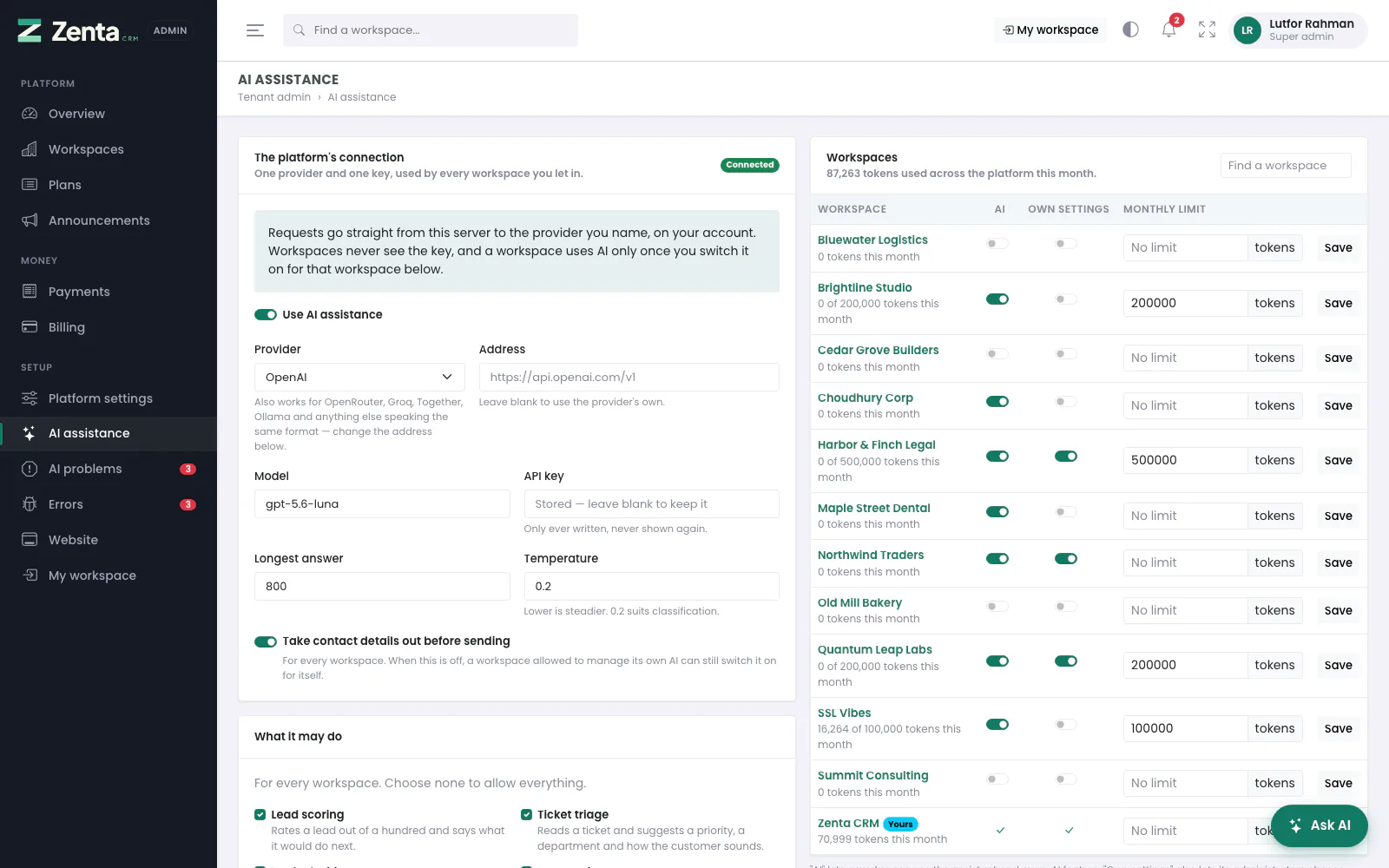 The AI connection on a SaaS install: one key, held by the super admin, and which workspaces may use it.
When the install runs as a platform for other businesses (TENANCY_ENABLED=true),
AI works differently, because every request is paid for by whoever holds the key.
The super admin's screens are described in full under
Tenant admin → AI assistance and AI problems; in short:
- The super admin connects the provider, under Tenant admin → AI assistance: the provider, the address, the model, the key, which features exist and whether contact details are taken out. There is one connection for the whole platform. The key is stored encrypted and is never shown again, to anyone.
- A workspace has no AI until the super admin switches it on for that workspace. The same screen lists every workspace with three settings: AI (the Ask AI button and every AI feature, for the people their roles allow), Own settings (see below) and a monthly limit in tokens — blank for no limit. The same card is on each workspace's own page under Workspaces. A plan does not decide this: AI is left out of a plan's list of modules on purpose.
- The platform's own workspace always has AI, so the super admin can use the assistant from their workspace. The tenant admin panel has an assistant of its own for running the platform (see AI assistance).
- A workspace's administrators see no AI settings by default. Tick Own settings and they get a Settings → AI assistance page of their own, different from yours: it shows the model and how much of the month's allowance is gone, lets them switch features off within what you allow, lets them take contact details out when you do not, and opens Agents. It never shows the provider, the address or the key, and it cannot switch on anything you switched off. It has no connection test and no Disconnect.
- Usage is counted per workspace. The tenant admin screen shows each workspace's tokens this month and the platform's total. A workspace that reaches its limit is told so and stops until the first of the next month; nobody else is affected.
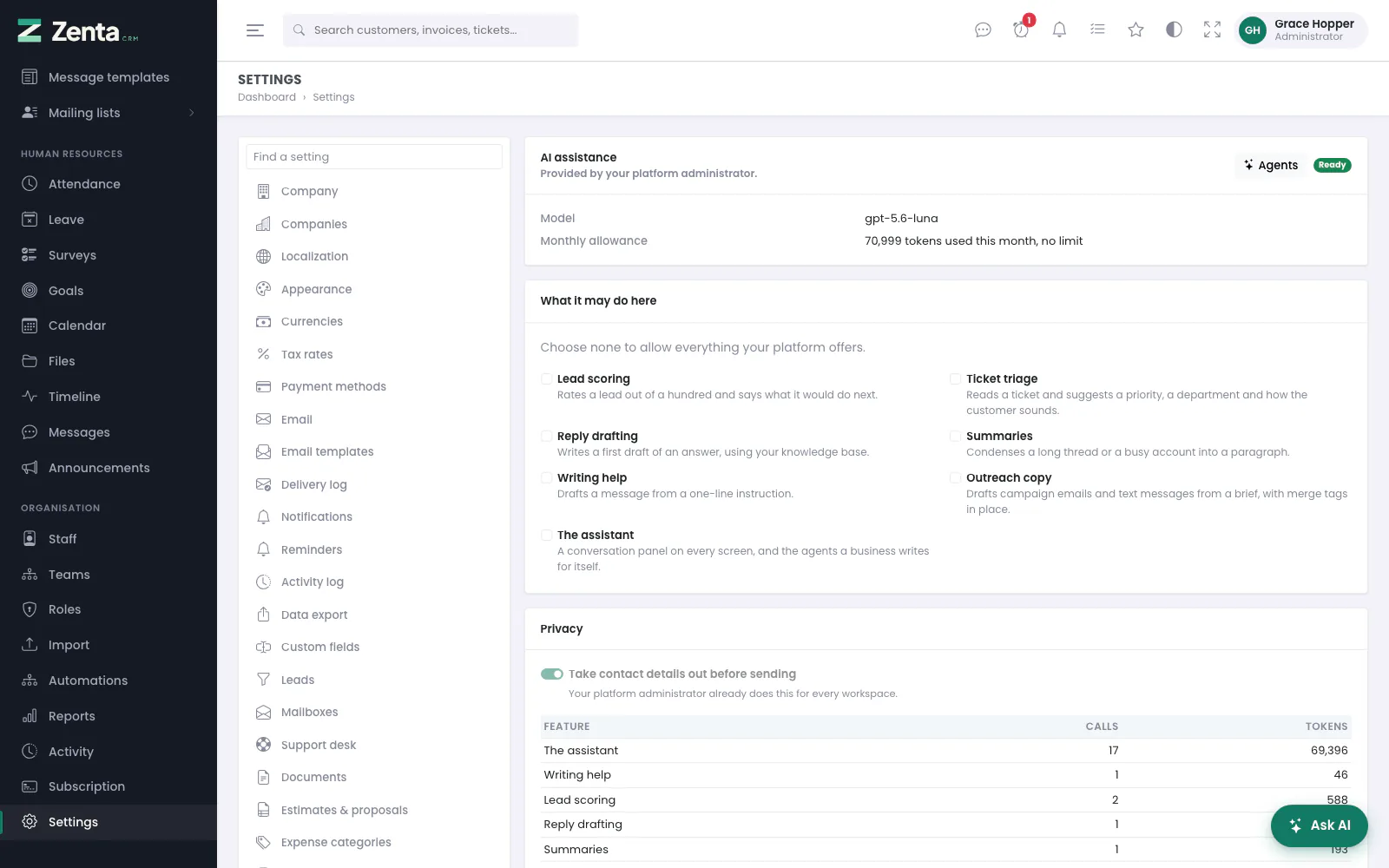 A workspace's own AI page on a SaaS install: the model, the allowance, and what it may do here.
Changing the wording
Every prompt is in config/ai.php, not buried in a class — your idea of a
good lead is not ours. Edit them freely; the placeholders in each one are filled from
the record.
If it stops working
| What you see | Usually |
|---|---|
| "AI assistance is switched off" | The switch is off, or no key has been entered. |
| "There's any issue. Please contact support" | Something broke that the person could not fix: the provider refused the key, was unreachable or overloaded, answered with something unreadable, or a bug threw an exception. See When something breaks below for where the real reason is. |
| "This month's allowance is used up" | Raise it, or wait for the new month. |
| "This workspace has used its AI allowance for the month" | On a SaaS install: the workspace reached the limit the super admin set. Raise it under Tenant admin → AI assistance. |
| No Ask AI button at all | The AI module is switched off under Settings → Modules, the person's role does not include Use the assistant, or — on a SaaS install — the super admin has not switched AI on for the workspace. |
Every failure is recorded in the usage table with the reason, so a run of them is visible rather than silent.
What the assistant will talk about
The assistant answers about Zenta CRM and the work done in it: your leads, customers,
documents, projects, tickets, marketing, calendar, staff and leave; how to use the
application; and drafting or summarising messages about that work. Any other question
— general knowledge, coding, homework, entertainment, other software — is
answered with "Ask me anything related to Zenta CRM". The rule is added after
every agent's own instructions, so an agent cannot widen it. The name in the sentence is
name in config/zenta.php.
When something breaks
A person using the assistant is told in words about anything they can act on — AI is switched off, the month's allowance is spent, the question was empty, a field on a proposed record is invalid. Anything they cannot act on is a fault, and all they see is "There's any issue. Please contact support". Faults are:
- the provider refusing the key, rate limiting, being down or unreachable;
- an answer that is empty or cannot be read;
- an assistant tool, or a confirmed action, throwing an exception;
- any other uncaught error on an AI screen or endpoint.
Each fault is:
- logged at error level in
storage/logs, with the exception; - kept under Tenant admin → AI problems — the real message, where in the code it happened, the workspace and person, how many times, and the stack trace. The same problem is one row with a count, so an hour-long outage is one entry rather than hundreds;
- sent to every super admin, in their notification bell and by email, the first time it is seen. It is not sent again unless it comes back after you press Mark as fixed, when it reopens.
The Test the connection buttons are the exception: they show the provider's real answer, and a failed test is not recorded as a fault. Automation steps that use AI log the same one-line message in the rule's history.
Addresses on this page
For reference and for anyone scripting against the panel. Everything here needs somebody signed in to the workspace whose role allows it; anybody else is refused.
| Method | Address | What it does |
|---|---|---|
GET | admin/settings/ai | Settings → AI assistance (on a SaaS install, the workspace's own page, when it has one). |
PUT | admin/settings/ai | Saves the AI settings. |
POST | admin/settings/ai/test | Asks the provider for one short answer. Not on a SaaS install. |
POST | admin/settings/ai/disconnect | Removes the key, switches AI off and deletes the stored answers. Not on a SaaS install. |
GET | admin/settings/ai/agents | The agents. |
GET | admin/settings/ai/agents/create | The new-agent page. |
POST | admin/settings/ai/agents | Creates an agent. |
GET | admin/settings/ai/agents/{agent}/edit | An agent's page. |
PUT | admin/settings/ai/agents/{agent} | Saves an agent. |
DELETE | admin/settings/ai/agents/{agent} | Deletes an agent, keeping its conversations. |
POST | admin/ai/run | Runs lead scoring, ticket triage, reply drafting or a summary for one record. Used by the AI panels on those pages. |
POST | admin/ai/compose | Drafts a message from a one-line instruction and an optional context. Not called by any built-in screen. |
GET | admin/ai/assistant | The assistant's opening screen. Used by the panel itself. |
POST | admin/ai/assistant | Asks the assistant a question. Used by the panel itself. |
GET | admin/ai/assistant/history | Your recent conversations. Used by the panel itself. |
GET | admin/ai/assistant/{conversation} | One of your conversations. Used by the panel itself. |
DELETE | admin/ai/assistant/{conversation} | Deletes one of your conversations. |
POST | admin/ai/actions/{action}/confirm | Carries out what the assistant prepared, through the screen's own form or its REST endpoint, as you. Takes inputs when the card asks for a password or a key. |
POST | admin/ai/actions/{action}/cancel | Throws away what the assistant prepared. |