Exporting and printing
Any list to CSV or Excel, printed, or a filtered set of documents as PDFs.
Every main list can be downloaded as a spreadsheet or printed. Whatever comes out is the list exactly as it was on screen, and it only holds records the person downloading it could already open. Bringing records in from a spreadsheet is Importing your data.
Exporting a list
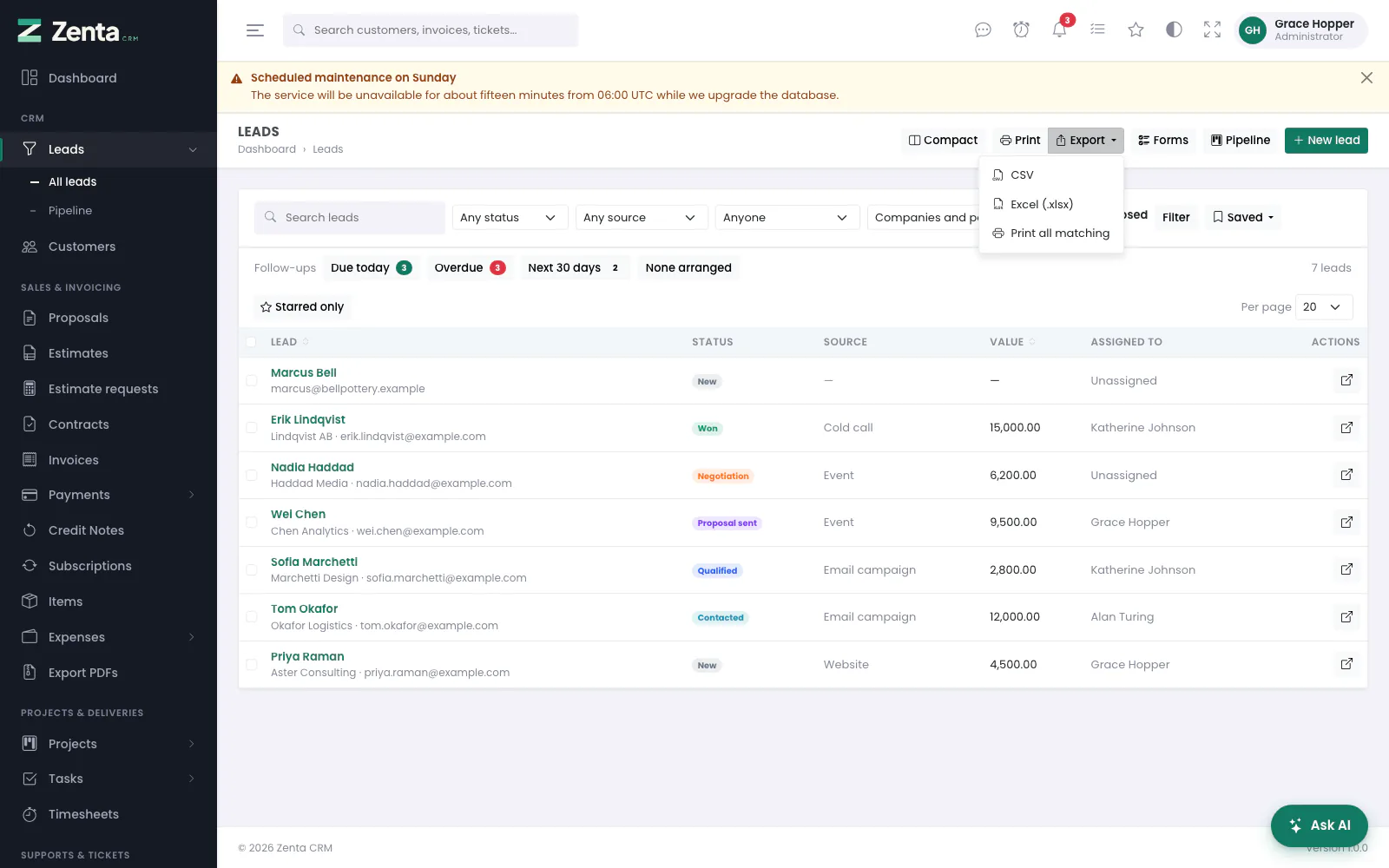 The Export menu on the leads list: CSV, Excel and Print all matching.
These lists have Print and an Export menu in their page header: customers (and, from the same menu, their contacts), leads, invoices, estimates, proposals, contracts, credit notes, payments, expenses, items, projects, tasks, timesheets, tickets, staff and leave. The menu offers:
| Choice | What you get |
|---|---|
| CSV | A UTF-8 file that Excel, Numbers, LibreOffice and Google Sheets all open. Streamed as it is written, so a long list does not use up the server's memory. |
| Excel (.xlsx) | A real workbook: a bold heading row that stays in view while you scroll, numbers you can add up, and dates you can sort and filter by. |
| Print all matching | A page laid out for paper, in a new tab, with up to 1,000 matching records. See Printing every matching record. |
- Open the list and filter it the way you want it: search, status, customer, dates, a saved filter or a column sort.
- Press Export and pick a format. The file downloads straight away.
- The file holds every record that matches, not just the page you were looking at.
On the customers list the menu has a Customers part and a Contacts part. Contacts have no list of their own, so their export follows the customers list: the contacts of the customers it is showing. The invoice, estimate, proposal, credit note and contract lists also have PDFs in a zip… at the foot of the menu (see Export PDFs below). The payments list and its export hold only payments on invoices the person may see.
Custom fields marked Show in list views (under Settings → Custom fields) are added as extra columns at the end.
=, +, - or @ is
written with a quote in front, in both formats, so a customer who types a formula into
their name cannot run it on the computer of whoever opens the export. Negative amounts are
written as numbers and are not affected.
Excel files need PHP's zip extension, which almost every host has. Without it
the Excel choice sends you back to the list with a message explaining the problem, and CSV
still works.
Printing a list
Print, beside Export, prints the page you are looking at, without the menu, top bar, filters, tick boxes or buttons, with the column headings repeated on each sheet. Anybody who can see the list can print it.
Printing every matching record
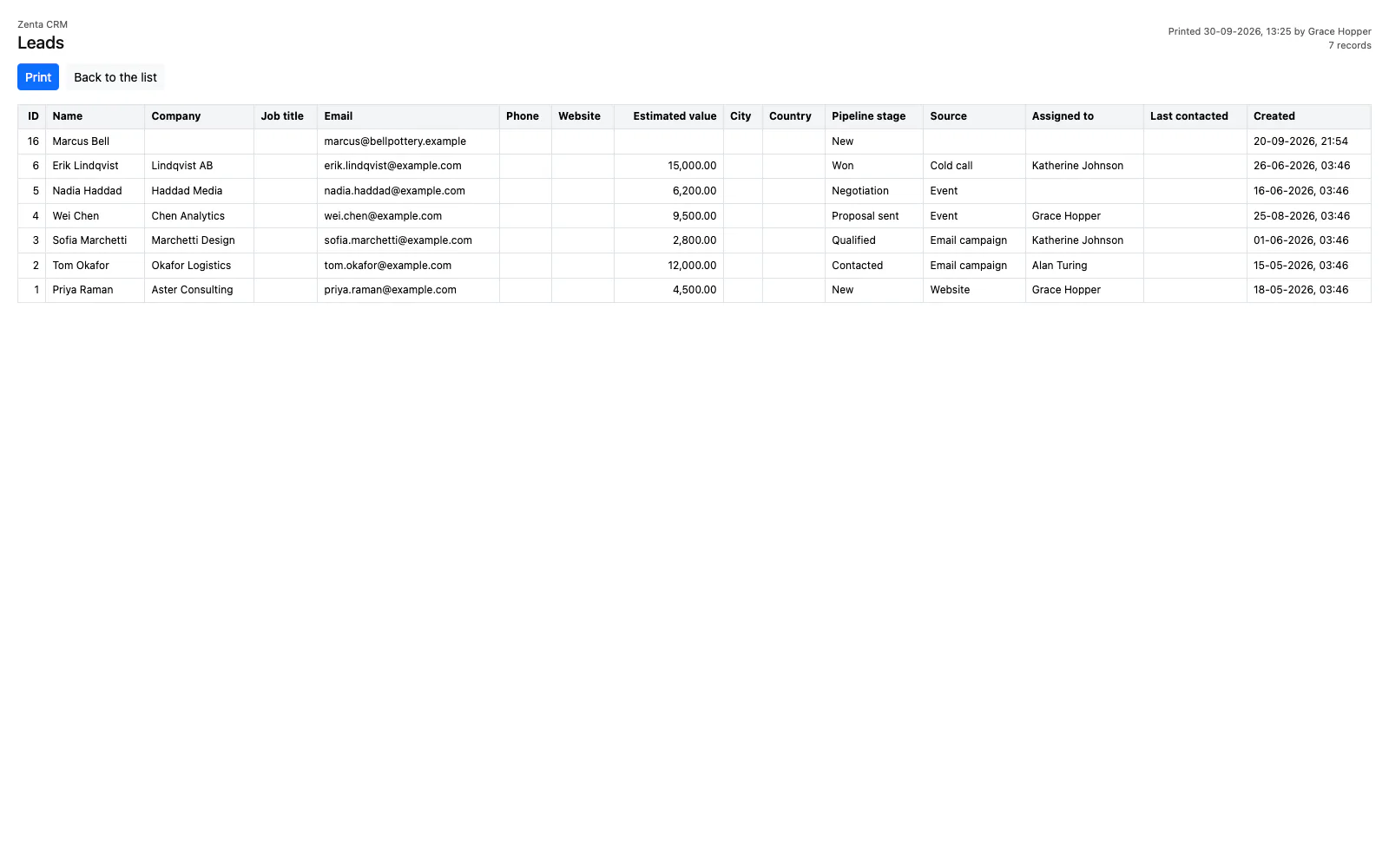 Print all matching: every matching lead on one page, laid out for paper.
For more than one page of records use Export → Print all matching, which counts as an export. It opens a page in a new tab with the list's name, when and by whom it was printed, how many records it holds and whether it is filtered as on screen, then opens your browser's print dialog by itself. Print opens the dialog again and Back to the list returns to the list with the same filters.
At most 1,000 records are printed. Past that the page says Only the first 1,000 records are printed and offers Download CSV of the whole list instead.
Who sees the Export button
 Settings → Data export: one switch for the whole workspace, and the lists it covers.
Settings → Data export has one switch for the whole workspace, under Who sees the Export button:
| Setting | Effect |
|---|---|
| Everyone with the export permission | The default. Each role's Export permission, per module, decides. Administrators can always export. |
| Administrators only | Nobody else sees the button, whatever their role allows. |
| Hidden for everybody | No list can be downloaded or printed in full, administrators included. |
Choose one and press Save. Below it, Lists that can be exported names every list the switch covers.
The setting is checked on the download itself, so a saved link to an export stops working as soon as the button would disappear. It covers the CSV and Excel downloads and Print all matching; printing the page already on screen is not affected, since that is only ever what the person can see. Report exports and campaign, mailing list and survey downloads keep their own permissions.
Export PDFs
Sales & Invoicing → Export PDFs (also Export → PDFs in a zip… on the invoice, estimate, proposal, credit note and contract lists; described in full under PDFs) downloads many documents' PDFs at once, chosen by filter rather than by ticking them one by one.
- Choose the document type: invoices, estimates, proposals, credit notes or contracts.
- Narrow it by date (the document's own date; a contract's start date), status (not for contracts), a customer tag, and for invoices the payment method of a payment recorded against them. Contracts in the trash are left out.
- Press Count them to see how many match.
- Press Download zip. The PDFs are the same ones the Download PDF button gives, oldest first.
Documents carry no tags of their own, so the tag filter uses the tags on each document's customer. A proposal addressed to a lead rather than a customer is left out when a tag is chosen.
Addresses on this page
For reference and for anyone scripting against the panel. Everything here needs somebody signed in to the workspace whose role allows it; anybody else is refused.
| Method | Address | What it does |
|---|---|---|
GET | admin/exports/{entity}/{format} | Downloads a list as csv or xlsx, with the list's own filters. |
GET | admin/exports/{entity}/print | Print all matching: up to 1,000 matching records laid out for paper. |
GET | admin/settings/data-export | Settings → Data export. |
PUT | admin/settings/data-export | Saves who sees the Export button. |