Client portal settings
Settings → Customer portal, card by card, and the queue of customers who registered themselves.
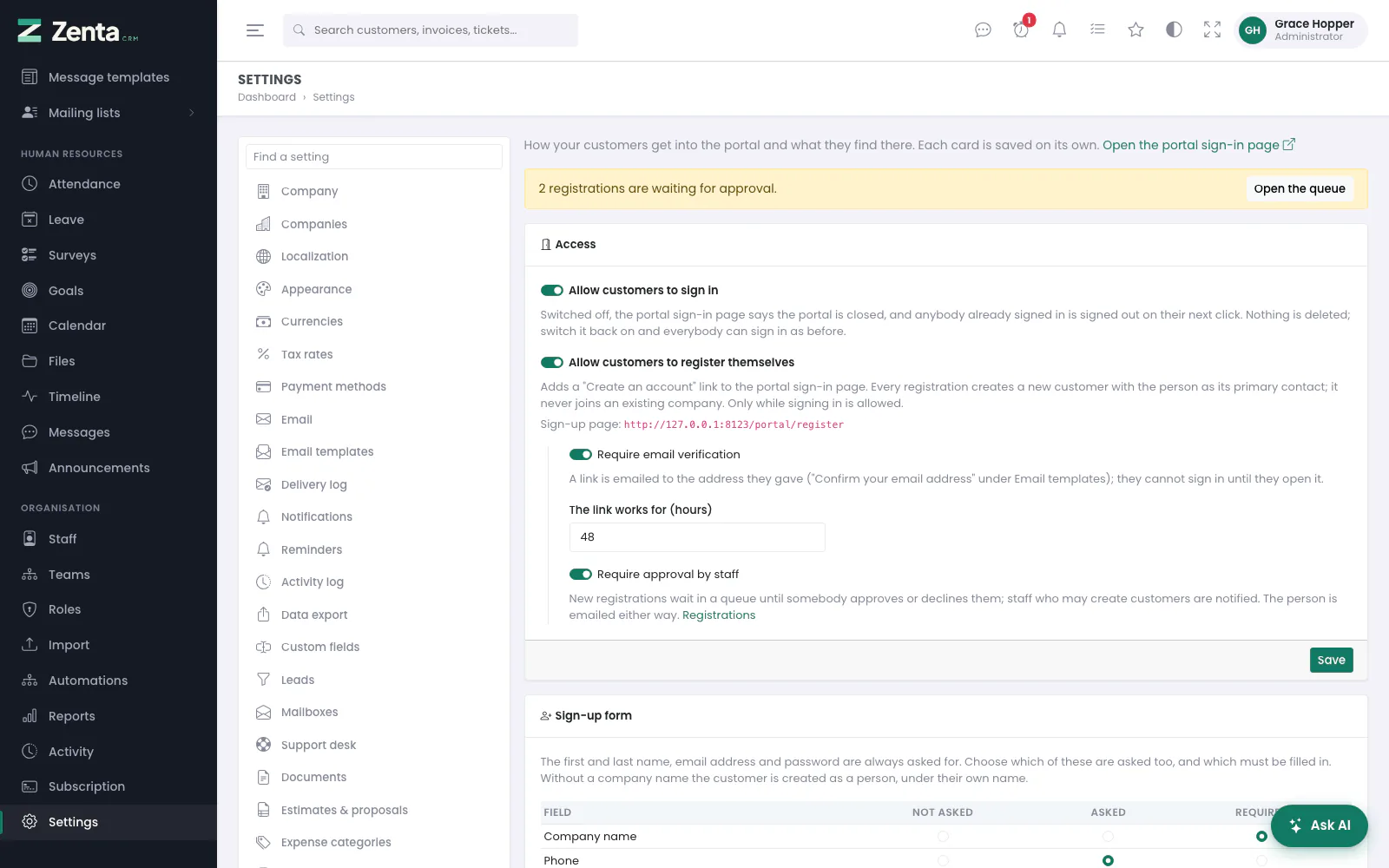 Settings → Customer portal: the Access card, with registrations waiting above it.
Settings → Customer portal decides how your customers get into the portal and what they find there. It is one page of cards, and each card is saved on its own with its own Save button: saving one card leaves the others as they were. Open the portal sign-in page, at the top, opens it in a new tab. Opening the page needs permission to view settings; saving a card needs permission to edit them.
This page is the reference for the screen. What the customer then sees is described under The customer portal, Getting into the portal, Projects in the portal and Talking to customers.
| Card | What it decides |
|---|---|
| Access | Whether customers may sign in and register themselves, and the checks on a registration. |
| Sign-up form | What the registration form asks. |
| My account | Which tabs contacts get under My account. |
| Projects | What customers may see and do with a project, and its tabs. |
| Overview page | The panels on the portal's first page, and the welcome message. |
| Tickets | The statuses a customer may set on their own ticket. |
| Messages | Whether customers may message staff and each other. |
| Estimate requests | Asking for a quote from the portal, and the public form. |
Access
| Switch | What it does |
|---|---|
| Allow customers to sign in | On as shipped. Switched off, the portal sign-in page says the portal is closed, and anybody already signed in is signed out on their next click. Nothing is deleted; switch it back on and everybody can sign in as before. |
| Allow customers to register themselves | Off as shipped. Adds a Create an account link to the portal sign-in page; the card shows the sign-up page's address. Every registration creates a new customer with the person as its primary contact — it never joins an existing company. Only while signing in is allowed. |
| Require email verification | On as shipped. A link is emailed to the address they gave (Confirm your email address under Email templates), and they cannot sign in until they open it. The link works for (hours): 1 to 168, 48 as shipped. |
| Require approval by staff | Off as shipped. New registrations wait in the queue until somebody approves or declines them; staff who may create customers are notified. The person is emailed either way. |
While registrations are waiting for approval, a banner above the card says how many, with Open the queue. How registration looks from the customer's side is under Getting into the portal.
Sign-up form
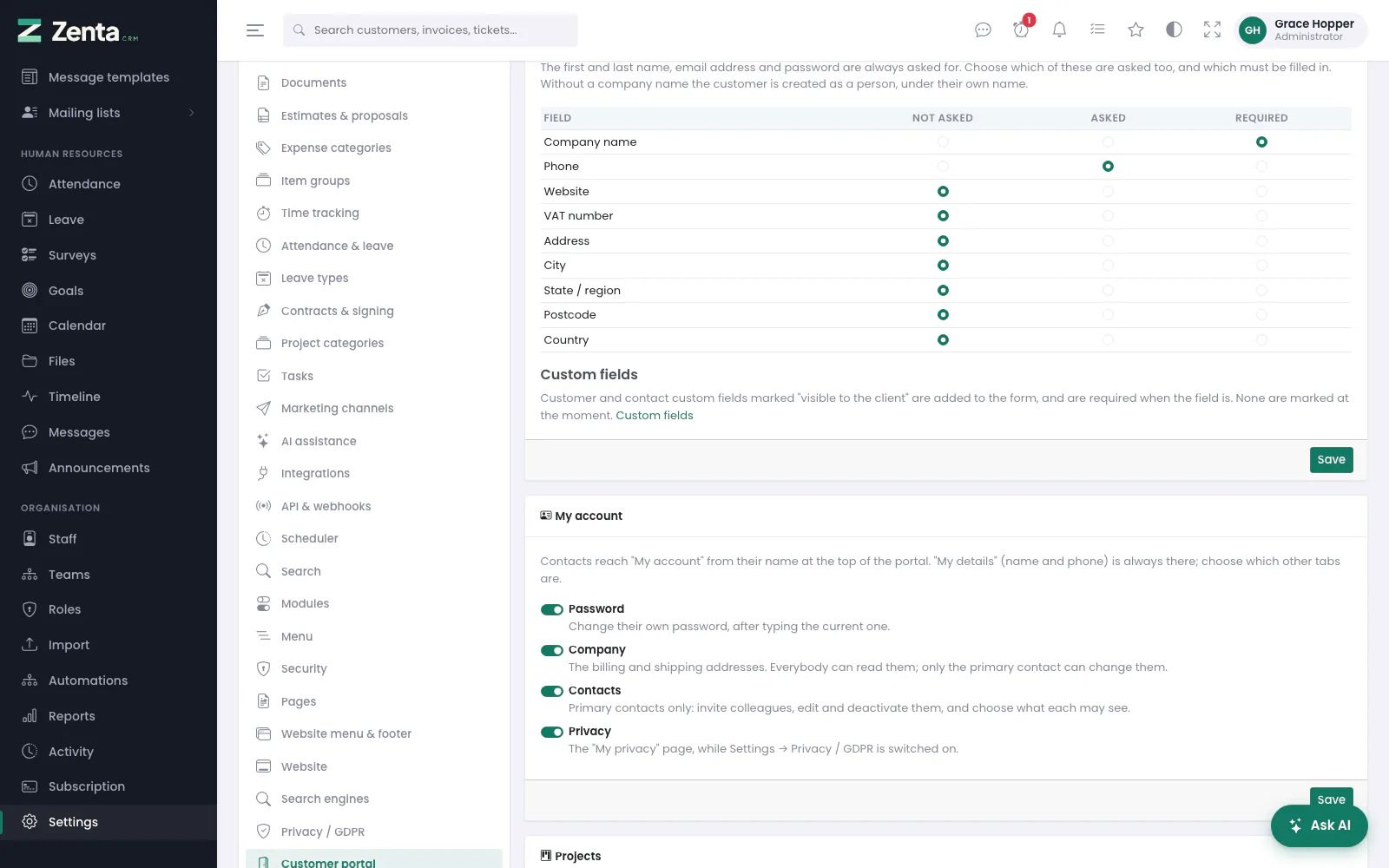 The Sign-up form and My account cards.
The first and last name, email address and password are always asked for. For each of Company name, Phone, Website, VAT number, Address, City, State / region, Postcode and Country, choose Not asked, Asked or Required. Without a company name the customer is created as a person, under their own name.
Customer and contact custom fields marked visible to the client are added to the form, and are required when the field is. The card lists the ones that are, or says none are, with a link to Custom fields. Whether the terms must be accepted is set under Privacy / GDPR.
My account
Contacts reach My account from their name at the top of the portal. My details (name and phone) is always there; tick which other tabs are. All four are on as shipped.
| Tab | What it lets a contact do |
|---|---|
| Password | Change their own password, after typing the current one. |
| Company | See the billing and shipping addresses. Only the primary contact can change them. |
| Contacts | Primary contacts only: invite colleagues, edit and deactivate them, and choose what each may see. |
| Privacy | The My privacy page, while Settings → Privacy / GDPR is switched on. |
Projects
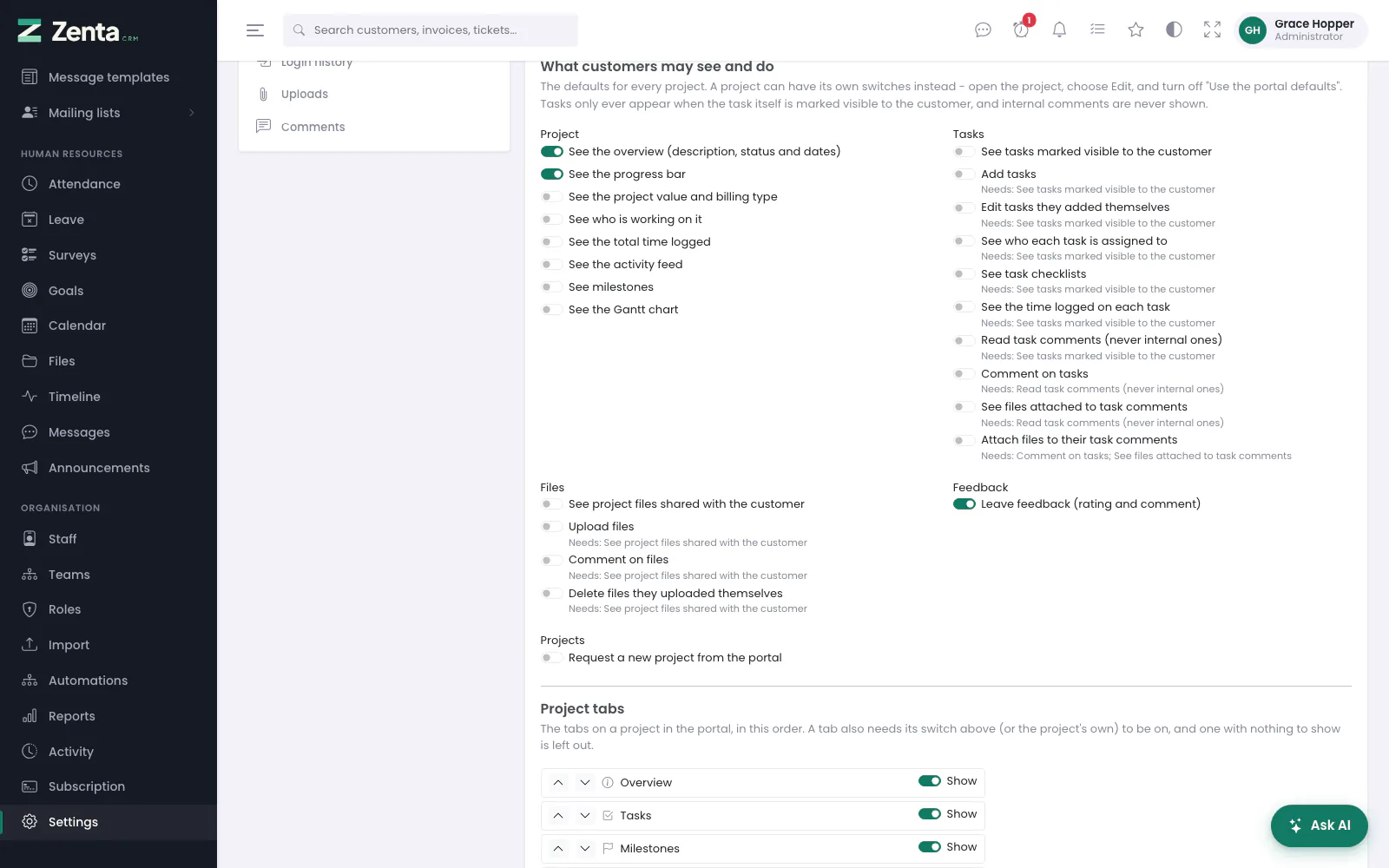 The Projects card: what customers may see and do, and the project tabs.
- What customers may see and do — the default switches for every project, grouped under Project, Tasks, Files, Feedback and Projects. A switch that depends on another says so (Needs: ...). A project can have its own switches instead.
- Project tabs — the tabs on a project in the portal, in order. Move one with the up and down arrows; untick Show to hide it. A tab also needs its switch to be on, and one with nothing to show is left out.
- Customer feedback — Let customers rate a project (1 to 5 stars) and leave a comment, and Only once the project is finished. Both off as shipped.
Press Save project settings. Every switch is explained under Projects in the portal.
Overview page
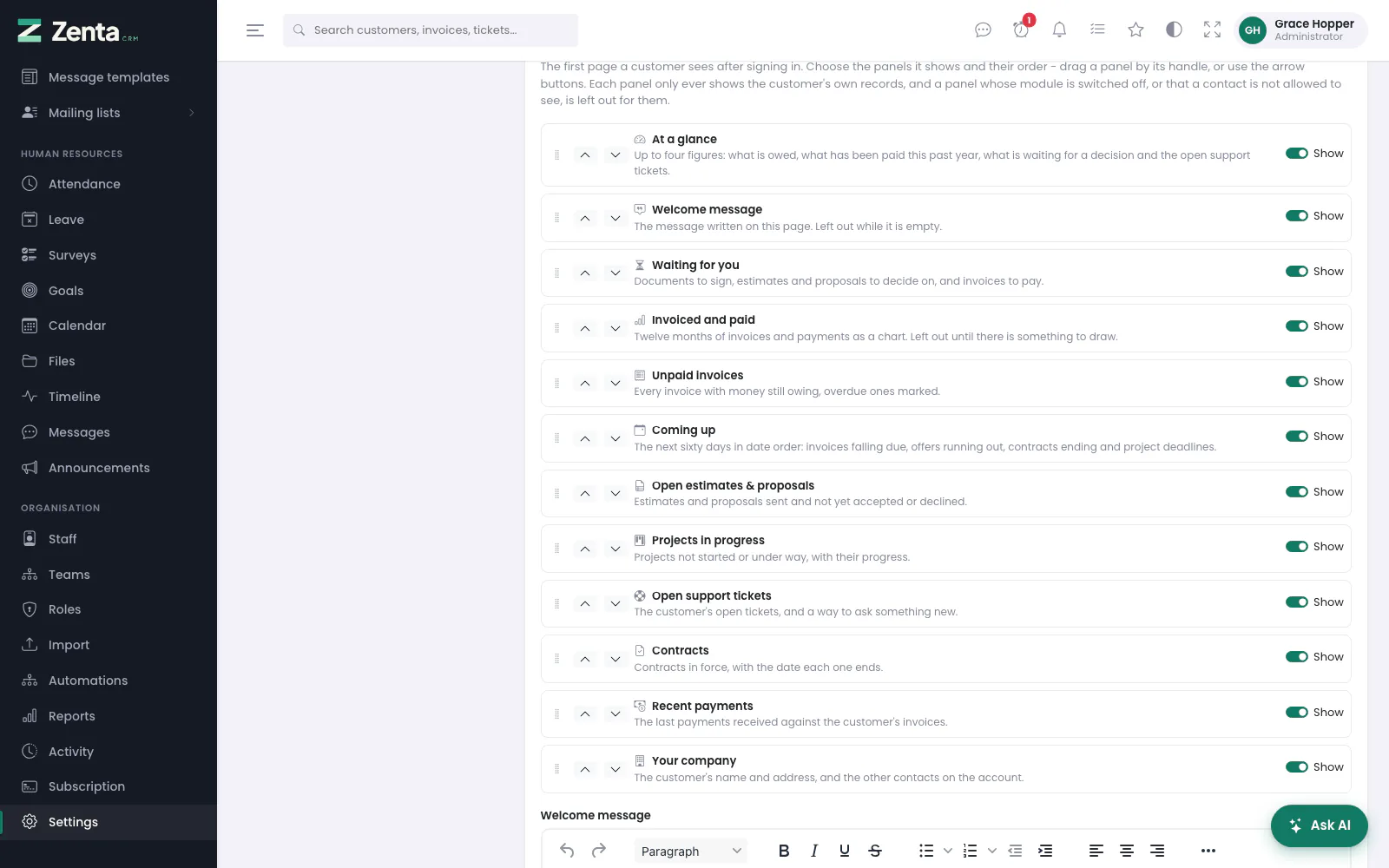 The Overview page card: each panel, its order, and whether it shows.
The first page a customer sees after signing in. Each panel is listed with what it shows; drag one by its handle or use the up and down arrows to reorder, and untick Show to leave it out. A panel whose module is switched off says Module off. Each panel only ever shows the customer's own records.
- Welcome message — formatted text for the Welcome message panel: opening hours, how to reach you. Left empty, the panel is left out.
- Let customers arrange their own overview — on as shipped. Adds a Customise button to the overview, where each contact can reorder the panels and switch off the ones they do not need, for themselves only. A panel switched off here never shows, whatever they choose.
- Reset to default — after you confirm, puts the panels back in their original order, all showing. The welcome message is kept.
Press Save. The portal's menu is set under Settings → Menu. Both are described under The customer portal.
Tickets
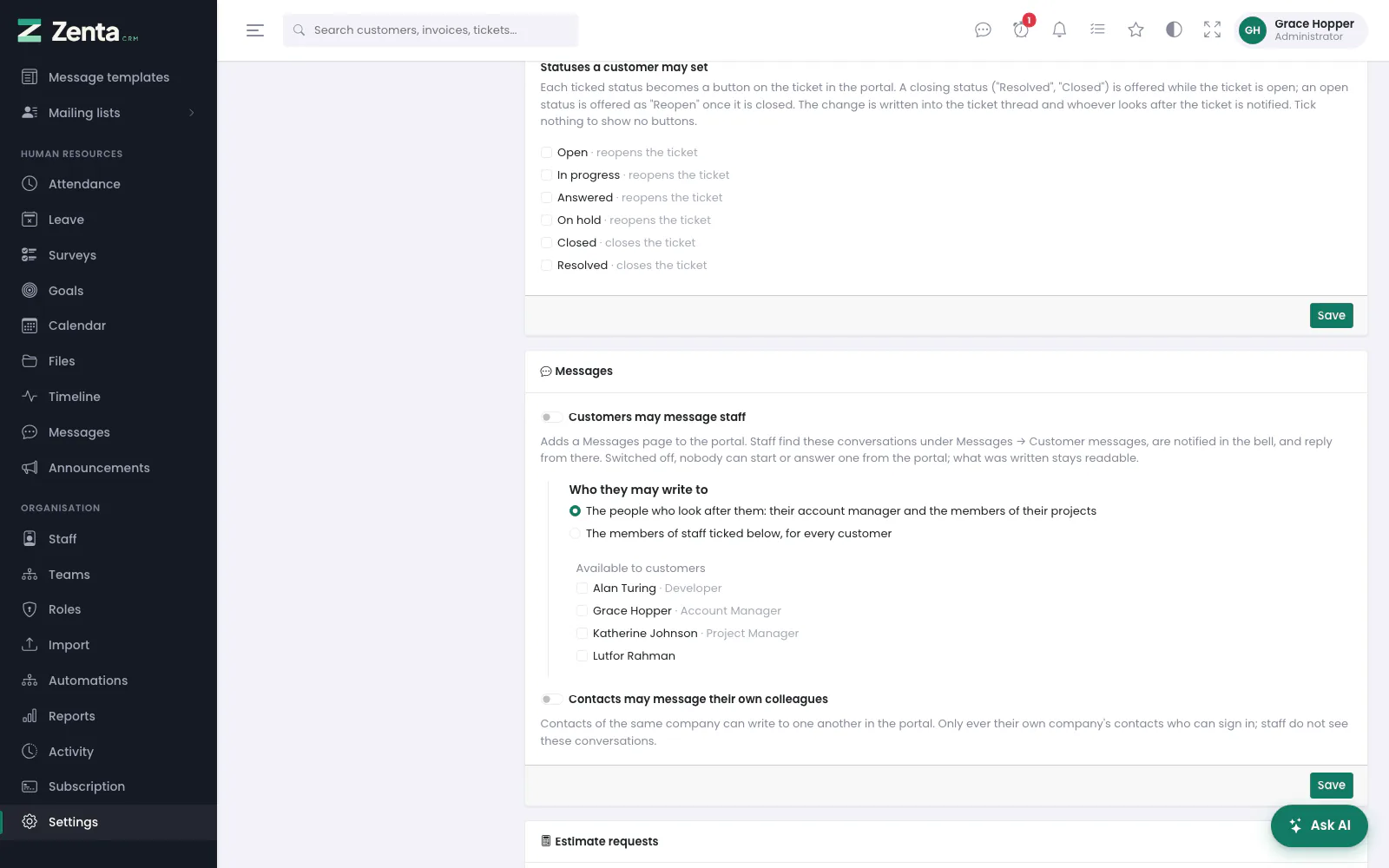 The Tickets and Messages cards.
Statuses a customer may set: each ticked status becomes a button on the ticket in the portal. A closing status is offered while the ticket is open; an open status is offered as Reopen once it is closed. Each status says whether it closes or reopens the ticket. Tick nothing to show no buttons (as shipped). See Talking to customers.
Messages
| Setting | What it does |
|---|---|
| Customers may message staff | Off as shipped. Adds a Messages page to the portal; staff find the conversations under Messages → Customer messages. Switched off, nobody can start or answer one from the portal; what was written stays readable. |
| Who they may write to | The people who look after them: their account manager and the members of their projects (as shipped), or The members of staff ticked below, for every customer, chosen under Available to customers. |
| Contacts may message their own colleagues | Off as shipped. Contacts of the same company can write to one another; staff do not see these conversations. |
While the Messages module is switched off under Modules, the card says so and the portal has no Messages page whatever is chosen here.
Estimate requests
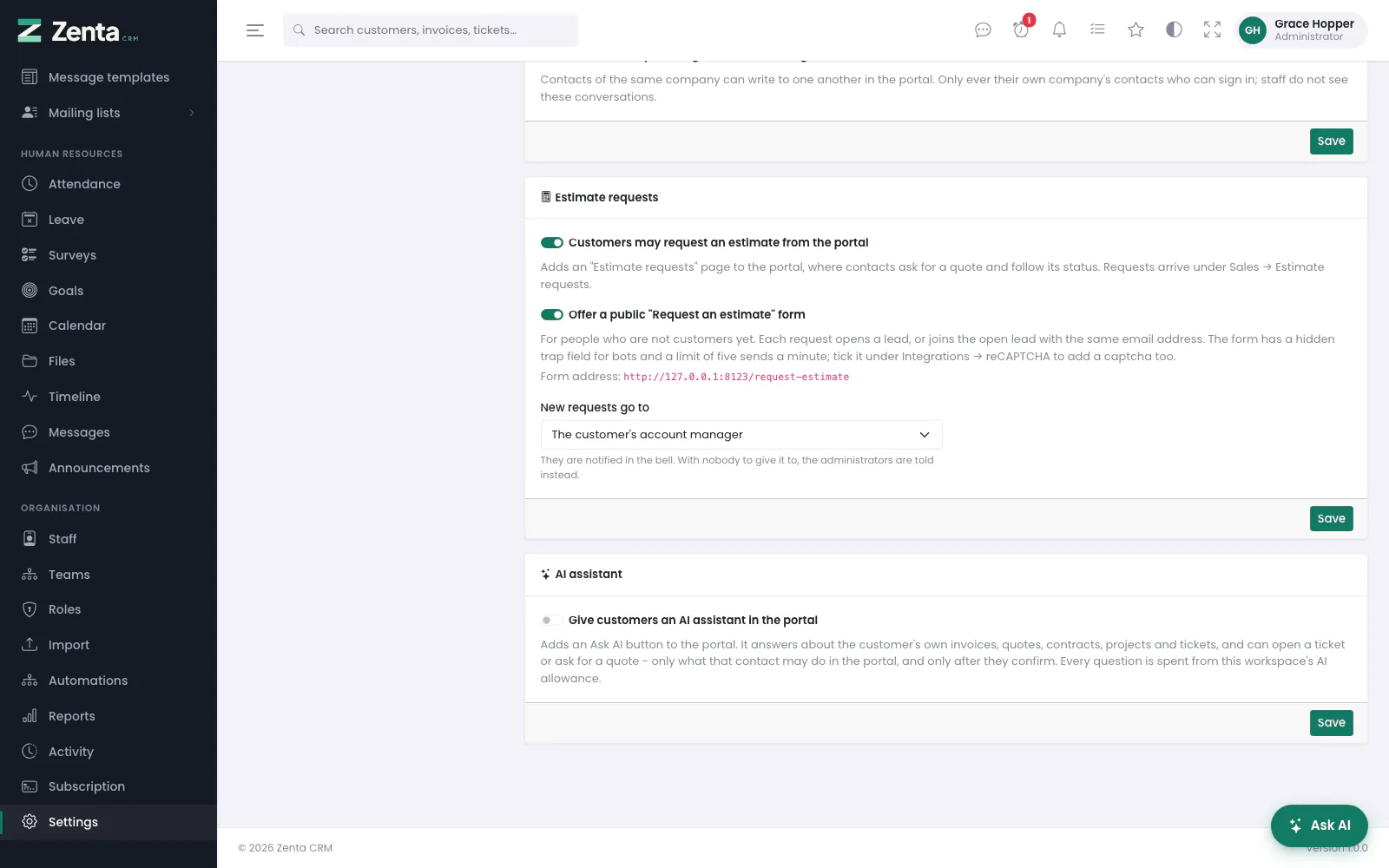 The Estimate requests card, at the foot of the page.
| Setting | What it does |
|---|---|
| Customers may request an estimate from the portal | On as shipped. Adds an Estimate requests page to the portal. Requests arrive under Sales → Estimate requests. |
| Offer a public "Request an estimate" form | Off as shipped. For people who are not customers yet: each request opens a lead, or joins the open lead with the same email address. The card shows the form's address. |
| New requests go to | The customer's account manager, or a named member of staff. They are notified in the bell; with nobody to give it to, the administrators are told instead. |
While the Estimates module is switched off, estimate requests are switched off with it.
AI assistant
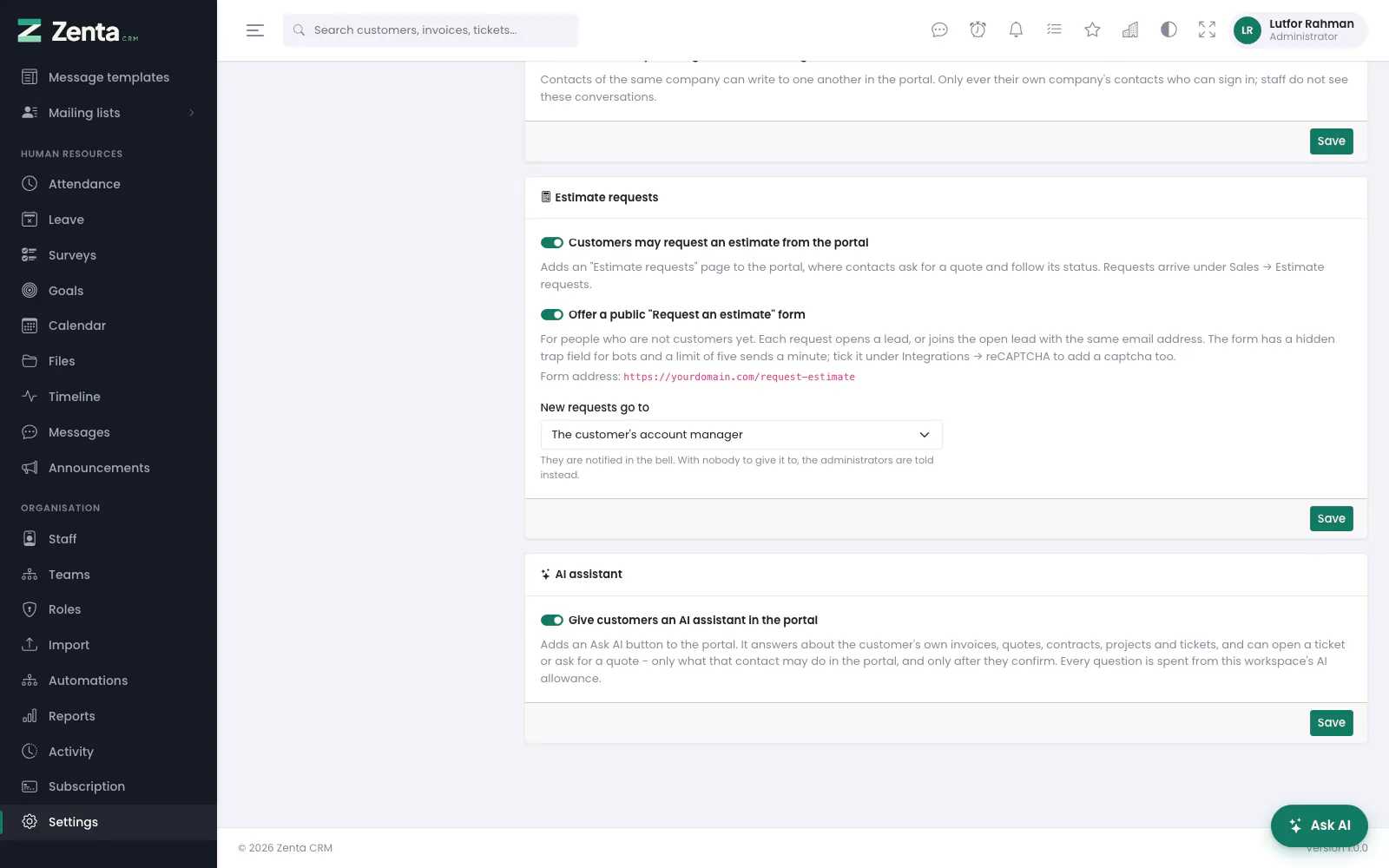 The AI assistant card: an Ask AI button in the portal, off until you switch it on.
| Setting | What it does |
|---|---|
| Give customers an AI assistant in the portal | Off as shipped. Adds an Ask AI button to the portal, working on the customer's own account: their invoices, quotes, contracts, projects and tickets. It can open or reply to a ticket, accept a quote or ask for one — only what that contact may do in the portal, and only after they confirm. See what customers see. |
Every question a customer asks is spent from this workspace's AI allowance, which is why it starts off. It also needs the workspace's AI to be on (Settings → AI assistance, or on a hosted platform, the platform switching it on for you); until then the card says so and the button does not appear. Each customer can ask at most 20 questions a minute.
Portal registrations
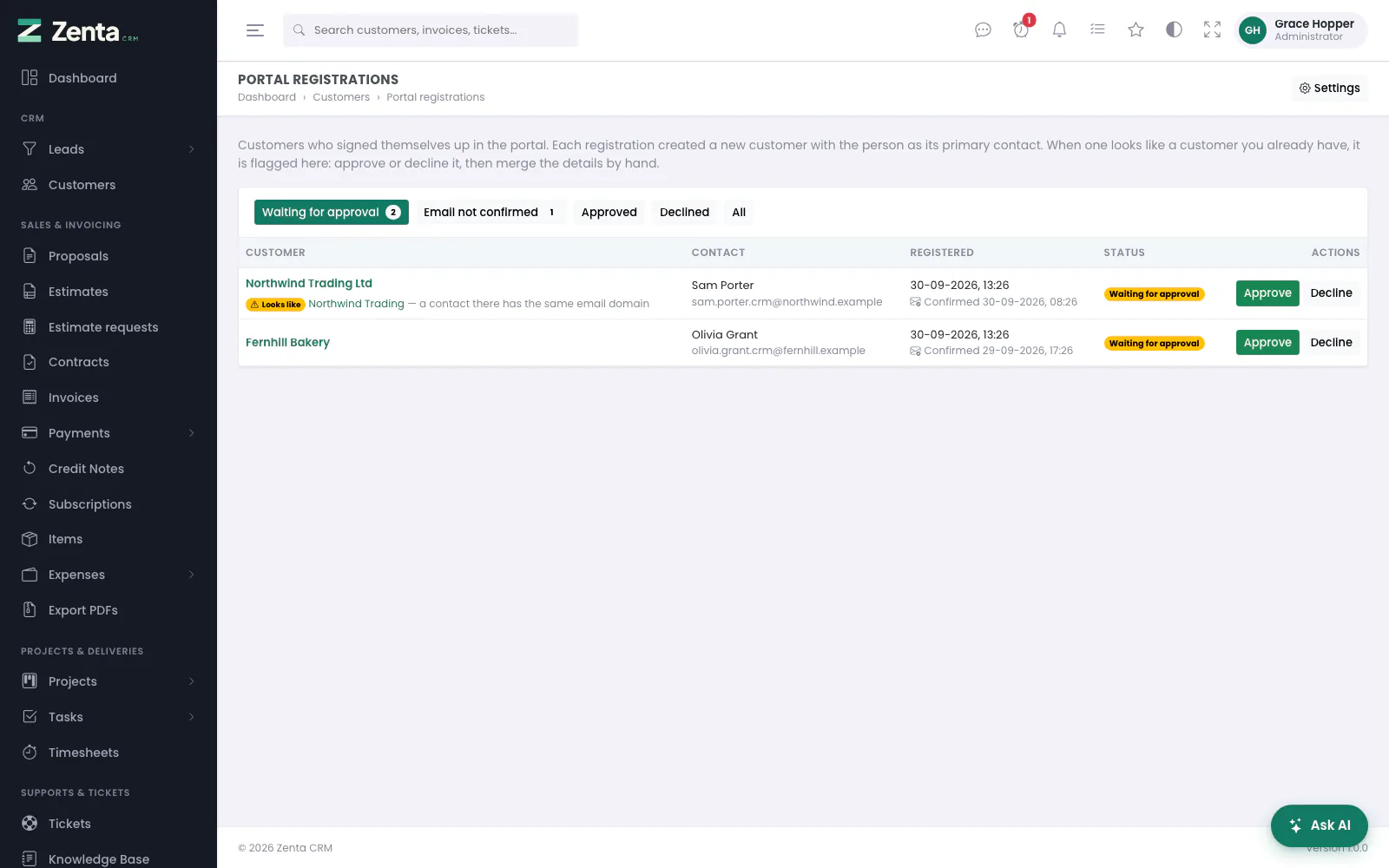 Registrations waiting for approval. One looks like a customer you already have.
Customers → Registrations (the button is on the customer list while self-registration is on or anything is waiting, with a count of those waiting), or Open the queue on the settings page. It lists every registration: the customer it created, the contact, when they registered and when they confirmed their email, and the status. Filter by Waiting for approval, Email not confirmed, Approved, Declined or All. Settings opens Settings → Customer portal. The queue needs permission to create customers.
When a registration looks like a customer you already have — the same company name, or a contact there with the same email domain — it is marked Looks like with a link to that customer. A registration never joins an existing company: approve or decline it, then merge the details by hand.
| Action | What happens |
|---|---|
| Approve | For a registration waiting for approval. After you confirm, the contact can sign in, and is emailed the Portal registration approved template with a link to the portal. |
| Decline | Opens a form. For a registration waiting for approval, Why is required (at least five characters) and Decline and tell them emails it word for word with the Portal registration declined template. A registration whose email was never confirmed can be declined without a reason, and nobody is written to. Either way the contact and the customer the registration created are removed — unless the customer has been invoiced or given other contacts since. |
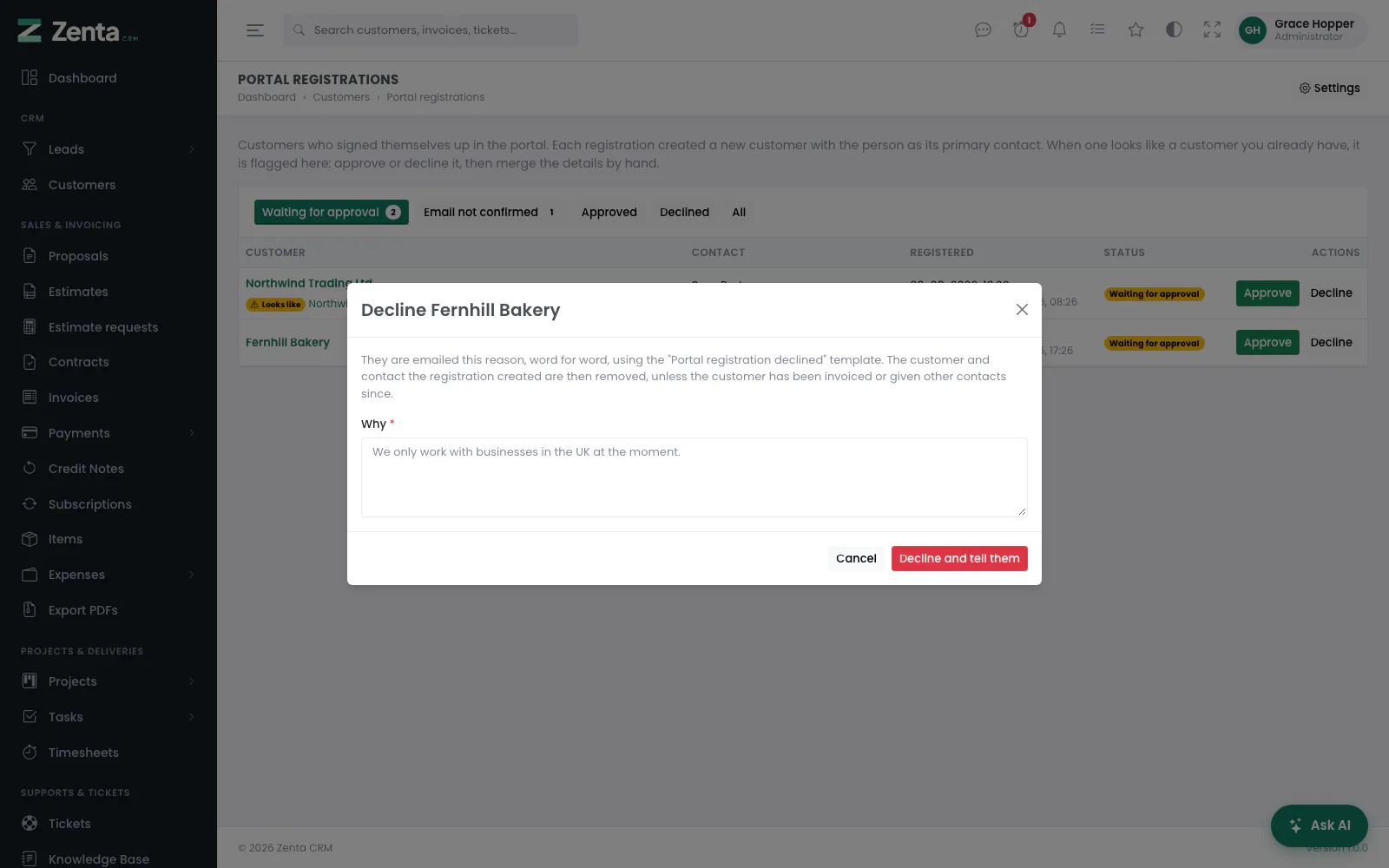 Declining a registration: the reason is emailed to them.
The registration stays on the list as the record of who asked and what was decided. A registration that has been answered cannot be answered again.
Addresses on this page
For reference and for anyone scripting against the panel. Everything here needs somebody signed in to the workspace whose role allows it; anybody else is refused.
| Method | Address | What it does |
|---|---|---|
GET | admin/settings/portal | Settings → Customer portal. |
PUT | admin/settings/portal/access | Saves the Access card. |
PUT | admin/settings/portal/registration | Saves the Sign-up form card. |
PUT | admin/settings/portal/profile | Saves the My account card. |
PUT | admin/settings/portal/projects | Saves the Projects card. |
PUT | admin/settings/portal/dashboard | Saves the Overview page card. |
POST | admin/settings/portal/dashboard/reset | Puts the overview panels back as shipped, keeping the welcome message. |
PUT | admin/settings/portal/tickets | Saves the Tickets card. |
PUT | admin/settings/portal/messages | Saves the Messages card. |
PUT | admin/settings/portal/estimate-requests | Saves the Estimate requests card. |
PUT | admin/settings/portal/assistant | Saves the AI assistant card. |
GET | admin/portal-registrations | The registration queue, with a status filter (pending, unverified, approved, declined, all). |
POST | admin/portal-registrations/{registration}/approve | Approves a registration and tells the person. |
GET | admin/portal-registrations/{registration}/decline | The decline form (opens in a pop-up). |
POST | admin/portal-registrations/{registration}/decline | Declines a registration, tells the person when they had confirmed their email, and removes what it created. |