Estimates and proposals
Writing an estimate or a proposal, sending it, what the customer can change and say back, what acceptance sets off, and the requests customers send you for a price.
An estimate and a proposal are the two documents a customer has to answer. An estimate is a priced quote for a customer. A proposal is the same priced lines with a written pitch above them, and it can go to a lead as well as to a customer. Both live under Sales & Invoicing in the sidebar: Proposals, Estimates and Estimate requests.
How they behave once a customer has one is set on Settings → Estimates & proposals (below). Everything that changes behaviour is off as shipped, so an upgrade changes nothing until you decide it should. Invoices, the lines and how totals are worked out are explained on Sales and invoicing; the item library on Items.
The estimates list
 Estimates, with their customer, dates, total and status. An estimate past its date that nobody answered shows as Expired.
Sales & Invoicing → Estimates. One row per estimate: Number, Customer, Date, Valid until, Total and Status. Click a number to open it.
- Search estimates, Any status (Draft, Sent, Accepted, Declined) and Any customer, then Filter. The customer list only offers customers you can already reach.
- The column headings with arrows sort the list; Starred only and Per page are remembered for you.
- Expired is not a status you set: an estimate still in Draft or Sent whose Valid until date has passed is shown as Expired.
- Print and Export (CSV, Excel, Print all matching, PDFs in a zip…) take the filters you have set. See Exporting and PDFs and sending documents.
- Tick rows and a bar offers Download PDFs, Email to the customer and Delete — see Deleting and PDFs.
Writing an estimate
 A new estimate: the customer, dates, currency, sale agent, reference, project and whether it must be signed.
Press New estimate. The dates are filled in for you: today, and Valid until a number of days ahead (30 unless changed under Valid for on Settings → Documents). The note to the customer and the terms start from the ones set there, and you are the sale agent.
| Field | What it is for |
|---|---|
| Customer | Required. Estimates always go to a customer; to quote a lead, write a proposal. |
| Estimate date / Valid until | The date is required. After Valid until an unanswered estimate shows as Expired and can no longer be accepted. |
| Currency | Starts on the base currency. |
| Sale agent | Who is credited with it, or Unassigned. |
| Reference | Your own reference, up to 60 characters. |
| Project | Optional: files it on that project's Sales tab. |
| Ask the customer to sign it | The portal shows a signature pad instead of a plain accept button. See E-signature. |
| Issued by | Only once the workspace has a second company (Companies). |
| Lines | Add line or Add from item library...; each line has a description, Qty, Rate, Tax, Second tax and an Optional tick box (below). Then the Discount and Adjustment. At least one line is required. |
| Note to customer / Terms & conditions | Printed on the estimate. |
| Internal note | Never shown to the customer. |
Custom fields you have added to estimates appear on the form as well. Press Create estimate; the number is given out then and you land on the estimate's page.
Editing an estimate
 Editing an estimate: the last line is ticked Optional, so the customer can take it out.
Edit on the estimate's page opens the same form; press Save changes. Editing a signed estimate clears the signature, because the figures it agreed to have changed. An estimate that has been accepted, or turned into an invoice, has no Edit button at all — see Locked once it is agreed.
An estimate's page
 An estimate waiting for the customer: the lines, the optional one marked, and every action along the top.
The estimate as the customer will read it, with its status, dates and sale agent, then the signatures (if it asks for one) and the discussion. Along the top:
| Button | What it does |
|---|---|
| Star / Remind me | Star it for yourself, or set yourself a reminder about it (Reminders). Manual automations that apply to estimates are offered here too (Automations). |
| Opens the PDF in a new tab (PDFs). | |
| Edit | Only while it is neither accepted nor invoiced. |
| Status | Sets it by hand — below. |
| Copy link | Only when Share by link is on for estimates and Require a portal sign-in is off. Puts the no-account address on your clipboard (Viewing without an account). |
| Create project | Opens a project from it (Doing it by hand). |
| Revoke acceptance | Only on an accepted estimate not yet invoiced (Locked once it is agreed). |
| Convert to invoice | Asks Convert to invoice?, then creates a draft invoice from the lines the customer chose and takes you to it. The estimate is kept, with a link to the invoice. Needs the right to create invoices, and is gone once it has been invoiced. |
A banner says when it has been invoiced, delivered as a project, or quoted in reply to an estimate request, each with a link.
A declined estimate or proposal says Declined on … at the top, with the customer's own words underneath when they said why (in the portal, from the link, or through the API). Whoever the document is assigned to, and whoever wrote it, are told in their notifications, with the reason. The reason goes when the status is changed to anything but Declined, and when the document is accepted.
Changing the status by hand
 The Status menu: Draft, Sent, Accepted or Declined, with a tick against the current one.
Most estimates change status on their own — Sent when they are emailed, Accepted or Declined when the customer answers. Status is for everything else: a yes given on the telephone, a no by email. Choosing Accepted does exactly what the customer accepting would do — the automatic invoice and project if you have switched them on — and if an invoice was raised you are taken straight to it. Choosing Declined asks Why did they decline? (optional) first, so a no given on the telephone keeps its reason too. Proposals work the same way.
Proposals
 Proposals, each addressed to a customer or a lead.
Sales & Invoicing → Proposals. The list shows Number, Subject, To (with a Customer or Lead badge), Date, Total and Status. Search, filter by status (Draft, Sent, Open, Revised, Accepted, Declined), sort, print and export work as on estimates. A proposal still in Draft, Sent or Open past its Open till date shows as Expired.
Writing a proposal
 A new proposal: a subject, who it goes to, dates, and whether it must be signed.
Press New proposal. It is the estimate form with these differences:
- Subject is required — it is what the list shows.
- Send to chooses A customer or A lead, and then the Customer or Lead box (open leads only). Only one of the two is kept. The recipient's name, email, phone and address are copied onto the proposal when you save, so it still reads correctly after the lead has been converted or the customer has moved.
- Date and Open till instead of an estimate date and Valid until (Open till starts 30 days ahead, or as set under Open for on Settings → Documents); Assigned to instead of a sale agent.
- Ask the customer to sign it only reaches a proposal addressed to a customer — a lead has no portal to sign from.
- Proposal body: the narrative that goes above the pricing (Rich proposals).
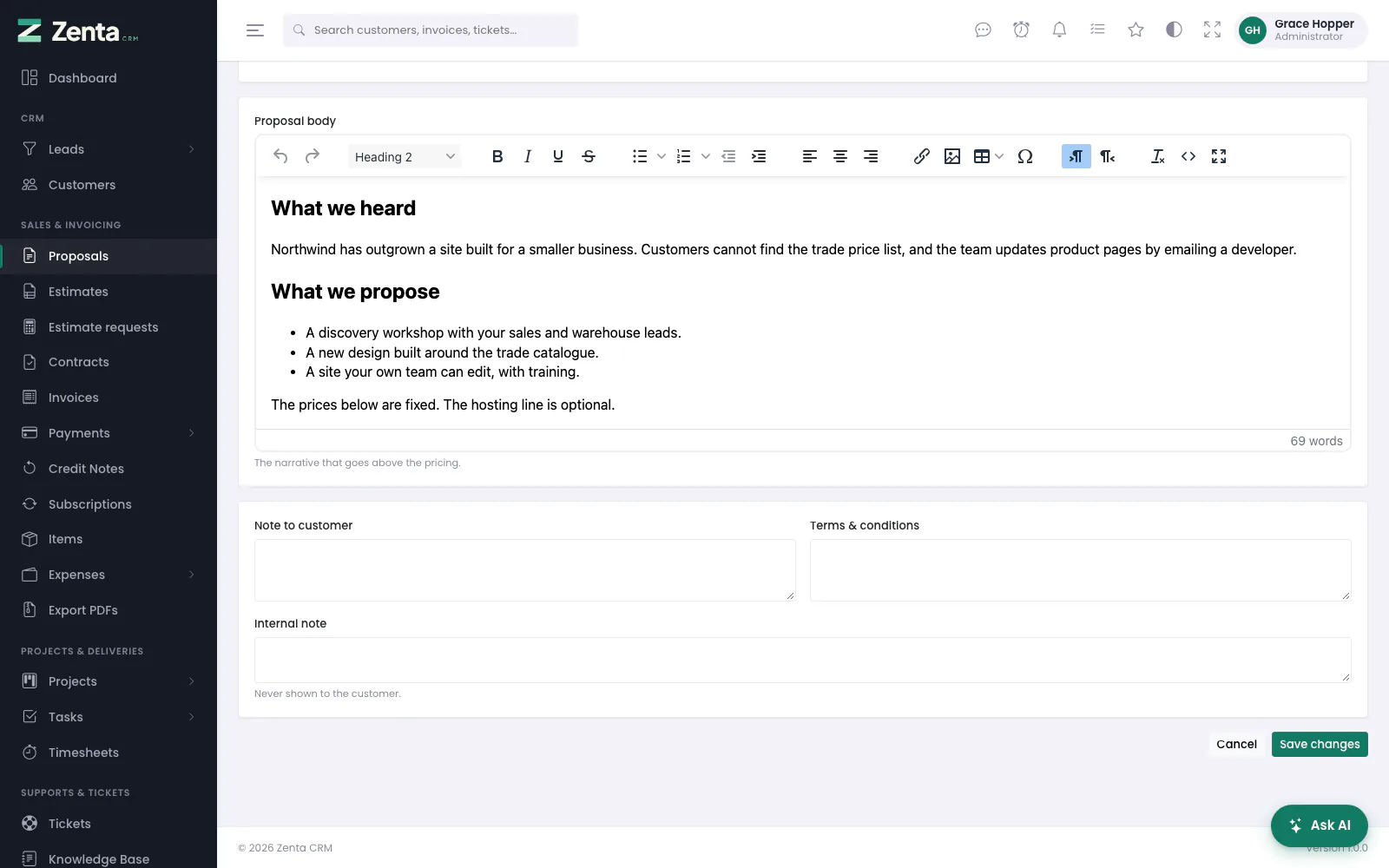 Further down the proposal form: the Proposal body in the formatting editor, then the notes.
Press Create proposal, or Save changes when editing. Edit on the proposal's page opens the same form, under the same lock as an estimate.
A proposal's page
 A proposal: the written body first, then the priced lines.
The same buttons as an estimate, with three differences. Status offers Draft, Sent, Open, Revised, Accepted and Declined. A button deletes the proposal (see Deleting). And instead of Convert to invoice there is Convert. A declined proposal shows Why it was declined just as an estimate does, and a revised one expires on its open-until date like a sent one:
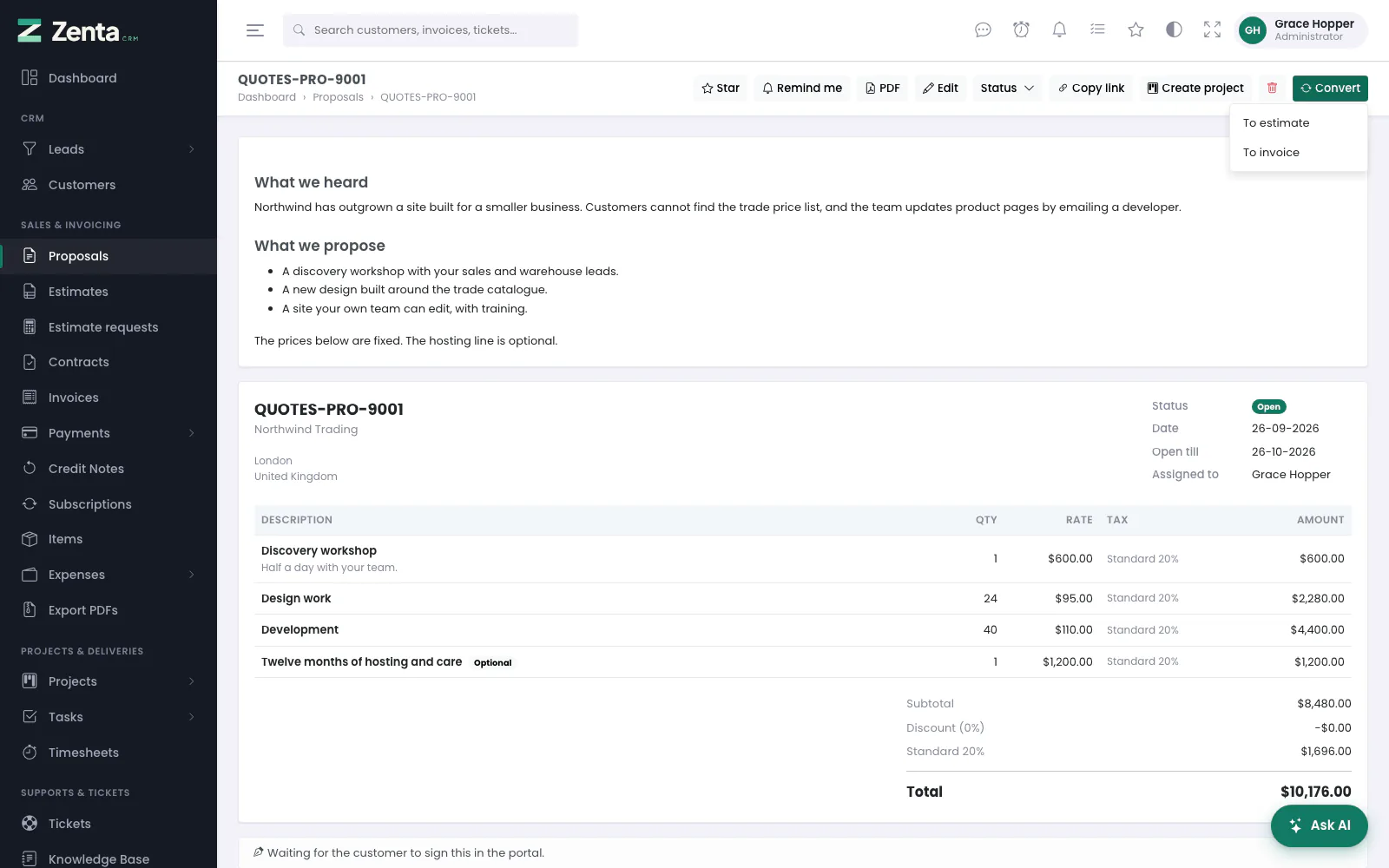 Convert: to an estimate or straight to an invoice.
- To estimate (needs the right to create estimates) or To invoice (needs the right to create invoices). After Convert this proposal? a draft is created with the lines the customer chose, and you are taken to it. The proposal is kept and shows Converted on with a link.
- A proposal is converted once. A proposal to a lead cannot become an invoice until the lead is a customer: Convert the lead to a customer first - there is nobody to bill yet.
Deleting
Estimates: tick them on the list and press Delete in the bar. The estimate's own page has no delete button. You need the right to delete estimates. Proposals: the button on the proposal's page deletes it after Delete this proposal? and takes you back to the list. You need the right to delete proposals. A proposal the customer simply turned down is better set to Declined, which keeps it in your figures.
Talking about a document
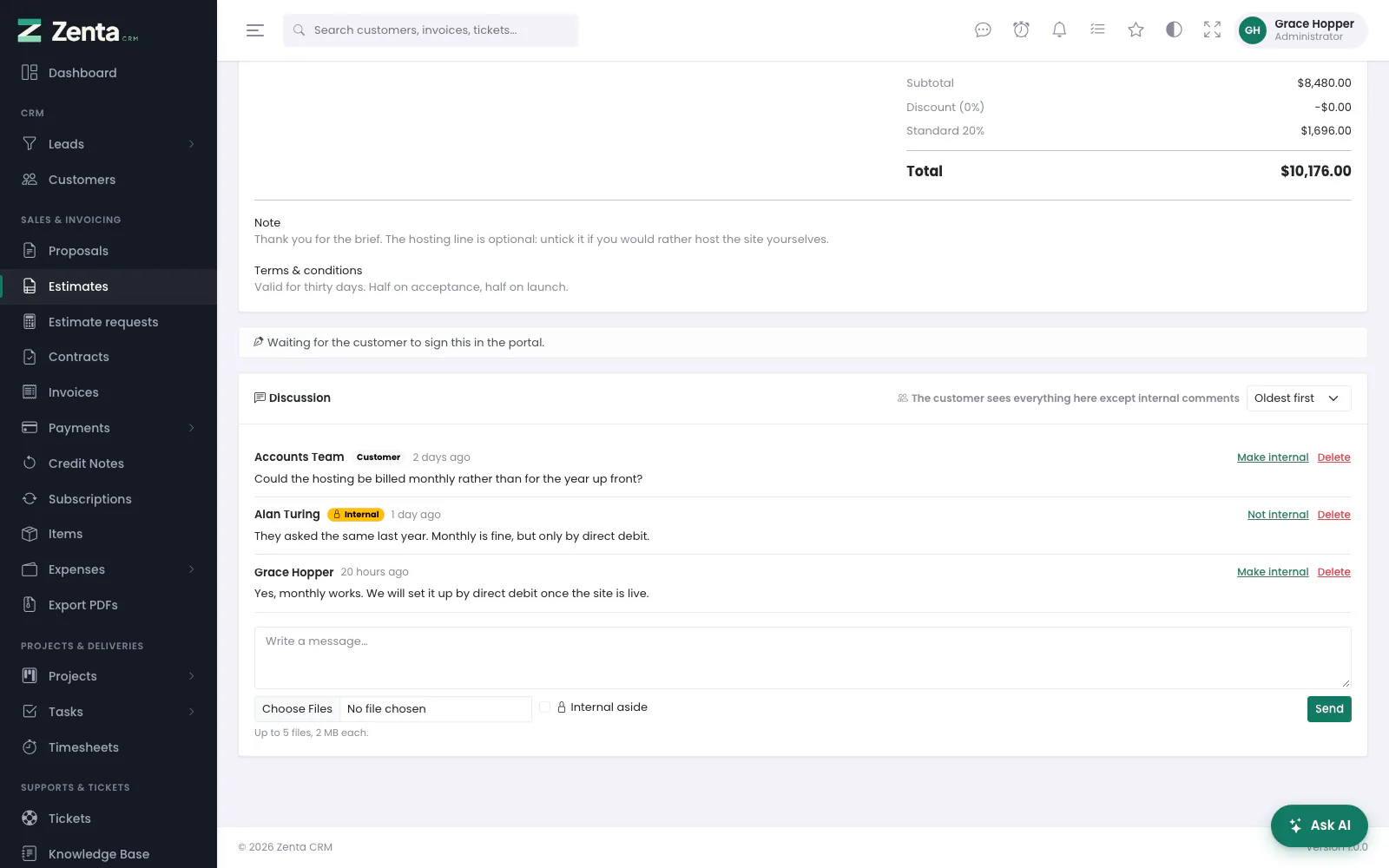 The Discussion under an estimate: a question from the customer, an internal aside, and the reply.
When the discussion is switched on, every estimate and proposal has a Discussion panel at the bottom of its page. Your staff write into it here; the customer's contacts write into the same thread from the portal. Type in Write a message…, attach up to five files if you need to (checked against the rules on Settings → Uploads) and press Send. Anybody who can see the document can write.
Ticking Internal aside before you send keeps a comment — and its files — between your staff. It is marked Internal, never shown in the portal, never sent by email, and a customer cannot write one.
- Make internal / Not internal beside a comment hides it from the customer or shows it again, after a confirmation; its files follow. The author can do it, and so can anybody with the right to edit estimates (or proposals).
- Delete removes a comment and its files, after Delete this comment and its files? The author can do it, and so can anybody with the right to delete that kind of document.
- When your staff write a shared comment, the customer's contacts are emailed — only the contacts whose portal permissions let them see estimates or proposals at all.
- When a contact writes, whoever raised the document, the sales agent and the customer's account manager get a notification.
- The Oldest first / Newest first box is remembered for whoever chose it, on both sides.
Optional lines the customer chooses
On the estimate and proposal forms each line has an Optional tick box. A line marked optional is offered rather than quoted: the customer sees a tick box beside it, and unticking it takes the line out of the total while they watch. The subtotal, the discount and every tax follow. On your own screen the line carries an Optional badge.
What they ticked is stored with the acceptance, so the accepted document is a record of exactly what they chose. The lines they turned down stay on the document, marked Not included, so both sides can see what was offered. When the document is turned into an invoice — by hand, by the setting, or by an automation — only the chosen lines go across, and they go across as ordinary lines.
What happens when it is accepted
Two switches on Settings → Estimates & proposals, both off by default, under When one is accepted:
| When an estimate is accepted, raise the invoice automatically | A draft invoice is created from the estimate, carrying only the lines the customer chose. Nothing is sent to them. |
|---|---|
| When an estimate or proposal is accepted, create a project from it | Opens a project with the customer, the value and the dates filled in from the document. Start the project from chooses a project template, or A blank project, named after the document. |
Both work the same way whoever pressed the button: the customer in the portal, a customer following a link, or a member of staff setting the status to Accepted. Each one writes a line into the document's history, so you can see afterwards why an invoice or a project appeared.
Doing it by hand
 Create project: start from a blank project or one of your project templates.
Create project on an estimate or a proposal opens Create a project from this at any time — you do not have to wait for an acceptance, or turn the setting on. Choose what to Start from and press Create project; you are taken to the new project. It needs the right to create projects.
The project remembers which document it came from, and the document links to the project (Delivered as a project), so the project's Sales tab finds it. A document only ever makes one project: once it has one the button is gone, and a second attempt is refused rather than quietly making a second set of tasks.
Something more specific
The automation builder has both steps as actions of their own: Raise the invoice and Create a project from it. Use them when "always" is too blunt — only above a certain value, only for one customer group, or a different project template depending on what was sold. The project step takes a template name, so a rule keeps working after the templates have been reorganised; leave it empty for a blank project. See Automations.
Locked once it is agreed
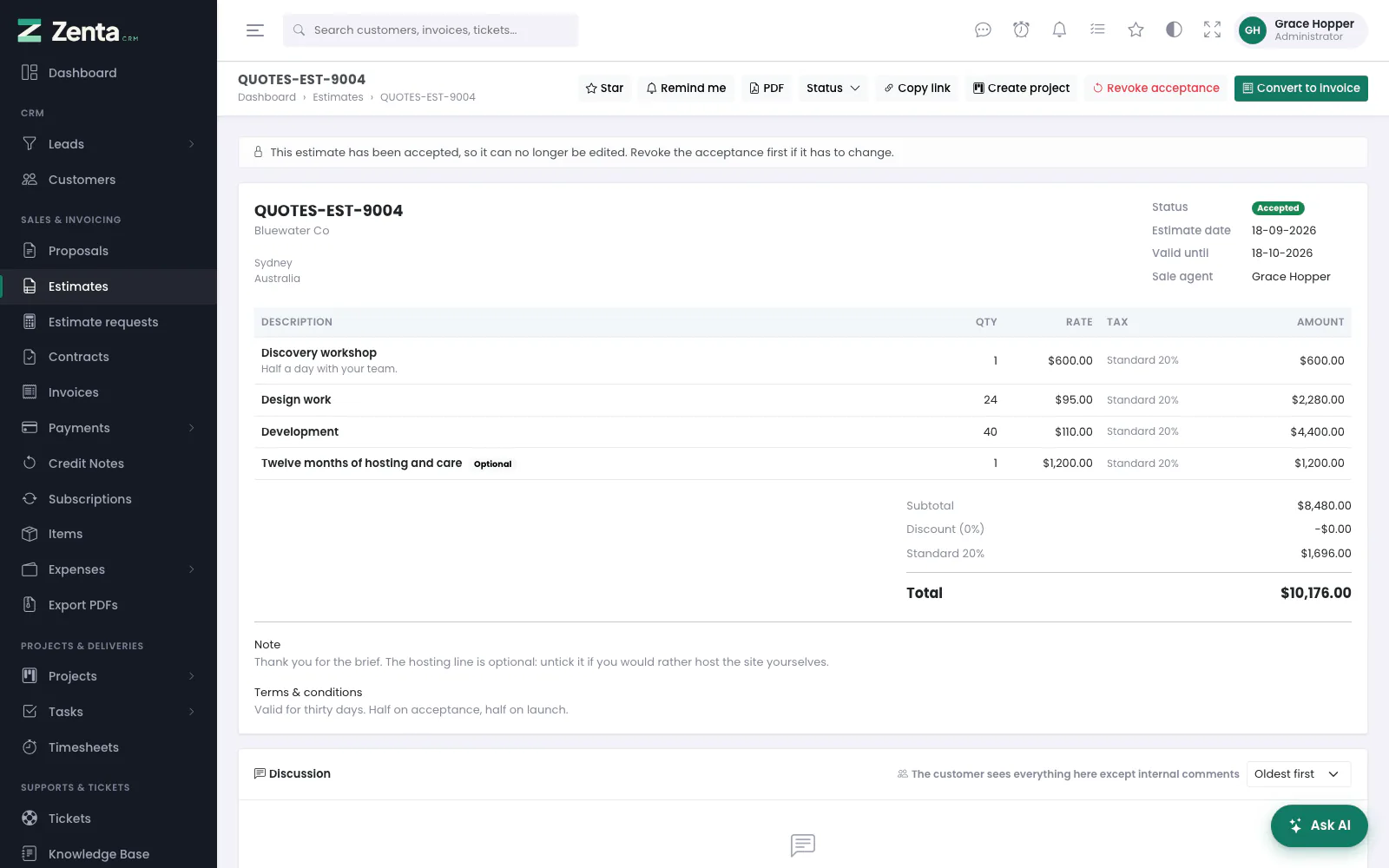 An accepted estimate: no Edit button, a lock notice, and Revoke acceptance.
An accepted or signed estimate or proposal cannot be edited. The Edit button is gone and the form refuses the change, because editing it would not revise an offer — it would rewrite what somebody has already agreed to, and if they signed it, what they put their name to.
- Press Revoke acceptance on the document and confirm.
- The acceptance and any signature are removed and the document goes back to Sent.
- It is written into the document's history, with who did it and when.
- Edit it, and send it again.
A document that has already been invoiced or converted cannot be reopened — there is a bill in the world by then, and it is that which has to be dealt with first. The older rule still applies everywhere else: editing a signed document that was never accepted voids the signature. Revoking needs the right to edit that kind of document.
Rich proposals
The proposal's Proposal body is written in the formatting editor (switched on under Settings → Integrations → Formatting editor). It writes headings, lists, tables and images, and the portal, the public link and the PDF all show the same markup.
- Press the image button in the toolbar and choose a file. It is stored under
public/uploadsand referenced by its address. - Pasting or dragging an image straight into the text is refused. A pasted image is embedded in the page as data rather than as a file, which the security filter strips out — so it would vanish silently. Upload it instead.
- PNG, JPG, GIF and WebP only, up to 4 MB. An SVG is a document that can carry script and is never accepted.
Everything written in the editor is filtered on the way to the screen and into the PDF: scripts, event handlers and addresses that are not ordinary links are removed, whoever typed them. Images in a proposal's body are embedded into the PDF from your own uploads folder; an image pointing somewhere else on the internet is left out, with its description in its place, so making a PDF never reaches out to another website.
Viewing without an account
Every estimate and proposal has a long, unguessable address of its own. Under Viewing without an account, Share by link (per document type) lets anybody holding that address read the document and accept, decline or sign it with no portal account at all — the same page, the same optional lines, the same signature pad. Copy link on the document's page puts the address on your clipboard.
Require a portal sign-in is the opposite, and it wins: the link still works, but it sends whoever followed it to the portal to sign in first, and the Copy link button is not offered. A contact who is already signed in and belongs to the right company lands straight on the document.
Settings → Estimates & proposals
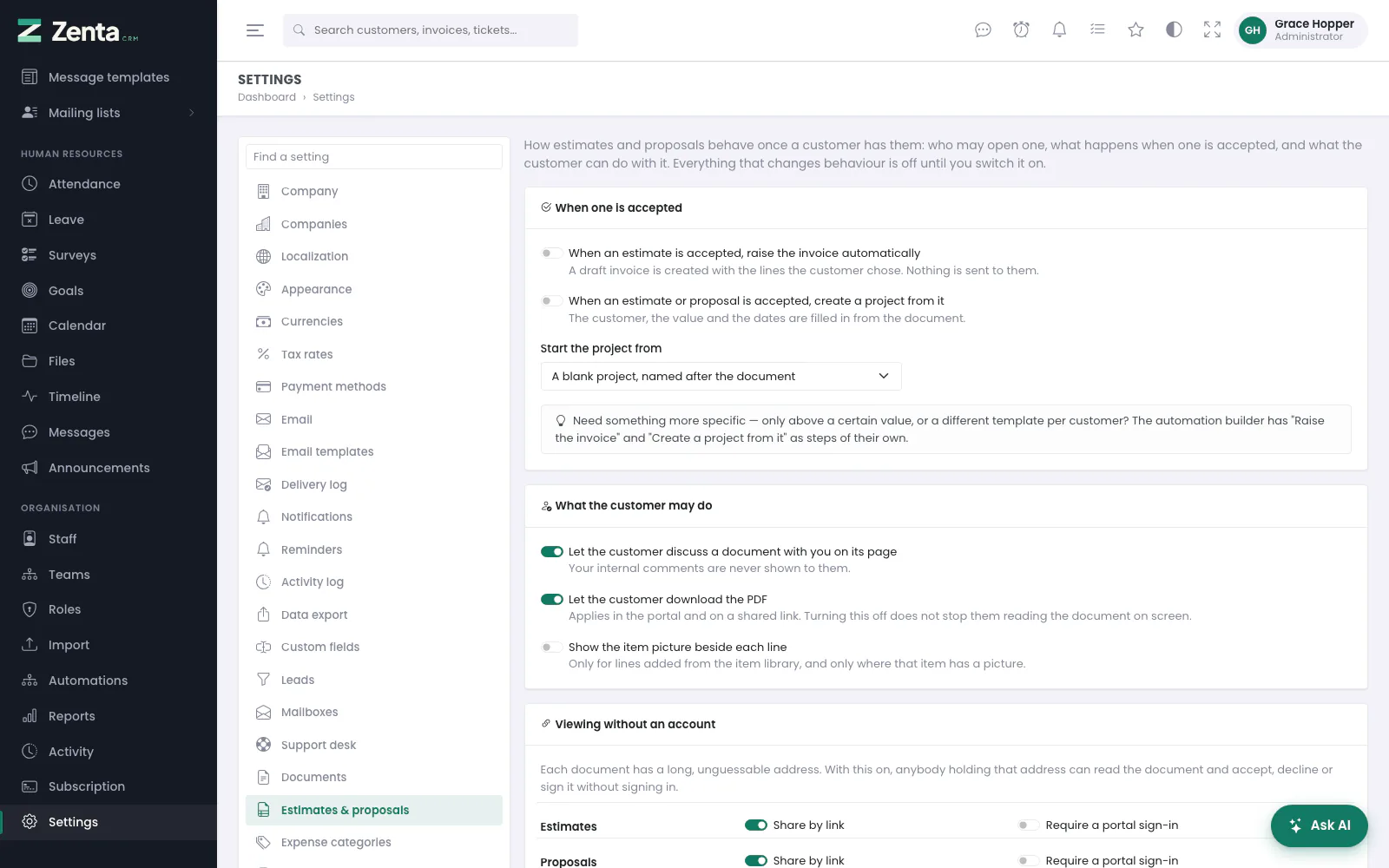 Settings → Estimates & proposals, here with the discussion and share-by-link switched on.
Every switch on this screen, in the order it shows them. Change what you need and press Save changes. Reading the screen needs the settings view right; saving needs settings edit. How estimates and proposals are numbered, how long a new one stays open, and the note and terms a new estimate starts with are on the neighbouring screen, Settings → Documents.
| Switch | Shipped | What it does |
|---|---|---|
| When an estimate is accepted, raise the invoice automatically | Off | What happens when it is accepted. |
| When an estimate or proposal is accepted, create a project from it and Start the project from | Off | The same section. A template that has since been deleted means a blank project. |
| Let the customer discuss a document with you on its page | Off | Talking about a document. |
| Let the customer download the PDF | On | Turning it off removes the Download PDF button from the portal page and the shared link, and refuses the download if somebody has kept the address. The document can still be read on screen. Invoices and contracts are not affected. |
| Show the item picture beside each line | Off | Lines added from the item library show that item's picture, in the portal, on a shared link and in the PDF. Add a picture on the item itself (Items): PNG, JPG, GIF or WebP up to 2 MB. |
| Share by link / Require a portal sign-in, for Estimates and for Proposals | Off | Viewing without an account. |
Estimate requests
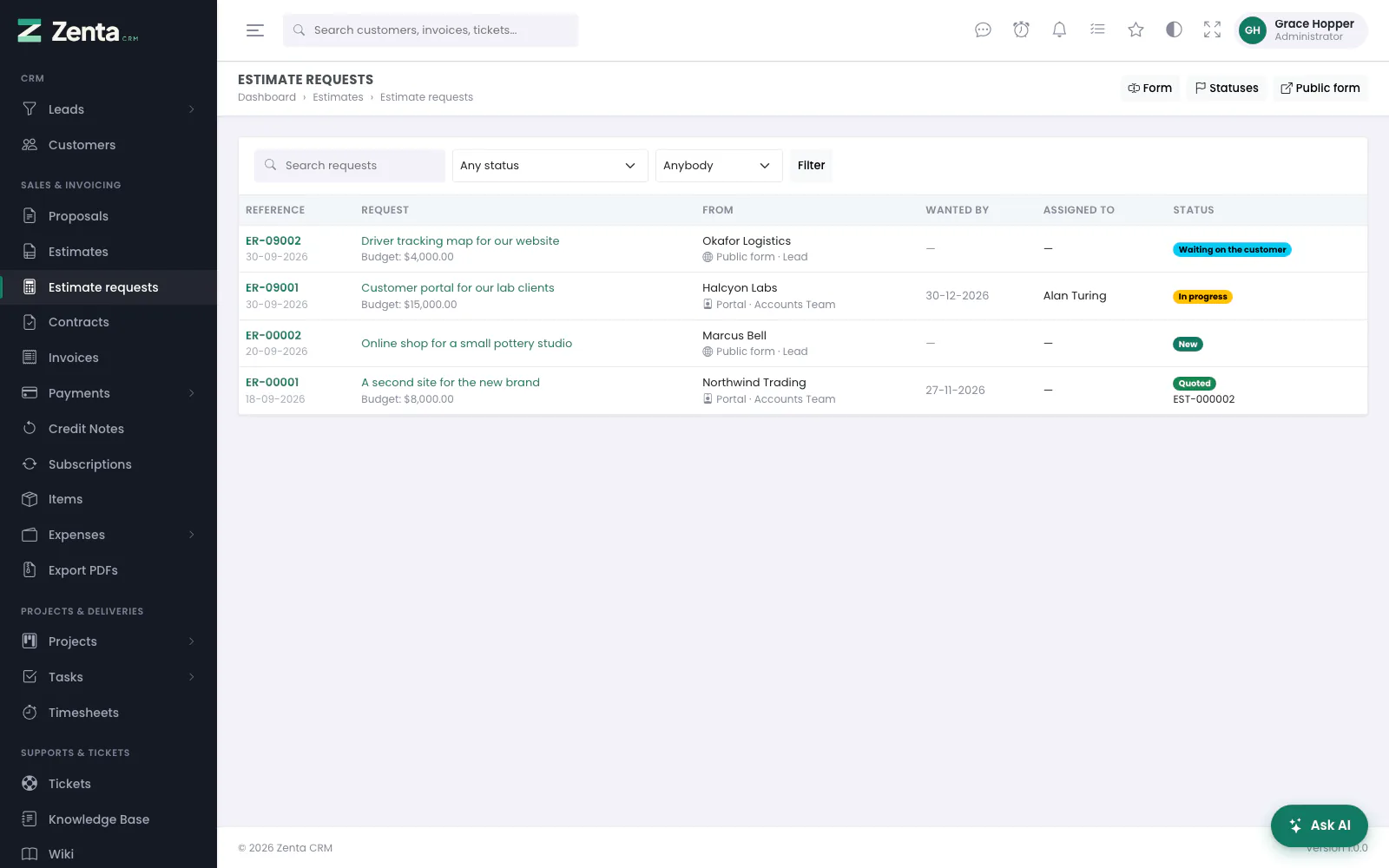 Estimate requests from the portal and the public form, who is handling each, and their status.
Sales & Invoicing → Estimate requests is what customers and visitors asked you to price: from the portal, and from the public request an estimate form once it is switched on (both under Settings → Customer portal, see The customer portal). A request from the public form opens a lead, or reuses an open lead with the same email address.
- Each row shows the Reference and date, the Request and any budget, who it is From (Portal or Public form), Wanted by, Assigned to and Status, with the estimate written in reply under the status.
- Search requests, Any status (each with how many requests are in it) and Anybody / Assigned to me / Not assigned, then Filter.
- Form and Statuses open the two screens below; Public form opens the public form in a new tab, when it is on.
A request's page
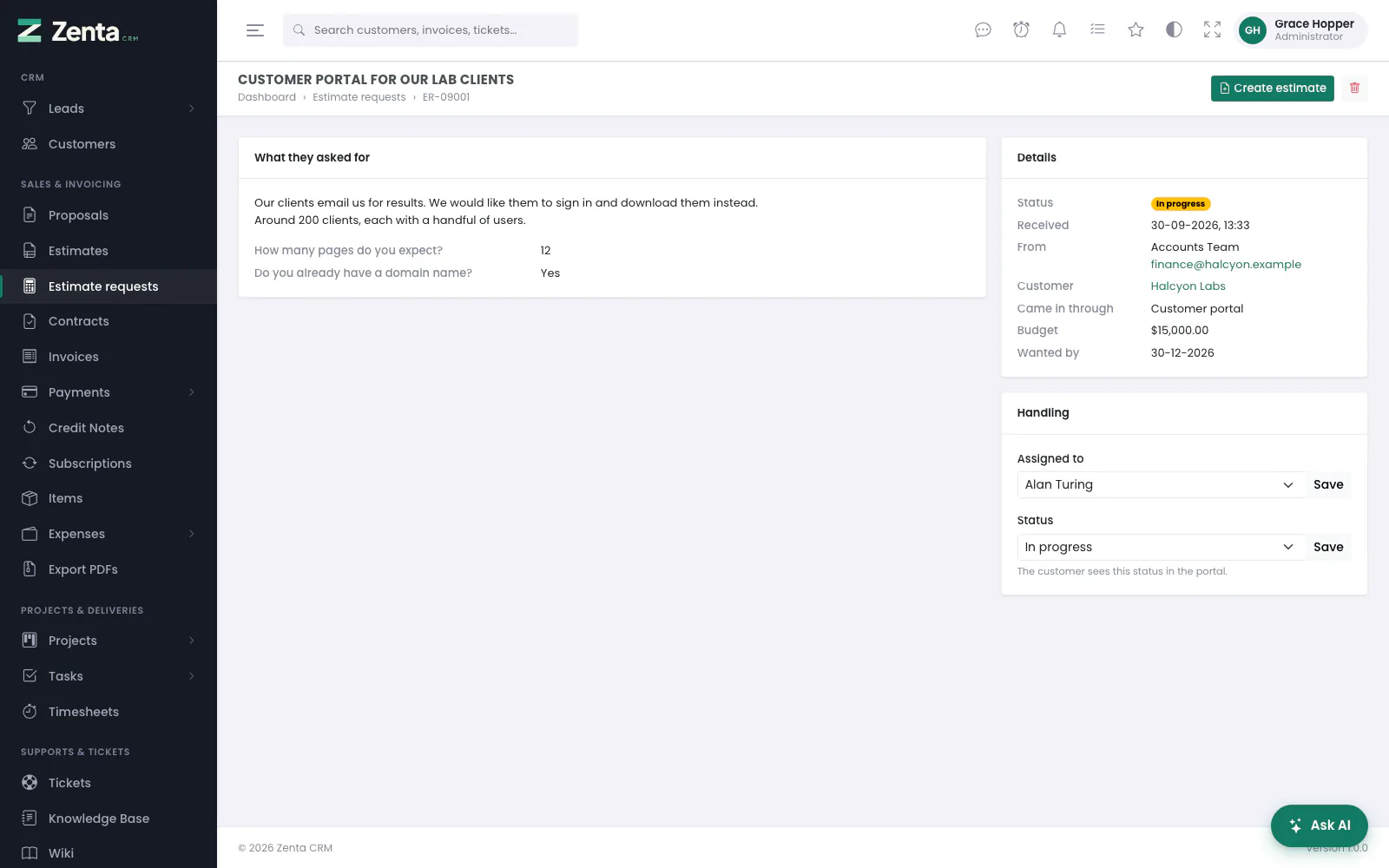 One request: what they asked for with the answers to your own questions, the details, and who is handling it.
- What they asked for: the details they wrote, the answers to your own questions and any files.
- Details: status, when it was received, who from, the customer or lead, whether it Came in through the portal or the public form, the budget and the date wanted.
- Handling (with the right to edit estimates): choose who it is Assigned to and press Save — the person you choose is notified. Change the Status and press Save; the customer sees this status in the portal.
- Create estimate opens a new estimate with the customer and a line for what was asked filled in, and the answers brought through. Saving it links the two and moves the request to Quoted. A request from the public form has no customer yet: convert the lead first, or pick the customer on the form. Once answered, the button becomes Open and the estimate's number.
- The button deletes the request and its files, after Delete this request and its files? A linked estimate is kept. It needs the right to delete estimates.
The estimate request form
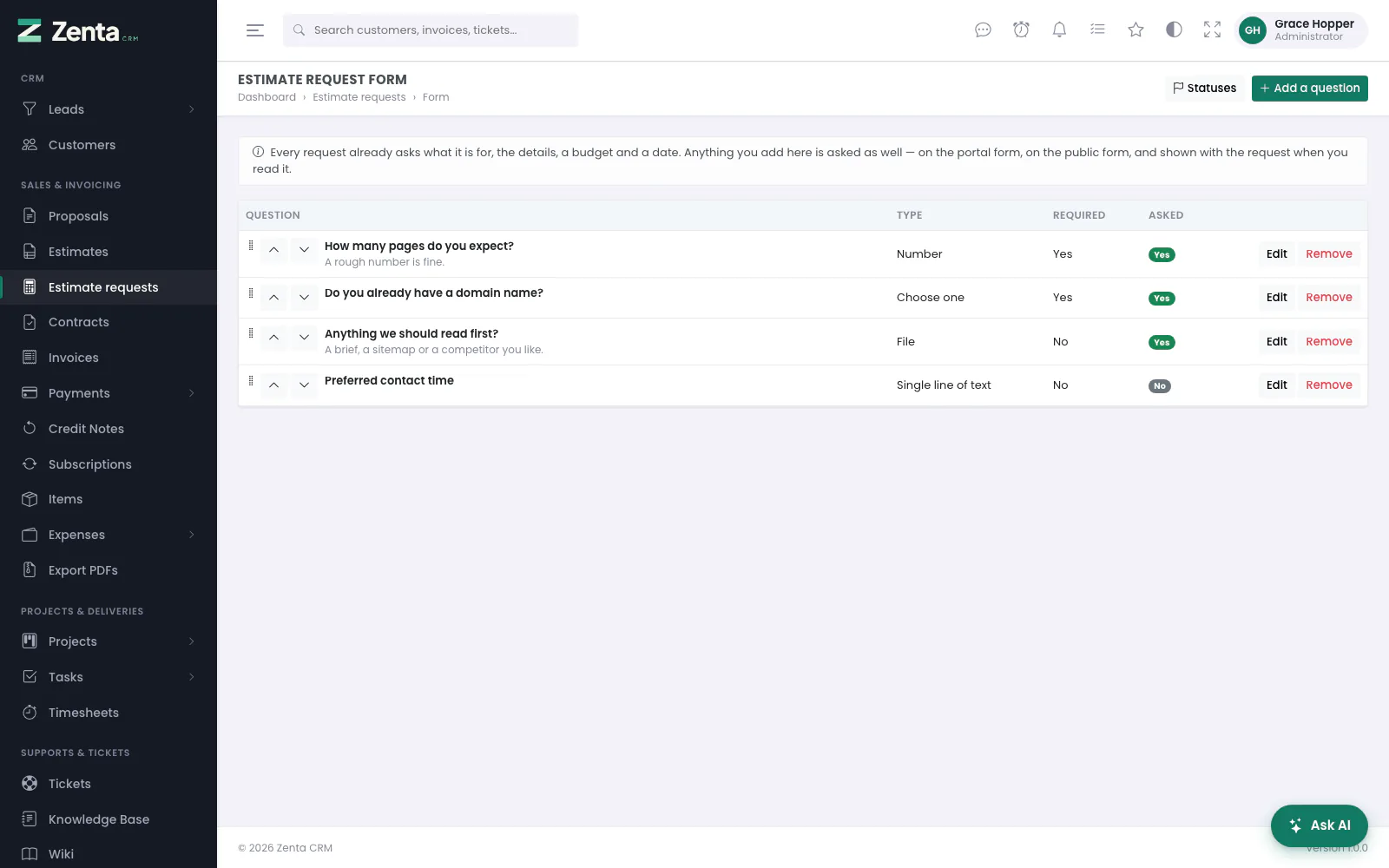 Your own questions, asked on top of the four every request carries.
Estimate requests → Form builds the questions you ask on top of the four every request already carries (what it is for, the details, a budget and a date). Press Add a question, or Edit beside one:
 A question: its wording, the kind of answer, the choices for Choose one, a hint, and whether it is required and asked.
| Field | What it does |
|---|---|
| Question | Required, up to 191 characters. |
| Answer | The kind of answer, from the list below. |
| Choices | One choice per line. Required for Choose one. |
| Hint under the question | Shown under it on the form. |
| It must be answered | Makes it required. |
| Ask it | Untick to stop asking it without deleting it. |
| Answer | For |
|---|---|
| Single line of text | A short answer — an address, a reference. |
| Paragraph | Several lines. |
| Number | A quantity, an area, a headcount. |
| Date | A date of their choosing. |
| Choose one | A list you write, one choice per line. |
| Tick box | Yes or no. Marked required, it means "you must agree". |
| File | One file, checked against your upload rules and kept with the request. |
Press Save. The questions appear on the portal form and the public form in the order the list shows, the answers are shown with the request when you read it, and Create estimate brings them through into the draft. To change the order, drag a question by its handle, or use the Move up and Move down arrows beside it; the new order is saved as it moves, with no button to press. Remove stops a question being asked. Adding, editing and removing questions needs the right to edit estimates.
Estimate request statuses
 The stages a request moves through: the four built in, and one of the workspace's own.
Estimate requests → Statuses is the list of stages a request moves through, with how many requests are in each. Each has a name, a colour, a position in the order, and Counts as finished — which is what tells your lists a request has been dealt with.
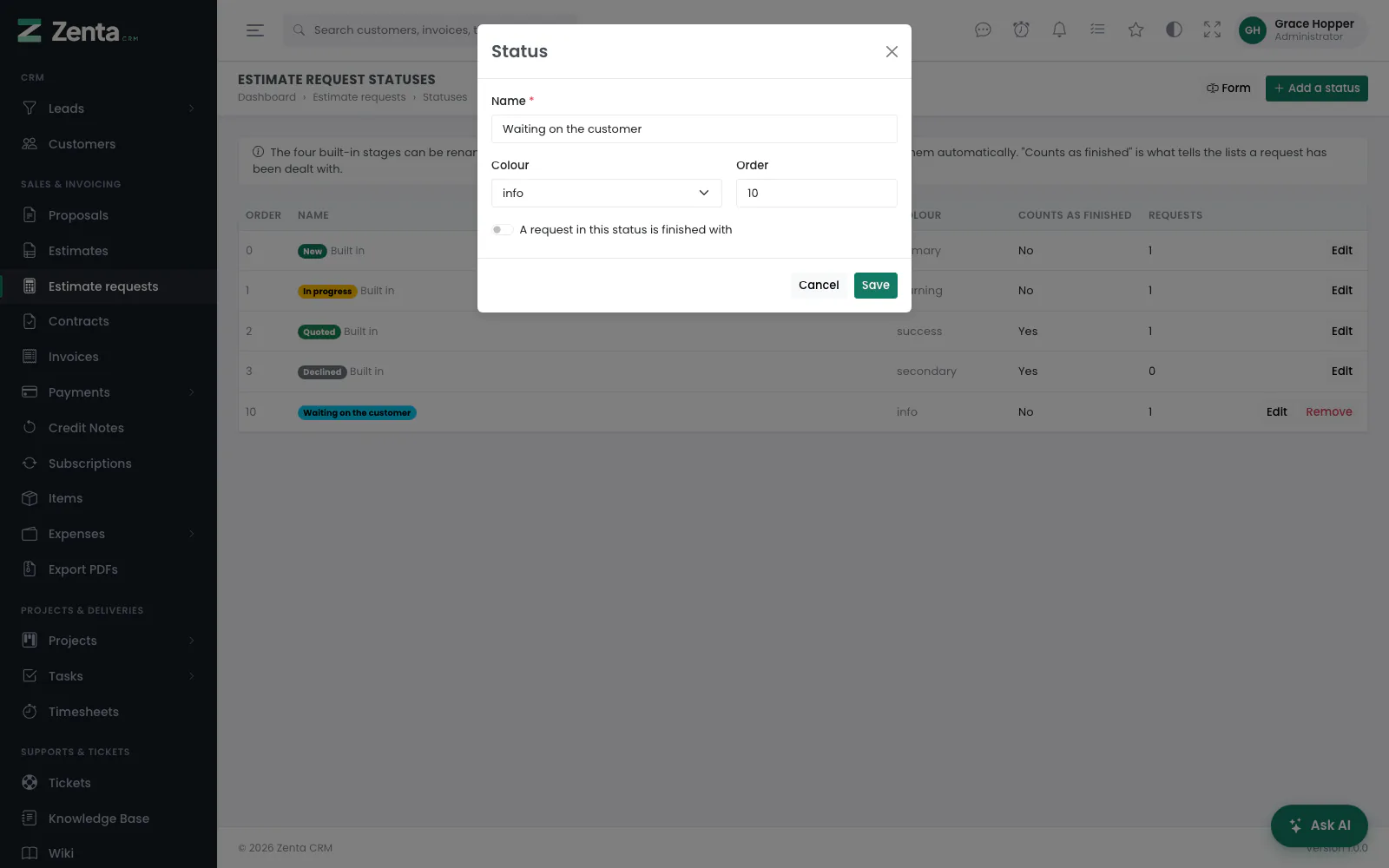 Editing a status: its name, colour, order, and whether a request in it is finished with.
- Press Add a status, or Edit beside one.
- Give it a Name (up to 60 characters), a Colour and an Order (0–999), and tick A request in this status is finished with if it is.
- Press Save.
The four built-in stages — New, In progress, Quoted and Declined — can be renamed, recoloured and reordered but not removed, because the application moves requests into them itself (writing an estimate for a request marks it Quoted). Your own stages have a Remove button, and can be removed once nothing is sitting in one (Move the requests in this status somewhere else first.). Changing statuses needs the right to edit estimates.
Addresses on this page
For reference and for anyone scripting against the panel. Everything here needs somebody signed in to the workspace whose role allows it; anybody else is refused.
| Method | Address | What it does |
|---|---|---|
GET | admin/estimates | The estimates list, with q, status and customer filters. |
GET | admin/estimates/create | The new-estimate form. ?estimate_request= fills it in from a request. |
POST | admin/estimates | Creates an estimate. |
GET | admin/estimates/{estimate} | An estimate's page. |
GET | admin/estimates/{estimate}/edit | The edit form. Refused (409) once it has been accepted. |
PUT | admin/estimates/{estimate} | Saves an edit, clearing any signature. |
DELETE | admin/estimates/{estimate} | Deletes one estimate. The panel deletes through the list's bulk bar instead. |
PATCH | admin/estimates/{estimate}/status | Sets the status by hand; accepted runs the acceptance. |
POST | admin/estimates/{estimate}/convert | Converts it to a draft invoice. |
POST | admin/estimates/{estimate}/project | Creates a project from it, with an optional project_template_id. |
POST | admin/estimates/{estimate}/revoke-acceptance | Undoes an acceptance so it can be edited again. |
GET | admin/proposals | The proposals list, with q and status filters. |
GET | admin/proposals/create | The new-proposal form. |
POST | admin/proposals | Creates a proposal. |
GET | admin/proposals/{proposal} | A proposal's page. |
GET | admin/proposals/{proposal}/edit | The edit form. Refused (409) once it has been accepted. |
PUT | admin/proposals/{proposal} | Saves an edit, clearing any signature. |
DELETE | admin/proposals/{proposal} | Deletes one proposal (the on its page). |
PATCH | admin/proposals/{proposal}/status | Sets the status by hand; accepted runs the acceptance. |
POST | admin/proposals/{proposal}/convert | Converts it; target is estimate or invoice. |
POST | admin/proposals/{proposal}/project | Creates a project from it. |
POST | admin/proposals/{proposal}/revoke-acceptance | Undoes an acceptance. |
POST | admin/sales-documents/{kind}/{document}/comments | Posts to the discussion; kind is estimate or proposal, is_internal makes it an aside. |
PATCH | admin/sales-documents/{kind}/{document}/comments/{comment}/internal | Makes a comment internal, or not. |
DELETE | admin/sales-documents/{kind}/{document}/comments/{comment} | Deletes a comment and its files. |
POST | admin/sales-documents/thread-order | Remembers Oldest first / Newest first. Used by the page itself. |
GET | admin/settings/sales-documents | Settings → Estimates & proposals. |
PUT | admin/settings/sales-documents | Saves that screen. |
GET | admin/estimate-requests | The requests list, with q, status and assigned (me or none) filters. |
GET | admin/estimate-requests/{estimateRequest} | A request's page. |
PATCH | admin/estimate-requests/{estimateRequest}/assign | Assigns it to a member of staff, or to nobody. |
PATCH | admin/estimate-requests/{estimateRequest}/status | Moves it to another status. |
DELETE | admin/estimate-requests/{estimateRequest} | Deletes it and its files; a linked estimate is kept. |
GET | admin/estimate-requests/fields | The Form screen: your own questions. |
POST | admin/estimate-requests/fields | Adds a question. |
PUT | admin/estimate-requests/fields/{field} | Saves a question. |
DELETE | admin/estimate-requests/fields/{field} | Removes a question. |
POST | admin/estimate-requests/fields/order | Saves the questions' order from a list of ids. Used by the page itself as a question is dragged or moved. |
GET | admin/estimate-requests/statuses | The Statuses screen. |
POST | admin/estimate-requests/statuses | Adds a status. |
PUT | admin/estimate-requests/statuses/{status} | Saves a status. |
DELETE | admin/estimate-requests/statuses/{status} | Removes one of your own statuses, once it is empty. |