AI assistance and AI problems
One AI connection for the whole platform, paid for by you, and a switch per workspace for who may use it.
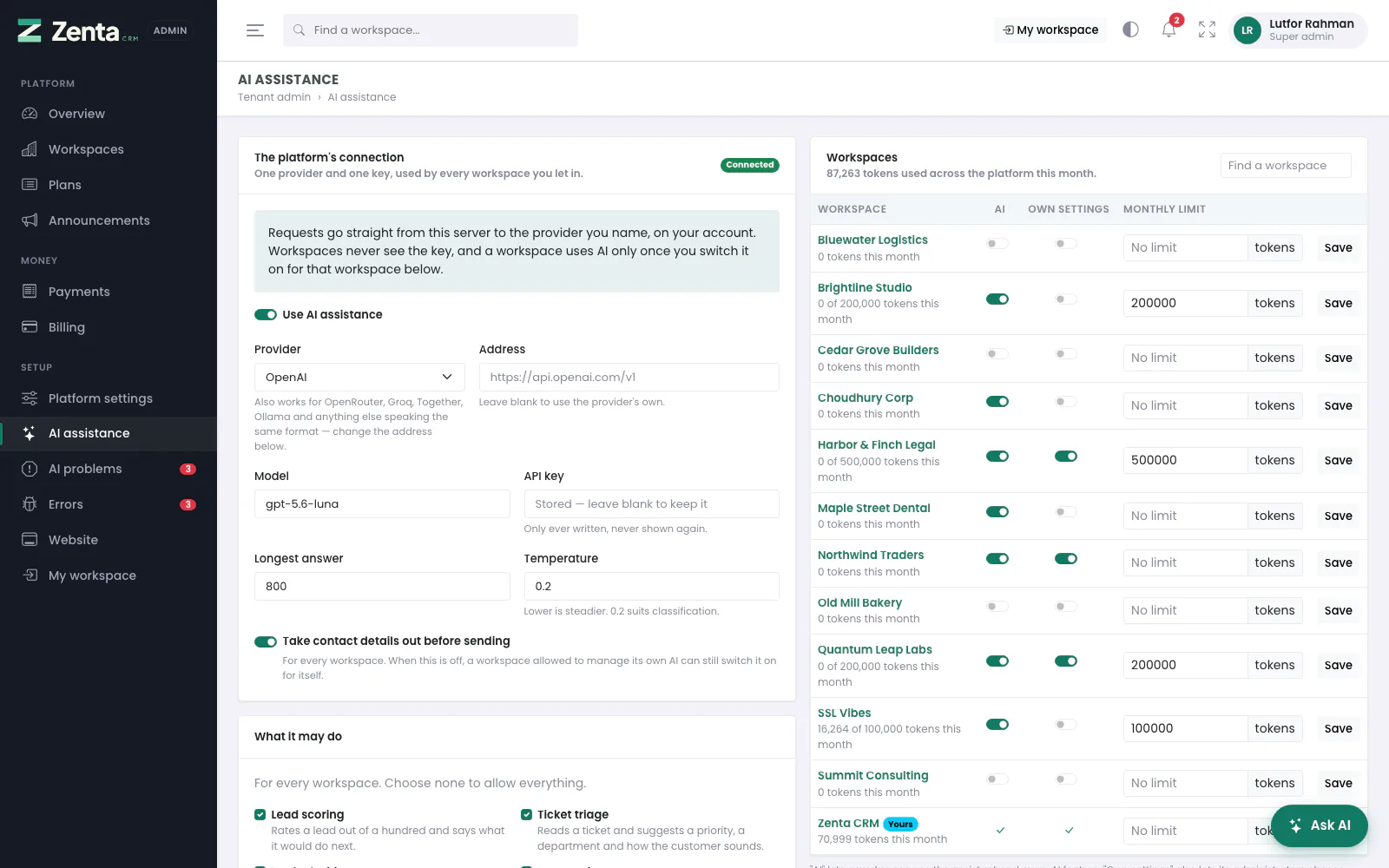 The platform's AI connection, and every workspace with its AI access and usage this month.
On a SaaS install every AI request is paid for by whoever holds the key, so there is one connection — yours — and a workspace uses it only once you let it. What the AI features do for the people using them is described under AI assistance; this page is the super admin's side.
The connection
Tenant admin → AI assistance. Requests go straight from your server to the provider you name, on your account. Workspaces never see the key.
| Setting | What it does |
|---|---|
| Use AI assistance | The switch for every workspace at once. When it is off, a workspace allowed to manage its own AI settings can still switch it on for itself. |
| Provider | OpenAI, Anthropic, or Anything OpenAI-compatible — OpenRouter, Groq, Together, Ollama and anything else speaking the same format; change the address to point at it. |
| Address | Only for a compatible service or a proxy; blank uses the provider's own. |
| Model | Blank uses the provider's default. |
| API key | Only ever written, never shown again: the box says Stored — leave blank to keep it. Stored encrypted. |
| Longest answer | The most tokens one answer may use, 64 to 32,000. |
| Temperature | 0 to 2. Lower is steadier; 0.2 suits classification. |
| What it may do | The AI features that exist on the platform, for every workspace. Tick none to allow everything. |
| Take contact details out before sending | Replaces email addresses, phone numbers and similar details with markers before anything is sent to the provider, for every workspace. The sentence still reads; the details never leave your server. |
Press Save, then Test the connection: it asks the provider a one-word question and shows the provider's real answer, or its real error. A failed test is not recorded as a problem. Disconnect removes the key and AI stops for every workspace until a key is entered again.
Which workspaces may use it
The list under the connection shows every workspace (search it with Find a workspace), its plan, and three settings, saved per row:
| Setting | What it does |
|---|---|
| Use AI | The Ask AI button and every AI feature, for the people their roles allow. Off by default for every new workspace. |
| Own settings | Its administrators get a Settings → AI assistance page of their own: which features to use within what you allow, taking contact details out when you do not, and agents. It never shows the provider, the address or the key. |
| Monthly limit | Tokens per calendar month; blank for no limit. A workspace that reaches it is told so and stops until the first of the next month; nobody else is affected. |
Beside each, the tokens it has used this month (of its limit, when it has one); at the top, the platform's total. The same three settings are on each workspace's own page under Workspaces. A plan does not decide this: AI is left out of a plan's modules on purpose. Your own workspace always has AI, marked Yours.
The platform's assistant
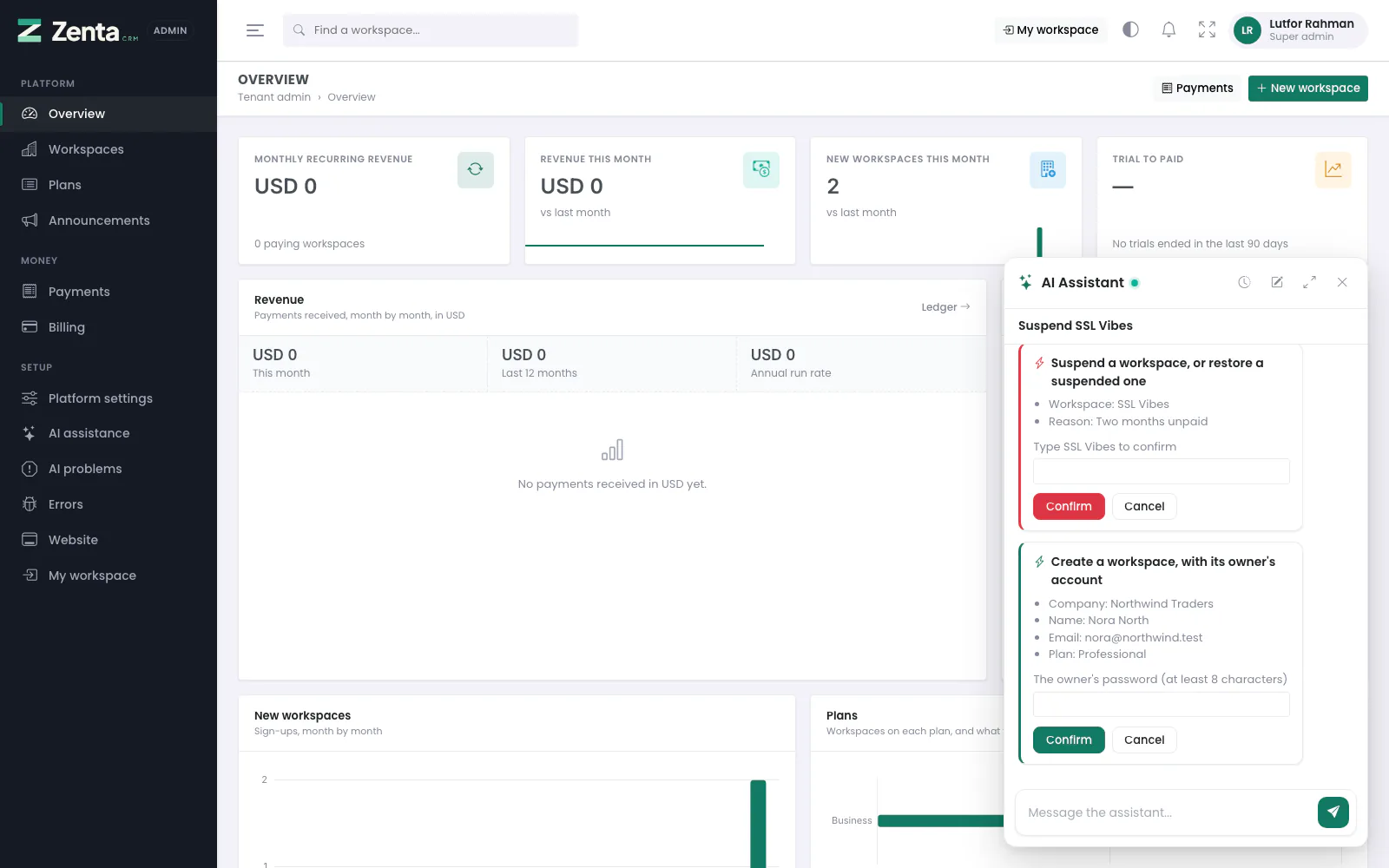 The platform's assistant: a workspace suspended only once its name is typed, and a new workspace whose owner's password goes in a box on the card.
The Ask AI button on these screens is the platform's own assistant. It works on what this panel works on — workspaces, plans, subscriptions and billing, payments, announcements, the website, platform settings, AI access, AI problems and errors — and on nothing inside a workspace: ask it for a workspace's invoice or lead and it says those are dealt with inside that workspace. Your own workspace, under My workspace, has the CRM's assistant (see AI). It runs on the connection above, and its tokens are counted against the platform's own workspace.
| Ask it | What it does |
|---|---|
| How is the platform doing this month? | Reads the overview: workspaces by status, recurring revenue and payments per currency, sign-ups, trials and cancellations against last month. |
| Which workspaces need attention? | Past due, suspended, trials ending within a week, open errors and AI problems. |
| Which workspaces use AI, and is any near its limit? | Each workspace's access, own-settings switch, monthly limit and tokens used. The key is never read out, only whether one is set. |
| Change the price of the Standard plan to 19 | Prepares the change. Every field it does not mention keeps its value. |
| Create a workspace for Northwind, owner Nora North | Prepares it; the owner's password is typed into a box on the card, never into the conversation. |
| Suspend SSL Vibes, they have not paid | Prepares a red card. It confirms only once the workspace's name is typed. |
AI problems
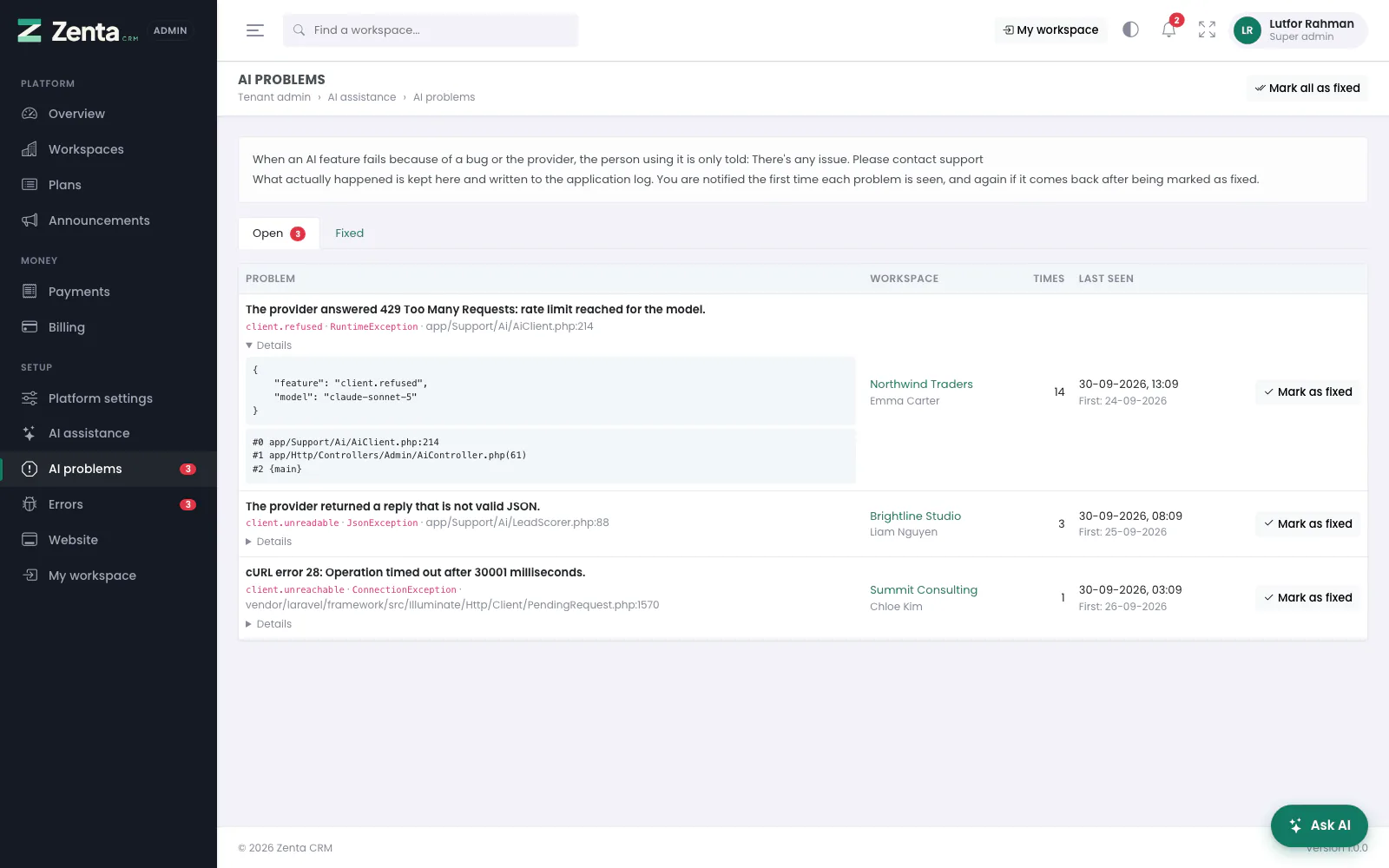 AI problems: what actually went wrong, where, for whom, and how often. Details opens the context and stack trace.
When an AI feature fails because of a bug or the provider, the person using it is only told "There's any issue. Please contact support". Tenant admin → AI problems is the other half: what actually happened.
- Problem — the real message, then where it came from (such as
client.refusedwhen the provider refused,client.unreachable,client.unreadable,chat.toolwhen an assistant tool failed), the exception and where in the code. Details opens the context and the stack trace. - Workspace and the person who ran into it.
- Times — the same problem is one row with a count, so an hour-long outage is one entry rather than hundreds.
- Last seen, with when it was first seen.
The Open tab (with a count) holds what still needs looking at; Fixed holds what was marked fixed, when and by whom. Mark as fixed on a row, or Mark all as fixed at the top. A problem that comes back afterwards opens again and is told about again, so "fixed" means fixed.
You are told about each problem the first time it is seen: in the panel's bell and by email, to every super admin. Every problem is also written to the application log.
Addresses on this page
For reference and for anyone scripting against the panel. Everything here needs a signed-in super admin at the platform's own address; anybody else gets 403.
| Method | Address | What it does |
|---|---|---|
GET | tenant/admin/ai | The connection and the workspace list, with a q search. |
PUT | tenant/admin/ai | Saves the connection. A blank key keeps the stored one. |
POST | tenant/admin/ai/test | Tests the connection. |
POST | tenant/admin/ai/disconnect | Removes the key and switches AI off. |
PUT | tenant/admin/ai/workspaces/{tenant} | Saves one workspace's AI access and limit. |
GET | tenant/admin/ai/problems | AI problems; ?show=resolved for the Fixed tab. |
POST | tenant/admin/ai/problems/{fault}/resolve | Marks one as fixed. |
POST | tenant/admin/ai/problems/resolve | Marks every open problem as fixed. |
GET | tenant/admin/ai/assistant | The platform assistant's opening screen. Used by the panel itself. |
POST | tenant/admin/ai/assistant | Asks the platform's assistant a question. Used by the panel itself. |
GET | tenant/admin/ai/assistant/history | Your recent conversations with it. Used by the panel itself. |
GET | tenant/admin/ai/assistant/{conversation} | One of your conversations. Used by the panel itself. |
DELETE | tenant/admin/ai/assistant/{conversation} | Deletes one of your conversations. |
POST | tenant/admin/ai/actions/{action}/confirm | Carries out what the assistant prepared, through the screen's own form. Takes typed and inputs when the card asks for them. |
POST | tenant/admin/ai/actions/{action}/cancel | Throws away what the assistant prepared. |