Invoices, quotes and contracts
What a customer does with the documents you send them: pay an invoice, read their statement, accept or sign an estimate or a proposal, sign a contract — in the portal, or from a link with no account.
Four entries in the portal menu hold the documents you send a customer: Invoices, Estimates, Proposals and Contracts. This page walks through each as the customer sees it, and then the two kinds of link that work without signing in: an estimate or proposal sent by link, and the page for paying an invoice.
Nothing in draft is ever shown, listed or downloadable. A document is the customer's to see from the moment it is sent.
Invoices
 Invoices: what each one came to, what is still owed, and its status.
Invoices lists every invoice sent to the company, newest first, twenty to a page. Above the list, a line says how much is outstanding across the whole account. Each row shows:
| Column | What it shows |
|---|---|
| Invoice | The number. Click it to open the invoice. |
| Date and Due | When it was raised and when it falls due. The due date turns red once the invoice is late. |
| Total | What the invoice came to, in its own currency. |
| Outstanding | What is still owed on it. |
| Status | Sent, Part paid, Paid, Cancelled… and Overdue for one past its due date with money still owing. |
Statement, at the top right, opens the customer's statement (below).
An invoice
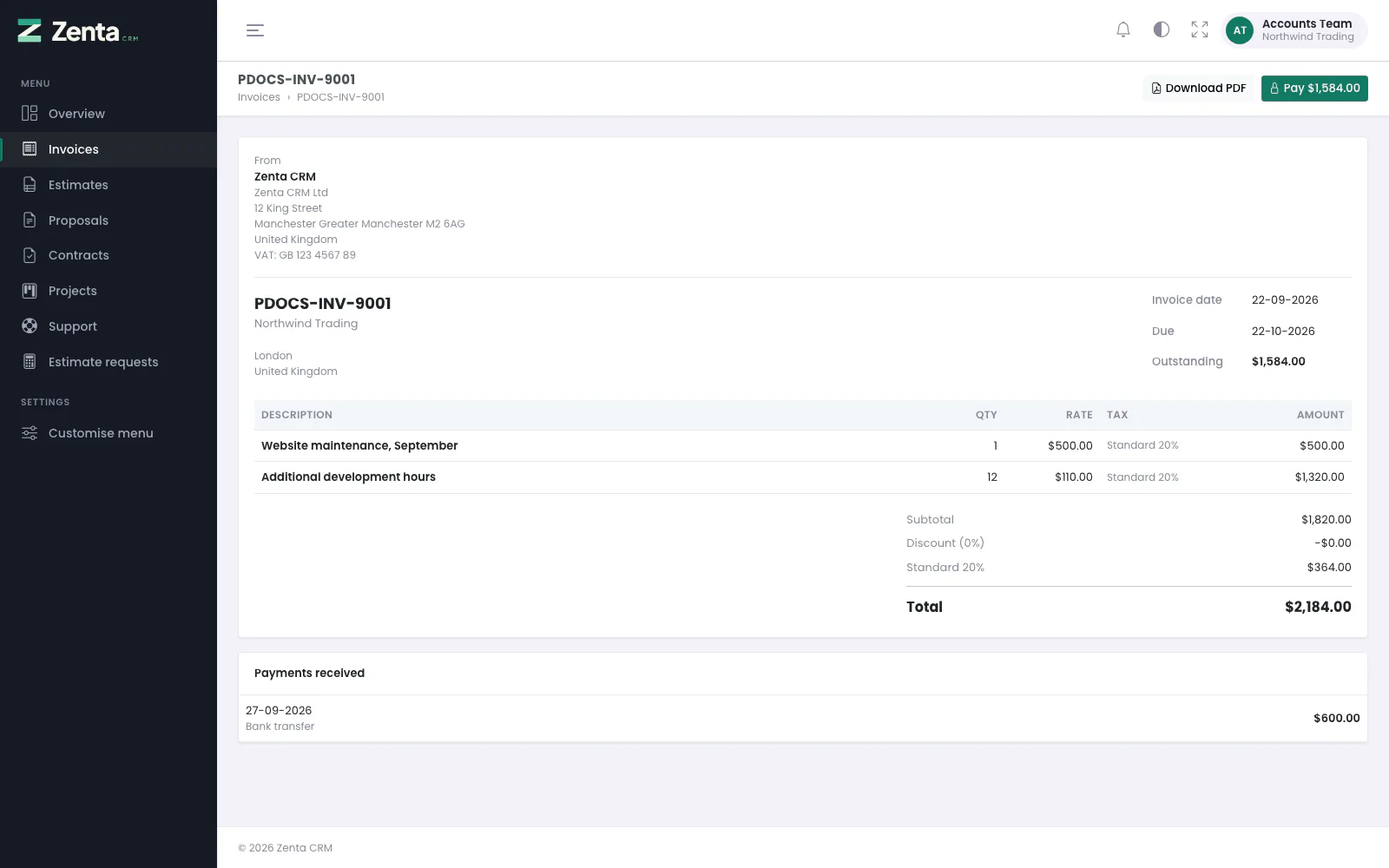 An invoice that has been part paid, with the Pay button and the payment already received.
The invoice itself: who it is from, who it is to, the Invoice date, Due date and what is Outstanding, the lines, the totals, and any note or terms you added. Below it, Payments received lists each payment by date and method, once there is one.
- Download PDF saves the customer's own copy (see Downloading a PDF).
- Pay and the amount owed takes them to the invoice's payment page, the same page as the payment link you can send by email. It is there only while there is something to pay, the customer is allowed to pay online, and at least one online payment method is set up that takes the invoice's currency and is allowed on that invoice (see Payments).
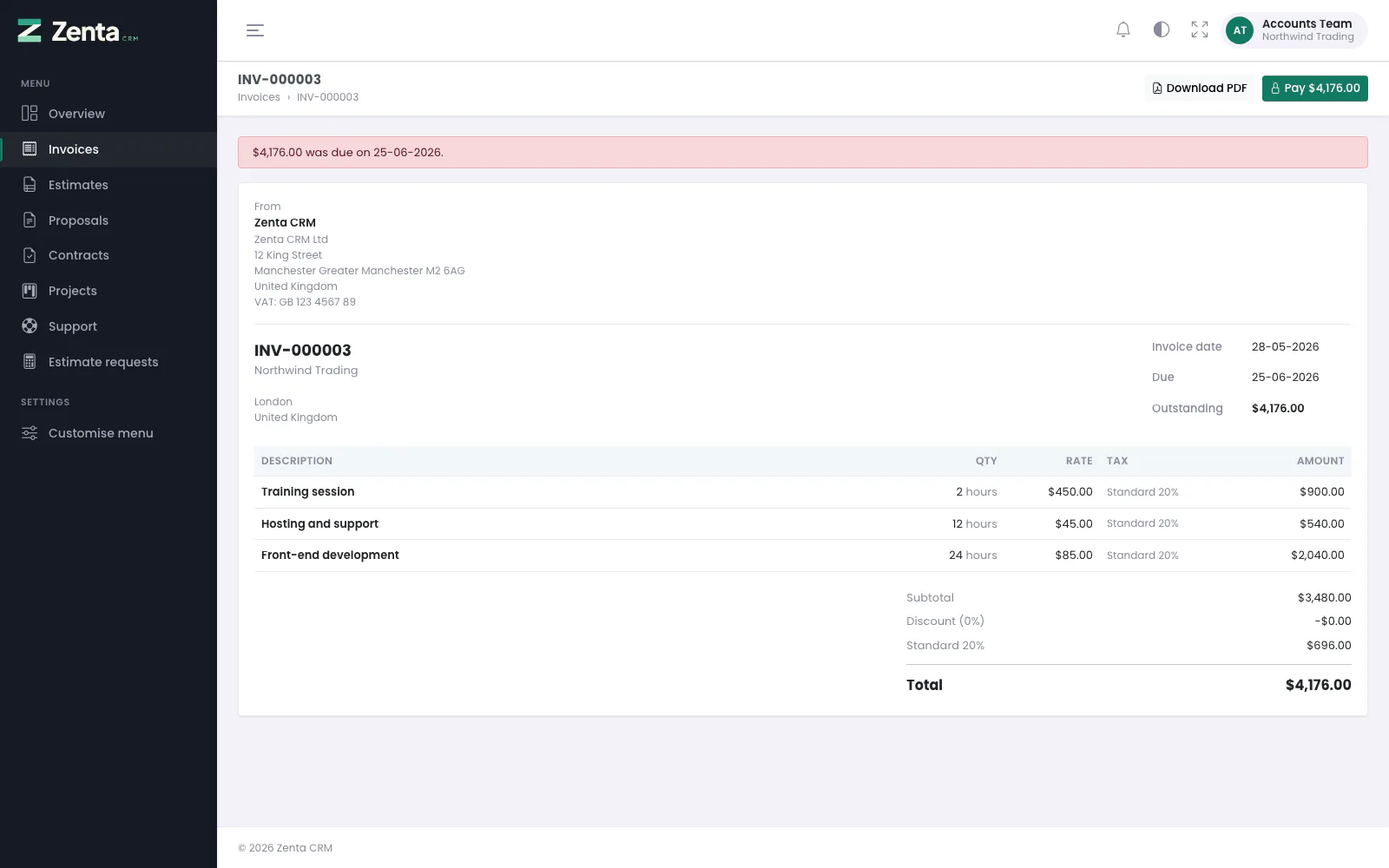 An invoice past its due date says so at the top.
A paid invoice says Paid in full. Thank you. A late one says how much was due and when; when there is no Pay button, it adds Please get in touch to arrange payment. Untick Can pay invoices online on a customer who settles by arrangement, and the button disappears from all of their invoices.
The statement
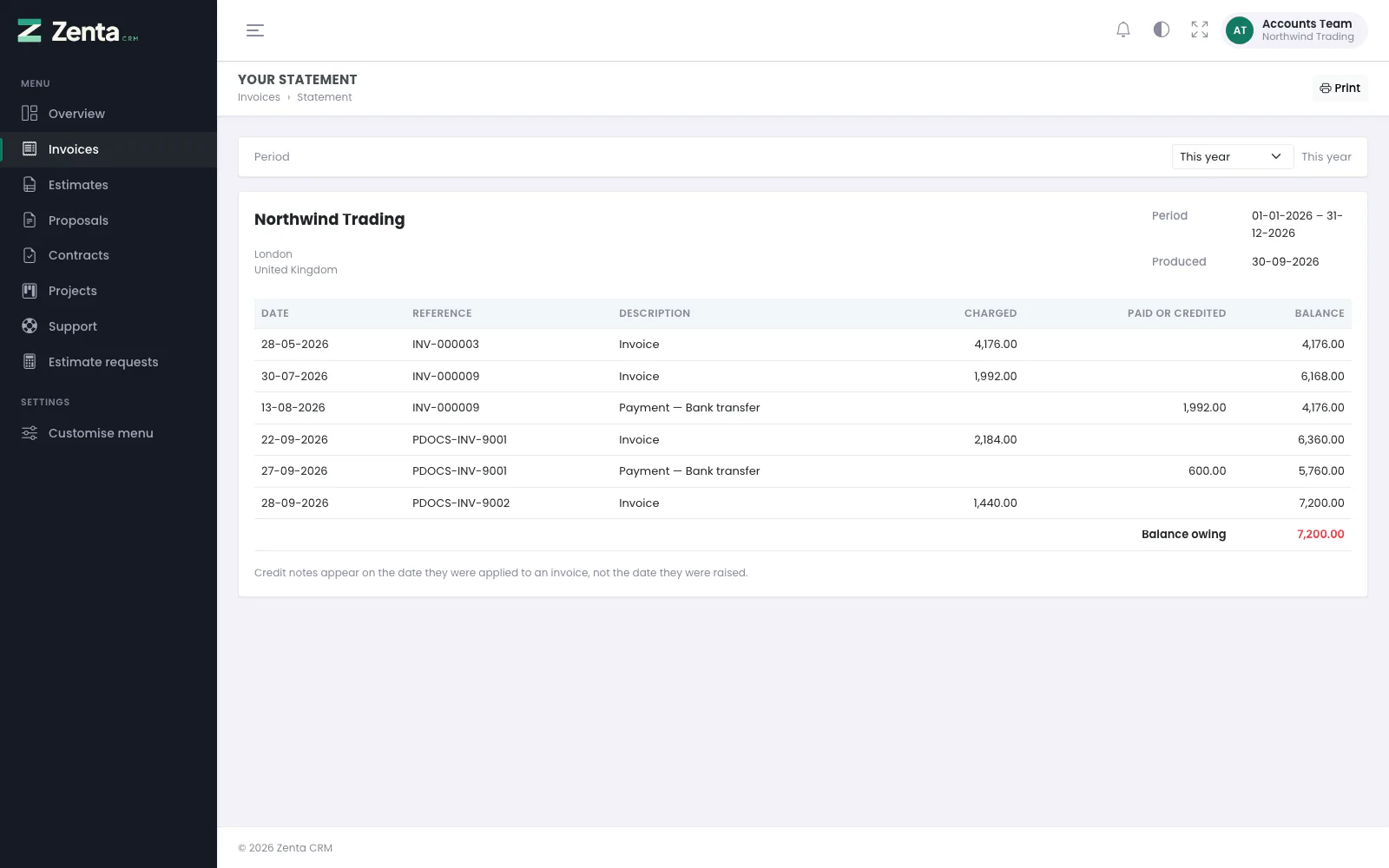 The customer's statement: every invoice and payment in the period, with a running balance.
Invoices → Statement shows the account as a ledger — the same statement your staff see for that customer, built the same way, so a customer ringing about their balance and the person answering are looking at the same figures (see Reports).
- Period — This year to begin with. Choose This month, Last month, This quarter, This year, Last year, Last 3, 6 or 12 months, All time, or Custom range, which shows two dates and an Apply button.
- The table — Date, Reference, Description, Charged, Paid or credited and a running Balance. It opens with the Balance brought forward from before the period and ends with the Balance owing. References are plain text here, not links.
- An account billed in more than one currency gets a Currency column and a balance owing for each currency, never added together.
- Credit notes appear on the date they were applied to an invoice, not the date they were raised.
- Print prints the statement without the period picker.
Estimates
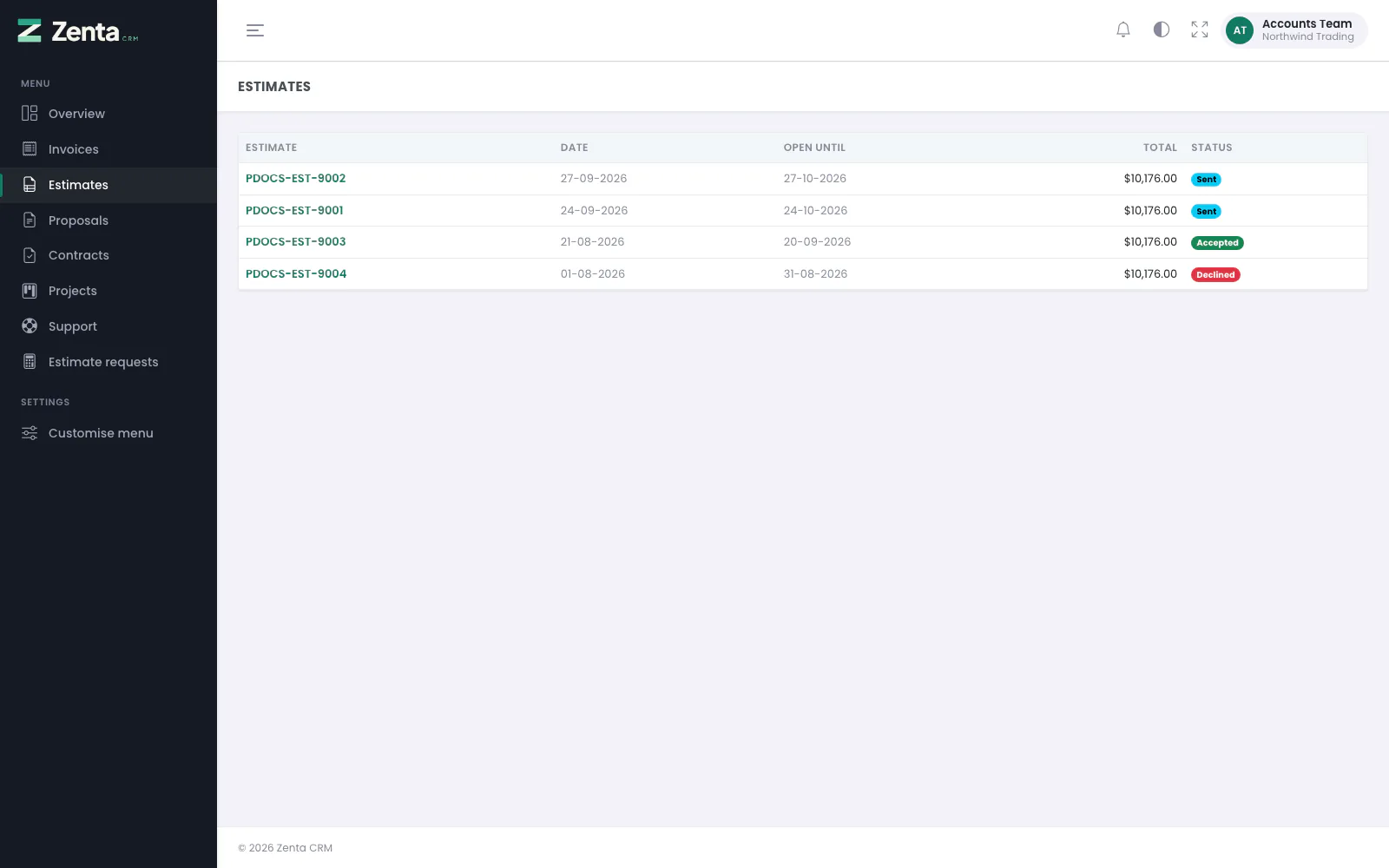 Estimates: two waiting for a decision, one accepted and one declined.
Estimates lists every estimate sent to the company, newest first: Estimate (the number, which opens it), Date, Open until, Total and Status.
An estimate
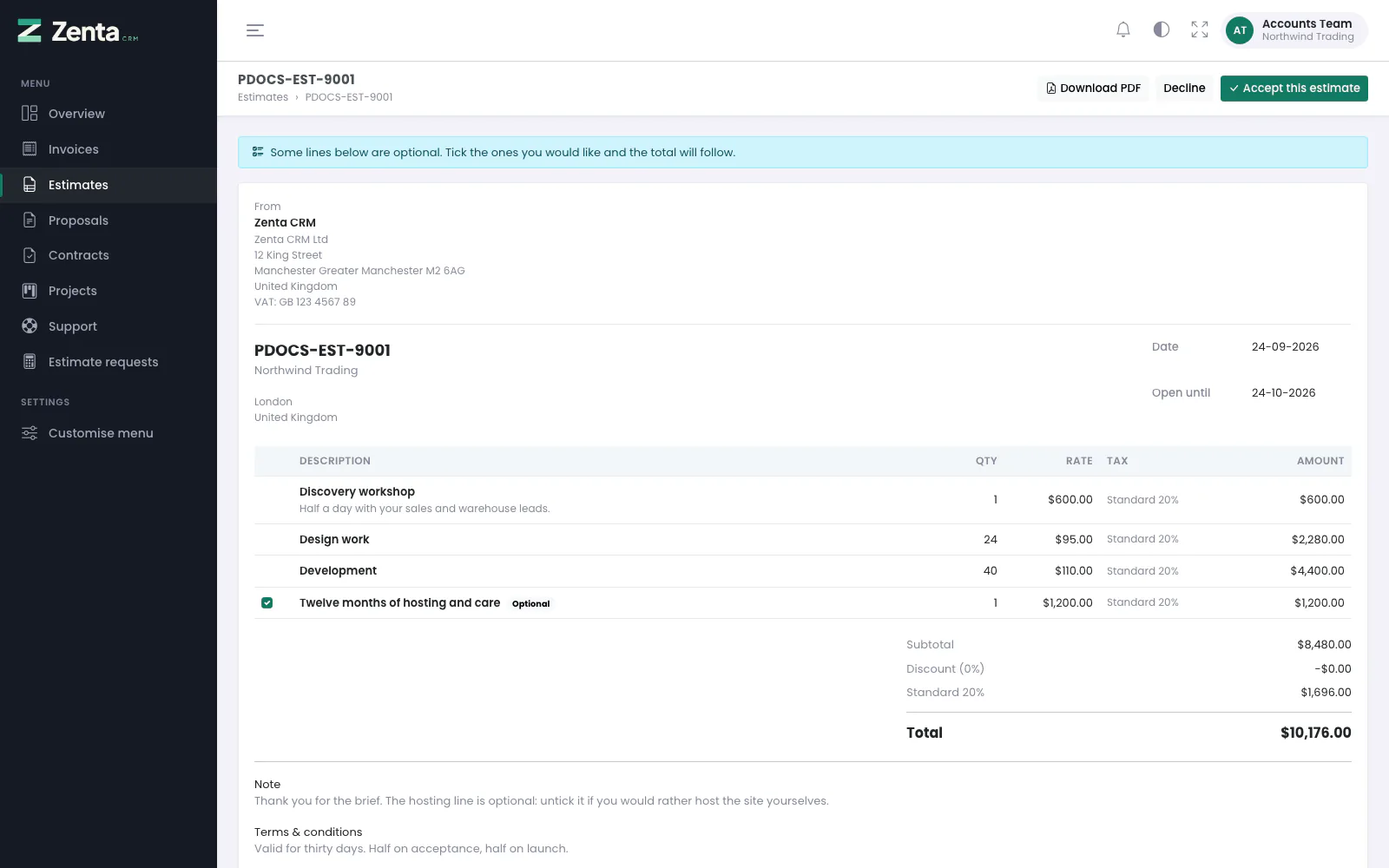 An estimate waiting for a decision. The hosting line is optional, so it has a tick box.
The estimate shows who it is from, the Date and Open until date, the lines, the totals, and your note and terms. The first time a contact opens it, the date is recorded against the estimate, so you can tell "not looked at yet" from "looked at and thinking about it".
While the estimate is open for a decision, the buttons at the top are:
| Button | What it does |
|---|---|
| Download PDF | Their own copy. Only while Let the customer download the PDF is on (Settings → Estimates & proposals). |
| Decline | Opens Decline this estimate with an optional box, Anything you would like us to know? (up to 255 characters). Decline marks the estimate declined and keeps what they wrote, which the customer then sees under You declined this on …. |
| Accept this estimate | Asks first — Accept this estimate? We will take this as your go-ahead and get started. — and Yes, accept it marks it accepted. Not shown on an estimate that asks to be signed: signing is how that one is accepted. |
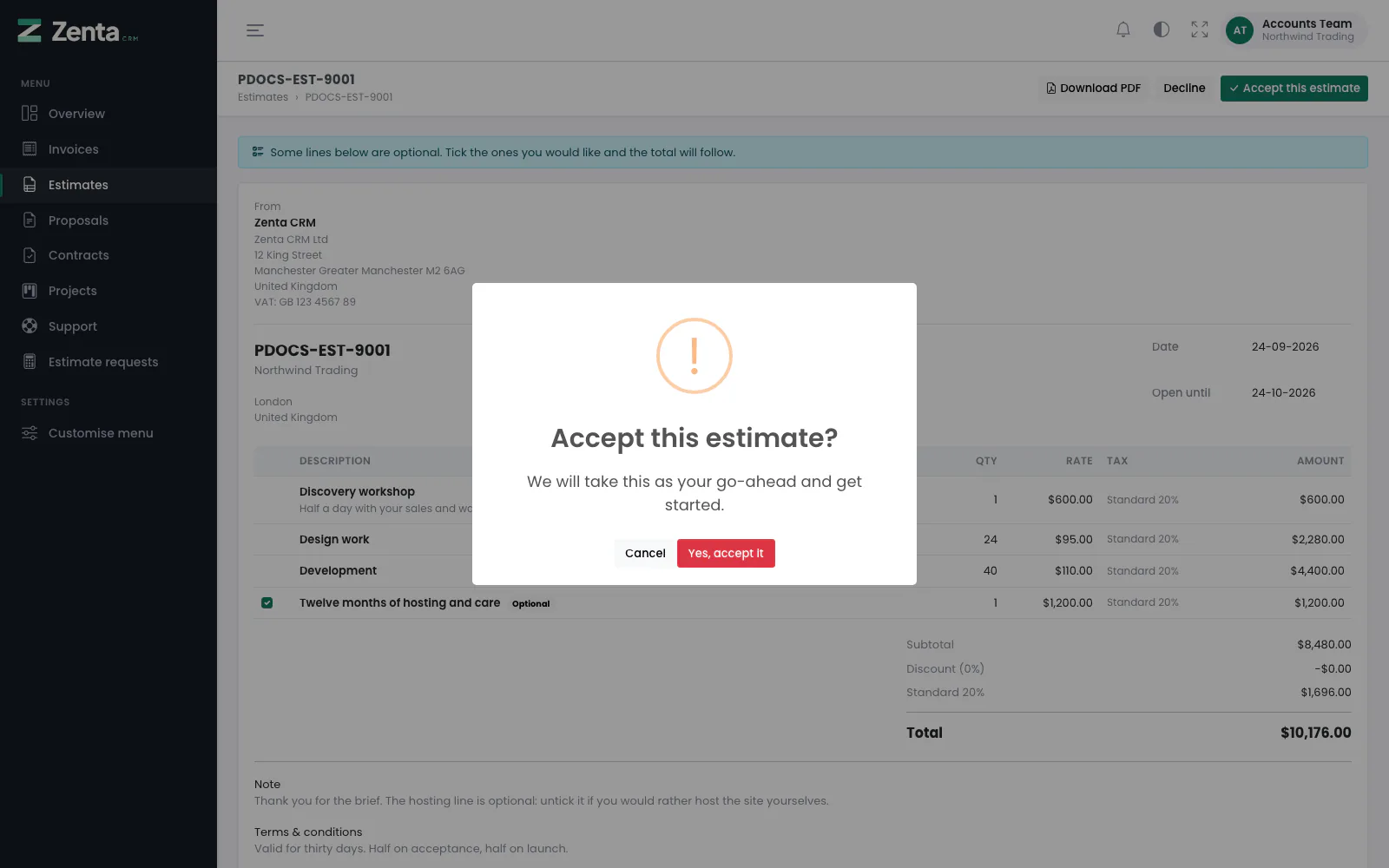 Accepting asks first: it is the one button in the portal that commits the customer to money.
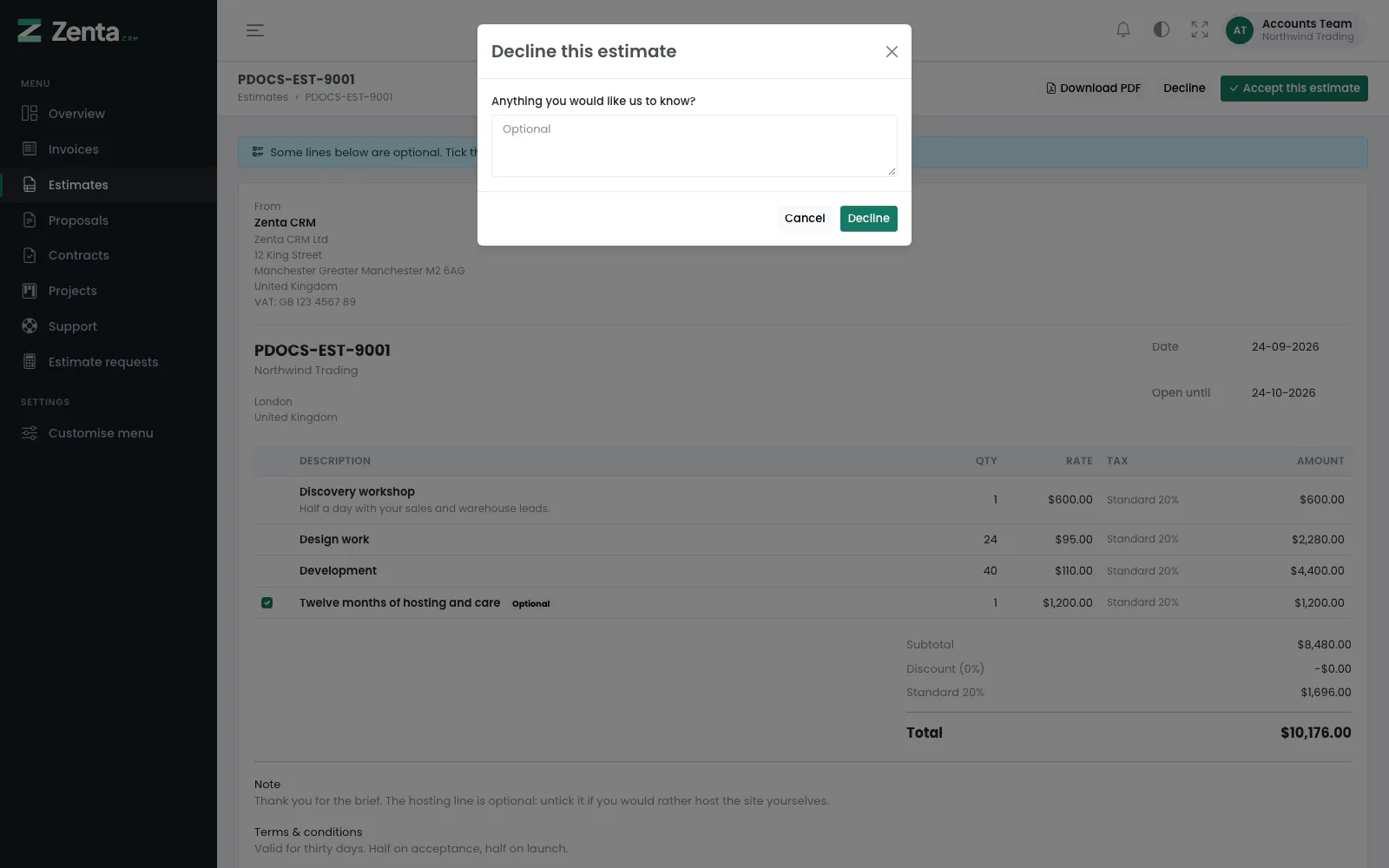 Declining, with room to say why.
Optional lines. A line you marked optional has a tick box, and the page says Some lines below are optional. Tick the ones you would like and the total will follow. The total changes as they tick and untick, and the lines ticked when they accept or sign are the ones they agreed to; the others are turned down and the totals restated (see Optional lines the customer chooses).
What accepting sets off is decided by your settings, the same whether the customer accepted in the portal, from a link, or your staff marked it accepted: an invoice raised as a draft if When an estimate is accepted, raise the invoice automatically is on, and a project if When an estimate or proposal is accepted, create a project from it is on. Nothing is sent to the customer by either (see What happens when it is accepted).
After a decision the buttons go and the page says You accepted this on … Thank you. or You declined this on … with their reason under it. An estimate past its Open until date can be neither accepted nor declined; the page says This estimate expired on … Please ask us for a fresh one., so nobody holds you to a price you quoted months ago.
Signing an estimate
 An estimate that asks to be signed: the signature pad takes the place of the Accept button.
When you ask for a signature on an estimate, a Sign to accept this estimate panel appears under it and signing accepts it in the same step. The customer:
- checks Full name — filled in with the contact's name, and they can change it (at least two characters);
- draws their signature in the box (Clear starts again);
- ticks the statement under it — your workspace's signing wording (see The signing settings);
- presses Sign and accept, then Yes, sign it to confirm (This records your agreement and cannot be undone here.).
A blank drawing, a missing name or an unticked statement is refused with a sentence saying which. The signature is stored with the name, the date, the address they signed from, their browser and the exact statement they agreed to, and appears under the estimate in a Signatures panel. The optional lines ticked at that moment go with the signature. See E-signature.
Proposals
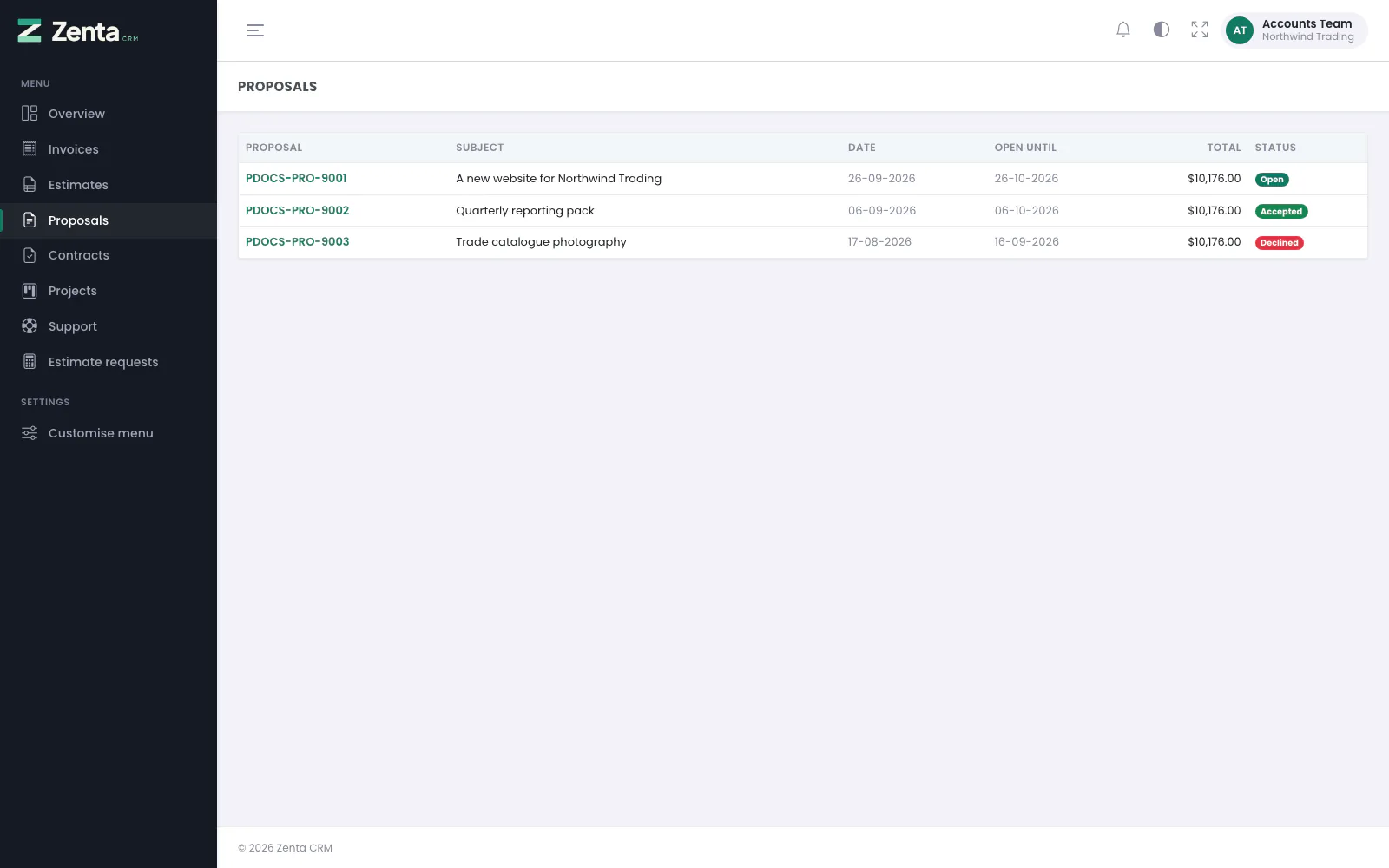 Proposals, with their subjects.
Proposals lists the proposals sent to the company: Proposal, Subject, Date, Open until, Total and Status (Expired once the open-until date has passed without a decision, and a pen icon beside one that has been signed). A proposal written for a lead never appears here: a lead has no portal to see it in.
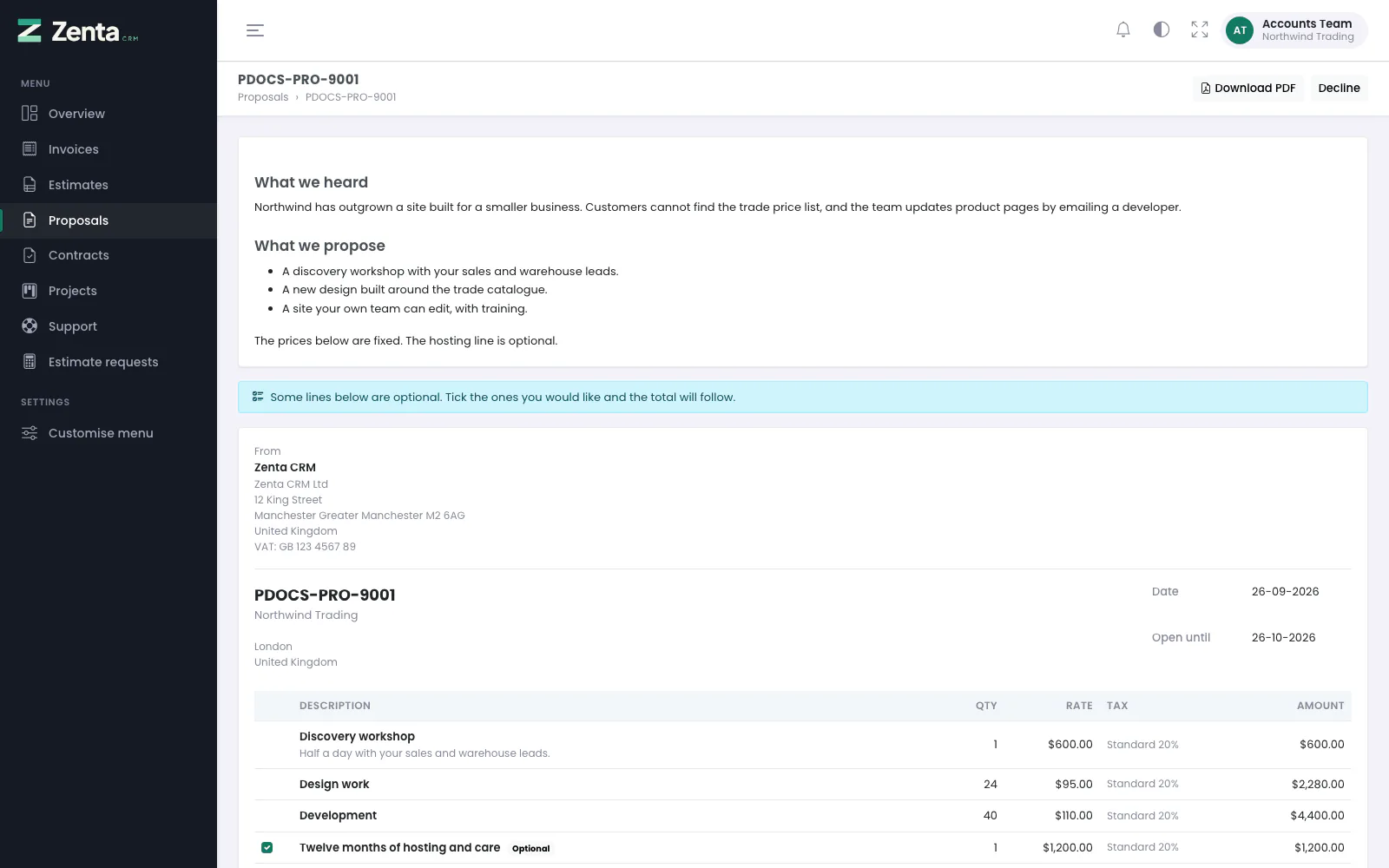 A proposal: your write-up first, then the priced lines.
A proposal's page shows your write-up first, then the lines and totals exactly as on an estimate, and works the same way: Download PDF (while downloads are allowed), Decline (Decline this proposal, with the same optional box, whose answer is kept and shown to you and to the business), Accept this proposal, optional lines to tick, and Sign to accept this proposal in place of the Accept button when you asked for a signature. A proposal stays open while it is sent, opened or revised and its open-until date has not passed.
The first time a contact opens a proposal that is Sent, it becomes Open on your side, so your list shows it has been read. Accepting a proposal can create a project, as above, but never raises an invoice by itself: turning a proposal into an estimate or an invoice is left to you.
Talking about an estimate or a proposal
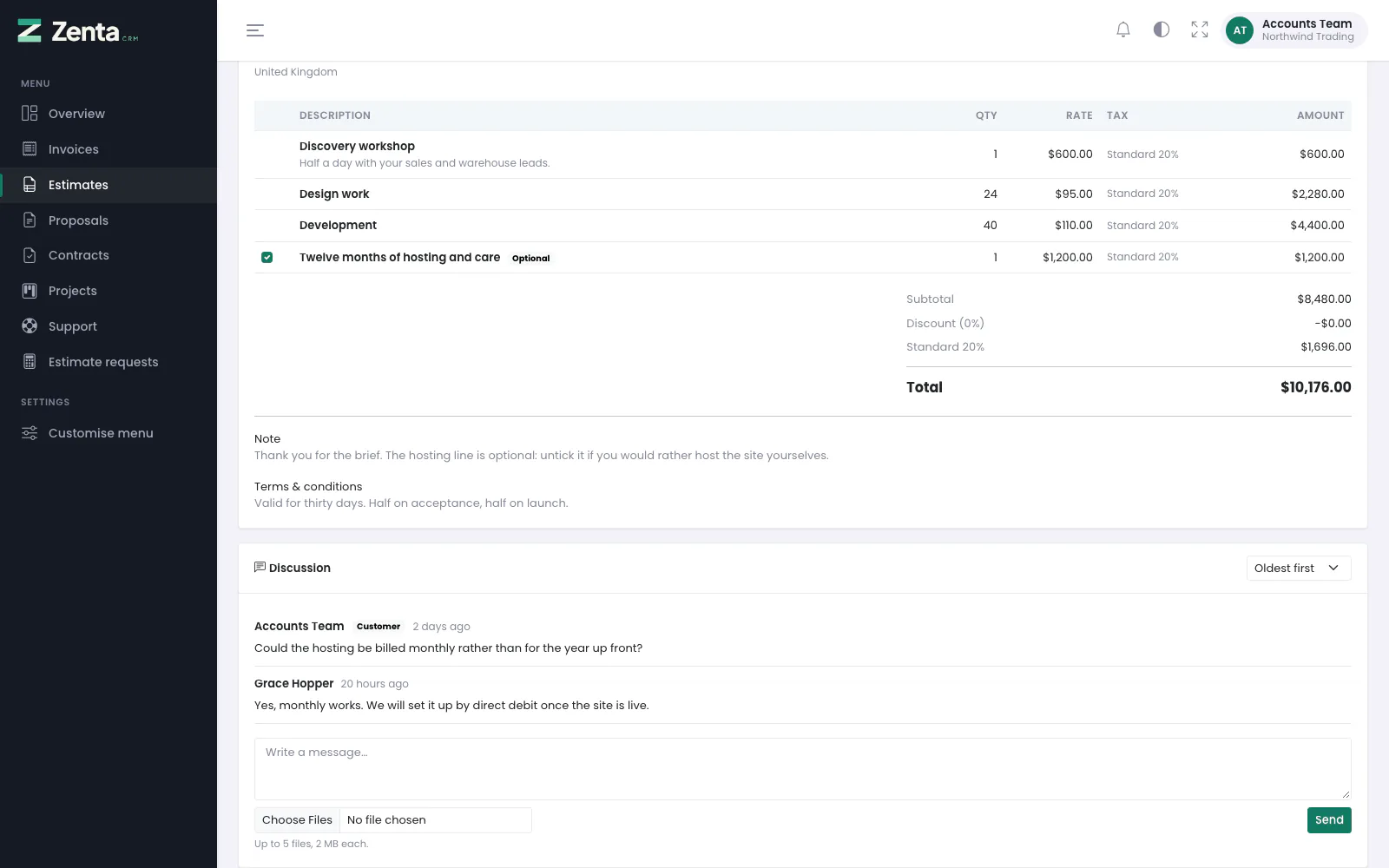 The discussion under an estimate: the customer's question and the reply. Your internal comment in between is not shown to them.
With Let the customer discuss a document with you on its page on (Settings → Estimates & proposals), a Discussion card sits under every estimate and proposal in the portal. It is empty to begin with: Have a question about this? Ask us here.
- The customer types in Write a message… (up to 10,000 characters), may attach up to five files (the size limit is shown under the box) and presses Send. Their messages carry a Customer badge.
- The member of staff who wrote the document, its sales agent or the person it is assigned to, and the customer's owner are told in their bell.
- Oldest first / Newest first turns the thread round. The choice is remembered for that contact.
- Your staff's internal comments never reach the customer: they are left out before the page is drawn, not hidden on it. A customer cannot write an internal comment.
The thread is part of the portal only; the page opened from a link (below) has none. How your staff use the same thread is on Talking about a document.
Contracts
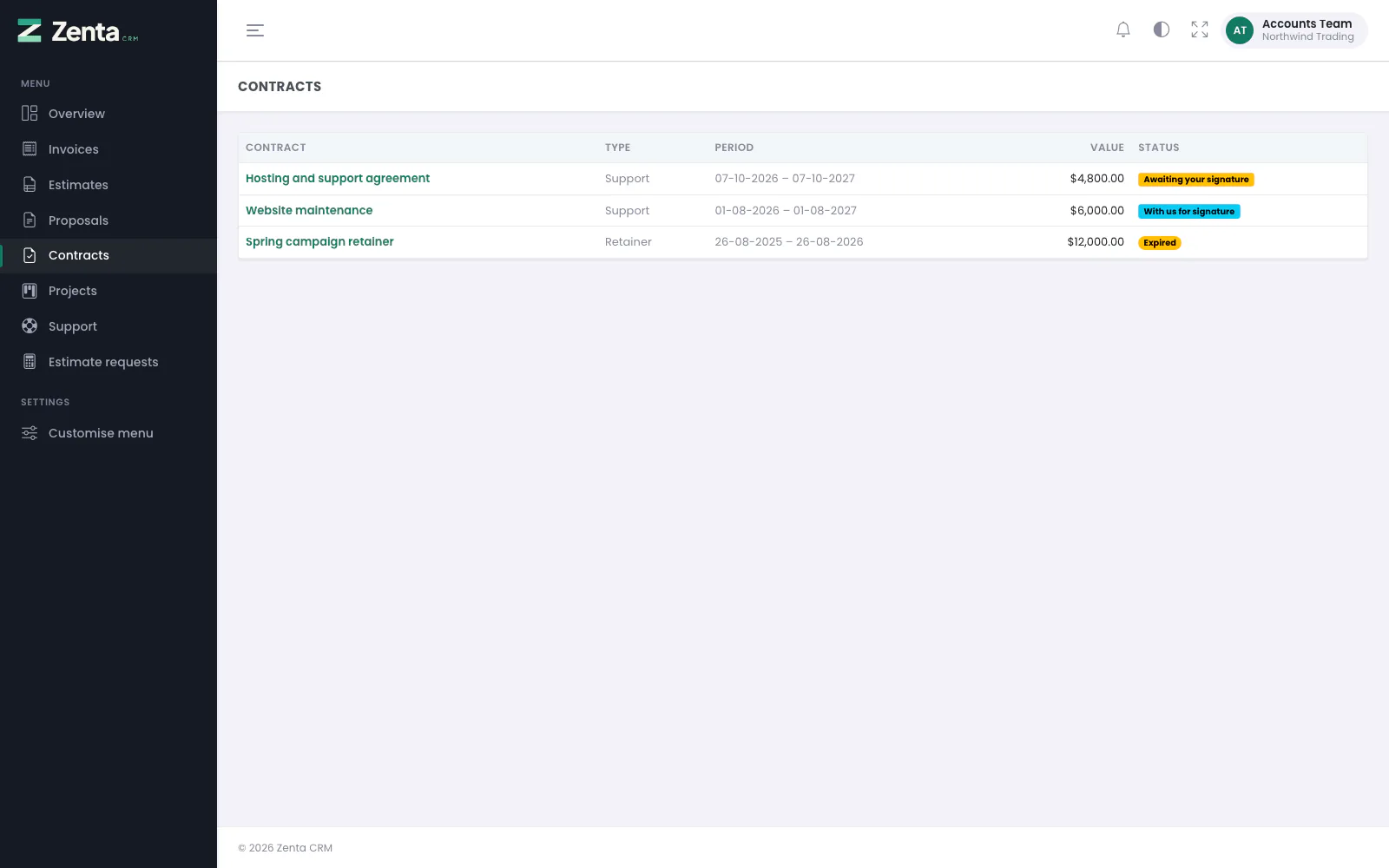 Contracts: one waiting for the customer's signature, one waiting for yours, and one that has ended.
Contracts lists the company's contracts, the latest start date first: Contract (the subject, which opens it), Type, Period, Value and Status. The status says Awaiting your signature when the customer still has to sign, With us for signature when they have and you have not countersigned yet, and otherwise Signed, Expiring, Expired and so on. A contract you marked hidden from the client, or put in the bin, is not listed and cannot be opened or downloaded (see Hiding, binning and expiry).
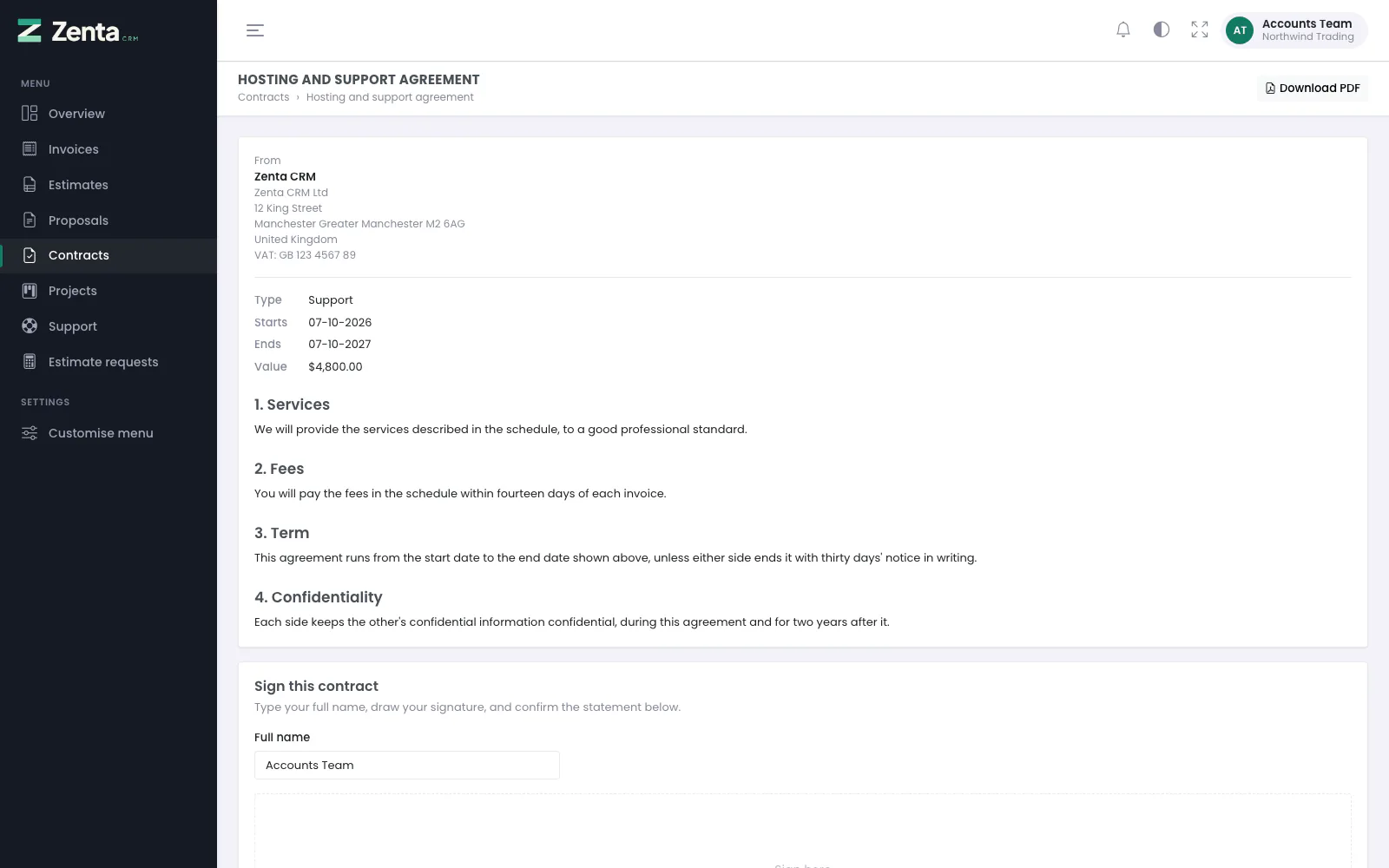 A contract waiting for the customer's signature.
A contract's page shows who it is from, the Type, Starts, Ends (or No end date) and Value (when it has one), then the wording. Download PDF is always there. There is no accept or decline on a contract: the customer signs it or does not.
Signing a contract
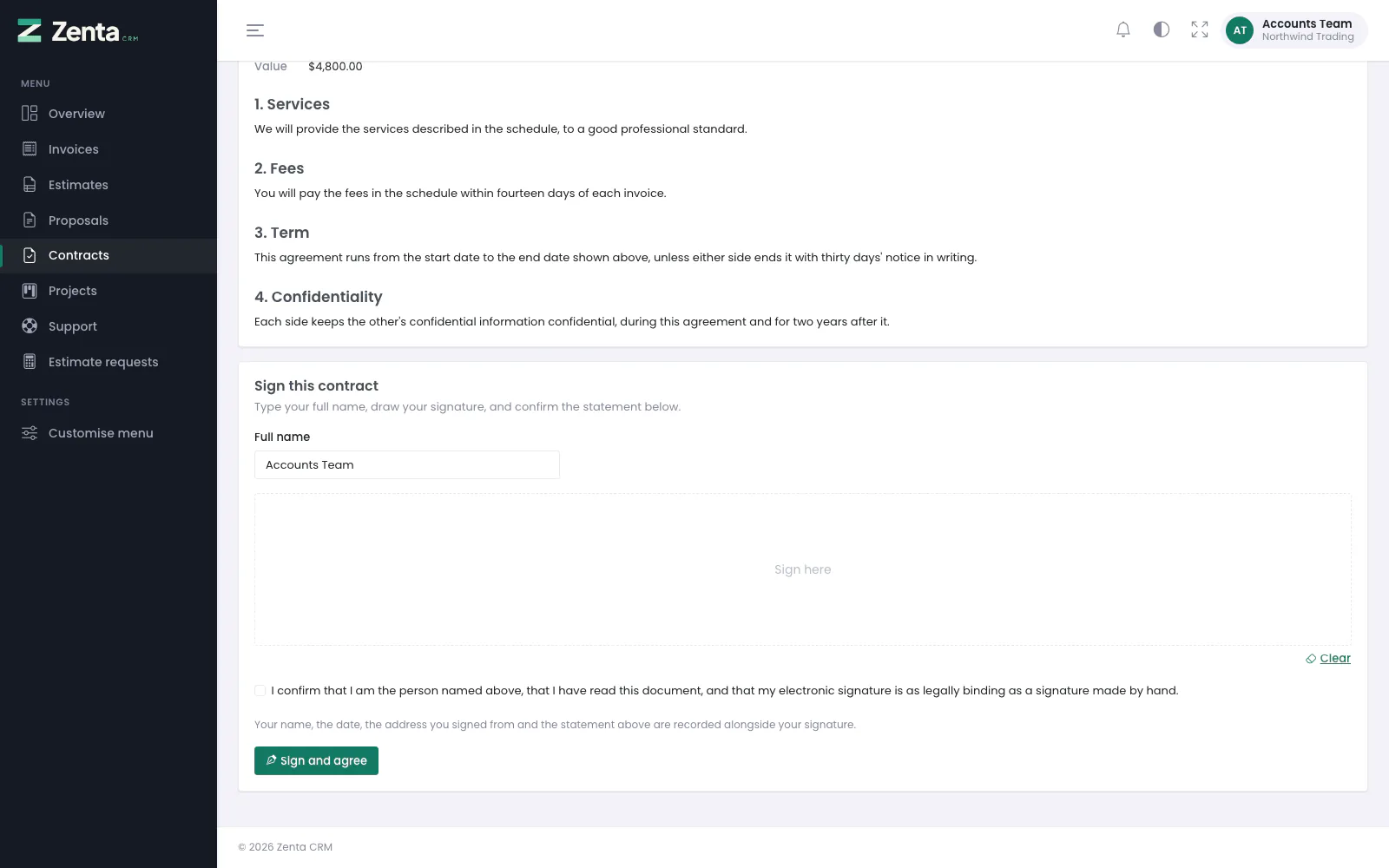 Signing a contract: name, drawing, the statement, and Sign and agree.
While the customer's signature is the one being waited for, a Sign this contract panel sits under the wording. It works as on an estimate — full name, drawing, tick the statement — and the button is Sign and agree. Only the customer's side can be signed here; a contract that needs your signature too goes on waiting for it (see Who signs). A contract whose end date has passed cannot be signed; the page says This contract ended on … and shows no panel.
 Signed by the customer and waiting for the countersignature: everything kept about the signature is shown to them.
Once they have signed, the page thanks them and says it is now with you for your own signature; once both sides have signed it says Signed on …. The Signatures panel shows each signature with who signed, their email, the date, the address they signed from, the browser and the statement they agreed to, and Still to sign while anybody has not.
Downloading a PDF
Download PDF on an invoice, estimate, proposal or contract saves the customer's own copy, drawn the same way as the PDF you send (see PDFs). Invoices and contracts can always be downloaded; estimates and proposals only while Let the customer download the PDF is on. Turning that off hides the button and refuses the download with Downloads are switched off for this document., but the customer can still read the document on screen. A contact needs access to that part of the portal to download from it, as they do to open it.
Estimates and proposals from a link
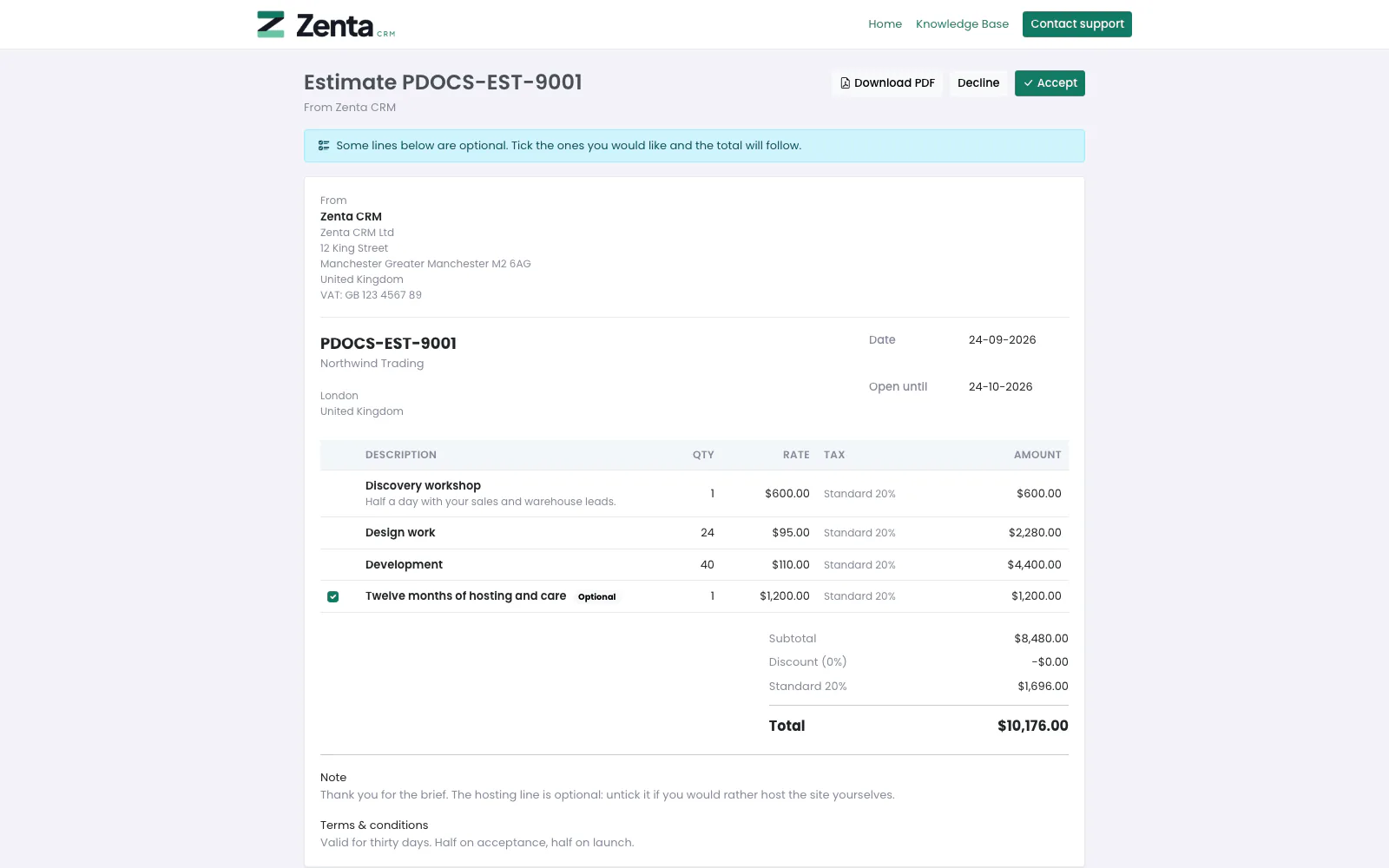 An estimate opened from its link: no account, no sign-in.
A customer does not need a portal account to read and decide on an estimate or a proposal. Each one has a long, random address of its own; with Share by link switched on for that kind of document (Settings → Estimates & proposals → Viewing without an account), anybody holding the address can open it. How your staff copy the link is on Viewing without an account.
The page is headed Estimate or Proposal and the number, From your workspace, and shows the same document as the portal, with the proposal's write-up above the lines. The buttons are Download PDF (while downloads are allowed), Decline (Decline this, with the optional box) and Accept (Accept this? → Yes, accept it). Optional lines can be ticked and unticked as in the portal, and accepting does exactly what it does there.
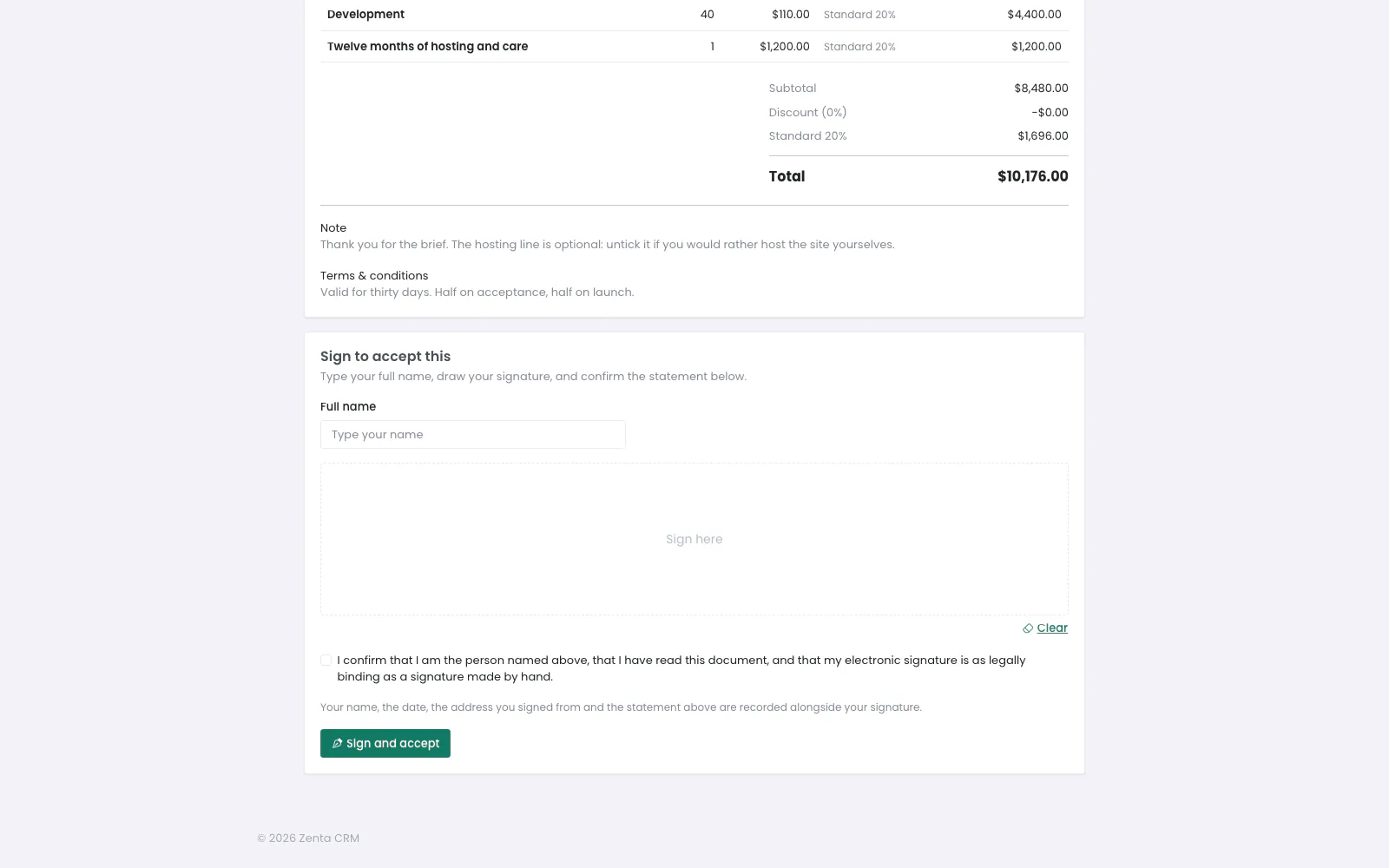 From a link, the name box starts empty: nobody is signed in to fill it from.
When the document asks for a signature, Sign to accept this takes the place of Accept, with an empty Full name box and the same checks and record as in the portal. With nobody signed in, the signature is kept without an email address: the name they typed, the date, the address they signed from, their browser and the statement stand for them.
- After a decision the page says You accepted this on … or You declined this on …, with your reason under it if you gave one; a document that has expired or been decided says This is no longer open. Please ask us for a fresh one.
- With Require a portal sign-in on, the link still works but ends at the portal: a contact of that customer who is already signed in goes straight to the document in the portal; anybody else is sent to the sign-in page with Please sign in to see this document.
- With Share by link off, while the Estimates or Proposals module is off, or for a draft, the address answers "not found".
- Opening, downloading and deciding are each limited to a number of tries a minute, so an address cannot be guessed by trying them one after another.
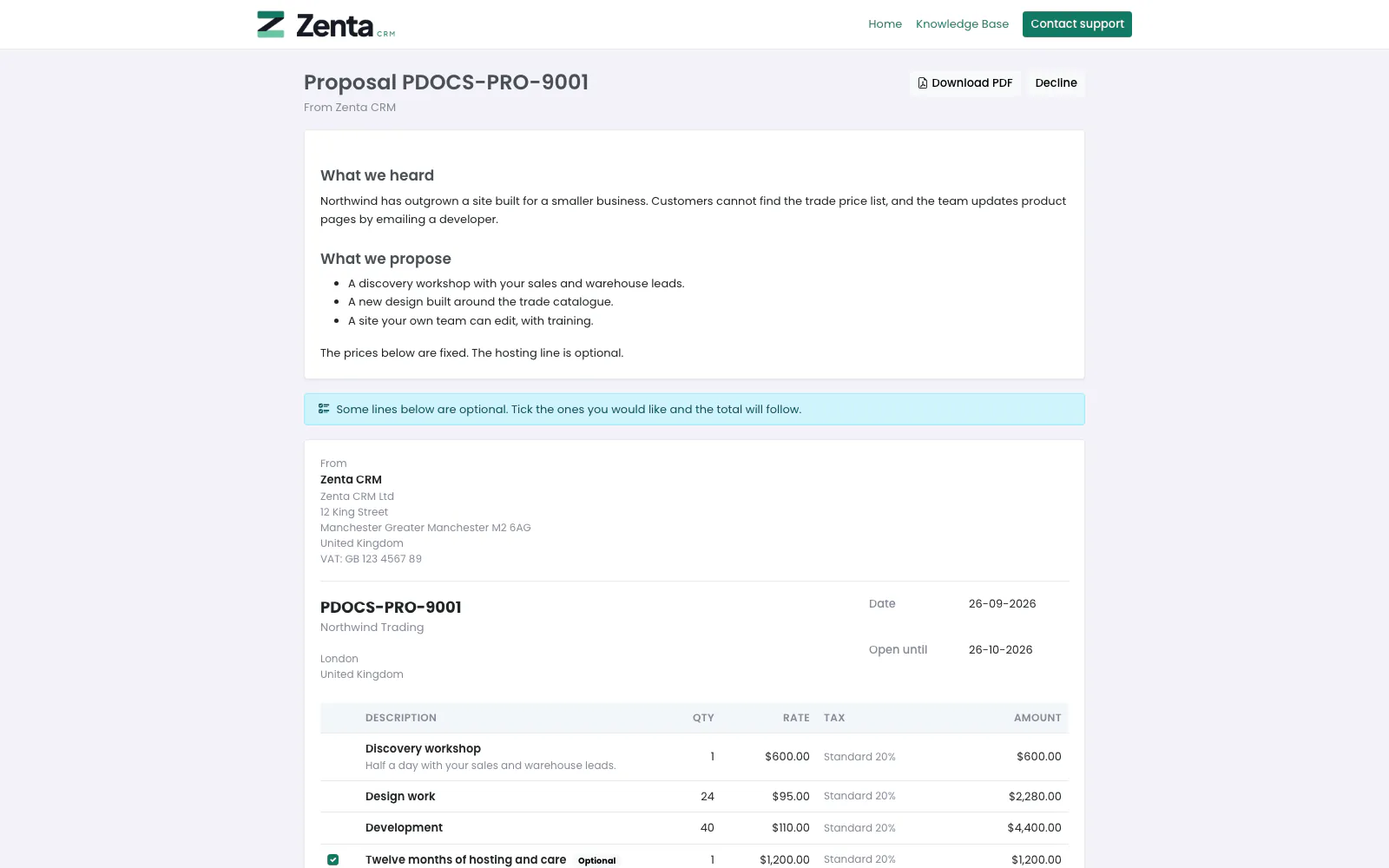 A proposal opened from its link.
Paying an invoice
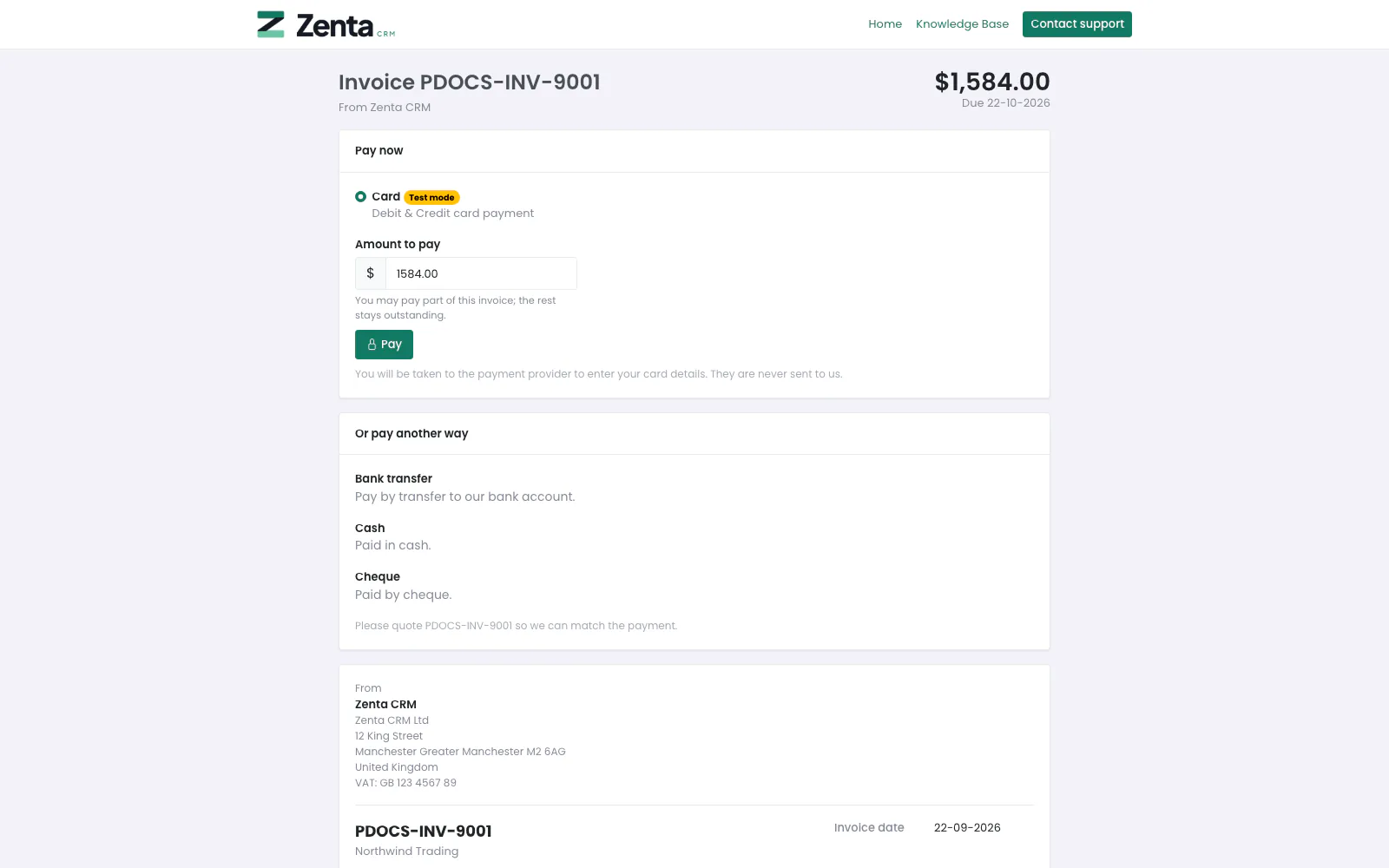 The payment page for an invoice that may be paid in part: choose a method, set the amount, Pay.
The Pay button on a portal invoice and the payment link you send by email open the same page, and it needs no account: the long random token in the address is the whole of the permission, and it reaches that one invoice only. Your staff copy the link with Payment link on the invoice (see Payments).
The page is headed with the invoice number, who it is from, the amount outstanding and when it is due, then:
| Part | What it does |
|---|---|
| Pay now | The online payment methods this invoice allows, one to pick (a method in test mode carries a Test mode badge, because a test payment moves no money). Shown while the invoice is waiting for payment and the customer may pay online. |
| Amount to pay | Only on an invoice you ticked They may pay part of it on. It starts at the whole balance and the customer may lower it (You may pay part of this invoice; the rest stays outstanding.). The button then just says Pay; otherwise it says Pay and the balance, and the balance is what is charged. |
| Pay | Takes the customer to the payment provider's own page to enter their card; card details never reach you. |
| Or pay another way | Each offline method with a description (bank details, for example), and Please quote … so we can match the payment. Headed How to pay when there is no online way on offer. |
| The invoice | The invoice itself, with its reference, and Payments received so far. |
What the customer asks to pay is checked again when the payment starts, because the page's fields can be edited: an amount above what is owed, nothing, or something that is not a number comes back with Enter an amount of no more than …. A paid or cancelled invoice has no Pay button and says so; a customer you took off online payment sees only the ways to pay by arrangement (This invoice is settled by arrangement rather than online. The details are below. if the form is posted anyway).
Coming back from the provider
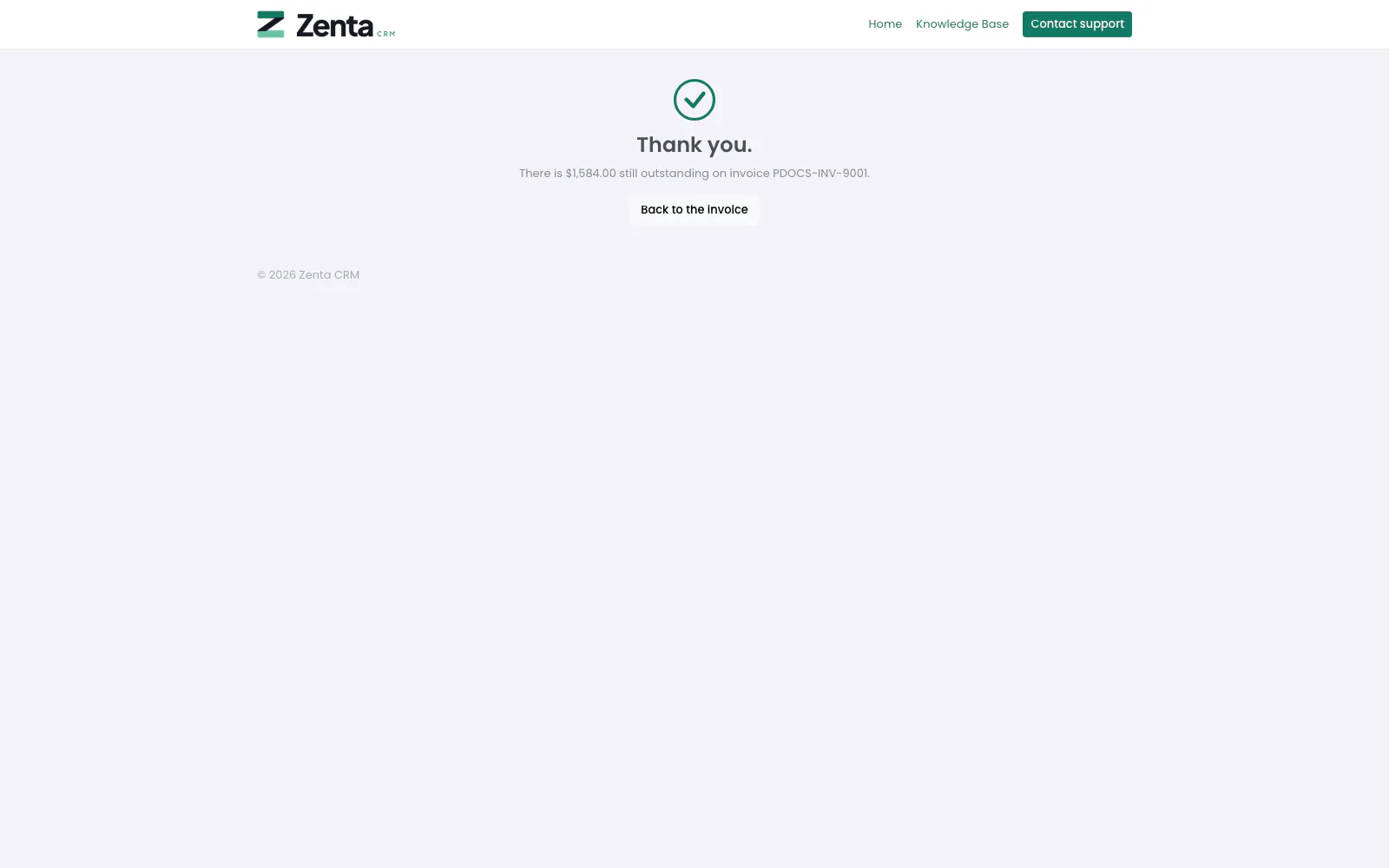 Back from the provider after paying part of the invoice.
After paying, the provider sends the customer back to a thank-you page. The payment is not taken on the browser's word: the page asks the provider whether it was paid, and records it if so. It then says one of three things:
- Thank you — that is paid. — the invoice is settled in full.
- Thank you. and how much is still outstanding — after a part payment.
- Nothing has been taken yet — usually the customer left the provider's page without paying; occasionally the provider is slow to confirm, so they are asked to reload shortly and get in touch if it still looks wrong.
Back to the invoice returns to the payment page.
Addresses on this page
For reference and for anyone scripting against the panel. Everything here needs a customer contact signed in to the portal; the addresses that open without signing in are marked.
| Method | Address | What it does |
|---|---|---|
GET | portal/invoices | The invoices list. |
GET | portal/invoices/statement | The customer's statement, for a period (?period=, or custom with from and to). |
GET | portal/invoices/{invoice} | One invoice. |
GET | portal/estimates | The estimates list. |
GET | portal/estimates/{estimate} | One estimate; the first visit records that it was viewed. |
POST | portal/estimates/{estimate}/accept | Accepts it, with the optional lines ticked. Refused on one that needs signing. |
POST | portal/estimates/{estimate}/decline | Declines it, with an optional reason. |
POST | portal/estimates/{estimate}/sign | Signs and accepts it. |
GET | portal/proposals | The proposals list. |
GET | portal/proposals/{proposal} | One proposal; the first visit marks a sent one as opened. |
POST | portal/proposals/{proposal}/accept | Accepts it, with the optional lines ticked. Refused on one that needs signing. |
POST | portal/proposals/{proposal}/decline | Declines it, with an optional reason. |
POST | portal/proposals/{proposal}/sign | Signs and accepts it. |
POST | portal/sales-documents/{kind}/{document}/comments | Posts a message, with files, to an estimate's or proposal's discussion. |
POST | portal/sales-documents/thread-order | Remembers oldest or newest first for the discussion. Used by the page itself. |
GET | portal/contracts | The contracts list. |
GET | portal/contracts/{contract} | One contract. |
POST | portal/contracts/{contract}/sign | Signs the customer's side of a contract. |
GET | portal/pdf/{kind}/{id} | Downloads the PDF of an invoice, estimate, proposal or contract. |
GET | d/{kind}/{token} | An estimate or proposal from its link. Opens without signing in. |
GET | d/{kind}/{token}/pdf | Its PDF. Opens without signing in. |
POST | d/{kind}/{token}/accept | Accepts it from the link. No sign-in. |
POST | d/{kind}/{token}/decline | Declines it from the link. No sign-in. |
POST | d/{kind}/{token}/sign | Signs and accepts it from the link. No sign-in. |
GET | pay/{token} | The payment page for one invoice. Opens without signing in. |
POST | pay/{token}/checkout | Starts the payment and sends the customer to the provider. No sign-in. |
GET | pay/{token}/complete | Where the provider sends them back; checks and records the payment. No sign-in. |