Security and sign-ins
Who may sign in from where, a record of every attempt, and which files may be uploaded.
IP restriction
 Security: the addresses allowed in, and the two switches.
Settings → Security keeps the workspace to the networks you name - the office, a VPN. Anybody else gets a plain "Not available from this network" page (a 403, never a redirect), which shows them the address the server saw so they can pass it on to you.
- Open Settings → Security. The blue box shows your address, as this server sees it; Copy copies it.
- Type the Allowed addresses, one per line: single IPv4 or IPv6 addresses
(
203.0.113.7,2001:db8::1) or CIDR ranges (198.51.100.0/24,2001:db8::/32). Anything else is refused when you save. - Switch on Restrict the staff area and staff sign-in, Restrict the customer portal, or both.
- Press Save.
| Switch | What it covers |
|---|---|
| Staff area and staff sign-in | Every screen under /admin, and the staff sign-in form's submission (and Google/Facebook sign-in). The sign-in page itself still opens, but a correct password is not accepted from outside the list. |
| Customer portal | Every page under /portal, the portal sign-in included. |
| Never restricted | The public knowledge base, the public support form, survey and payment links, mailing-list pages and webhooks. |
php artisan zenta:security:clear-ip-restrictionphp artisan zenta:security:clear-ip-restriction acme.
bootstrap/app.php inside withMiddleware(), for example
$middleware->trustProxies(at: ['10.0.0.0/8']); (your proxy's addresses;
see Laravel's "Configuring Trusted Proxies"). The Security screen warns you when a request
arrived through a proxy that is not trusted.
On a SaaS install the platform super admin is never refused by a workspace's list, and the tenant admin area is not covered by it. On a single-company install the list covers everybody who signs in to the staff area, the owner included.
Login history
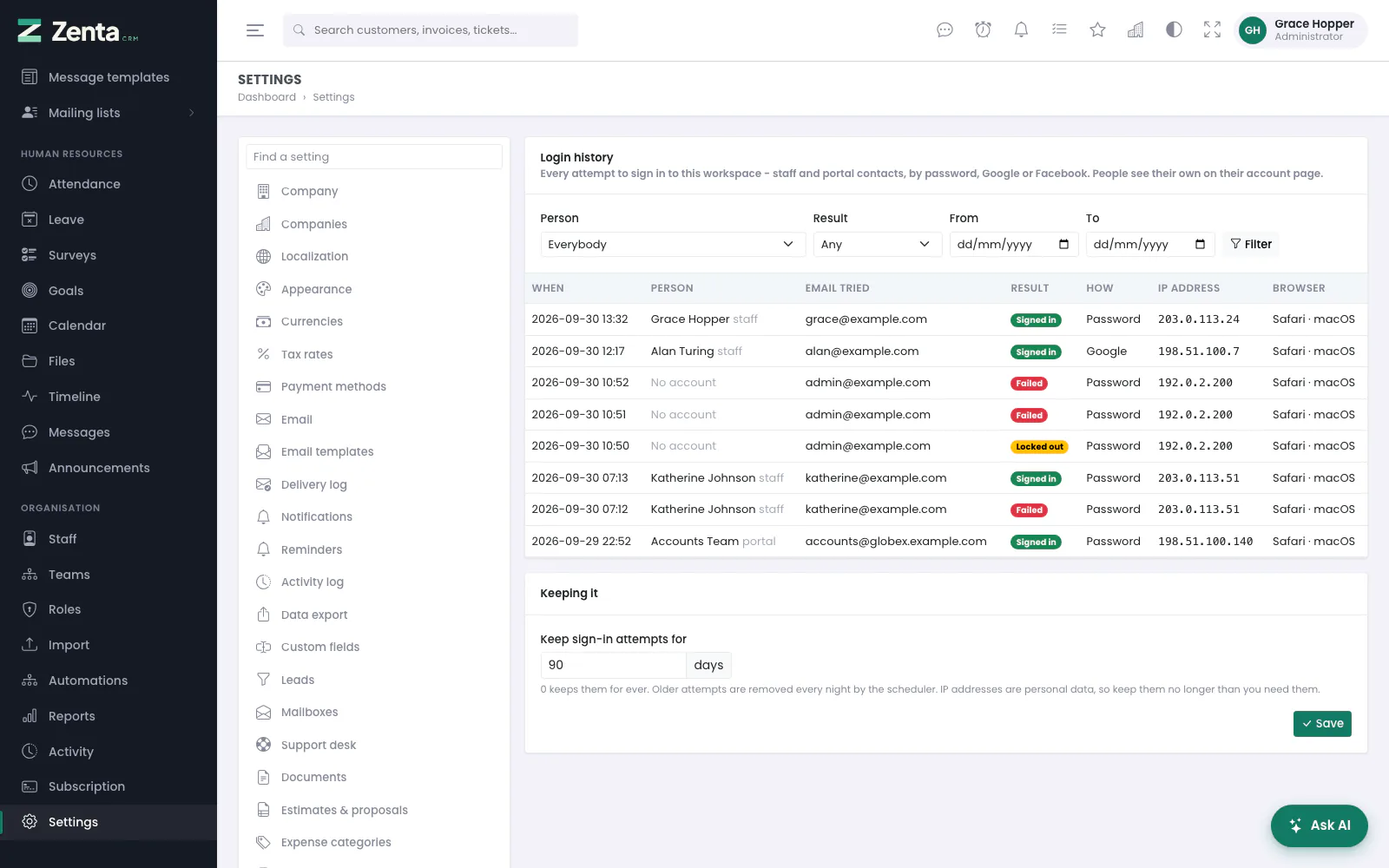 Login history: every attempt, successful or not, newest first.
Every attempt to sign in is recorded: staff and portal contacts, by password, Google or Facebook, whether it worked or not. Administrators — and only administrators, whatever a role allows — can see it under Settings → Login history.
Each row shows When, the Person (with staff or portal, or No account when the address typed matched nobody), the Email tried, the Result (Signed in, Failed or Locked out), How (password, Google or Facebook), the IP address and a short description of the Browser (hover for the full text). Narrow it with Person, Result, From and To, then press Filter; Clear removes the filters.
Everybody sees their own last ten sign-ins at the bottom of My account. Administrators also see them on a staff member's Permissions page.
Under Keeping it, set Keep sign-in attempts for
so many days (90 by default; 0 keeps them for ever) and press
Save. IP addresses are personal data, so keep them no longer than
you need them. The scheduler removes older ones
every night with zenta:login-history:prune, so the cron
entry described in Installation must be running.
Allowed file types and upload size
 Uploads: what may be attached, the largest file, and what actually gets through.
Settings → Uploads decides what may be attached to tickets (from the staff side, the customer portal and the public support form), ticket replies, timeline posts, the file manager (including files copied in from Google Drive or Dropbox) and expense receipts. Logos, favicons, sign-in backgrounds, email images and import files keep their own, narrower rules.
| Setting | What it does |
|---|---|
| Allowed file types | Extensions separated by commas. Leave it empty for the built-in list: common documents, images, archives, audio and video. |
| Largest file, in KB | Required. Per file. The page shows PHP's own upload_max_filesize and post_max_size, and the limit that actually applies — the smaller of yours and PHP's. Expense receipts are limited to PDF and images; the public support form never takes more than 10 MB per file. |
php and its aliases such as phtml,
phar), anything a browser would run as a page from your own
address (html, js, xml and
svg — an SVG can carry a script), programs and scripts
(exe, msi, bat, sh,
ps1, jar, apk …) and server
configuration files (htaccess, ini,
env). Typing one of these into the list is refused with an
explanation. Files are also checked by what they contain: an HTML page
renamed notes.txt is refused.
Press Save. When the size you chose is larger than PHP lets through, the screen says so; What actually gets through shows the limit that applies.
To accept larger files than PHP allows, ask your host to raise
upload_max_filesize and post_max_size; no setting in
the application can. A SaaS super admin can cap what workspace administrators
choose with UPLOAD_MAX_KB_CEILING in .env.
The Performance card at the foot of the Uploads screen shows whether the minified scripts and stylesheets are in use; see Updating.
Addresses on this page
For reference and for anyone scripting against the panel. Everything here needs somebody signed in to the workspace whose role allows it; anybody else is refused.
| Method | Address | What it does |
|---|---|---|
GET | admin/settings/security | The IP restriction screen. |
PUT | admin/settings/security | Saves the allowed addresses and the two switches. Refused if it would lock you out. |
GET | admin/settings/login-history | Every sign-in attempt, with person, result, from and to filters. Administrators only. |
PUT | admin/settings/login-history | Saves how many days of attempts to keep. Administrators only. |
GET | admin/settings/uploads | What may be uploaded, and how large. |
PUT | admin/settings/uploads | Saves the allowed file types and the largest file. |