Your working day
Clocking in, asking for leave, your calendar, the noticeboard, the timeline, the wiki, goals, surveys and messages, as somebody on the Employee role uses them.
Everything on this page is under Human Resources in the menu, plus the Wiki under Supports & Tickets. It describes these screens as the shipped Employee role sees them (see The Employee role, as shipped). If your role has been widened, you may see more buttons than are described here; the pages linked from each section describe every one of them.
Clocking in and out
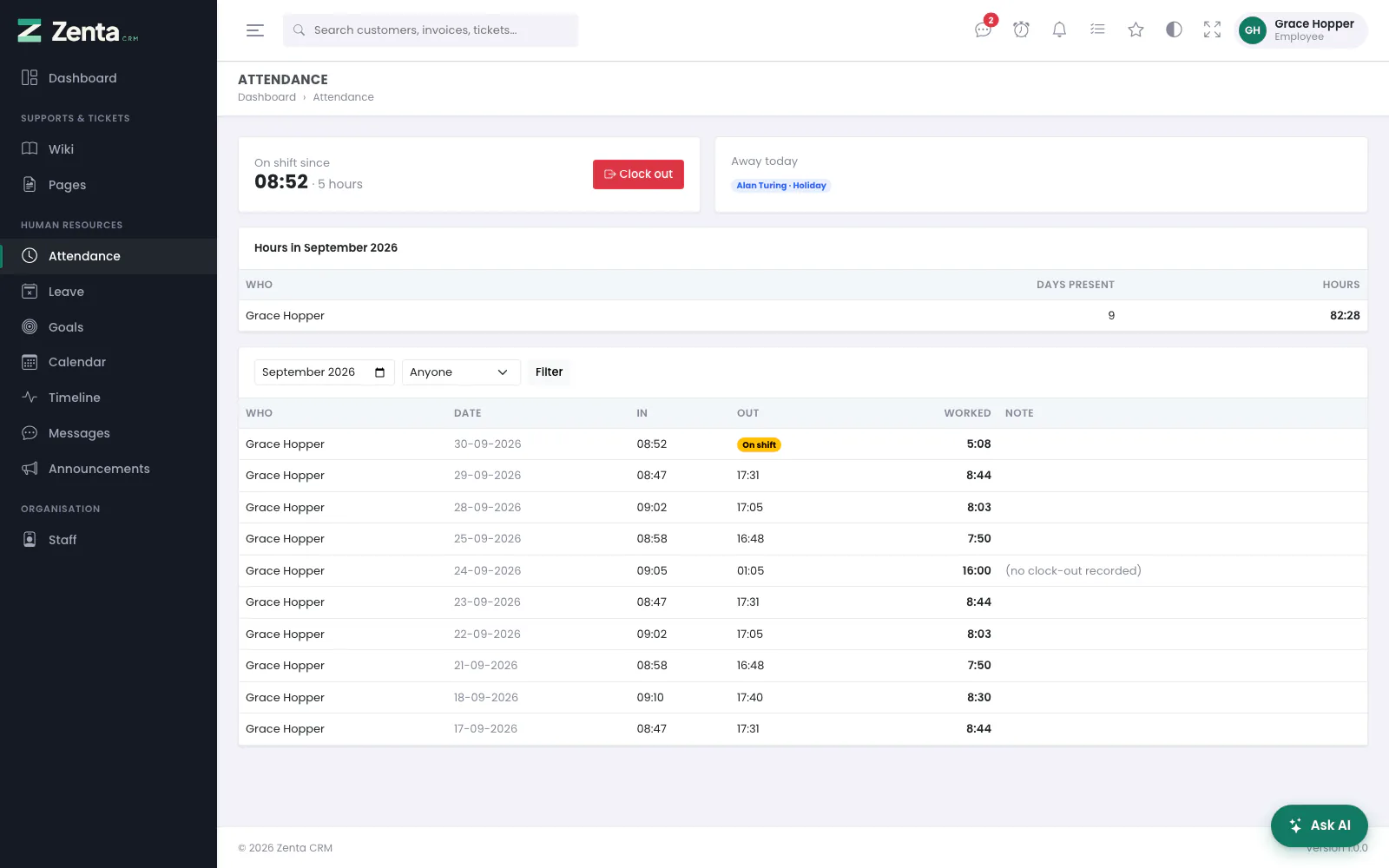 Attendance for an Employee: your own clock, who is away today, and only your own shifts.
Human Resources → Attendance. The card at the top left is your clock: Not clocked in, or On shift since the time you started and how long ago that was.
- Press Clock in when you start work and Clock out when you stop. You can only have one shift open: pressing Clock in twice, or in two tabs, still gives you one shift.
- A shift that runs past midnight belongs to the day it started.
- Away today shows everybody on approved leave today, the whole company's, whatever your scope.
- Hours in the month counts your Days present and Hours. A shift still running is counted once it is closed.
- Below are your shifts for the month: Date, In, Out (or On shift), Worked and Note. Pick another month and press Filter to look back. The Anyone menu lists only the people whose attendance you may see — with the Employee role, just you.
There is no pencil or bin on your shifts: correcting and removing a shift needs the Edit and Delete abilities on attendance, which a manager has and an Employee does not. Clocking is the whole of the job for most people; the full screen is described under The attendance screen.
A shift you forgot to clock
Forgot to clock out? The shift is not left running for ever. Every hour the system closes any shift that has been open longer than the limit your workspace set (sixteen hours unless it was changed). It is closed at the limit, not at the moment somebody noticed, and (no clock-out recorded) is added to its note, as in the picture above. Tell whoever looks after attendance what time you actually left, so they can correct it.
Forgot to clock in? That depends on your workspace. If an administrator has switched on Let staff type in a shift they forgot to clock (under Settings → Attendance & leave), an Add a shift button appears at the top of the screen. Fill in Clocked in and, if the shift is over, Clocked out, add a Note saying why it was typed in, and press Add shift. It is recorded against you; there is no Who to choose. The switch is off to begin with, and then the button is not there: ask a manager to add the shift for you.
Asking for leave
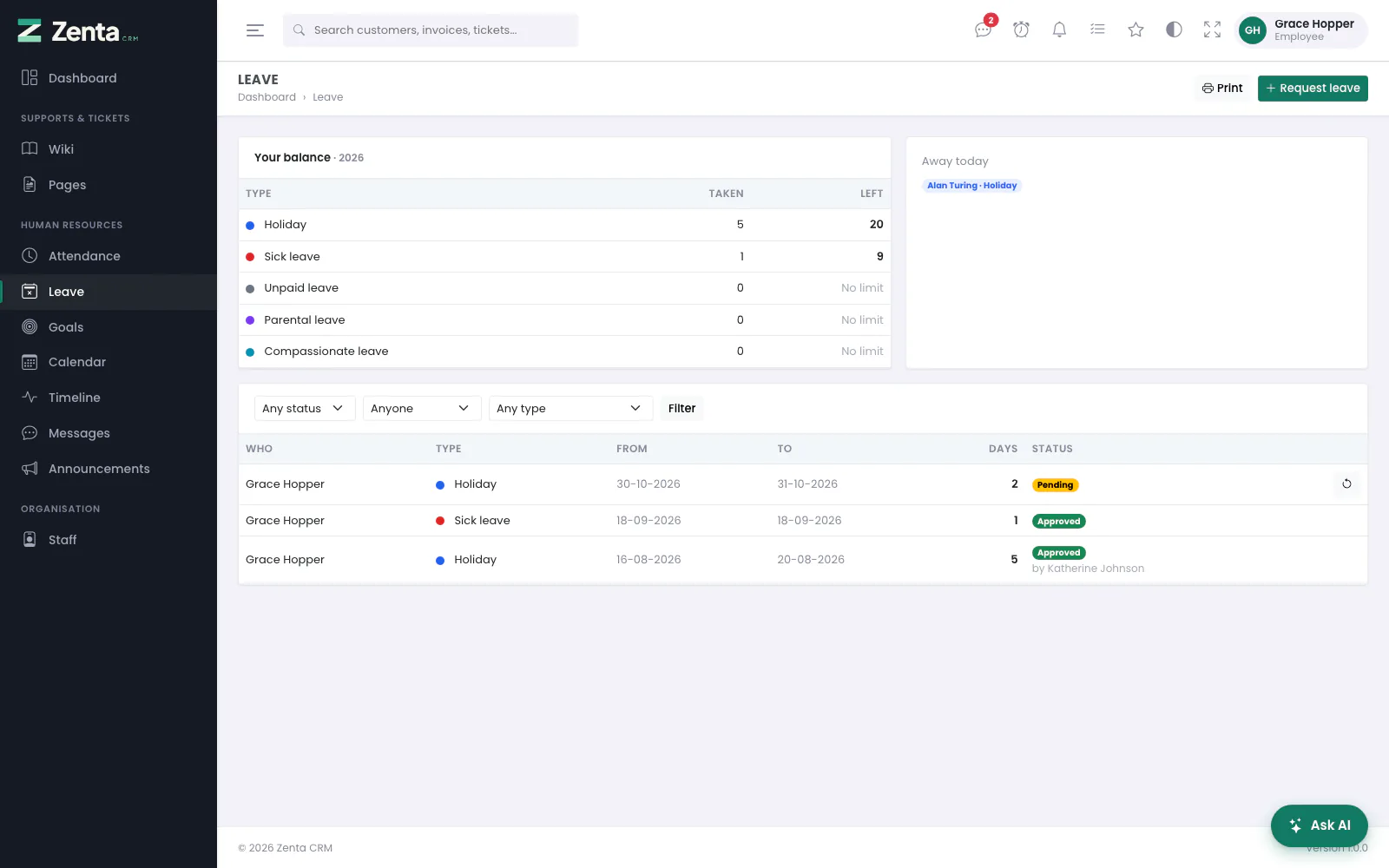 Leave for an Employee: your balance for the leave year, who is away today, and your own requests. The pending one can be withdrawn.
Human Resources → Leave. With the Employee role you see only your own requests.
Your balance
Your balance, labelled with the leave year it covers (2026, or 2026/27 when your leave year does not start in January), lists each type of leave with the days Taken and the days Left, or No limit for a type with no allowance. Only approved leave inside the leave year counts as taken: a request still waiting, declined or withdrawn does not. A figure below zero is shown in red. How days are counted — working days only, by the working week your workspace set — is explained under How days are counted.
Making a request
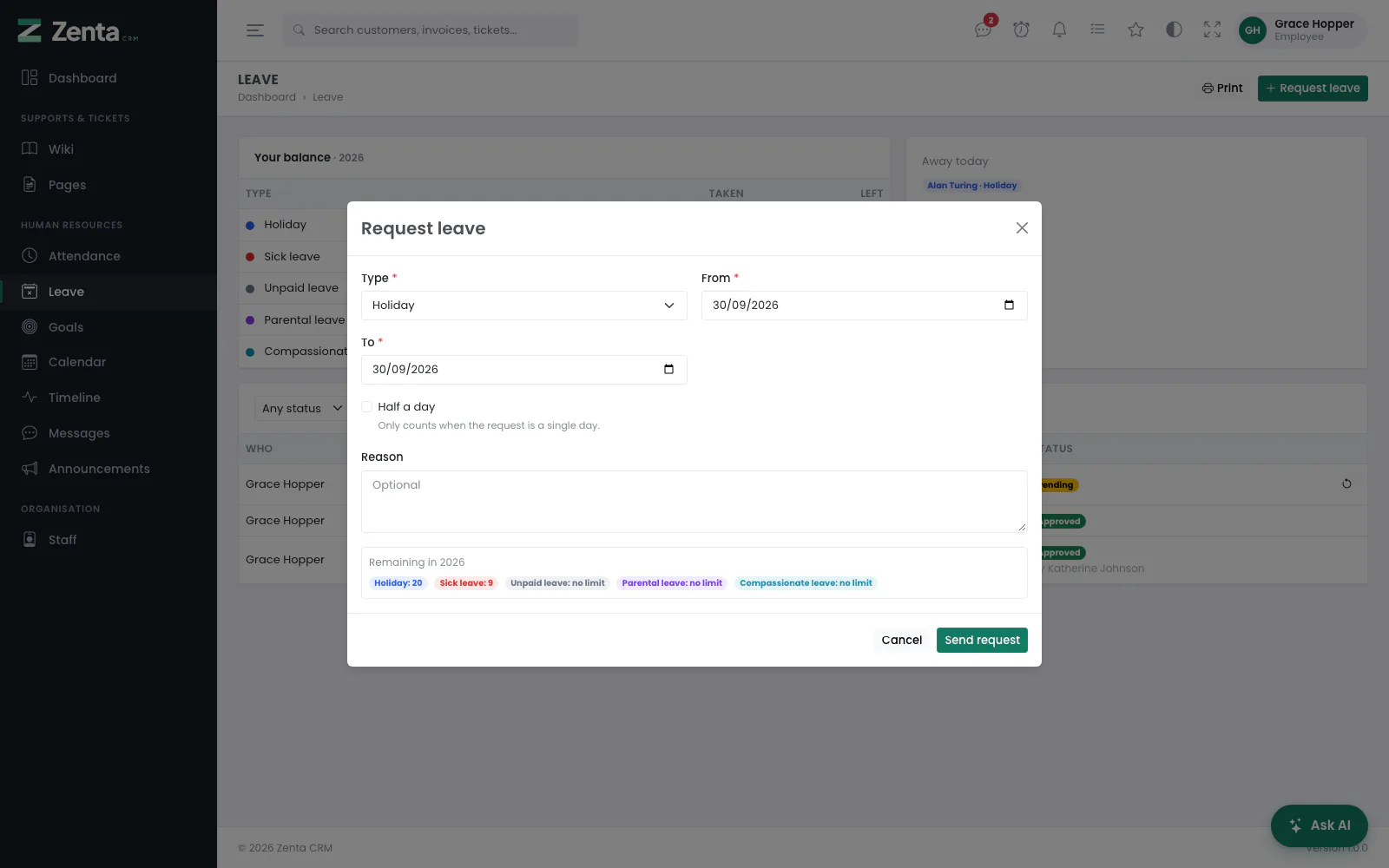 Request leave: no Who field for an Employee, who always asks for themselves. What is left of each allowance is shown at the bottom.
- Press Request leave.
- Choose the Type. A type that needs nobody's approval says no approval needed beside its name.
- Set From and To. Tick Half a day for half of a single day; it is ignored on a longer request.
- Add a Reason if you like (optional).
- Check Remaining in the leave year at the bottom, and press Send request.
A type that needs approval — Holiday, say — starts as Pending until somebody who can approve leave answers it; their name then appears under the status. A type that needs none, such as Sick leave as shipped, is recorded as approved straight away. You never approve your own leave, whatever your role: nobody can.
Changing your mind
The button at the end of a request's row withdraws it, after you confirm; its status becomes Withdrawn. You can withdraw a request that is still pending, and an approved one until its last day has passed. Leave already taken cannot be withdrawn (This request can no longer be withdrawn.).
The Employee role cannot edit a request (there is no pencil), so to change the dates, withdraw the request and send a new one. Once a request has been answered, the person who made it cannot edit it on any role, so an approved week cannot quietly become two. Print, at the top, prints the list as it is filtered. The full screen, including approving, is under The leave screen.
The calendar
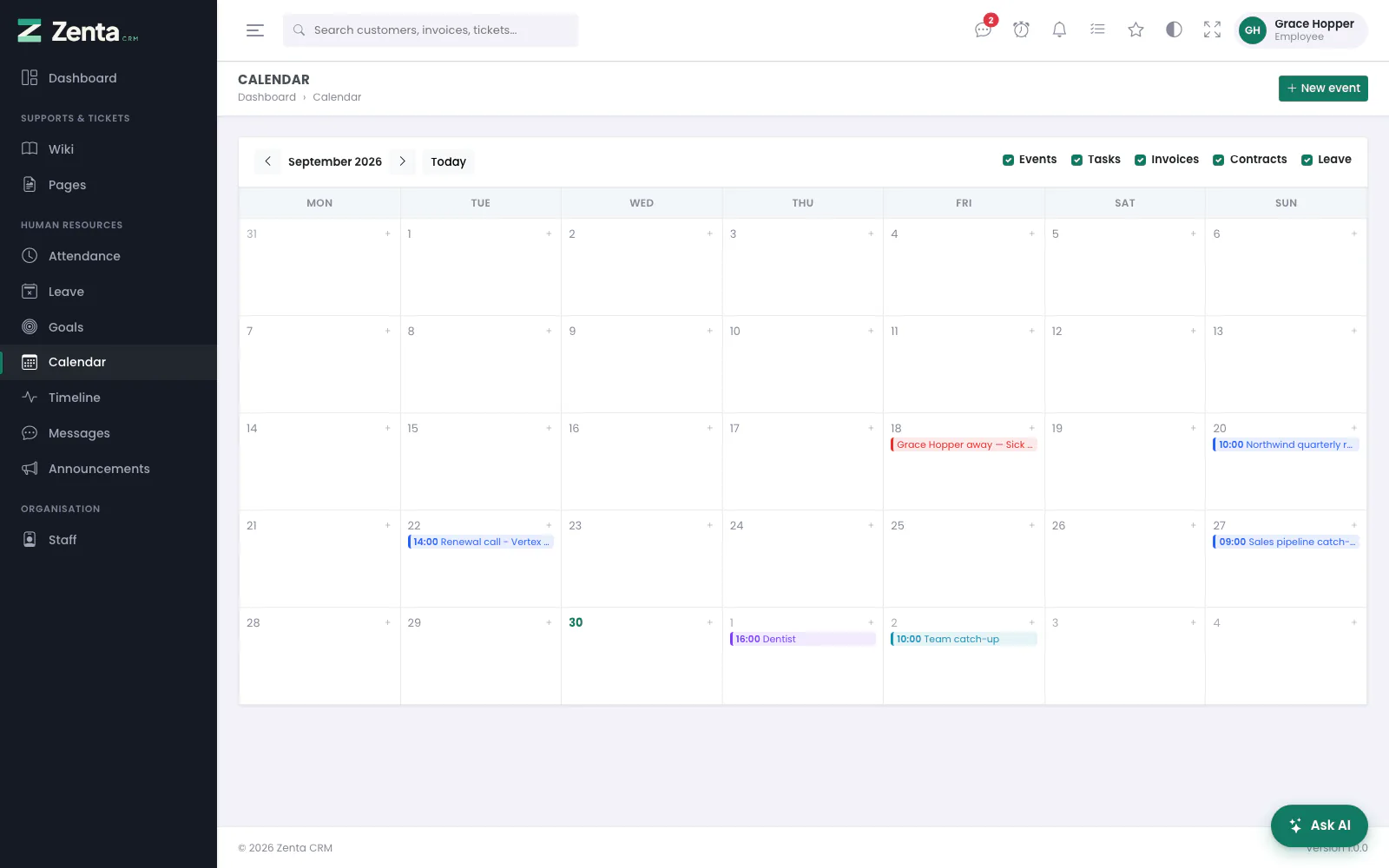 The calendar for an Employee: their own events, events shared with them, and their own leave.
Human Resources → Calendar. A month at a time; the arrows move a month and Today comes back. You see:
- your own events, including those set to Only me, which nobody else can see;
- colleagues' events set to My teams (if you share a team) or Everybody, and any event you are invited to;
- approved leave you can see — with the Employee role, your own;
- tasks due, invoices due and contracts ending, but only those your role lets you open. The Tasks, Invoices and Contracts ticks are there for everybody; with the Employee role as shipped they add nothing.
Untick a source at the top right to hide it. New event, or the + in a day's corner, adds an event of your own: a Title, From and To (or All day), Who can see it (Only me, My teams or Everybody), notes, and colleagues to Invite. Press Add event. Only you can change or remove an event you created; nobody else can, administrators included.
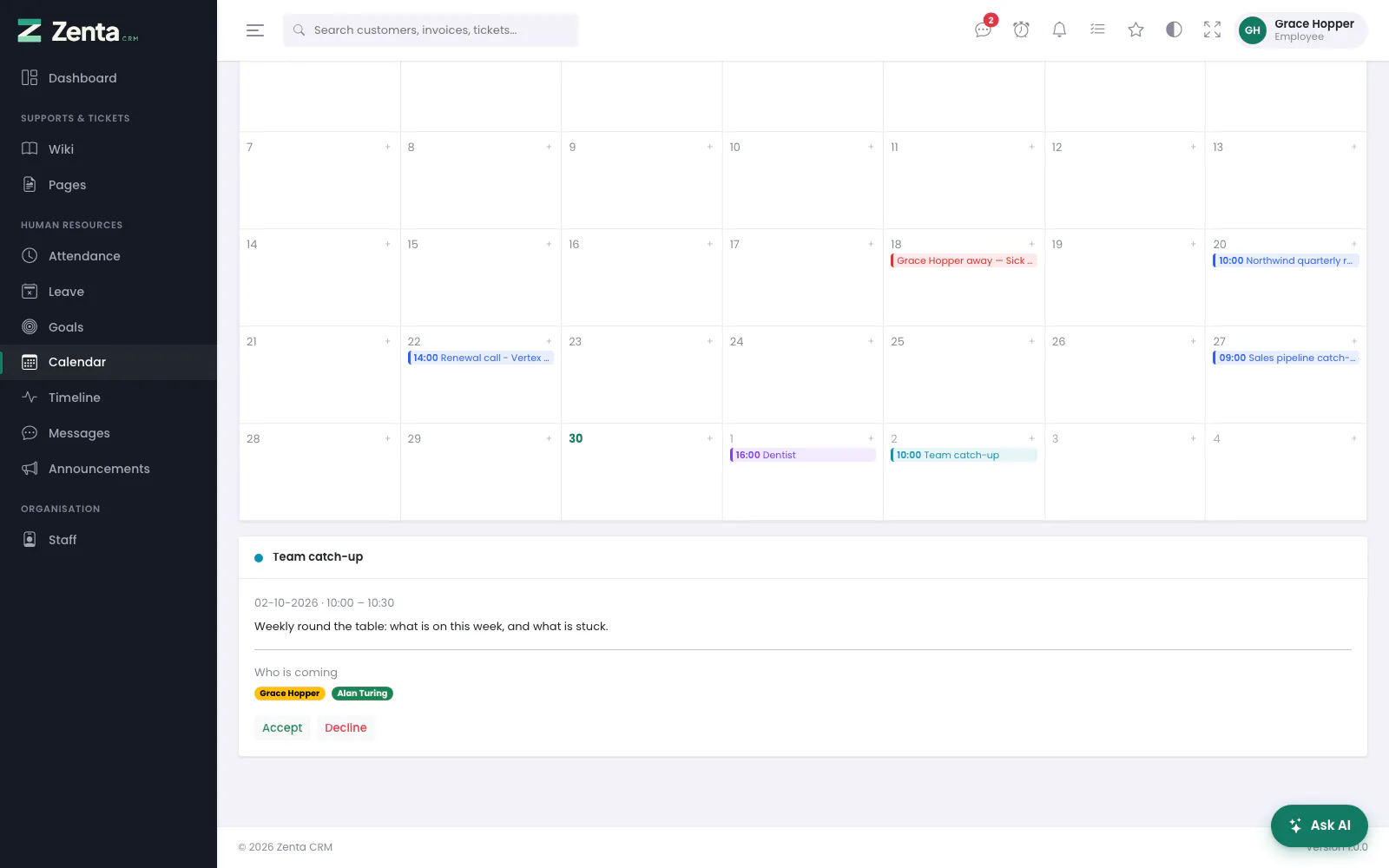 An event a colleague invited you to, opened under the calendar, with Accept and Decline.
Click an event to open it under the calendar, with Who is coming. When you are invited, Accept or Decline records your answer, after you confirm. The whole form is described under Calendar.
Announcements
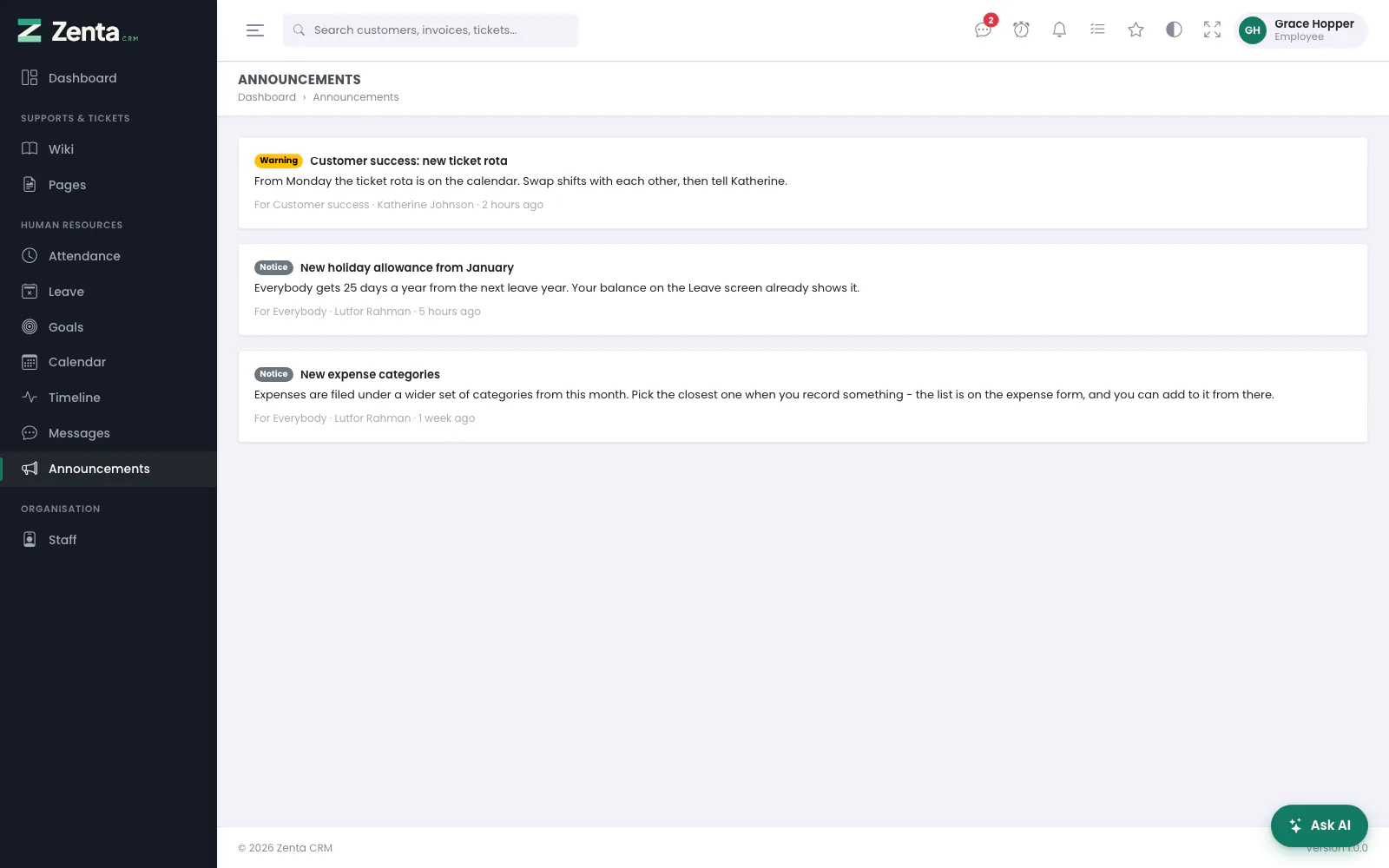 Announcements for an Employee: the notices addressed to them, one to everybody and one to their team. No Write an announcement button.
Human Resources → Announcements is the noticeboard. You see the notices addressed to you — to everybody, to a team you are on, or to your role — that are showing now. Each has its importance (Notice, Warning or Urgent), its title and message, then who it is for, who wrote it and when. A notice for another team, or one that has not started yet, is not shown to you. With the Employee role you can read them only: writing one needs the Create ability, which the Manager role has (see Announcements).
The banner, and closing it
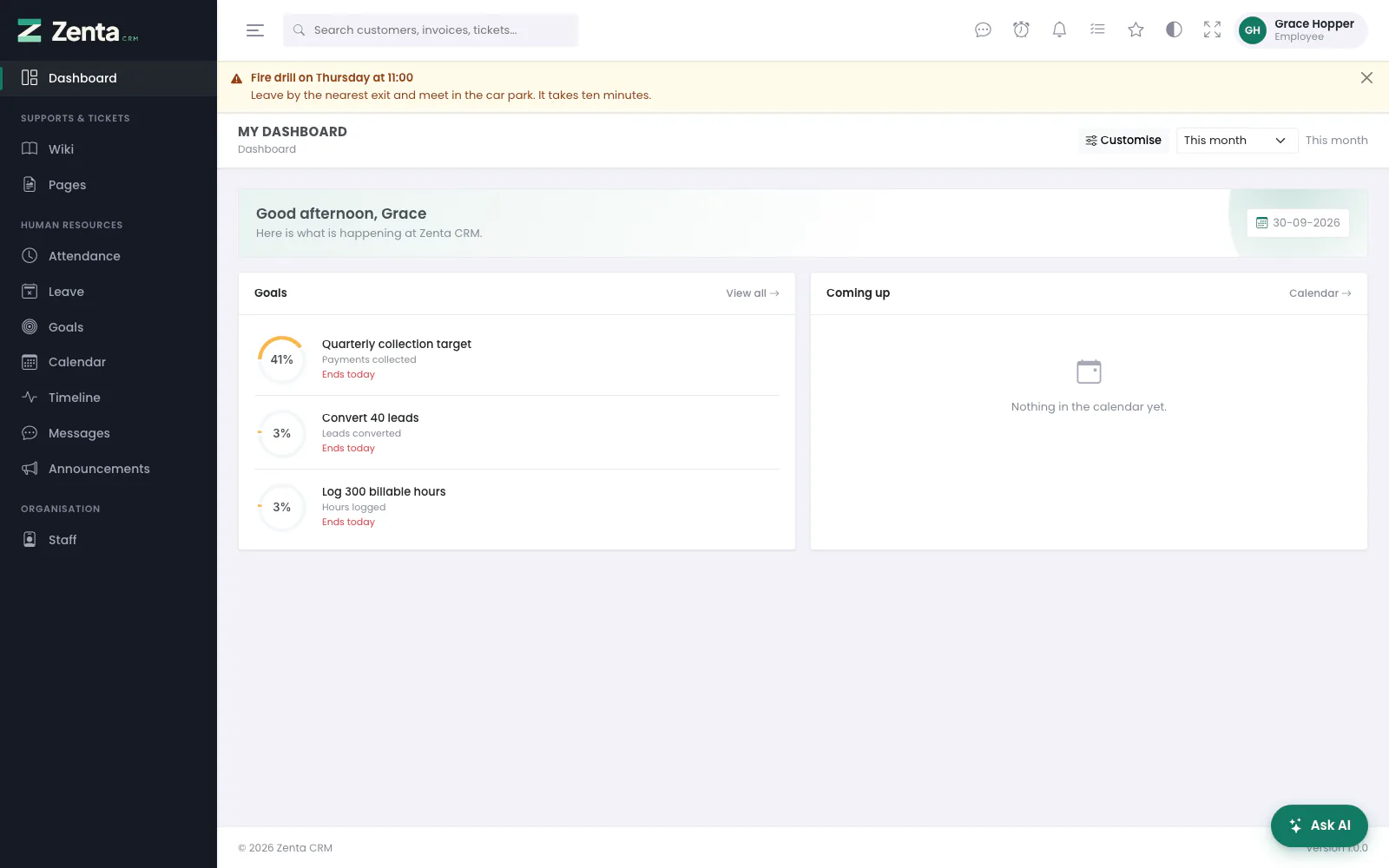 An announcement shown above every page, with the cross at the right that closes it for you.
An announcement marked to show above every page appears as a band across the top of every screen until it ends. If it has a at the right, press it to dismiss it: it disappears at once, and only for you — your colleagues still see it until they close it themselves. A banner with no cross cannot be closed; it stays until it ends. If the person who wrote it edits it later, it comes back for everybody who had closed it, so a correction is not missed. The notice stays on the Announcements screen either way.
A band about maintenance or your subscription may also come from whoever runs the platform; those are closed the same way (see Notices from the platform).
The timeline
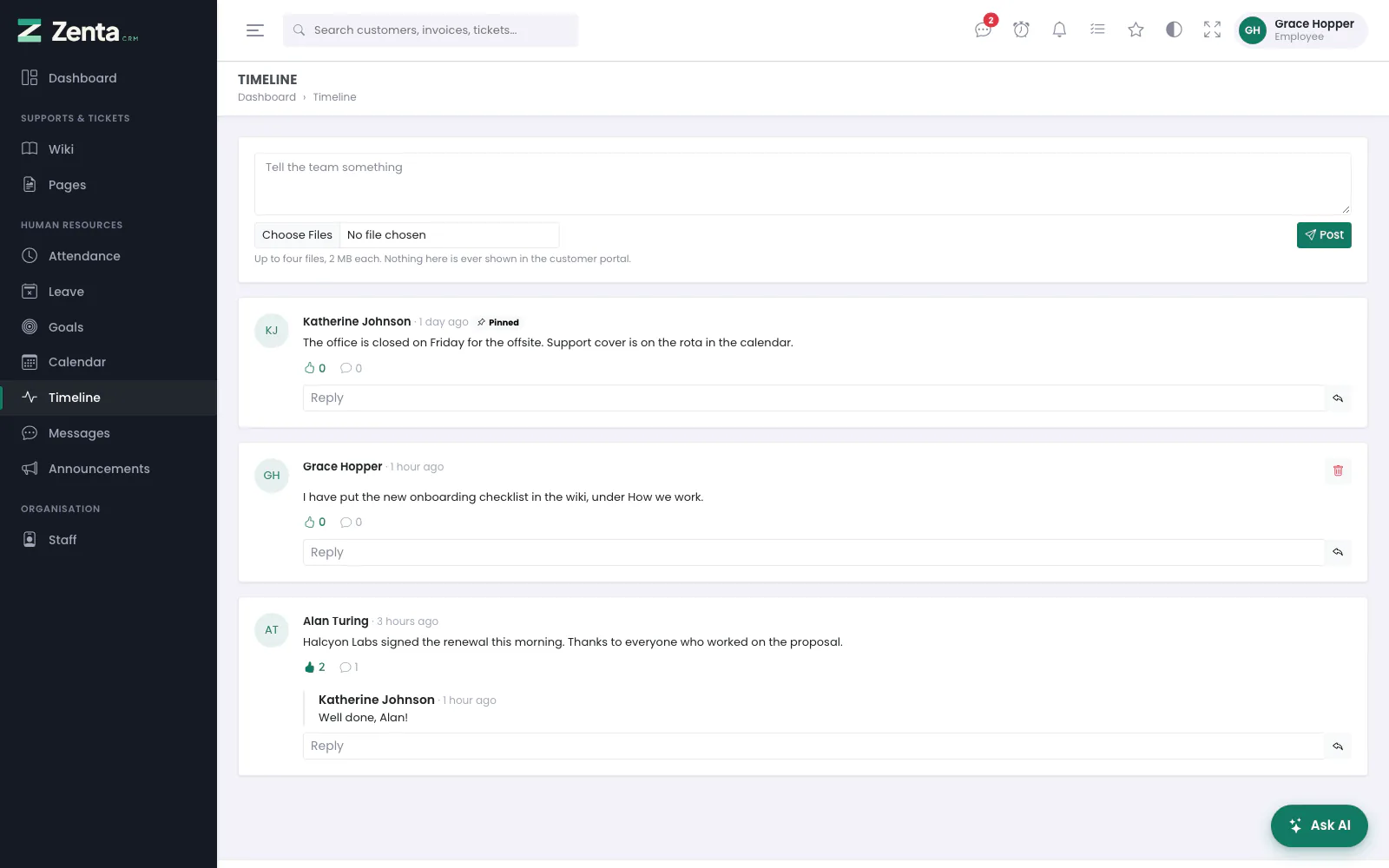 The timeline for an Employee: post, react and reply to anything, and remove your own posts. The pinned post cannot be unpinned.
Human Resources → Timeline is the team's feed, pinned posts first. Nothing on it ever reaches the customer portal.
- Post: write in Tell the team something, attach up to four files if you like, and press Post.
- React: the button adds your reaction, after you confirm; pressing it again takes it back.
- Reply: type in the Reply box under a post and press the send button beside it.
- Remove your own post (with its replies) or your own reply with , after you confirm.
With the Employee role there is no bin on other people's posts, and no pin button: pinning needs the Edit ability on the timeline, and removing somebody else's post the Delete ability. See Timeline.
Reading the wiki
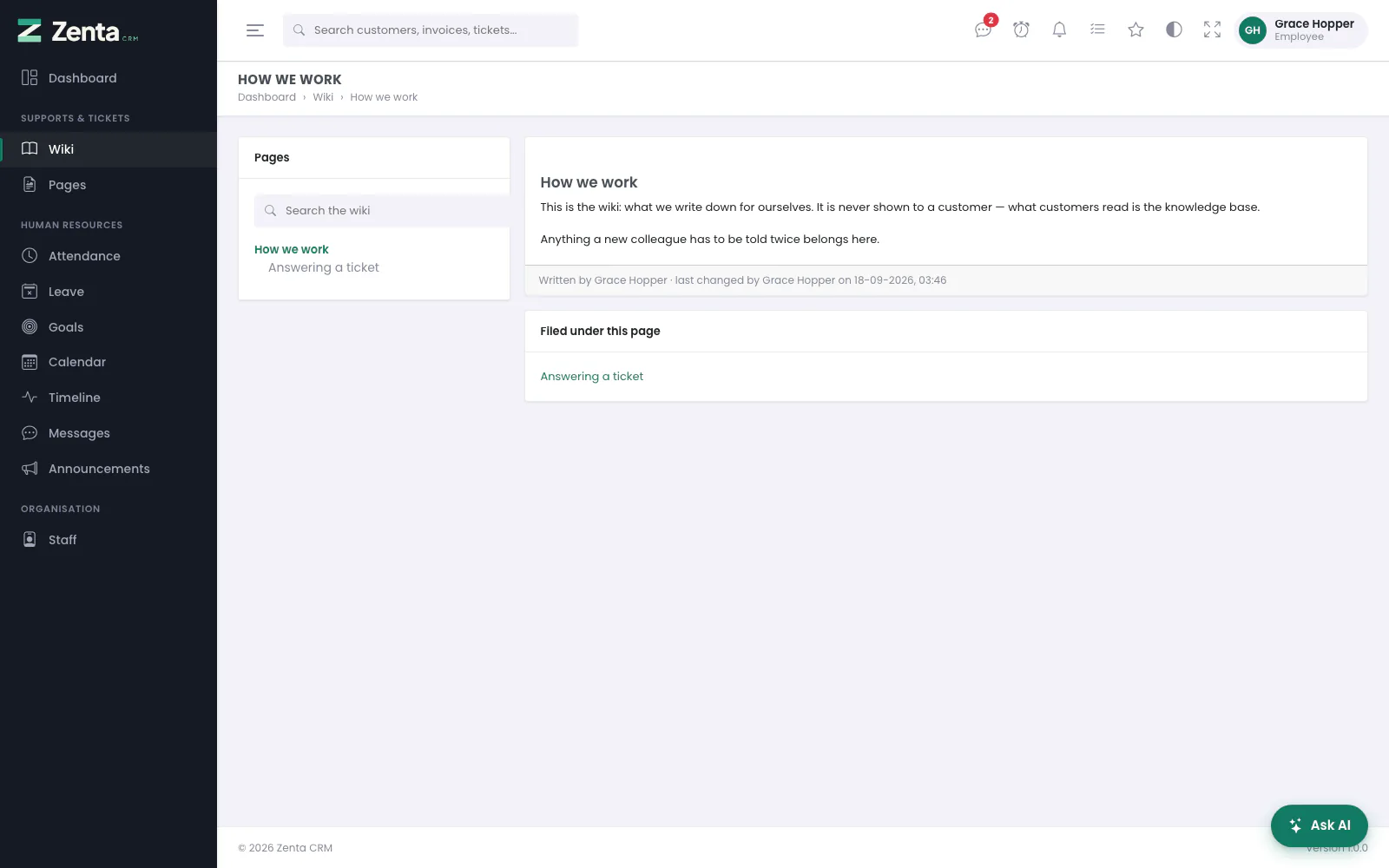 A wiki page for an Employee: the page, who wrote it and last changed it, and the pages filed under it. No Edit button and no History.
Supports & Tickets → Wiki is what your business writes down for itself: how things are done, what was decided, what a new colleague needs to know. It is never shown to a customer. The Pages list on the left shows every page, with the pages filed under each one indented beneath it; Search the wiki narrows it. Click a page to read it. Under the page you see who wrote it and who last changed it, the pages Filed under this page, and any Files attached to it. The search box in the top bar finds wiki pages too.
With the Employee role the wiki is for reading. New page, Edit, Page under this one and the page's History belong to people who may write it, and so do draft pages: a draft is not shown to you until it is published. Writing the wiki is described under Support.
Pages, just below the Wiki in the menu, is different: it holds the staff-only pages your business publishes from its settings, such as a handbook or a price list. Everybody on the staff can read them (see Pages and the website menu).
Goals
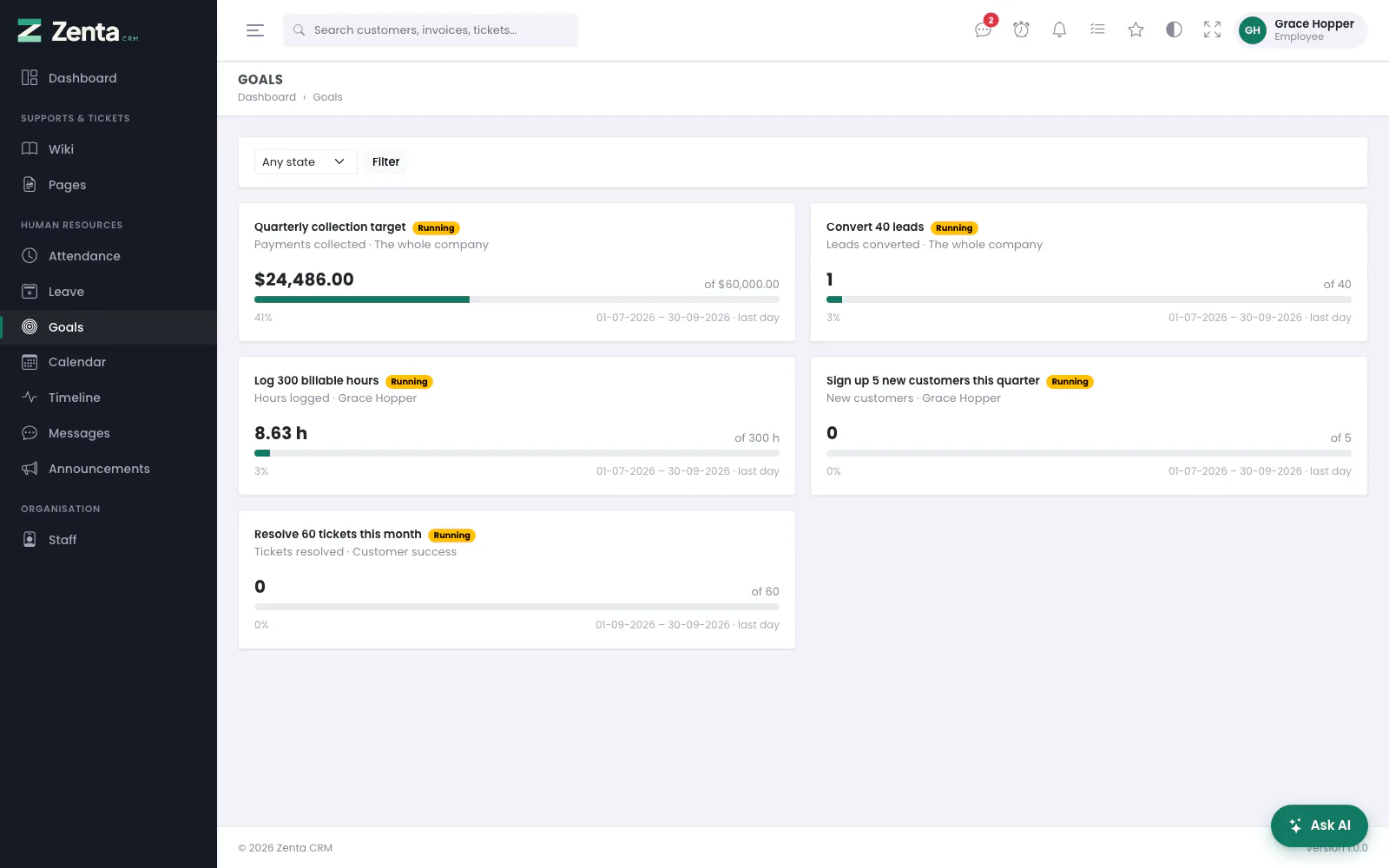 Goals for an Employee: the company's, their own and their team's, each counted from the records.
Human Resources → Goals. With the Employee role you see the goals you have a stake in: the whole company's, your own, and your team's. Each shows whether it is Running, Achieved, Missed or Not started, what is counted and whose goal it is, the figure so far against the target, and how many days are left. Choose a state and press Filter to narrow the list. The figures are counted from the records every time the page opens, so they are always up to date. Setting and changing goals needs abilities the Employee role does not have (see Goals). The dashboard's Goals panel shows the same goals.
Answering a staff survey
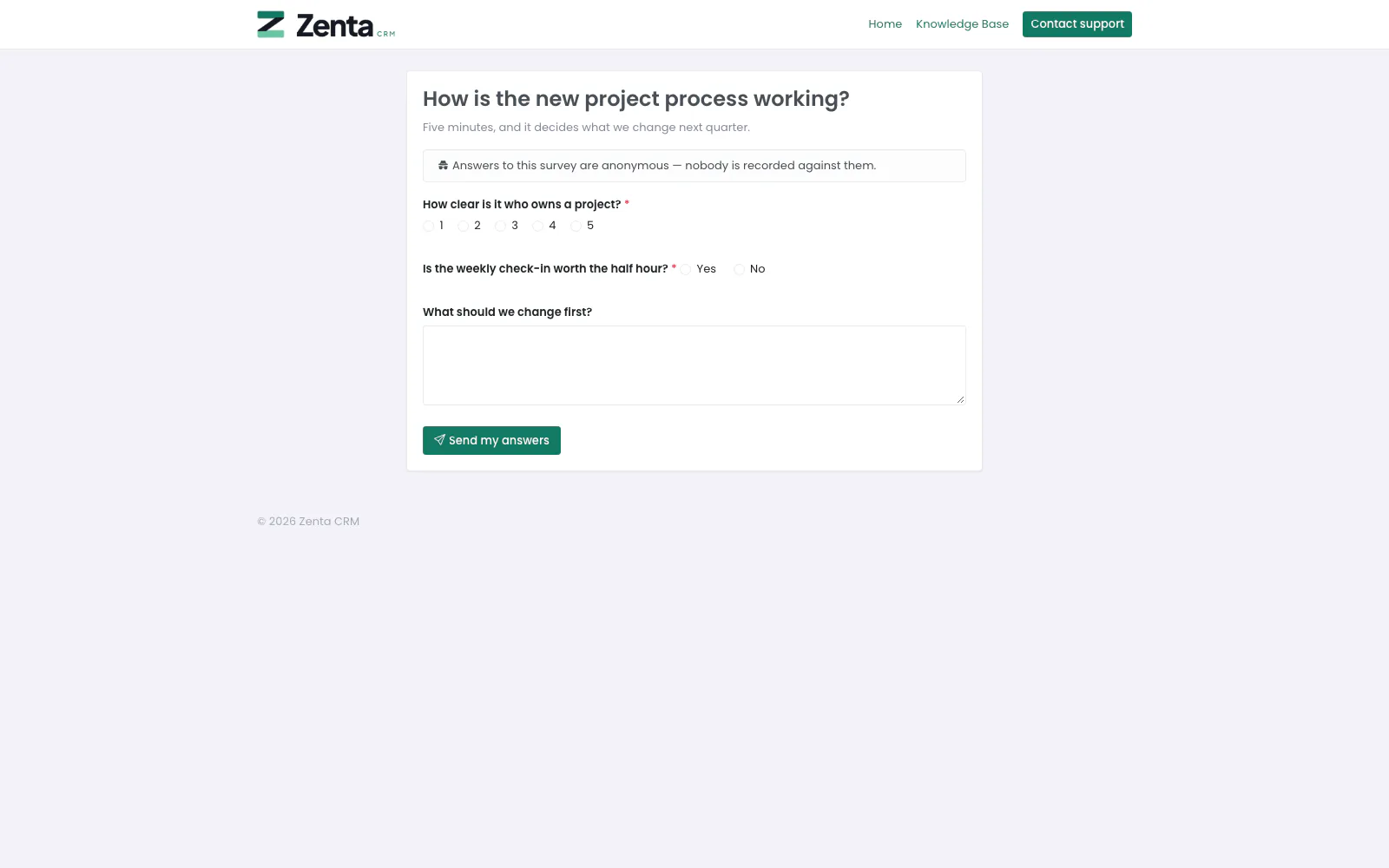 A staff survey opened from its link while signed in: here an anonymous one, which says so above the questions.
There is no Surveys item in an Employee's menu: that screen is for the people who write surveys and read the results. You answer a survey from its link, which the person running it shares with you — in an announcement, a message, a timeline post or an email.
- Open the link. A survey for staff only takes answers from somebody signed in as staff of your workspace. If you are not signed in, it says This survey is for our staff. Sign in to answer it. with a Sign in link; sign in, then open the survey's link again.
- Answer the questions. Those marked with a red * need an answer; a rating is 1 to 5.
- Press Send my answers. You see Thank you, and the survey's own thank-you message if it has one.
- Anonymous or not. When the survey says Answers to this survey are anonymous — nobody is recorded against them., your name is not kept with your answers. When it does not say so, your answers are recorded under your name, and you can answer only once: opening the link again says You have already answered this one. Thank you.
- Not open. A survey that has not opened yet, or has closed, says so (This survey opens on…, This survey has closed.) instead of showing the questions.
How surveys are written, and who sees the results, is under Surveys.
Messages with colleagues
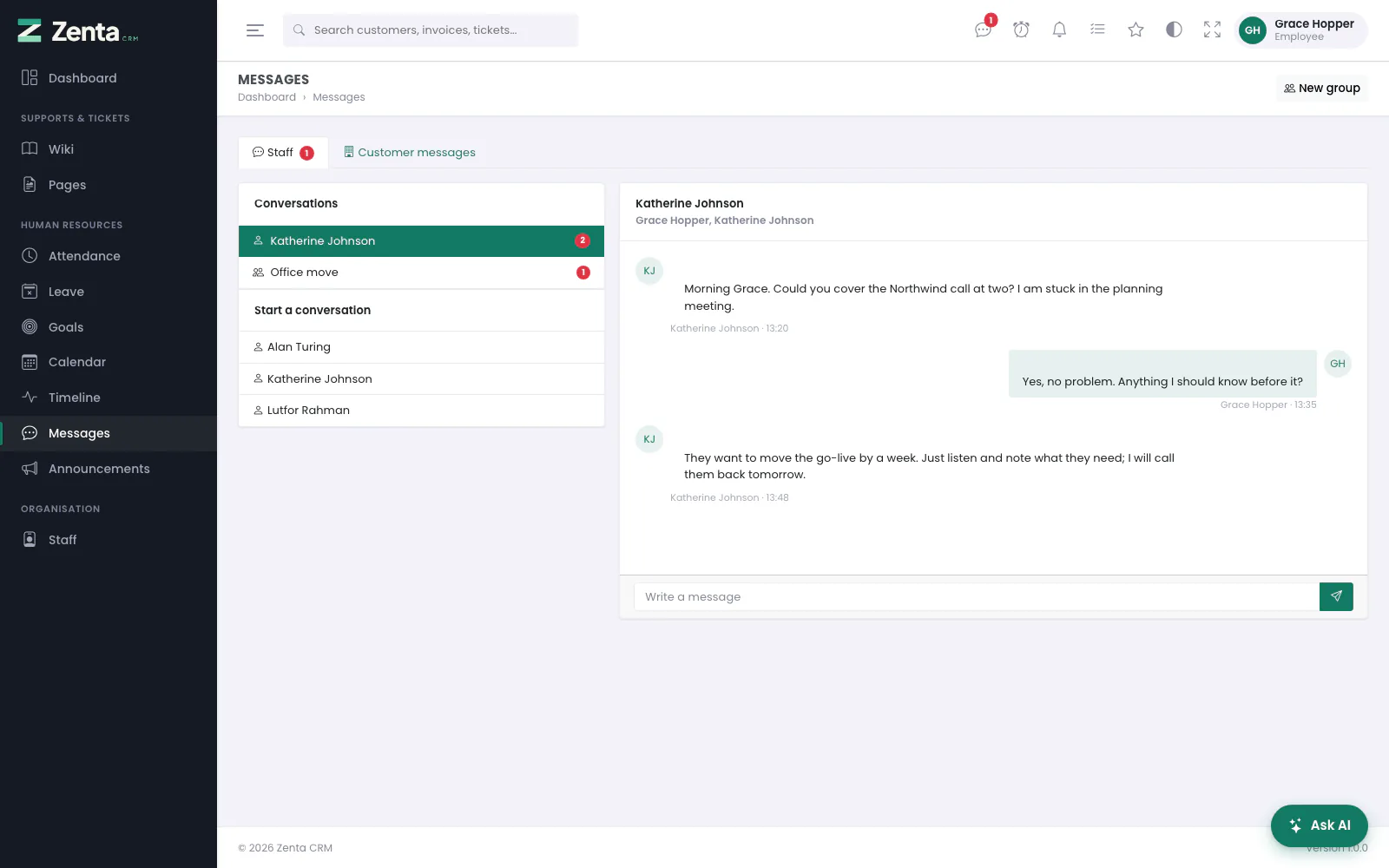 Messages for an Employee: their conversations, the colleagues they can start one with, and the open conversation.
Human Resources → Messages, or the icon in the top bar, whose badge counts conversations with something new for you. It is in everybody's menu: being in a conversation is all it takes to read and answer it, and nobody else — not even an administrator — can read a conversation they are not in.
- Conversations lists the ones you are in, with a count of unread messages. Click one to open it, type in Write a message and press the send button. New messages appear by themselves every few seconds.
- Start a conversation lists the colleagues you may write to. Click a name and confirm. If the two of you already have a conversation, it reopens rather than starting a second one.
- New group, at the top, starts a conversation with several colleagues: a Name, tick Who is in it, and press Start it. Leave takes you out of a group; a one-to-one conversation cannot be left.
- Customer messages, the second tab, holds threads customers started from the portal that you have been added to. Everything you write there the customer can read.
Who you may start a conversation with is the one thing the Messages permission decides. The Employee role, as shipped, may write to anybody on the staff. A workspace can narrow that to the people who share a team with you, or to nobody — then you can still answer whoever writes to you, and the page tells you so. See Messages.
Addresses on this page
For reference and for anyone scripting against the panel. Everything here needs somebody signed in to the workspace whose role allows it; anybody else is refused.
| Method | Address | What it does |
|---|---|---|
GET | admin/attendance | Attendance: your clock and your shifts. ?month=YYYY-MM picks the month. |
POST | admin/attendance/clock-in | Clocks you in. |
POST | admin/attendance/clock-out | Clocks you out. |
GET | admin/attendance/create | The Add a shift form, when your workspace lets staff type in a forgotten shift. |
POST | admin/attendance | Saves a shift you typed in. |
GET | admin/leave | Leave: your balance and your requests. |
GET | admin/leave/create | The Request leave form, in a pop-up. |
POST | admin/leave | Sends a request. |
PATCH | admin/leave/{leave}/cancel | Withdraws one of your requests. |
GET | admin/calendar | The calendar. ?event= opens one event under it. |
GET | admin/calendar/create | The New event form, in a pop-up. |
POST | admin/calendar | Adds an event of your own. |
PATCH | admin/calendar/{event}/respond | Accepts or declines an invitation. |
GET | admin/announcements | Announcements addressed to you. |
POST | admin/announcements/{announcement}/dismiss | Closes a banner for you. Used by the page itself when you press its cross. |
GET | admin/timeline | The timeline. |
POST | admin/timeline | Posts to the timeline. |
POST | admin/timeline/{post}/react | Adds or takes back your reaction. |
POST | admin/timeline/{post}/comments | Replies to a post. |
DELETE | admin/timeline/{post} | Removes your post and its replies. |
DELETE | admin/timeline/{post}/comments/{comment} | Removes your reply. |
GET | admin/wiki | The wiki. |
GET | admin/wiki/{page} | One wiki page. |
GET | admin/goals | Goals. ?state= filters them. |
GET | survey/{token} | A survey, opened from its link. |
POST | survey/{token} | Sends your answers. |
GET | survey/{token}/thank-you | The page you see once your answers are in. |
GET | admin/messages | Messages. ?c= opens a conversation. |
POST | admin/messages/direct/{user} | Opens, or starts, your conversation with one colleague. |
POST | admin/messages/group | Starts a group conversation. |
POST | admin/messages/{conversation} | Sends a message. |
GET | admin/messages/{conversation}/poll | New messages since the last one on screen. Used by the page itself. |
DELETE | admin/messages/{conversation}/leave | Leaves a group conversation. |
GET | admin/messages/customers | The Customer messages tab. |
POST | admin/messages/customers/{conversation} | Replies to a customer. |