Taking payments
Payments received, refunds and batch payments, and the payment methods and gateways customers pay through.
Payments received
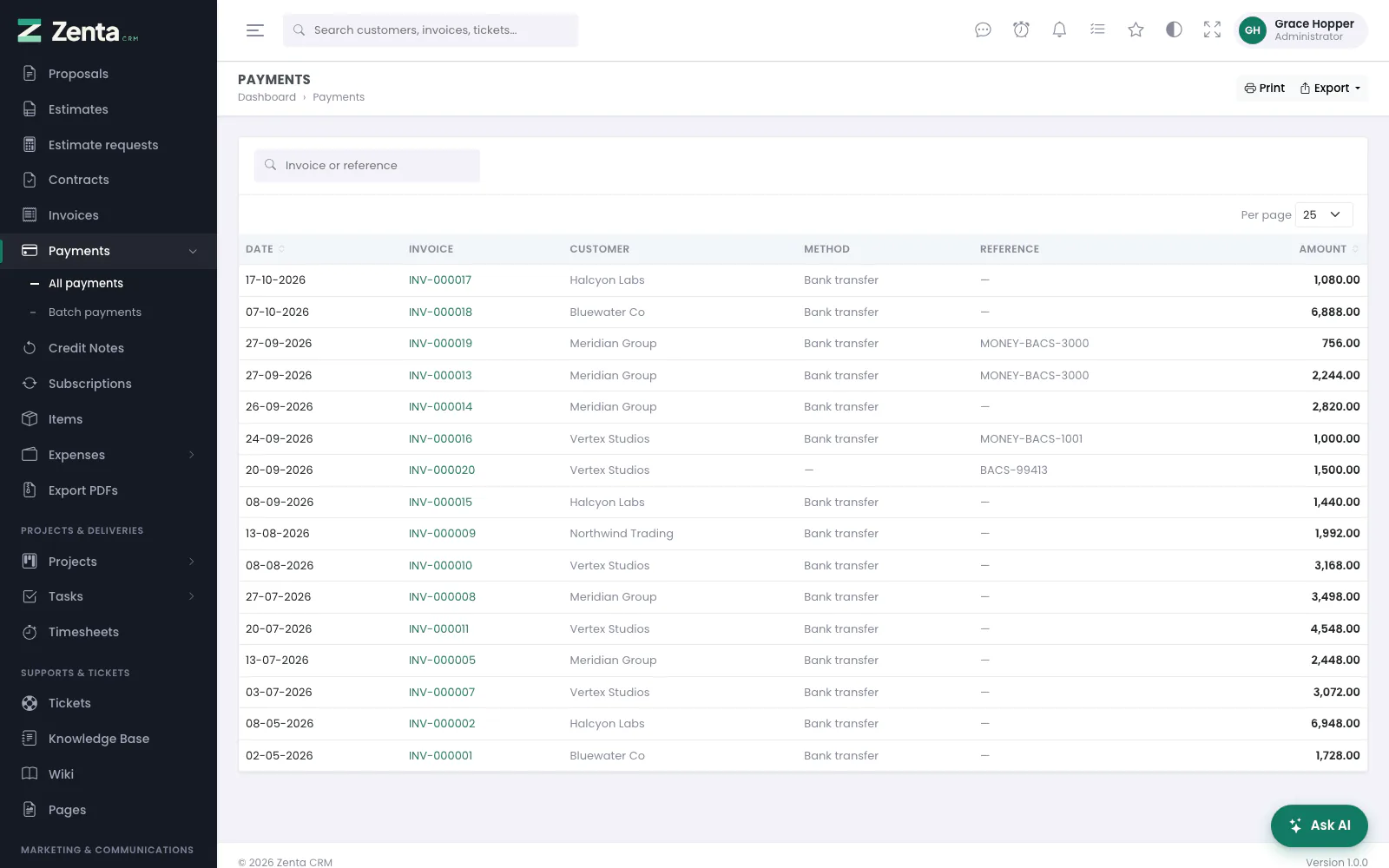 Every payment received, newest first, with how it arrived.
Sales & invoicing → Payments. Every payment against every invoice, whether you recorded it by hand, it arrived through a gateway, or it came in as part of a batch: the Date, the Invoice (linked), the Customer, the Method, the Reference and the Amount. Custom fields for payments marked to show in lists get a column each.
The menu entry Payments opens into two: All payments (this list) and Batch payments (see below). The list and its export show only payments on invoices you are allowed to see, so somebody limited to their own customers' invoices sees only those customers' payments.
The search box matches an invoice number or a payment reference. Date and Amount sort the list, and Print and Export work as on every list (see Exporting). The list itself is read-only: payments are recorded, refunded and removed from the invoice they belong to.
Recording a payment by hand
For a bank transfer, a cheque or cash: Record payment on the invoice. The amount starts at the balance and cannot be more than it, and a draft invoice refuses a payment until it has been sent. The form is described on Invoices and money. Recording one needs the permission to create payments.
Removing a payment
On the invoice, Remove under the payment, then confirm (Remove this payment? The invoice balance will be recalculated.). The invoice owes that amount again and its status follows. A payment that has been refunded offers no Remove, and is refused anyway: This payment has been refunded. Remove the refund first if it was recorded by mistake. Removing needs the permission to delete payments.
Giving money back
 Refund this payment: how much, why, and whether it goes back through the gateway.
Open the invoice, find the payment, press Refund. The Amount starts at everything still refundable (At most … is left on this payment); add a Reason if you like — it is shown on the payment — and press Refund. Refunding needs the permission to create payments; there is no separate one.
| Kind | What happens |
|---|---|
| Through the gateway | Offered when the payment was taken through Stripe or PayPal and that method is still set up: the switch Send it back through … is on. The money is sent back through the same provider, and its own reference for the reversal is stored. Turn the switch off to record a refund you are making some other way. |
| Recorded by hand | For a bank transfer or a cheque. The pop-up says so: you send the money back your own way; this writes it down. |
Either way the invoice goes back to owing, and its status follows — a fully refunded invoice is unpaid again, a partly refunded one is partly paid. The payment carries a badge saying how much has been refunded, and each refund is listed under it with its date and reason; one sent through a gateway has a card icon.
You cannot refund more than is left on a payment, and two people refunding the same one at the same moment cannot between them send back more than was taken.
Removing a refund
A refund recorded by hand has a beside it: confirm (Remove this refund? The invoice balance will be recalculated.) and it is gone, for the refund entered by mistake. A refund made through a gateway has none and cannot be deleted: real money moved, and removing the row would leave your books disagreeing with the provider's dashboard. Removing needs the permission to delete payments.
Batch payments
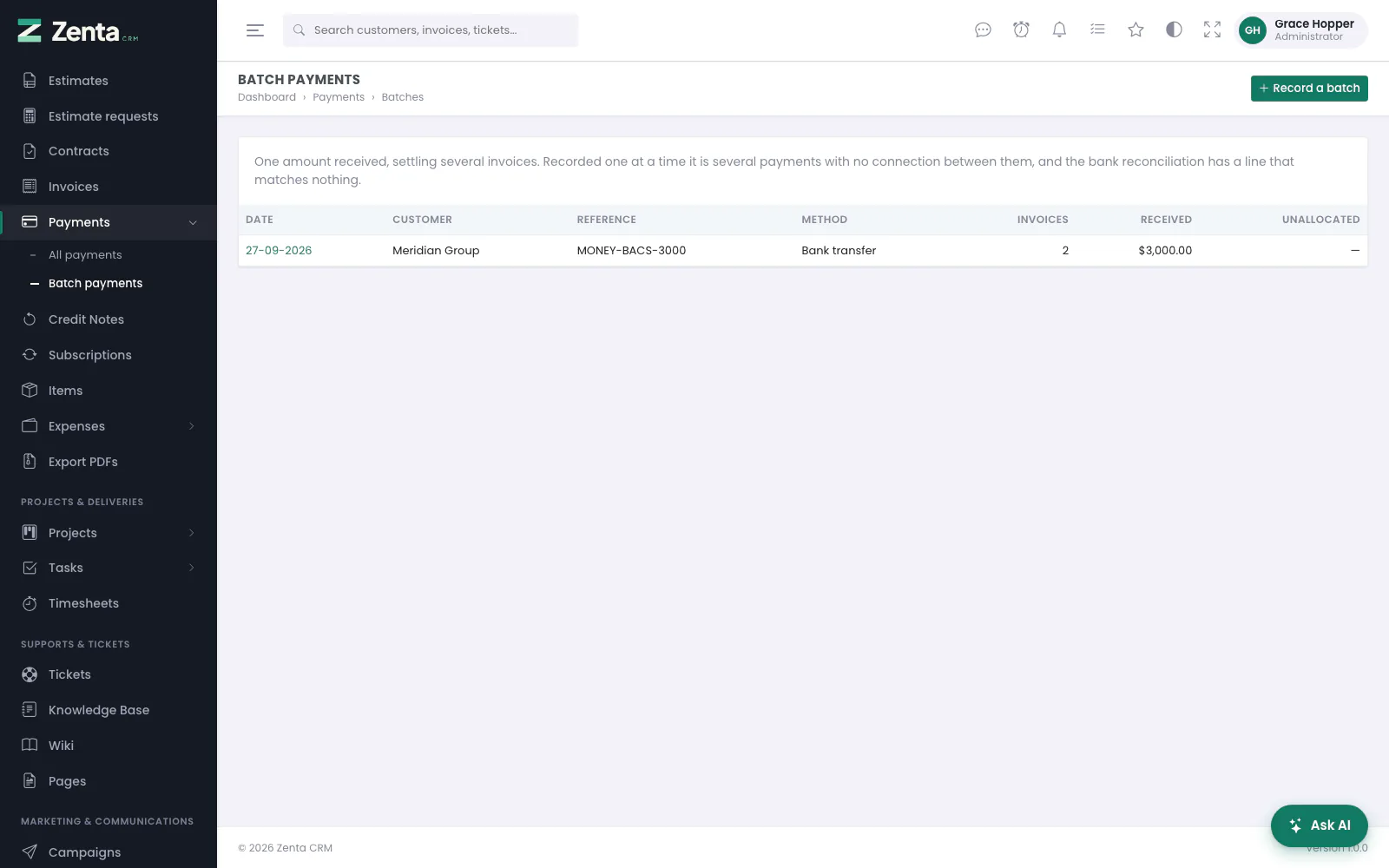 Batch payments: one amount received, settling several invoices.
A customer pays 12,400 against five invoices. A batch records it once: pick the customer, see what they owe, and put the money against the invoices it was meant for. Recorded one at a time it would be five payments with no connection between them, and the bank reconciliation would have a line that matches nothing. The batch keeps the fact that they arrived together, with one reference, on one day.
Sales & invoicing → Payments → Batch payments. It shows each batch's Date, Customer, Reference, Method, how many Invoices it paid, what was Received and anything Unallocated. It needs the permission to see payments.
Recording a batch
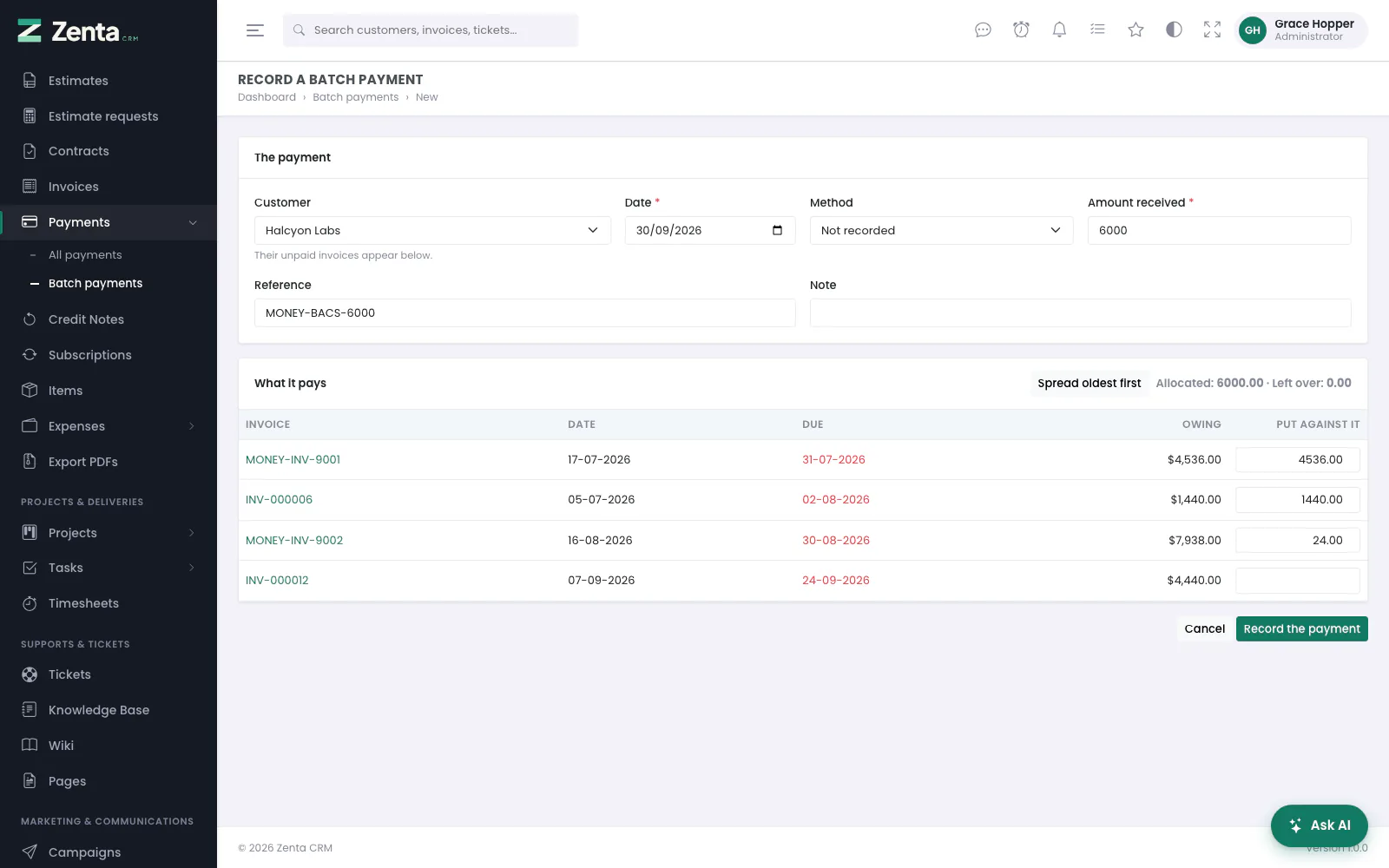 Recording a batch: 6,000 spread oldest first across what the customer owes.
Record a batch (the permission to create payments):
| Field | What it does |
|---|---|
| Customer | Choose one and their unpaid invoices appear below, oldest due first. Only invoices you are allowed to see are offered. |
| Date | Required. The day the money arrived; today by default. |
| Method | How it came, or Not recorded. |
| Amount received | Required. The whole of what arrived. |
| Reference | The reference on the bank statement. It goes on every payment the batch makes. |
| Note | Optional. |
Under What it pays, type how much goes against each invoice in Put against it. Spread oldest first fills it in as a starting point — the oldest invoice is paid off first, then the next, until the money runs out — and then it is yours to change, because only the customer knows what they meant to pay. Allocated and Left over keep count as you type. Press Record the payment; you land on the batch.
| What it refuses | Why |
|---|---|
| More than an invoice owes | Capped at the balance. Overpayment belongs on a credit note, not hidden inside a payment. |
| An invoice you cannot see | Scoped exactly as the invoice list is. |
| Nothing allocated at all | A batch against no invoice is a note, not a payment: Put at least some of the payment against an invoice. |
| More put against invoices than arrived | The invoices would be settled with money nobody received: That puts … against invoices, more than the … received. Less is fine; the rest shows as unallocated. |
Everything happens at once or not at all: a batch never records three of its five payments and stops.
A batch's page, and reversing it
 One batch: the payment, and what it paid.
The payment shows the customer, date, method, reference, what was Received and Allocated, who recorded it and the note. Money received but not put against anything is shown rather than hidden — "we took 12,400 and it covered 12,370" is a fact somebody needs. What it paid lists each invoice, its status now, what the batch Applied and what is Still owing.
Reverse (the permission to delete payments) undoes the whole batch after a confirmation: every payment in it is removed and each invoice goes back to what it was owed. All of it or none — a batch half-reversed would leave some invoices settled and some not, with nothing to say which were meant to be which.
Payment methods
 Settings, Payment methods: the ways a customer can pay you.
Settings → Payment methods. Every way money reaches you: bank transfer, cash, cheque, and any online gateway. The list shows each method's name and description, its Type (Online gateway or Recorded manually) and whether it is Active. Only active methods are offered when recording a payment or narrowing an invoice.
 Adding a payment method. Left offline, it is a set of instructions and a label for payments.
Add method, or the on a row:
| Field | What it does |
|---|---|
| Name | Required and unique, e.g. Bank transfer. |
| Description | Shown to the customer. For an offline method, put your bank details here: it is printed on the payment page. |
| Take payments online through | Nothing — this is an offline method, or a gateway (Stripe, PayPal), whose own fields then appear — see below. |
| Fixed fee / Percentage fee | What taking money this way costs you. Recorded and reported. |
| Statement descriptor | What the customer sees on their card statement, 22 characters at most. |
| Currencies it takes | Nothing selected means all of them. A gateway that only takes euros is not offered for paying a dollar invoice online. |
| Display order | Lower numbers come first. |
| Active | Off takes it out of every list without deleting it. |
| Preselected | Listed first when a customer is offered more than one gateway. |
| Test mode | Says the method is running on test credentials. It is then marked Test mode wherever it appears: a badge on this list and on the customer's payment page, and — Test mode after its name when recording a payment or choosing an invoice's payment methods. A test payment moves no money, so the customer is told before they pay. |
Press Add method or Save changes.
The removes a method after a confirmation. Payments, batches and expenses recorded against it keep their amounts but no longer name a method, and a gateway's webhook address stops working — so switch a method off rather than deleting it once it has been used.
Connecting Stripe
Settings → Payment methods → Add method, or edit an existing one. Under Take payments online through, choose Stripe, and paste the two keys from your Stripe dashboard.
| Field | What it is |
|---|---|
| Publishable key | Starts pk_. Not a secret. |
| Secret key | Starts sk_. Stored encrypted and never shown again. |
| Webhook signing secret | Starts whsec_. Optional but strongly recommended — see below. |
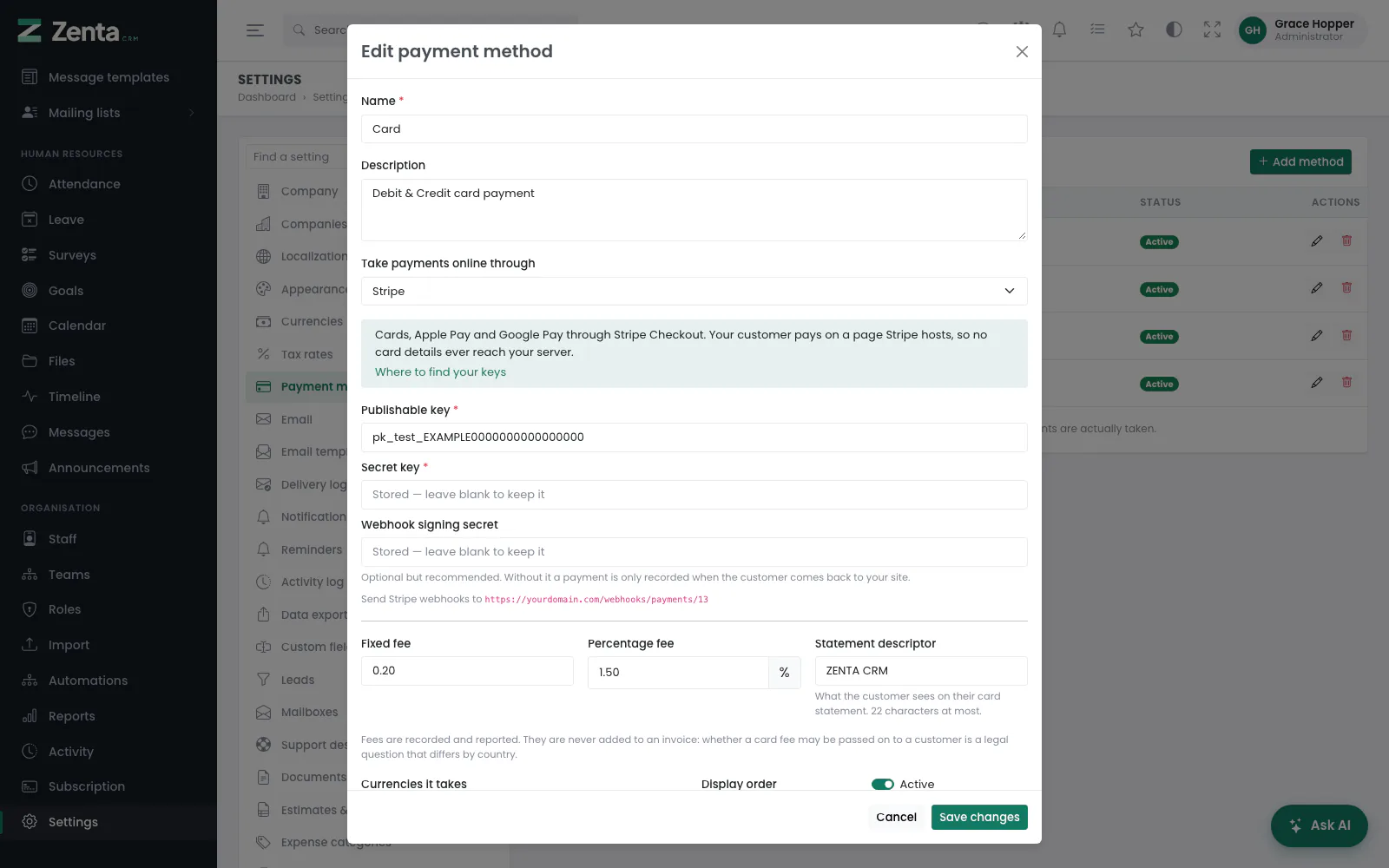 A gateway is a payment method with a driver behind it: the keys, then the webhook address.
The webhook
Once the method is saved, its webhook address appears underneath the
keys (Send Stripe webhooks to …). Add it in Stripe under
Developers → Webhooks, listening for
checkout.session.completed, then paste the signing secret Stripe gives
you back into the method.
Without it, a payment is only recorded when the customer's browser returns to your site. With it, a customer who closes the tab the moment they pay is still recorded correctly.
Connecting PayPal
The same screen, choosing PayPal instead. The credentials come from your PayPal developer dashboard.
| Field | What it is |
|---|---|
| Environment | Live or sandbox. They are separate worlds with separate credentials; sandbox keys do not work against live, or the other way round. |
| Client ID | From the app you create in that dashboard. |
| Secret | Stored encrypted and never shown again. |
| Webhook ID | Optional but strongly recommended. Create a webhook for PAYMENT.CAPTURE.COMPLETED and paste the ID PayPal gives it. |
PayPal splits paying into two steps: the customer approves an order, and the merchant then captures it. An approved order that is never captured is money nobody receives, so the capture happens the moment the customer returns — and again from the webhook if they closed the tab on the way back. Both arriving at once is normal and only one of them records a payment.
Verifying PayPal's webhooks
PayPal signs with a certificate rather than a shared secret, so each delivery is checked with PayPal itself before it is believed — and the certificate it names has to be one of PayPal's own, which is what stops somebody pointing that check at a certificate they control. Without a webhook ID configured, deliveries are refused rather than trusted.
Sending someone a payment link
Open an invoice and press Payment link. The address is copied to your clipboard; paste it into an email.
The link needs no account and no password. The token in it is long and random rather than the invoice's number, so nobody who receives a forwarded copy can reach anyone else's invoice by changing a digit.
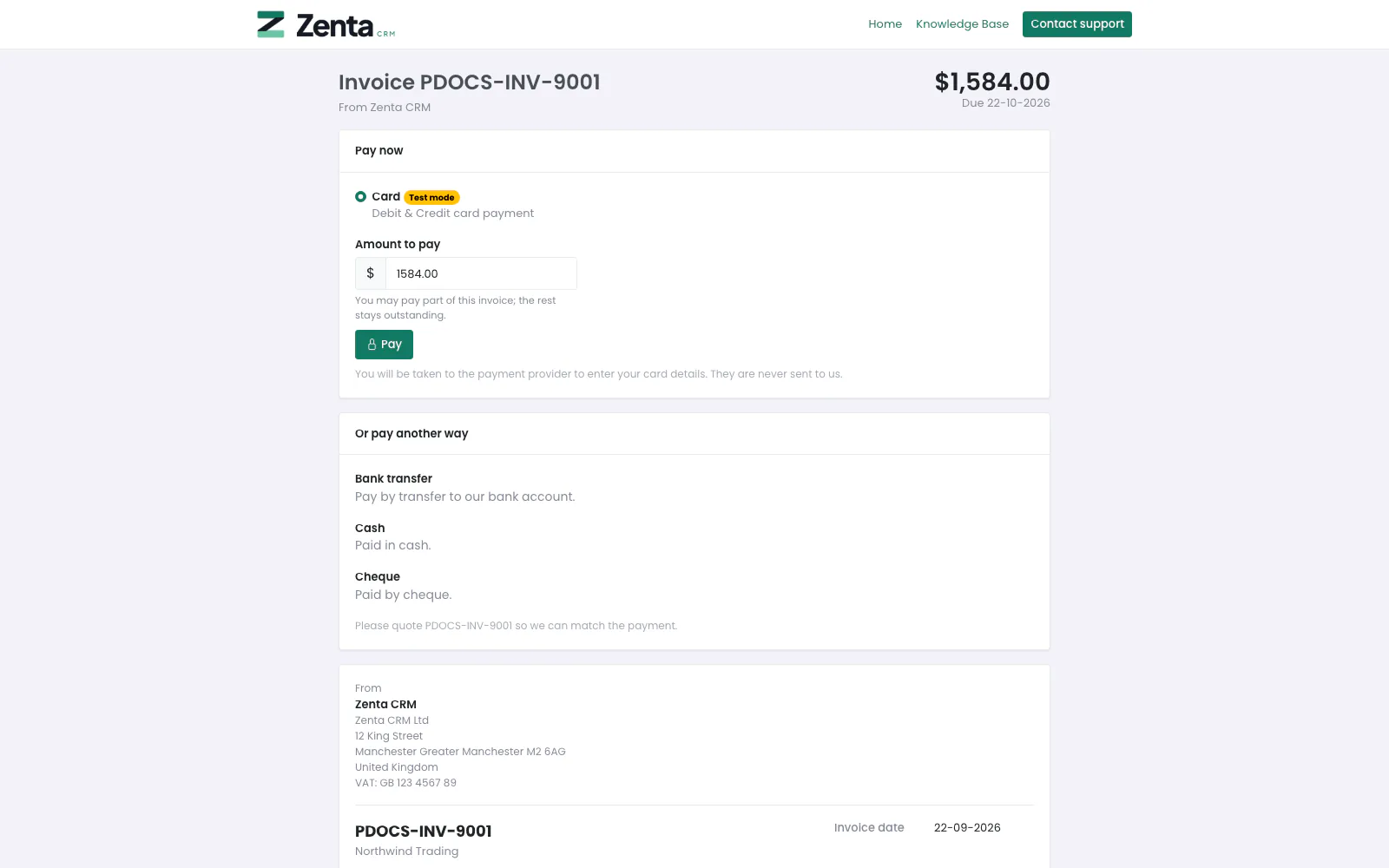 No account and no password — the token in the link is the whole of it.
The page shows the outstanding balance, the invoice itself, any payments already received, and:
- Pay now, if a gateway is set up.
- Your offline instructions — the description on each non-online payment method is printed there, so bank details reach the customer without you retyping them.
The amount is the outstanding balance, and the button says so (Pay and the figure). It is not taken from the page, so nobody can decide for themselves what an invoice is worth — unless you allow part payments on that invoice (below). An invoice limited to certain ways of paying offers only those, and a customer taken off online payment sees the offline instructions and no Pay button — checked where the charge starts, not only on the button.
Part payments
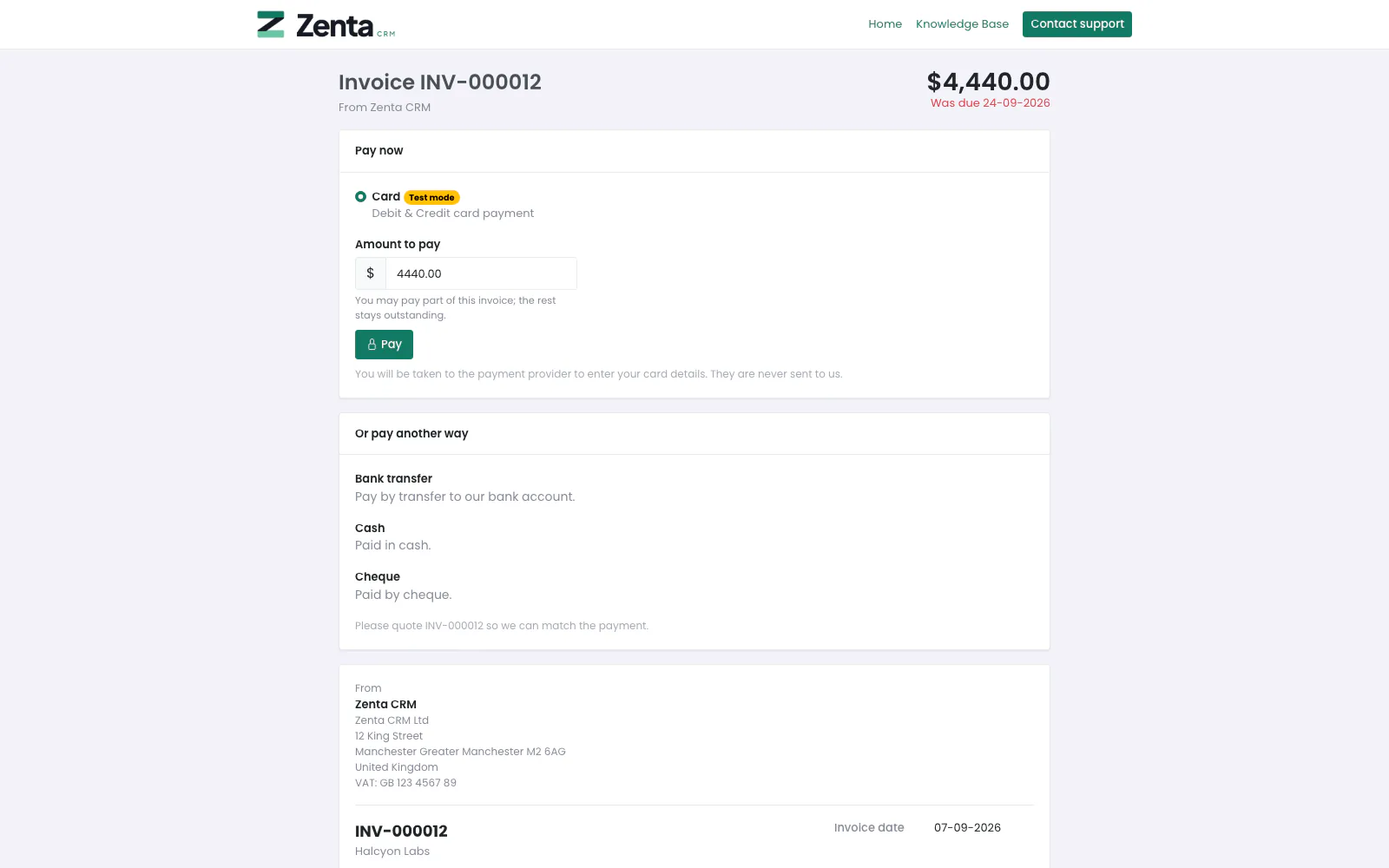 An invoice that may be paid in part: the customer chooses how much, up to what is owed.
Tick They may pay part of it on the invoice (under its payment options, see Invoices and money) and its payment page asks for an Amount to pay above the button, which then just reads Pay. The box starts at the whole balance; the customer can lower it (You may pay part of this invoice; the rest stays outstanding.). The invoice becomes partly paid, and the same link takes the rest later.
The figure is checked again when the payment starts, because a public page's fields can be edited: more than is owed, nothing, or something that is not a number is refused with Enter an amount of no more than … and the page comes back. Without the tick, whatever the page sends, the charge is the whole balance.
What gets recorded
A successful payment becomes an ordinary payment against the invoice, with the provider's own reference on it — the one that appears on your statement and in their dashboard — and the invoice's status follows as it would for one you entered by hand.
The customer's browser comes back at about the same moment the webhook arrives, and both providers retry any delivery they did not hear an answer to. All three routes lead to the same place and only the first of them creates a payment, so nobody is ever recorded as having paid twice.
The amount written down is the one the provider says it took, not the one that was asked for. A partial capture or a currency conversion therefore shows as what actually arrived rather than leaving an invoice looking settled.
Cancelled and paid invoices
A draft or cancelled invoice offers no way to pay, even from a link already sitting in somebody's inbox. A paid one says so and thanks them.
Adding another provider
config/gateways.php lists the drivers and the fields each
one asks for. A new provider is an entry there plus a class implementing
App\Support\Payments\Gateway — four methods: is it
configured, start a payment, confirm one, and read a webhook. Refunding through it is
a fifth, from App\Support\Payments\RefundsPayments. The settings form
builds itself from the field list.
Addresses on this page
For reference and for anyone scripting against the panel. Everything here needs somebody signed in to the workspace whose role allows it; anybody else is refused.
| Method | Address | What it does |
|---|---|---|
GET | admin/payments | The payments list, with a q search. |
DELETE | admin/payments/{payment} | Removes a payment that has not been refunded. |
POST | admin/payments/{payment}/refund | Refunds part or all of a payment, through the gateway when online is set. |
DELETE | admin/refunds/{refund} | Removes a refund recorded by hand. |
GET | admin/payment-batches | The batch payments list. |
GET | admin/payment-batches/create | The record-a-batch form. ?customer= lists that customer's unpaid invoices straight away. |
GET | admin/payment-batches/outstanding/{customer} | A customer's unpaid invoices as JSON. Used by the page itself when you choose a customer. |
POST | admin/payment-batches | Records the batch and its payments. |
GET | admin/payment-batches/{batch} | One batch. |
DELETE | admin/payment-batches/{batch} | Reverses the batch: removes its payments and the batch. |
GET | admin/settings/payment-methods | The payment methods. |
GET | admin/settings/payment-methods/create | The add-method form (a pop-up). |
POST | admin/settings/payment-methods | Adds a payment method. |
GET | admin/settings/payment-methods/{payment_method}/edit | The edit form (a pop-up). |
PUT | admin/settings/payment-methods/{payment_method} | Saves a payment method. An empty secret field keeps what is stored. |
DELETE | admin/settings/payment-methods/{payment_method} | Removes a payment method. |
POST | webhooks/payments/{method} | Called by Stripe or PayPal, not by people: confirms a payment, accepted only with a valid signature. |