Working as staff
For a member of staff who is not an administrator: signing in, what your role lets you see, and the parts of the panel that are yours alone.
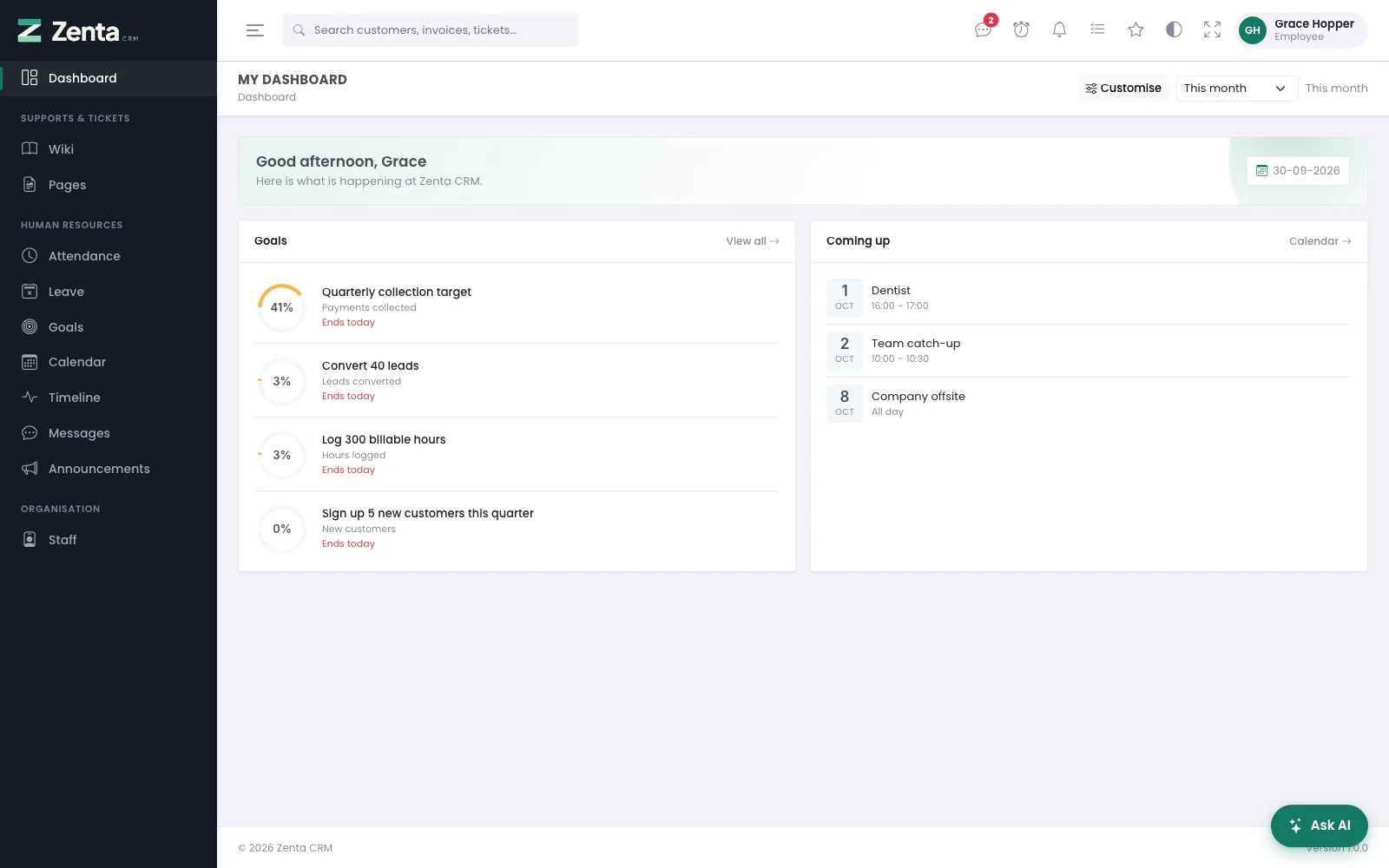 The panel as somebody on the Employee role sees it: a short menu, and a dashboard with only the panels the role allows.
Who this section is for
These pages are for the people who use the CRM every day but do not run it: somebody whose role is not Administrator. They describe the panel as you will see it — which is usually much shorter than the one in the rest of this manual — and why. For the full detail of a screen, each section links to the page that describes it for everybody (the CRM admin panel pages).
- Working as staff (this page): signing in, your role, the menu, your account and the top bar.
- Your working day: clocking in, leave, the calendar, announcements, the timeline, the wiki, goals, surveys and messages.
- Your own work: the records your role gives you, such as tasks, projects, time and tickets.
- Running a team: for somebody on the Manager role, or another role that looks after colleagues.
Signing in
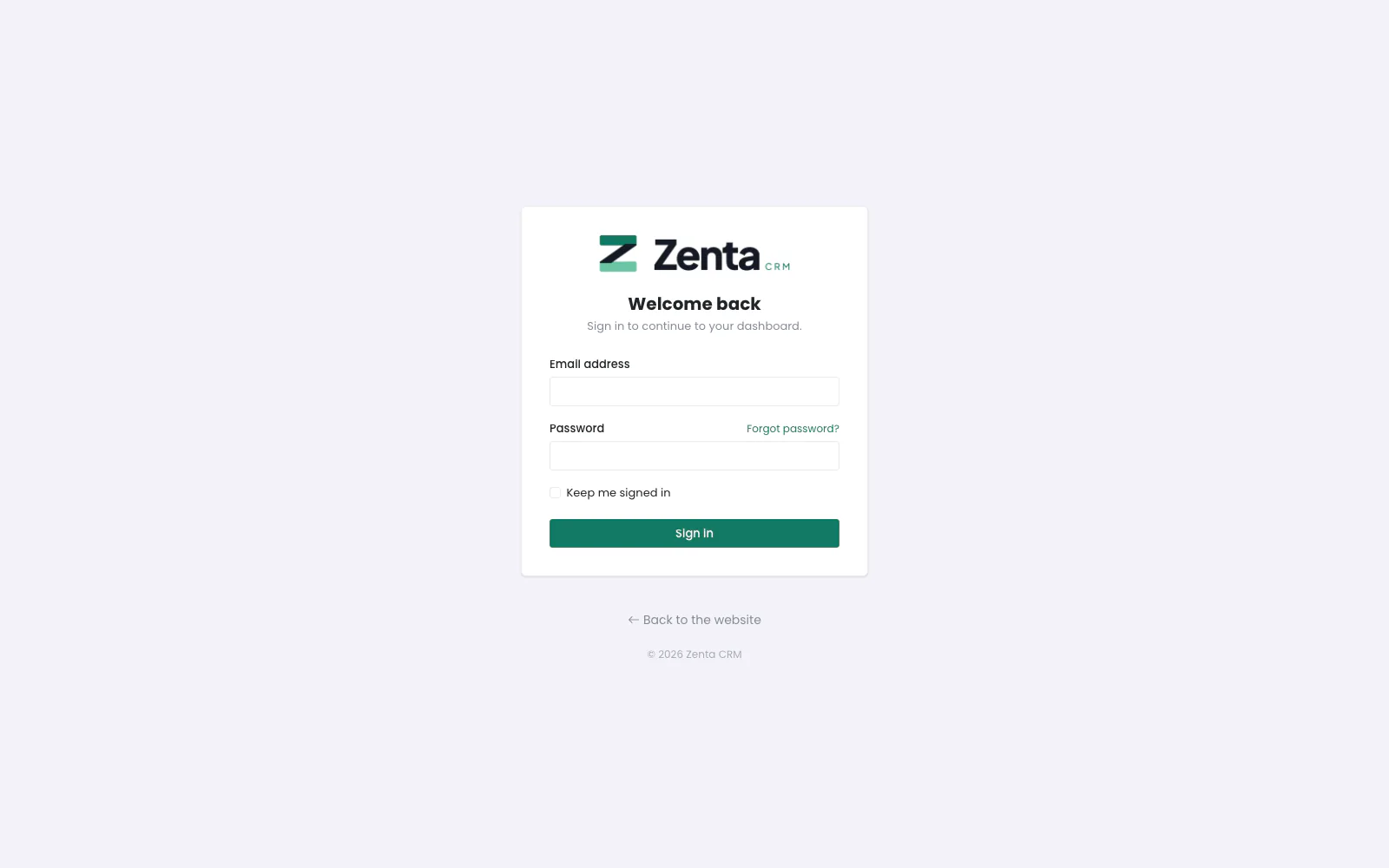 The staff sign-in page at /login.
Your workspace has its own address, which whoever set up your account will have given
you. Go to /login on that address, type your Email address
and Password, and press Sign in. Tick Keep me
signed in on a computer that is yours alone. You land on your
dashboard. The sign-in page is described in full under
Signing in.
The customer portal has a sign-in page of its own, at /portal/login. That
one is for your customers' contacts; a staff account signs in at /login.
Other ways in
- Continue with Google and Continue with Facebook appear under the form when your workspace has set them up under Integrations. They take you to Google or Facebook and back, and sign you in only if the address they confirm belongs to an active staff account here; they never create one. The same buttons on the portal sign-in do the same for customers' contacts.
- A one-time sign-in link (
/handoff/…) signs an account in at the workspace's own address when it arrives from elsewhere: straight after somebody signs up for a new workspace, and when a platform super admin uses Sign in as on a staff member (see Workspaces) and later returns. Nobody types it: it works once, only at the address it was made for, and for two minutes. A used, old or misdirected link shows Page not found.
A forgotten password
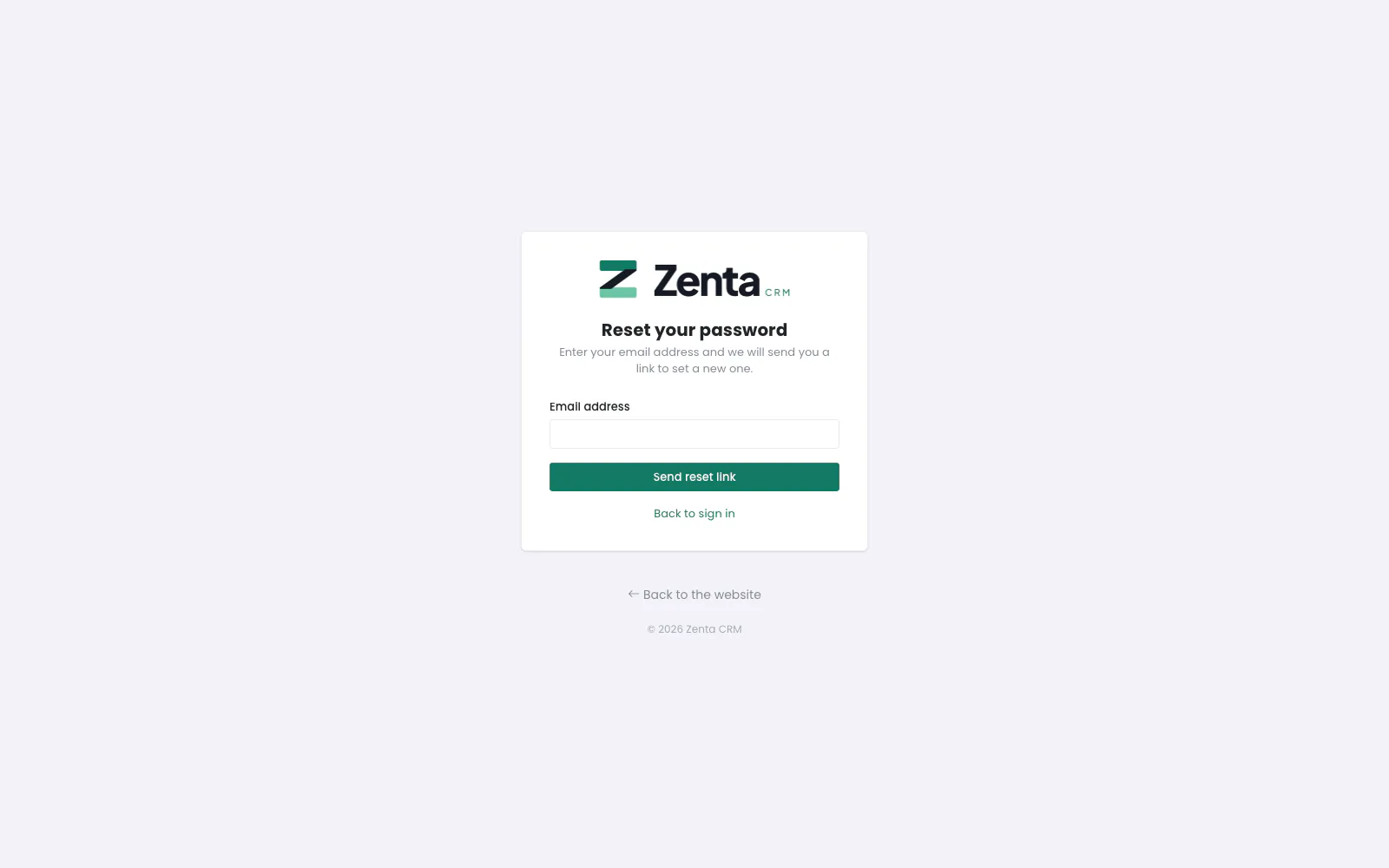 Reset your password: the page behind Forgot password?.
- On the sign-in page, press Forgot password?.
- Type your Email address and press Send reset link. The page says If that address belongs to an account, a reset link is on its way. whether or not it does, so it cannot be used to find out who has an account.
- Open the link in the email within an hour. Type a New password twice and press Save new password.
- You are sent back to the sign-in page: Your password has been reset. Please sign in.
No email arrives for an account that has been deactivated. If that is you, ask an administrator: nothing on the sign-in page can switch an account back on. Customers use the same page from the portal sign-in, and are sent back there afterwards (see Getting into the portal).
To choose a new password while you are signed in, use My account.
Your role
Everything you can see and do is decided by the role an administrator gave you, shown under your name at the top right. A role is a list of modules (Leave, Invoices, Tickets…), and for each one two things:
- Abilities — what you may do: View, Create, Edit, Delete, Export, and on some modules Approve, Send or Sign.
- Scope — which records it applies to.
| Scope | What you see |
|---|---|
| All records | Every record in the workspace. |
| Their teams | Records owned by anyone on the same team as you, and your own. |
| Assigned to them | Only the records you are assigned to. |
| Their clients | Records belonging to the customers you manage: those whose Account owner you are, or where you are Also on the account. |
| Their own records | Only the records you created or own. |
| No access | The module is hidden from you entirely. |
So two people can open the same screen and see different lists: with Their own records on leave, the leave screen lists your requests only; with All records, everybody's. Nothing about the screen tells you what is outside your scope, which is the point of it.
The Employee role, as shipped
Every workspace starts with three roles: Administrator, Manager and Employee. Employee is described as Sees their own team and nothing else. Out of the box it gives:
| Module | Abilities | Scope | In practice |
|---|---|---|---|
| Staff | View | Their teams | A read-only list of the colleagues who share a team with you. |
| Attendance | View, Create | Their own records | Clock yourself in and out, and see your own shifts. |
| Leave | View, Create | Their own records | Ask for leave, see your balance and your own requests. |
| Announcements | View | All records | Read the notices addressed to you. |
| Team timeline | View, Create | All records | Read the timeline, post and reply. |
| Internal wiki | View | All records | Read the wiki. |
| AI assistance | Use the AI features, Use the assistant | All records | The Ask AI assistant, when the workspace has AI set up. |
| Calendar | View, Create | All records | Your calendar, and events of your own. |
| Goals | View | All records | The goals that are yours, your team's or the company's. |
| Messages | Create | All records | Start a conversation with anybody on the staff. |
And nothing else. As shipped, an Employee has no leads, customers, quotes, invoices, projects, tasks, timesheets, tickets, knowledge base, files, surveys, campaigns, reports or settings. That is a starting point, not a verdict: the usual next step is to give each person the modules their job needs — a support agent the tickets, a developer the tasks and projects — either by changing the Employee role, by making a new role, or by overriding one person's permissions on top of their role. That is done by an administrator under Organisation → Roles and on your staff record; see Roles and permissions. What you do with those modules once you have them is on Your own work.
The Manager role, as shipped, sees everybody's attendance and leave, approves leave, writes announcements and the wiki, adds staff, makes teams and reads the activity log; see Running a team.
How the panel shrinks to your role
The menu
The menu down the left shows only what your role reaches. An item you have no access to is left out, and so is a heading with nothing left under it. With the Employee role as shipped, the whole menu is:
| Heading | Items |
|---|---|
| — | Dashboard |
| Supports & Tickets | Wiki, Pages |
| Human Resources | Attendance, Leave, Goals, Calendar, Timeline, Messages, Announcements |
| Organisation | Staff |
Compare it with the full menu under The menu: the CRM, Sales & Invoicing, Projects & Deliveries and Marketing & Communications headings are gone altogether. A few items need no permission at all and are there for everybody: Dashboard, Pages (the staff-only pages your business has published, such as a handbook; see Pages and the website menu) and Messages. Staff comes with the View ability on staff. Activity — the log of every change in the workspace — needs more: seeing all of the staff, not only your own team, because the log is as sensitive as every record in it. The Manager role has that; the Employee role does not.
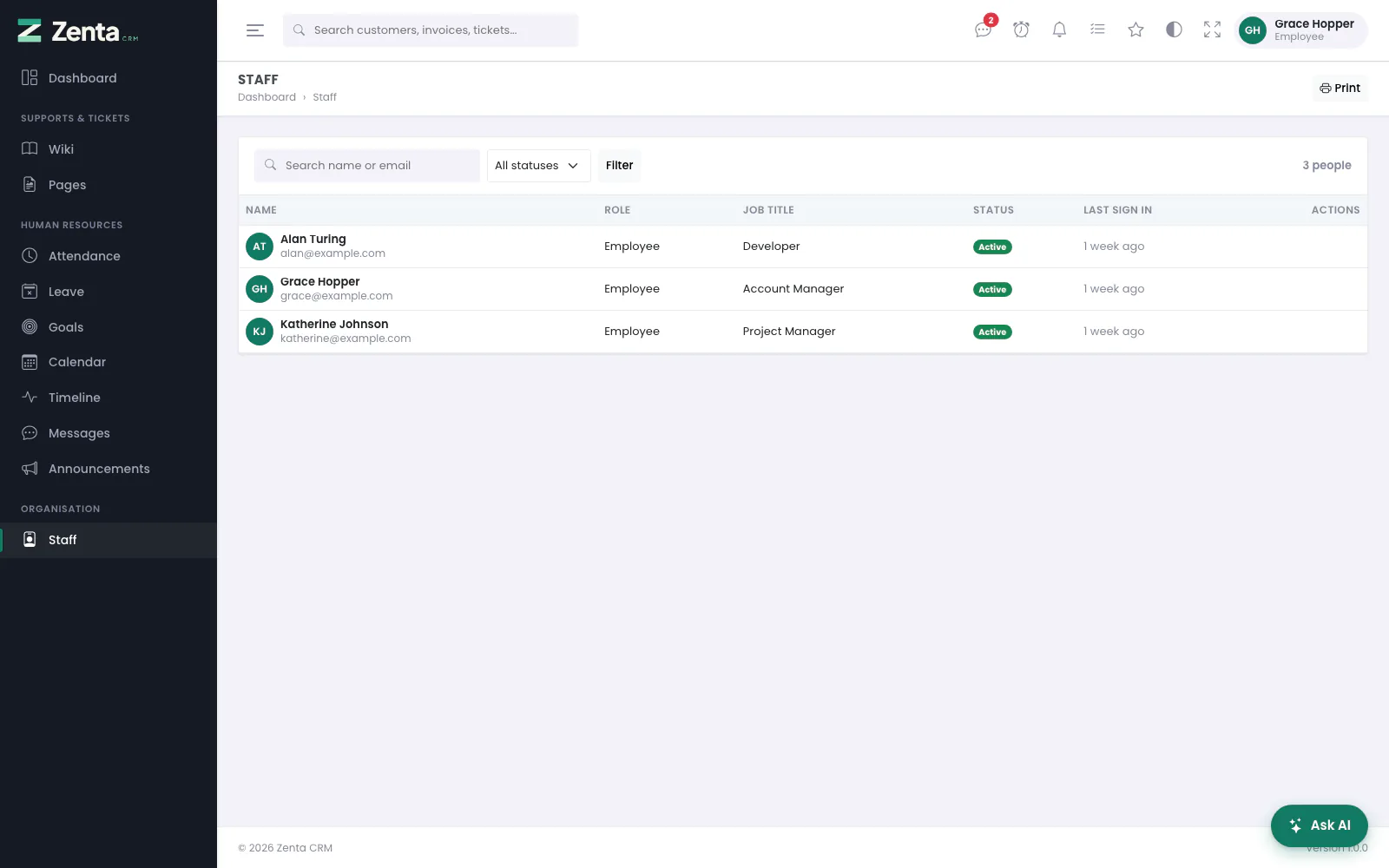 Staff for an Employee: the colleagues who share a team with them, with nothing to add or edit.
Two more things take items away for everybody, administrators included: a module your workspace has switched off under Settings → Modules, and an item an administrator has hidden under Settings → Menu. Nothing done to the menu can show you an item your role does not reach.
Buttons that are missing
Inside a screen, each button asks for its own ability, so a screen you may open can still be missing buttons that are in the screenshots elsewhere in this manual. With the Employee role, for example:
- Leave has Request leave and Print, but no Export (no Export ability), no pencil to edit a request (no Edit), and no approve or decline buttons (no Approve).
- Attendance has Clock in and Clock out, but no Add a shift unless your workspace lets staff type in a shift they forgot, and no edit or delete buttons on a shift.
- Announcements, Goals and the Wiki are for reading: no Write an announcement, no Set a goal, and on the wiki no New page, Edit or page History.
- Timeline lets you post and reply, and remove what you wrote, but not pin a post or remove somebody else's.
- Staff is a list to read: no Add staff member, and nothing to edit.
- The dashboard has no New invoice or Add lead, and only the panels whose module you can see.
If a button you need is missing, it is your role, not a fault: ask an administrator for the ability.
An address you may not open
Typing an address by hand, or following an old link, does not get round a role. You see one of two pages instead of the screen:
| You see | When |
|---|---|
| 403 — Access denied. You do not have permission to view this page. | Your role does not have the ability the screen needs: /admin/invoices for an Employee, say. |
| 404 — Page not found. | The record exists but is outside your scope (a colleague's leave request when yours is Their own records), or the whole module is switched off for the workspace. Outside your scope is answered exactly as if the record did not exist, so an address cannot be used to find out what is there. |
Your dashboard
Dashboard is where you land. It greets you by name with today's date, then shows panels — and only the panels whose module your role can see. With the Employee role as shipped that is:
- Goals — the goals you have a stake in, with how far along each is. View all opens Goals.
- Coming up — the next events on your calendar. Calendar opens it.
The money, leads, tickets, delivery and other panels appear once your role reaches their modules. The dashboard is still yours to arrange: Customise picks and orders the panels you are allowed, and the period menu (This month) changes the dates they cover. You can keep several dashboards of your own; see Reports and dashboards. Nothing you arrange can show you a panel your role does not allow.
My account
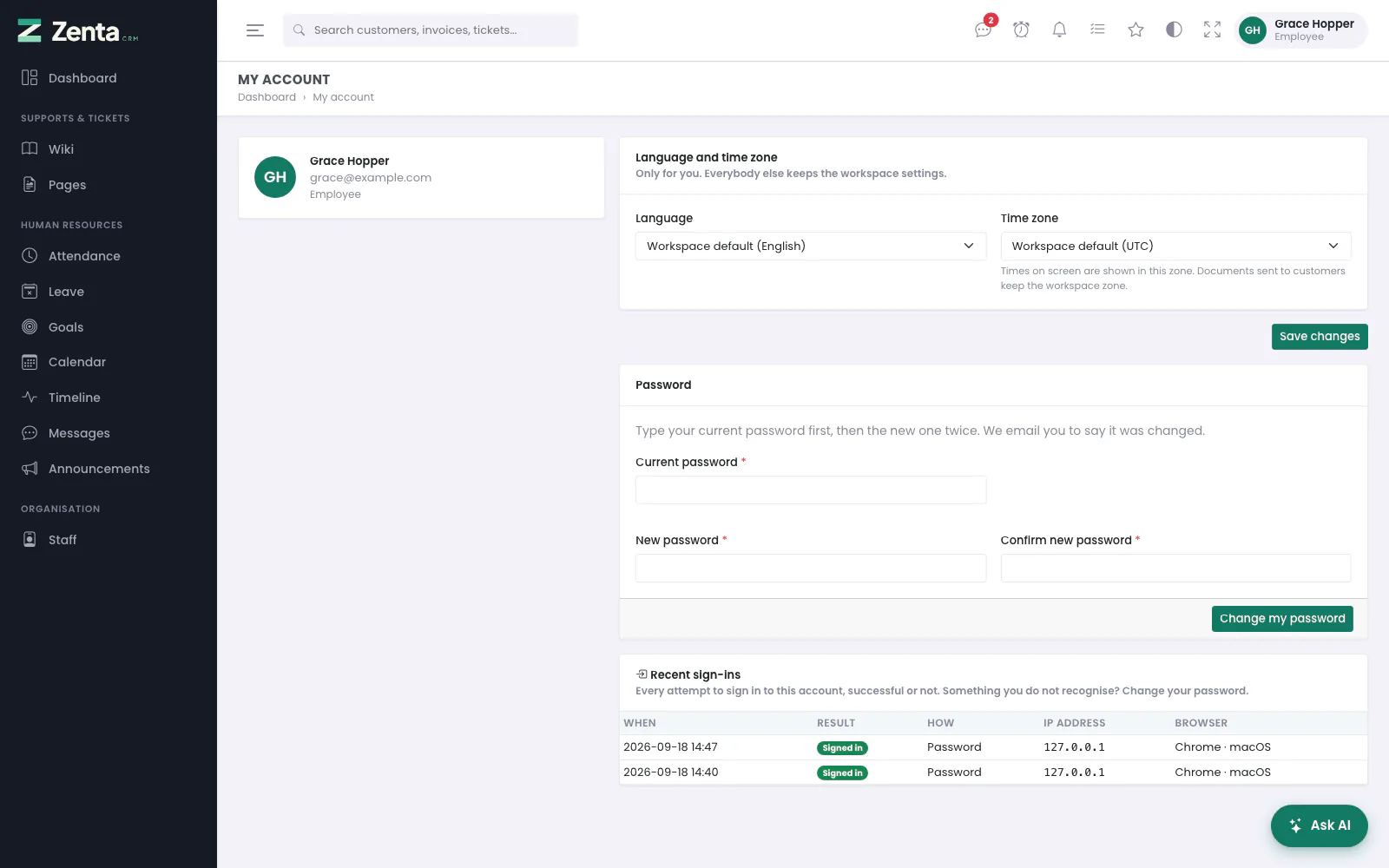 My account for an Employee: language and time zone, password, and recent sign-ins. No signature card, because the role cannot sign for the business.
Open the menu under your name at the top right and choose My account. Everybody has it, whatever their role; nothing on it changes what you may do. The card on the left shows your name, email address and role. Only an administrator can change your name, email or role, on your staff record.
- Language and Time zone — Only for you. Everybody else keeps the workspace settings. Choose from the languages your workspace has switched on, or leave Workspace default. Press Save changes.
- Password — your Current password, then the New password twice, and Change my password. You are emailed to say it was changed, “Keep me signed in” stops working on your other devices, and any app signed in with the old password (through the API) is signed out.
- My signature — only there if your role has Sign for the business, which the Employee role does not. It is where you draw the signature you then put on contracts.
- Recent sign-ins — your last ten attempts, successful or not, with the time, the result, how, the IP address and the browser. One you do not recognise is a reason to change your password now.
Each is described in full under My account.
The top bar
The top bar is the same for everybody; what is behind each button follows your role. The control-by-control list is under The top bar.
Search
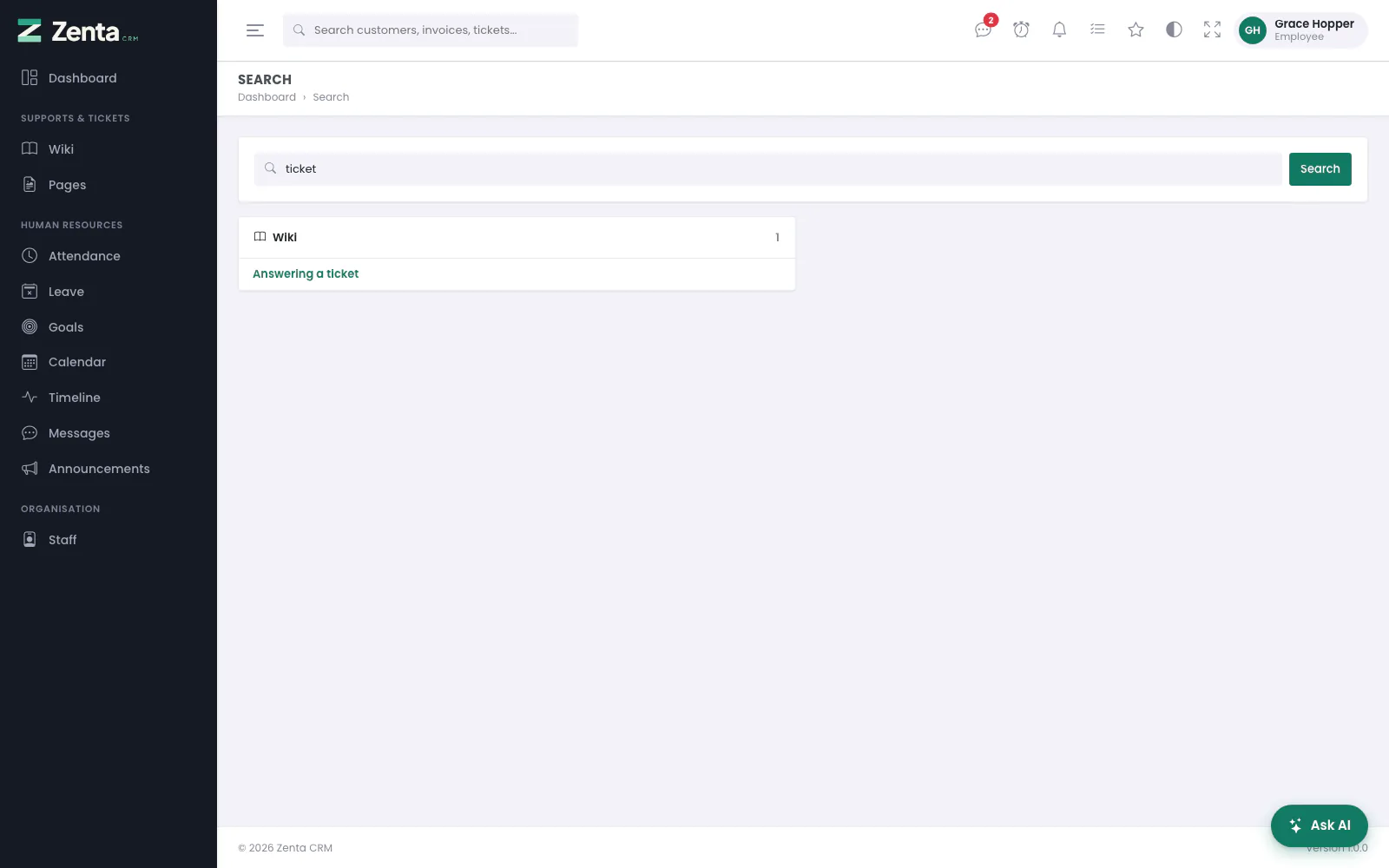 Search as an Employee: the only kind of record the role can open is the wiki, so that is all it finds.
The box at the top (/ jumps to it) searches every kind of record your role can view, and within each only the records in your scope — the same records the list would show you. A kind of record you cannot see is not searched at all, rather than searched and then hidden. With the Employee role as shipped, that leaves the Wiki: searching for a customer finds nothing, however many there are. See Search, filters and bulk actions.
Messages, reminders and the bell
- Messages opens your conversations with colleagues, with a count of those waiting for you. Nobody needs a permission to read and answer a conversation they are in; see Messages with colleagues.
- Reminders opens the reminders set for you, with a count of those that have come due. A colleague can set one for you on a record; you set your own with Remind me on a record you can open. See Personal reminders.
- Notifications — the bell, with notices about things that concern you. See The bell.
My list and Starred
- My list is your own to-do list. Everybody has one and nobody else can see it, including an administrator. Turn this into a task is only there if your role may create tasks. See Your own to-do list.
- Starred lists the records you starred. A star never shows you something you could not otherwise open, so with the Employee role as shipped (which has none of the records that can be starred) it stays empty. See Starring records.
Ask AI
When your workspace has AI assistance set up, and your role has Use the assistant (the Employee role does), an Ask AI button sits at the bottom right of every screen; Ctrl+K (⌘+K on a Mac) opens it too. The assistant works as you: it reads only what you could open yourself, offers only the actions your role allows, and prepares nothing until you press Confirm. Your conversations with it are yours; nobody else can open them.
Use the AI features is the AI help beside a record — scoring a lead, triaging and drafting a reply to a ticket, summarising a customer or a project. It appears only on those records, so it does nothing for you until your role reaches leads, tickets, customers or projects. See AI assistance.
Addresses on this page
For reference and for anyone scripting against the panel. Everything here needs somebody signed in to the workspace whose role allows it; anybody else is refused.
| Method | Address | What it does |
|---|---|---|
GET | login | The sign-in page. |
POST | login | Signs you in. |
GET | login/{provider} | Continue with Google or Continue with Facebook (google, facebook): sends you to the provider. With ?for=portal, from the portal sign-in, for a customer's contact. |
GET | login/{provider}/callback | Where the provider sends you back, and you are signed in. Used by the page itself. |
POST | logout | Signs you out (Sign out in the menu under your name). |
GET | forgot-password | The Reset your password page, from Forgot password?. |
POST | forgot-password | Emails a reset link, if the address belongs to an active staff or customer account. |
GET | reset-password/{token} | The page the reset link opens: choose a new password. |
POST | reset-password | Saves the new password. |
GET | handoff/{token} | A one-time link that signs an account in at the workspace's own address, after signing up or on the way into or out of a super admin's Sign in as. Opens without signing in; works once, for two minutes. |
GET | admin | Your dashboard. |
GET | admin/account | My account. |
PUT | admin/account | Saves your language and time zone. |
PUT | admin/account/password | Changes your password. |
GET | admin/search | The search results page, for q. |
GET | admin/search/preview | The results that drop down under the search box as you type. Used by the page itself. |
GET | admin/staff | Staff: the colleagues within your scope. |
GET | admin/pages | Pages: the staff-only pages your business has published. |
GET | admin/notifications/feed | The bell's list. Used by the page itself. |
GET | admin/reminders | Your reminders. |
GET | admin/my-list | My list. |
GET | admin/stars | The Starred menu. Used by the page itself. |
POST | admin/ai/assistant | Asks the assistant a question. |