Your account and privacy
What a contact can see and change about themselves in the portal: their details, their password, their company's addresses, their colleagues, and their privacy.
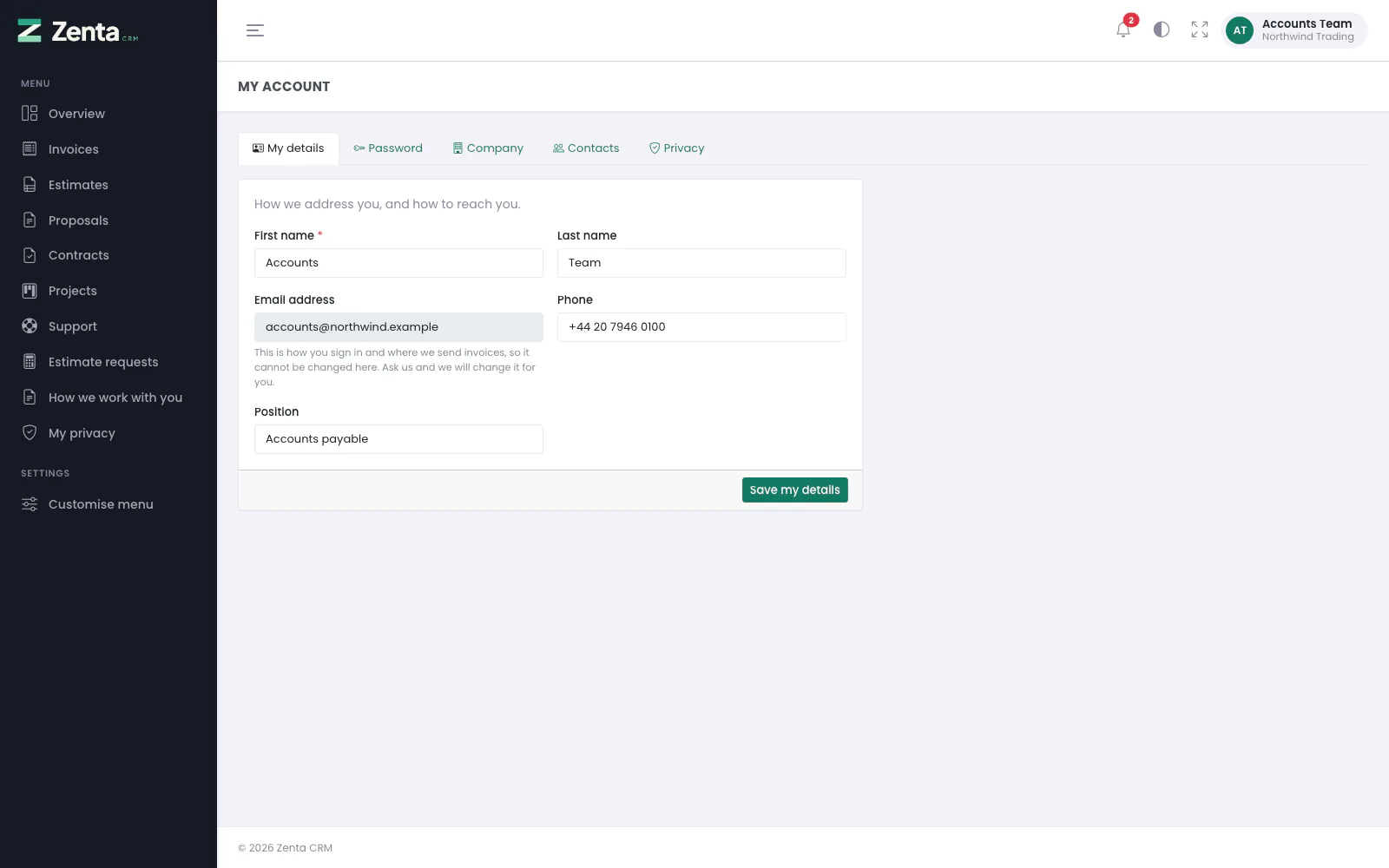 My account, opened on My details. The tabs along the top depend on what the business shows and on who you are.
Open the menu under your name at the top right of the portal and choose My account. It is a page of tabs:
| Tab | What it holds | Who sees it |
|---|---|---|
| My details | Your name, phone and position. | Always there. |
| Password | Changing your password. | Everybody, unless the business has turned the tab off. |
| Company | Your company's billing and shipping addresses. | Everybody can read them; only a primary contact can change them. |
| Contacts | Your colleagues' access to the portal. | Primary contacts only. |
| Privacy | The My privacy page. | While the business has its privacy (GDPR) tools switched on. |
The business chooses which of Password, Company, Contacts and Privacy are shown, on the My account card of Settings → Customer portal; all four are on as shipped. A tab that is turned off is not just hidden: its address answers "not found" as well.
My details
First name (required), Last name, Phone and Position. Press Save my details. The change is written to the business's activity log, so they can see what it was before.
Password
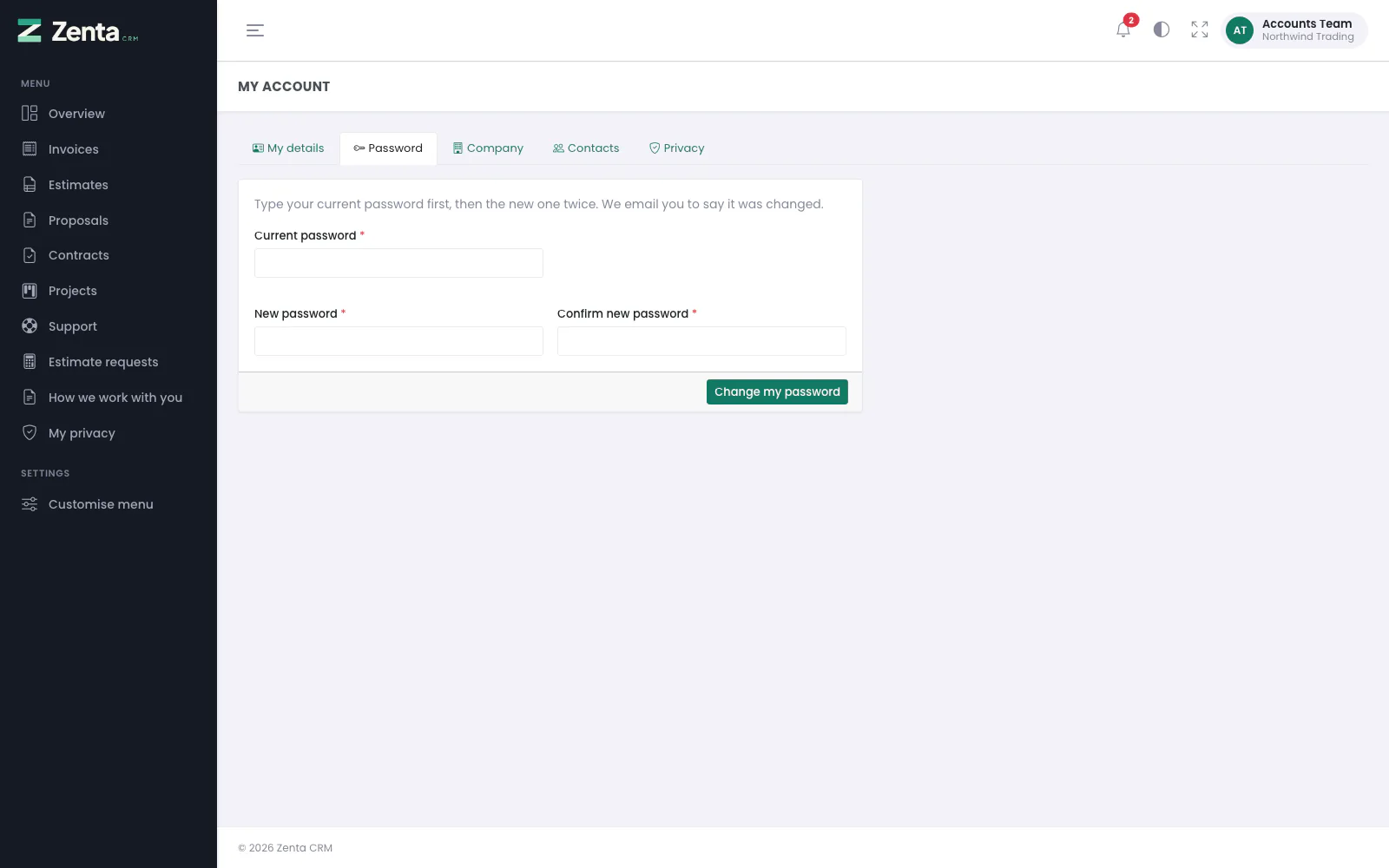 Changing your password: the current one first, then the new one twice.
- Type your Current password. A session left open on a shared computer is not enough to take the account over.
- Type the New password (at least eight characters) and again under Confirm new password.
- Press Change my password.
A wrong current password is answered That is not your current password. Once it is changed you are emailed the Password changed confirmation template, so a change you did not make does not go unnoticed, and Keep me signed in stops working on your other devices. After ten attempts in ten minutes the form asks you to wait.
Forgotten your password? There is no reset link in the portal; see A forgotten password.
Company
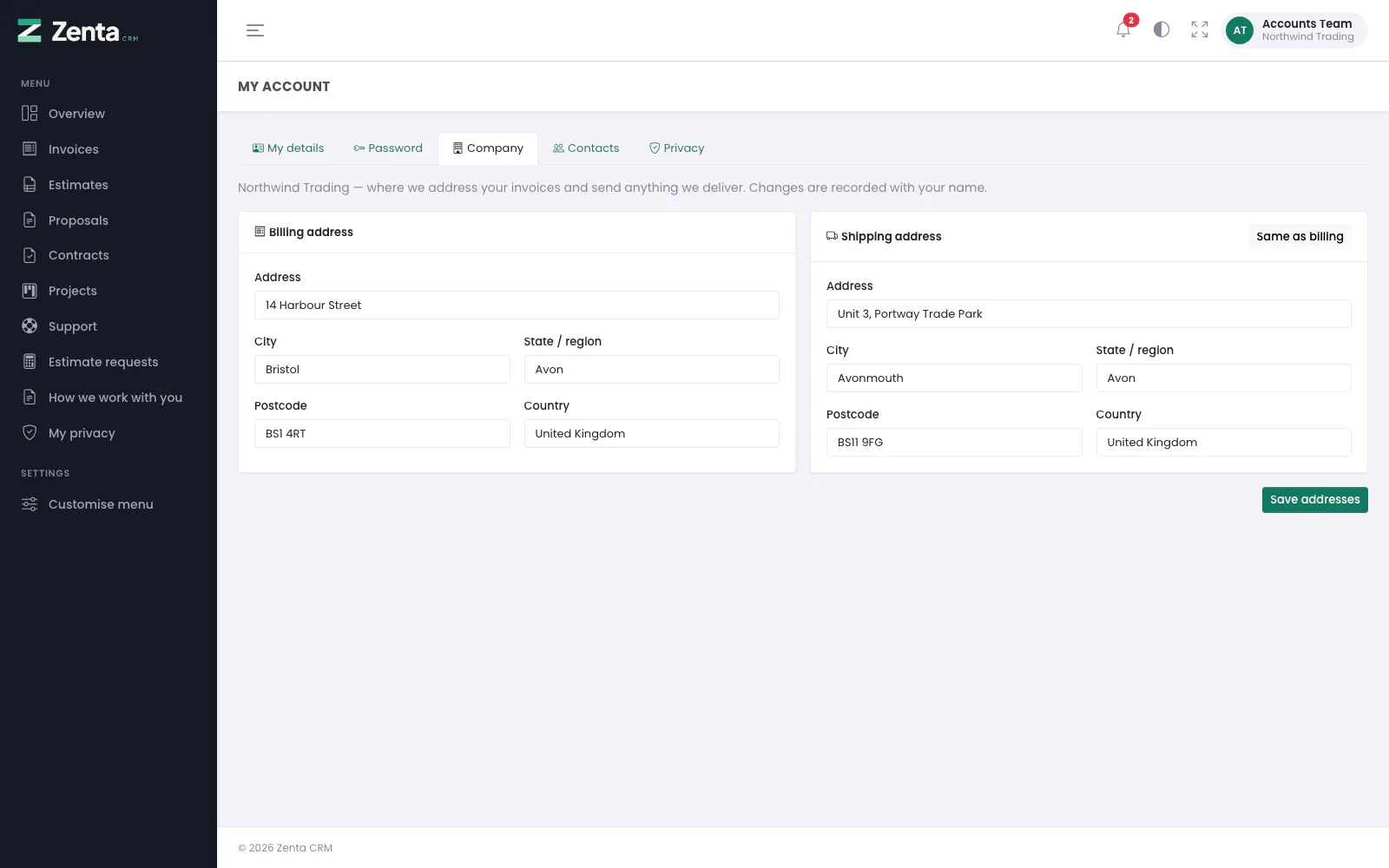 Company for a primary contact: both addresses can be changed.
Your company's Billing address (where invoices are addressed) and Shipping address (where anything delivered is sent), each with Address, City, State / region, Postcode and Country.
- A primary contact can change them. Same as billing copies the billing address into the shipping one; Save addresses saves both. Each change is recorded in the customer's activity log under your name.
- Anybody else sees the same boxes greyed out, with Only your primary contact can change these; ask them, or us.
Contacts: looking after your colleagues
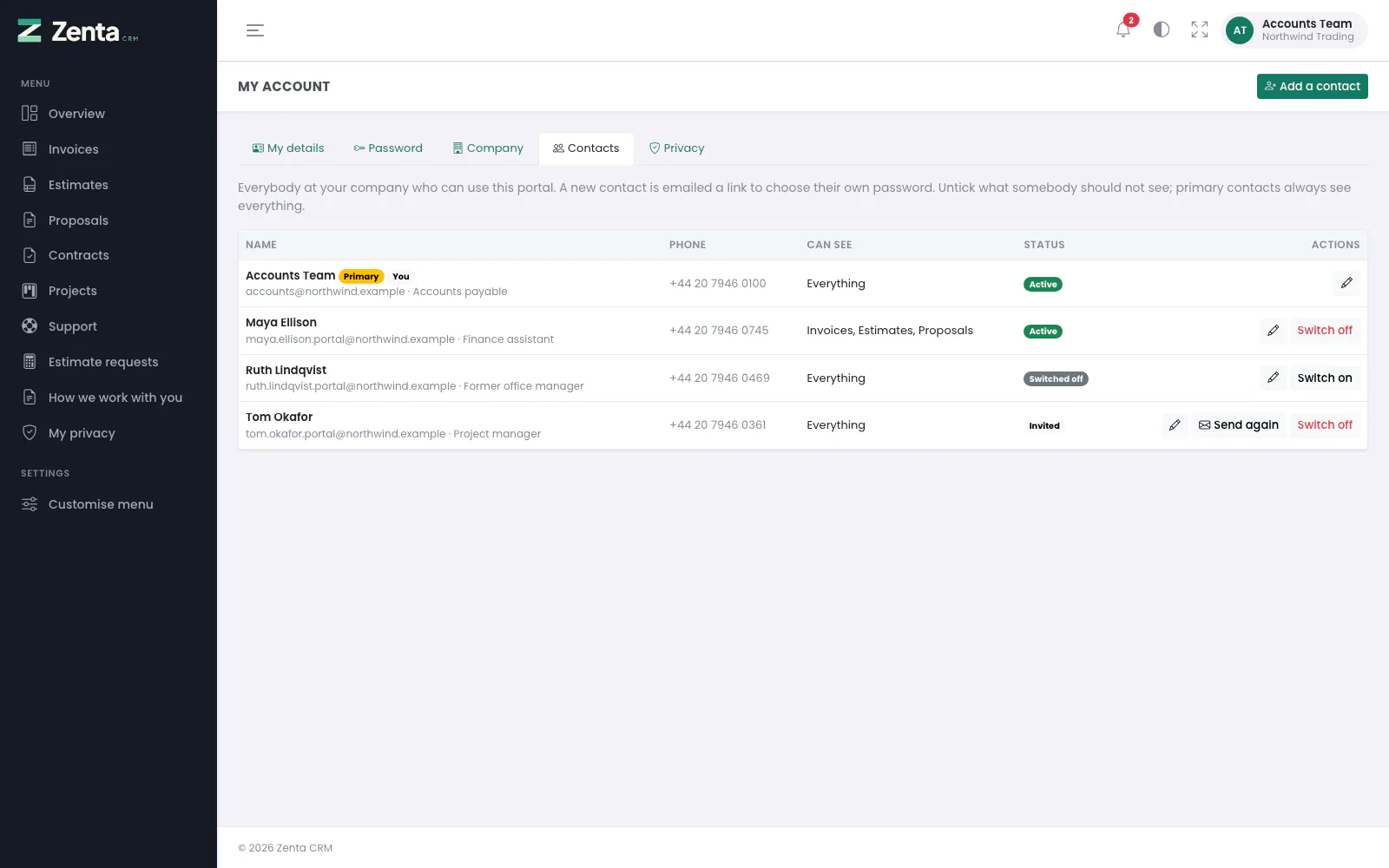 Contacts: everybody at the company, what each can see, and whether they can sign in.
A primary contact looks after everybody else at their company who uses the portal. The tab is only there for a primary contact; anybody else who opens its address is told Only your primary contact can manage your company's contacts. Which contacts are primary is set by the business, on the contact's record.
The list shows, for each person:
- Name, with their email address and position, marked Primary and, on your own row, You;
- Phone;
- Can see: Everything, the parts of the portal they have been given, or Nothing but their own account;
- Status: Active, Invited (they have not chosen a password yet) or Switched off.
Adding a colleague
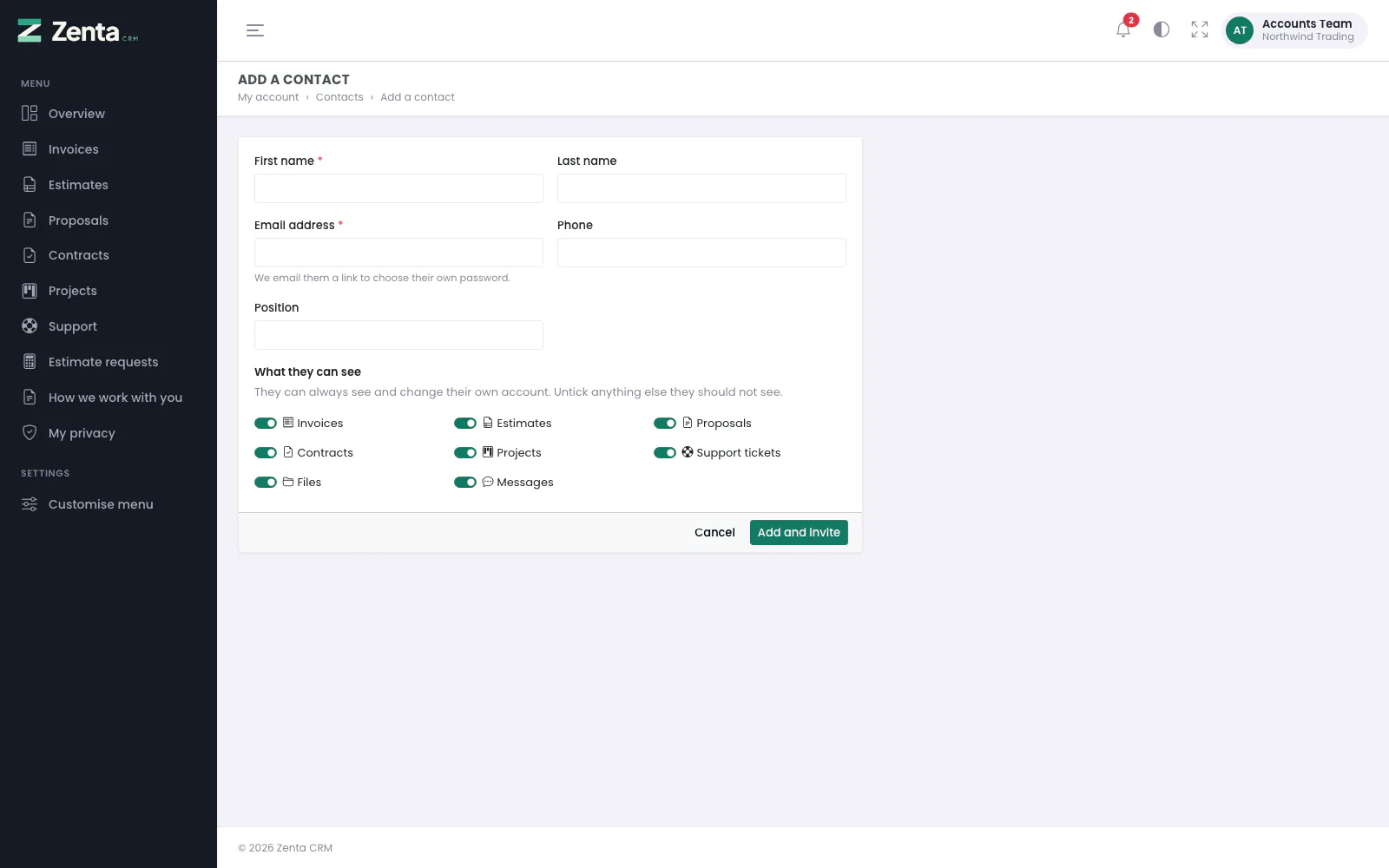 Add a contact: their details, and what they will be able to see.
- Press Add a contact.
- Fill in First name and Email address (both required), and if you like Last name, Phone and Position.
- Under What they can see, switch off anything they should not see. Everything is on to start with.
- Press Add and invite.
They are emailed an invitation (the Invitation to the customer portal template) with a link to choose their own password; nobody else ever knows it. The link works once and for three days. What they see when they open it is under Invited by a colleague.
An address that is already in use in the workspace — by one of your colleagues, a contact at another company or a member of the business's staff — cannot be added, and the form says only That email address cannot be added. If they should be here, please ask us to help.
Changing a colleague
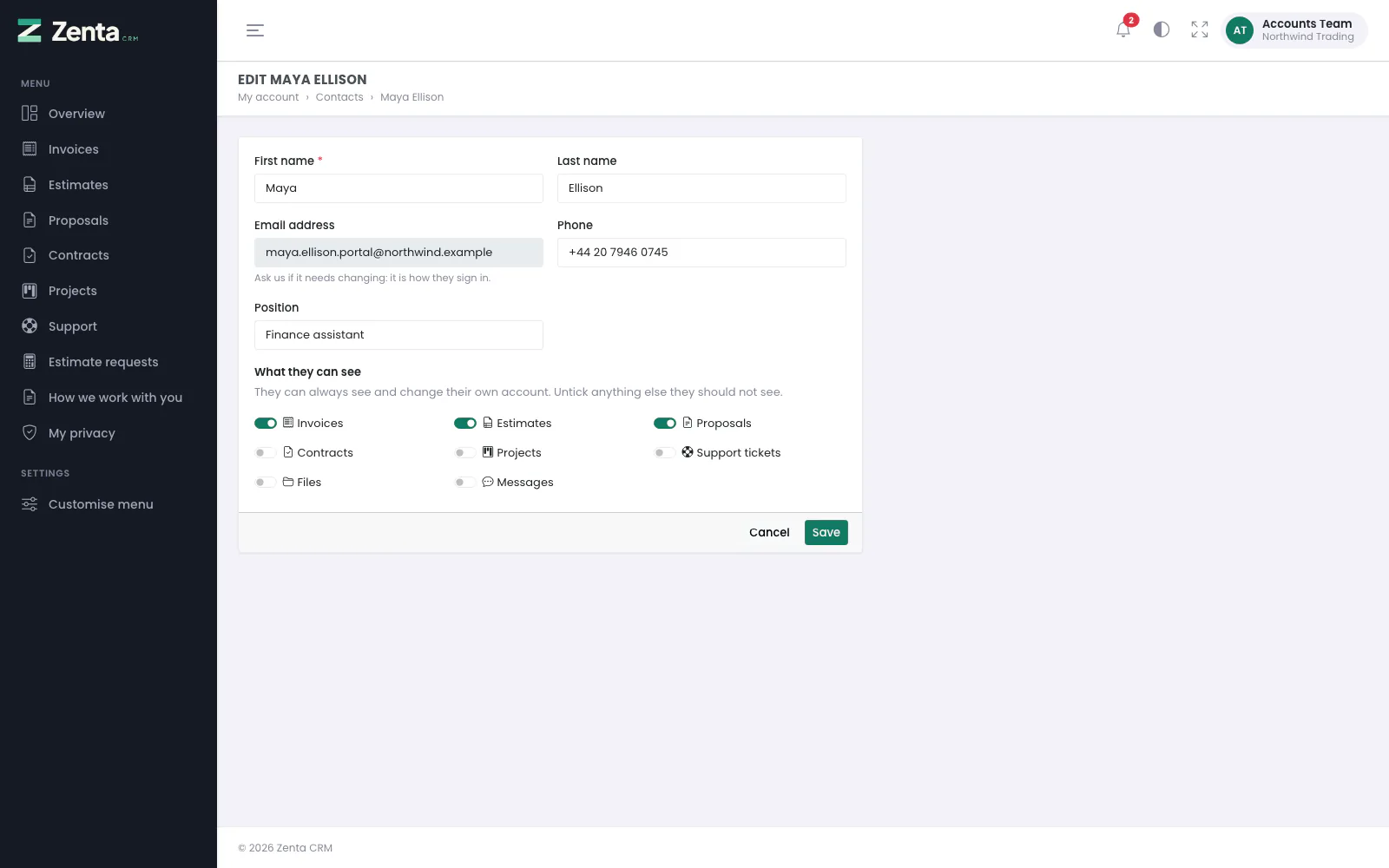 Editing a colleague who may see invoices, estimates and proposals only.
The button opens the same form. You can change their name, phone, position and what they can see; their email address is shown but cannot be changed (Ask us if it needs changing: it is how they sign in.). A primary contact always sees everything, so their form says so instead of showing the switches. Press Save.
Switching somebody off, and on again
- Switch off, after you confirm, stops them signing in. Anybody already signed in is signed out on their next click. Their details stay.
- Switch on lets them sign in again. Somebody who never chose a password still needs an invitation: the message says to send it again.
- Send again appears beside somebody who is Invited and switched on. It emails a fresh link, which replaces the old one and works for three days.
You cannot switch yourself off (Ask us if you are leaving.), nor the last active primary contact: the company would be left with nobody to look after it.
What each contact can see
Every contact who is not a primary contact has a switch for each part of the portal: Invoices, Estimates, Proposals, Contracts, Projects, Support tickets, Files and Messages. All are on until somebody switches one off. The primary contact sets them here; the business sets the same switches on the contact's record. A part whose module the business has switched off is not offered.
A part that is switched off disappears from the contact's menu and overview, they are not notified about it, and every page of it answers You do not have access to this part of the portal. Your primary contact can give it to you. — including its documents' PDFs. Estimate requests and writing in an estimate's discussion go with Estimates, a proposal's discussion with Proposals, the statement with Invoices, and a project's files need both Projects and Files. A contact can always see and change their own account.
My privacy
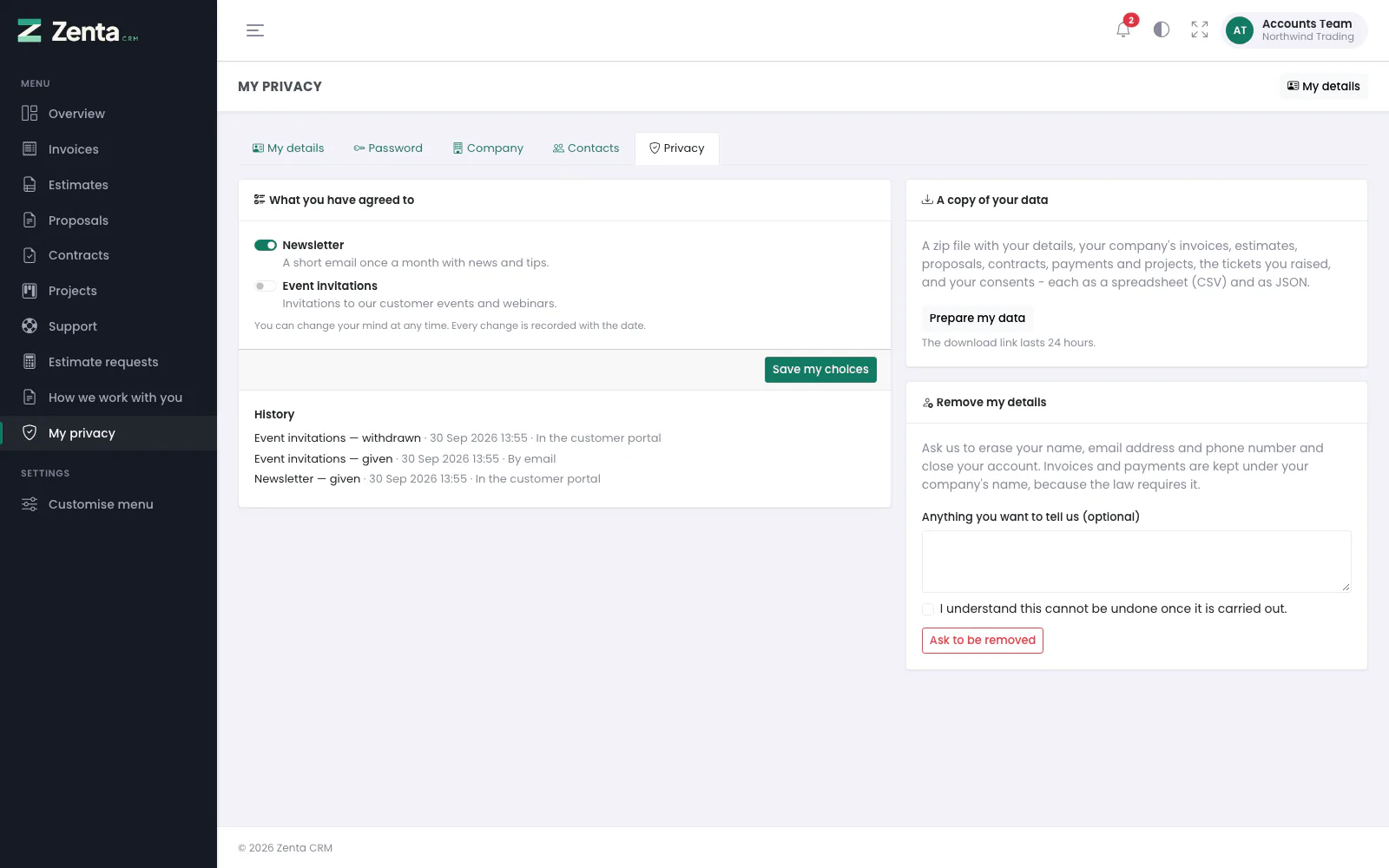 My privacy: consents with their history, a copy of your data, and asking to be removed.
While the business has its privacy tools switched on (see Privacy / GDPR), the portal menu has My privacy, and My account has a Privacy tab that opens the same page. The business chooses which of its three cards you get. When it has a privacy policy or terms, they are linked at the top of the page and in the portal's footer.
What you have agreed to
One switch for each thing the business asks permission for, such as a newsletter, with what it means underneath. Change any of them and press Save my choices. Every change is recorded with the date: the History below lists each one, given or withdrawn, with when and how (for example In the customer portal or By email, when the business recorded it for you). When nothing is asked the card says We do not ask for any permissions at the moment.
A copy of your data
A zip file with your details, your company's invoices, estimates, proposals, contracts, payments and projects, the tickets you raised and your consents, each as a spreadsheet (CSV) and as JSON.
- Press Prepare my data. It is made there and then: Your data is ready to download.
- Press Download. The card says until when it is ready (the business sets how many hours; 24 as shipped).
The file is deleted from the server once you have downloaded it, or when its time runs out; afterwards the card says when you downloaded your last copy and offers Prepare my data again. Only one copy waits at a time: preparing another replaces it. You can ask five times an hour.
Remove my details
Asks the business to erase your name, email address and phone number and close your account. Invoices and payments are kept under your company's name, because the law requires it.
- Optionally write something under Anything you want to tell us (optional).
- Tick I understand this cannot be undone once it is carried out.
- Press Ask to be removed.
Nothing is removed yet: the request waits for somebody at the business to carry it out or decline it, and you are emailed either way. Meanwhile the card says when you asked, and asking again is refused. A declined request shows the business's reason here, and the form comes back so you can ask again later. How the business handles it is under Privacy / GDPR.
My details (from My privacy)
The My details button at the top of My privacy opens
My account → My details, where anything wrong can be
corrected. The older address /portal/details goes there too.
Addresses on this page
For reference and for anyone scripting against the panel. Everything here needs a customer contact signed in to the portal; the addresses that open without signing in are marked.
| Method | Address | What it does |
|---|---|---|
GET | portal/account | My account: My details. |
PUT | portal/account | Saves your name, phone and position. |
GET | portal/account/password | My account: Password. |
PUT | portal/account/password | Changes your password, after checking the current one. |
GET | portal/account/company | My account: Company, the billing and shipping addresses. |
PUT | portal/account/company | Saves the addresses (primary contacts only). |
GET | portal/account/contacts | My account: Contacts (primary contacts only). |
GET | portal/account/contacts/create | The Add a contact form. |
POST | portal/account/contacts | Adds a colleague and emails them an invitation. |
GET | portal/account/contacts/{colleague}/edit | The form for changing a colleague. |
PUT | portal/account/contacts/{colleague} | Saves a colleague's details and what they can see. |
POST | portal/account/contacts/{colleague}/deactivate | Switch off: stops them signing in. |
POST | portal/account/contacts/{colleague}/reactivate | Switch on: lets them sign in again. |
POST | portal/account/contacts/{colleague}/invite | Send again: emails a fresh invitation. |
GET | portal/privacy | My privacy. |
POST | portal/privacy/consents | Saves your consent choices. |
POST | portal/privacy/export | Prepare my data: makes a copy of your data to download. |
GET | portal/privacy/export/{privacyRequest} | Downloads that copy (once; it is deleted afterwards). |
POST | portal/privacy/removal | Ask to be removed. |
GET | portal/details | An older address for My details: goes to My account, while the privacy tools are on. |
PUT | portal/details | Saves your name and phone. Kept for anything still sending to it; My account saves the same. |