Updating
Install a new version from the zip you download — with a backup first, and nothing sent anywhere.
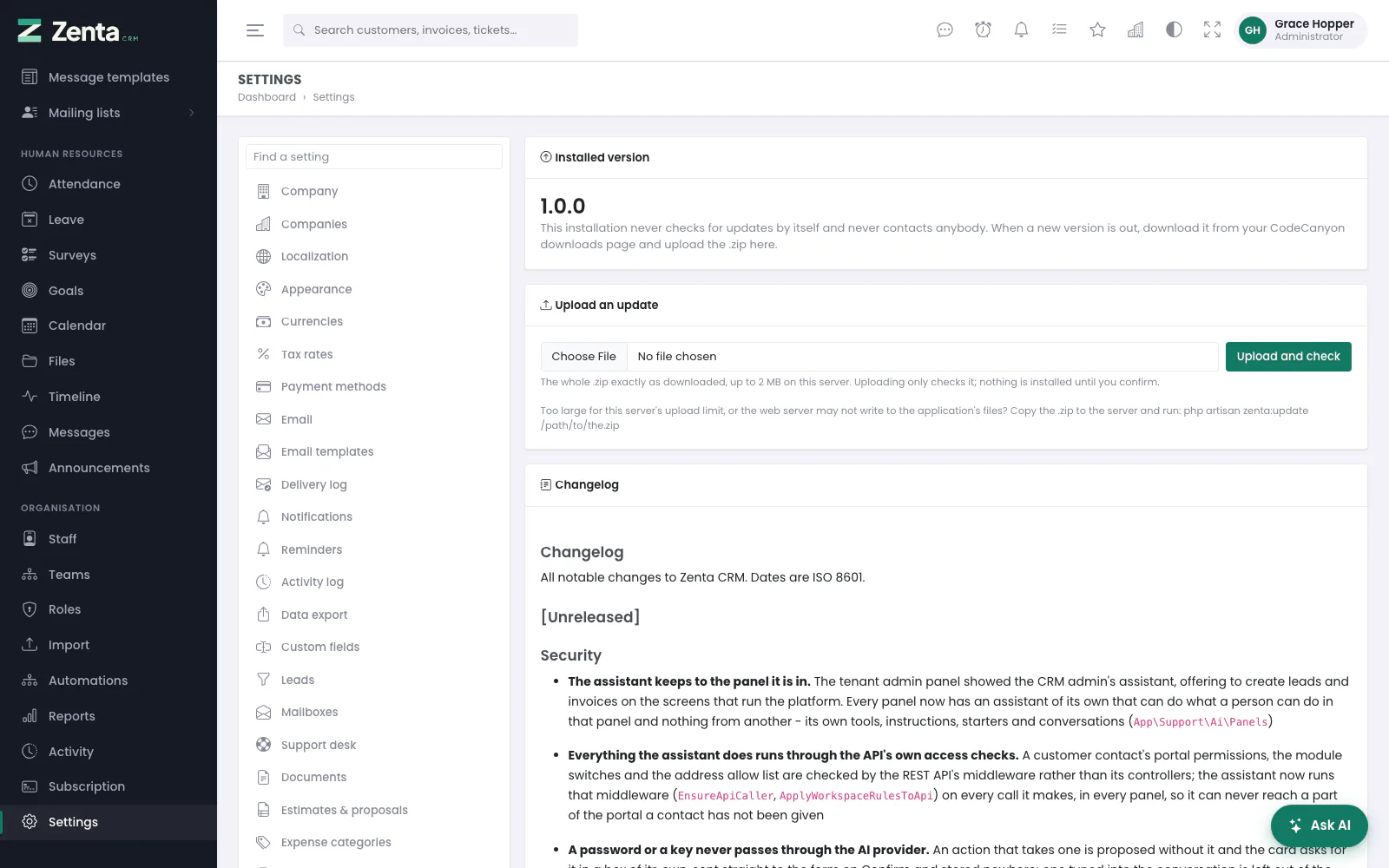 Updates: the version installed, the upload form, and the changelog.
Settings → Updates (administrators; in SaaS mode only the super admin) shows the installed version and the changelog. Zenta CRM never checks for updates by itself and never contacts anybody: when a new version is out, download it from your CodeCanyon Downloads page and hand it over.
- Under Upload an update, choose the whole Update .zip, exactly as downloaded, and press Upload and check. The form says how large a file this server accepts. Nothing is installed yet: the archive is checked and the page shows "Ready to install: 1.0.0 to 1.1.0", the file's name, how many files it holds and who uploaded it, with the release notes for everything newer than your version.
- Read them, then press Install 1.1.0 (the button names the version) and confirm. Leave the page open; it says Installing… do not close this page, and takes a few minutes on a modest host.
- The page reloads with each step ticked off: check the archive, check the files can be written, unpack, back up, maintenance mode, copy the new files, update the database, clear the caches, back online. The card is headed Updated from 1.0.0 to 1.1.0, or An update stopped.
Changed your mind? Discard, beside Install, removes the uploaded update without installing it, after you confirm.
An upload is refused, with nothing changed, if it is not an Zenta CRM
release (it must hold version.json beside artisan),
if it is the version you already have or an older one, if its two version
numbers disagree, if it is missing part of the application (such as
vendor/), if this server's PHP is too old for it, or if any file
in it points outside the application folder or is a symbolic link.
.env, everything under storage/ (the database
backups included), public/uploads/, plugins/ and
bootstrap/cache. Files that a new version no longer uses are left
in place rather than deleted.
Before anything is copied, the updater takes a database backup (listed under
Settings → Backup as Before update) and a second
archive of exactly the files it is about to replace, saved as
storage/app/updates/rollback-OLD-to-NEW-date.zip. While files are
copied the site is in maintenance mode; the browser that started the update
is let through.
rollback-…zip over the installation folder, and —
if the database step failed — import the Before update backup's
database.sql. Then press Bring the site back online
on the Updates page — shown, with a warning, whenever the site is in maintenance
mode — or run php artisan up.
A release too large for your server's upload limit, or an install whose files
the web server may not write, can be updated from the command line with the
same checks and steps: php artisan zenta:update /path/to/zenta-crm.zip.
Setting UPDATE_UPLOADS=false in .env removes the
upload form and leaves only the command.
Minified scripts and stylesheets
Every script and stylesheet of Zenta CRM's own (under
public/assets/js and public/assets/css) ships with a
smaller .min copy, and pages load those by default. The copies
only have comments and extra spaces taken out — nothing is renamed or
rewritten — and a missing copy simply means the original is loaded.
- After editing one of those files, run
php artisan zenta:assets:minifyto refresh the copies. WithAPP_DEBUG=true, an original edited after its copy is loaded instead, so changes show straight away while you work. - To load the readable originals instead, set
ZENTA_MINIFIED_ASSETS=falsein.env. The current state is shown under Settings → Uploads → Performance.
Addresses on this page
For reference and for anyone scripting against the panel. Everything here needs somebody signed in to the workspace whose role allows it; anybody else is refused.
| Method | Address | What it does |
|---|---|---|
GET | admin/settings/updates | The installed version, the upload form, any update waiting, the last run and the changelog. Administrators; in SaaS mode the super admin only. |
POST | admin/settings/updates | Upload and check: stores and checks the release zip. Nothing is installed. At most ten a minute. |
POST | admin/settings/updates/run | Install: runs the update waiting, step by step. |
DELETE | admin/settings/updates/pending | Discard: removes the uploaded update without installing it. |
POST | admin/settings/updates/online | Bring the site back online: leaves maintenance mode. |