Backups
Take a copy of everything, and know how to put it back.
Settings → Backup → Take a backup now. You get a zip
containing the whole database as a .sql file, plus
everything anybody has uploaded — logos, attachments, files sent in with
a ticket.
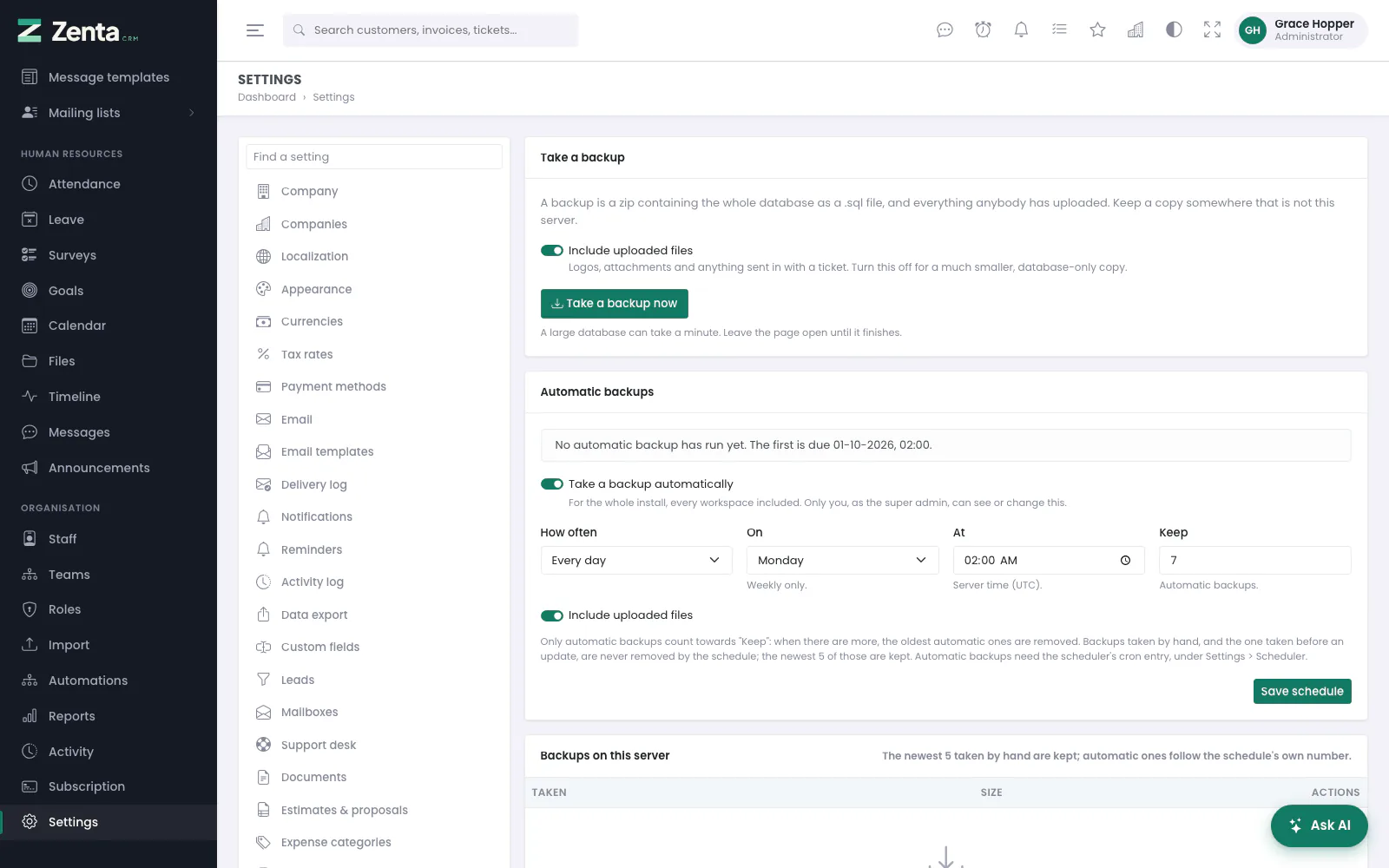 The backup screen: take one now, the automatic schedule, and the backups kept on the server.
Press Take a backup now and leave the page open until it finishes — a large database can take a minute. It then says how many rows and files went in, and how large the zip is.
The backups on the server
Backups on this server lists each backup with when it was Taken, how it came to be (Automatic, By hand or Before update) and its Size.
- Download saves the zip to your computer.
- , after you confirm, removes it from the server. A copy you have already downloaded is untouched.
The newest five are kept on the server and older ones are removed as new ones are taken, so the folder cannot fill the disk. They live outside the public folder and carry a deny rule of their own, so none is ever reachable by URL.
Without the uploads
Turn off Include uploaded files for a database-only copy. Much smaller and much quicker, and the right choice if your uploads are already backed up by your host.
Restoring
There is deliberately no restore button. Restoring drops live tables, and a web request that can do that is a web request somebody can be tricked into making. To restore:
| Step | What to do |
|---|---|
| 1 | Unzip the backup. |
| 2 | Put the uploads folder back at public/uploads. |
| 3 | Import database.sql into an empty database — mysql -u USER -p DATABASE < database.sql, or phpMyAdmin's Import tab. |
| 4 | Point your .env at that database. |
On a SaaS install
If the button is greyed out
The zip is built with PHP's zip extension. If your host has
not enabled it, the page says so — ask them to turn it on. Backups
themselves work on MySQL and MariaDB, which is what the installer
requires anyway.
No mysqldump is needed. Most shared hosting disables the
functions that would run it, so the dump is written by PHP through the
same database connection the application already has.
Automatic backups
Settings → Backup now has an Automatic backups card above the list of backups. Switch on Take a backup automatically, choose How often (Every day or Every week), On (the weekday, for weekly backups), At (the time, as hours and minutes), Keep (how many automatic backups to keep, 1 to 100) and whether to Include uploaded files, then press Save schedule. It is off until you switch it on.
- Make sure the scheduler's cron entry is running (Settings → Scheduler shows the line to add). Automatic backups are taken by it.
- Switch the schedule on and save. The screen tells you when the first one is due — the first scheduled time after you saved, never straight away.
- After each run the card shows how the last automatic backup went: when, how large, and the file name — or, if it failed, the reason.
The time is the server's (the APP_TIMEZONE shown under the field).
The check runs every five minutes, so a server whose cron was down catches
up with one backup when it comes back rather than skipping the day. A failed
backup is not retried every five minutes; it is shown on the screen and tried
again at the next scheduled time. From the command line:
php artisan zenta:backup:run takes one if it is due, and
php artisan zenta:backup:run --force takes one now.
In SaaS mode a backup is the whole database — every workspace — so the schedule belongs to the super admin alone: workspace administrators do not see the Backup screen at all.
Addresses on this page
For reference and for anyone scripting against the panel. Everything here needs somebody signed in to the workspace whose role allows it; anybody else is refused.
| Method | Address | What it does |
|---|---|---|
GET | admin/settings/backup | The backup screen. In SaaS mode the super admin only. |
POST | admin/settings/backup | Take a backup now, with or without the uploaded files. |
GET | admin/settings/backup/{name} | Download: the backup zip, as a file. |
DELETE | admin/settings/backup/{name} | Deletes a backup from the server. |
PUT | admin/settings/backup-schedule | Save schedule: the automatic backups. |