Plans
What each plan costs, which parts of the application it includes, and how much it allows.
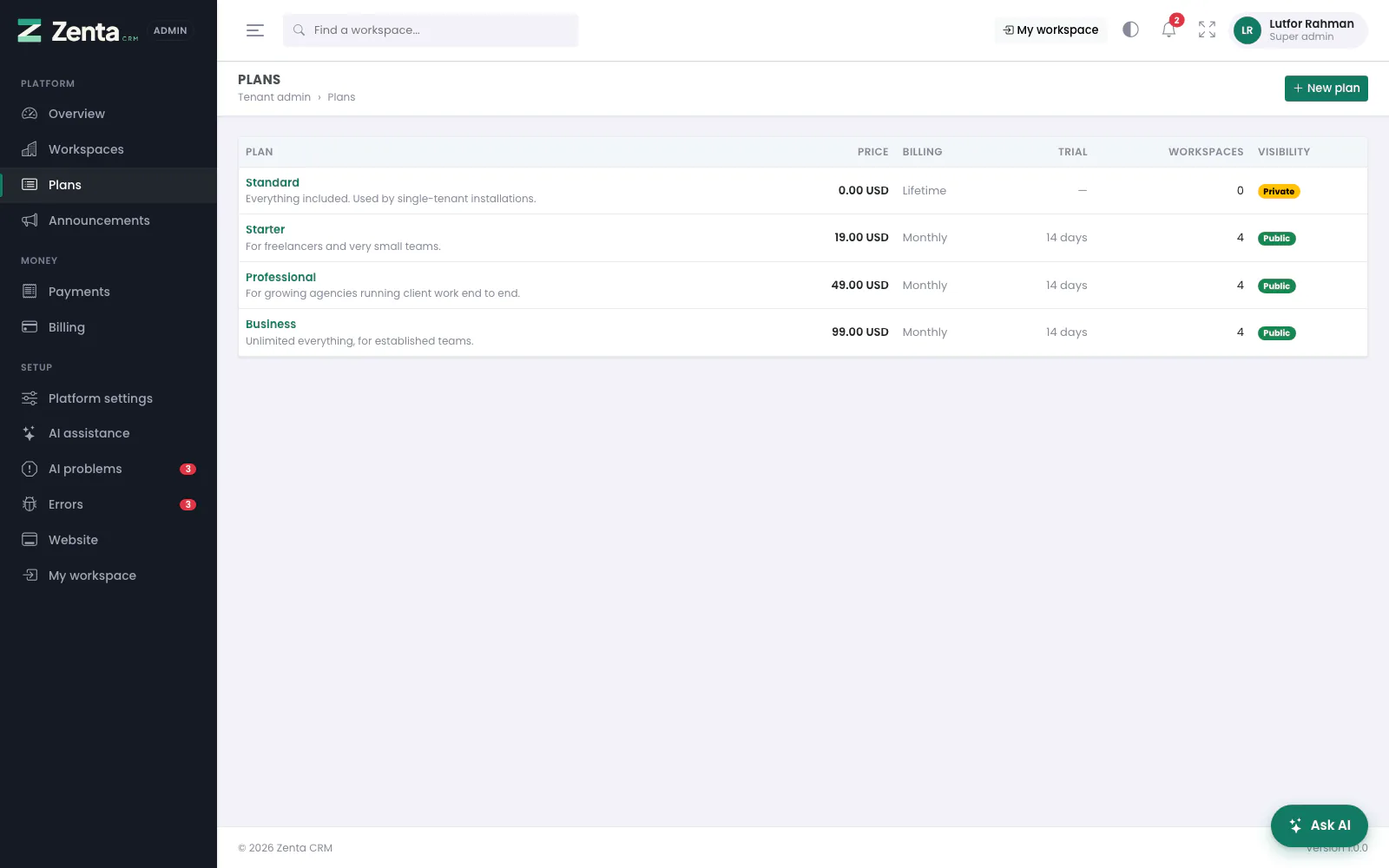 Plans: price, billing period, trial, how many workspaces are on each, and whether it is offered publicly.
The list
Tenant admin → Plans. Each plan with its description, price and currency, how it is billed, its free trial, how many workspaces are on it, and its visibility:
| Badge | Means |
|---|---|
| Public | Active and offered at sign-up: on the pricing page and in the sign-up wizard. |
| Private | Active, but only you can put a workspace on it. For a custom deal, or a plan you are retiring. |
| Inactive | Not offered, and not in the lists you choose a plan from. Workspaces already on it stay on it. |
Click a plan's name to edit it; New plan adds one.
Creating or editing a plan
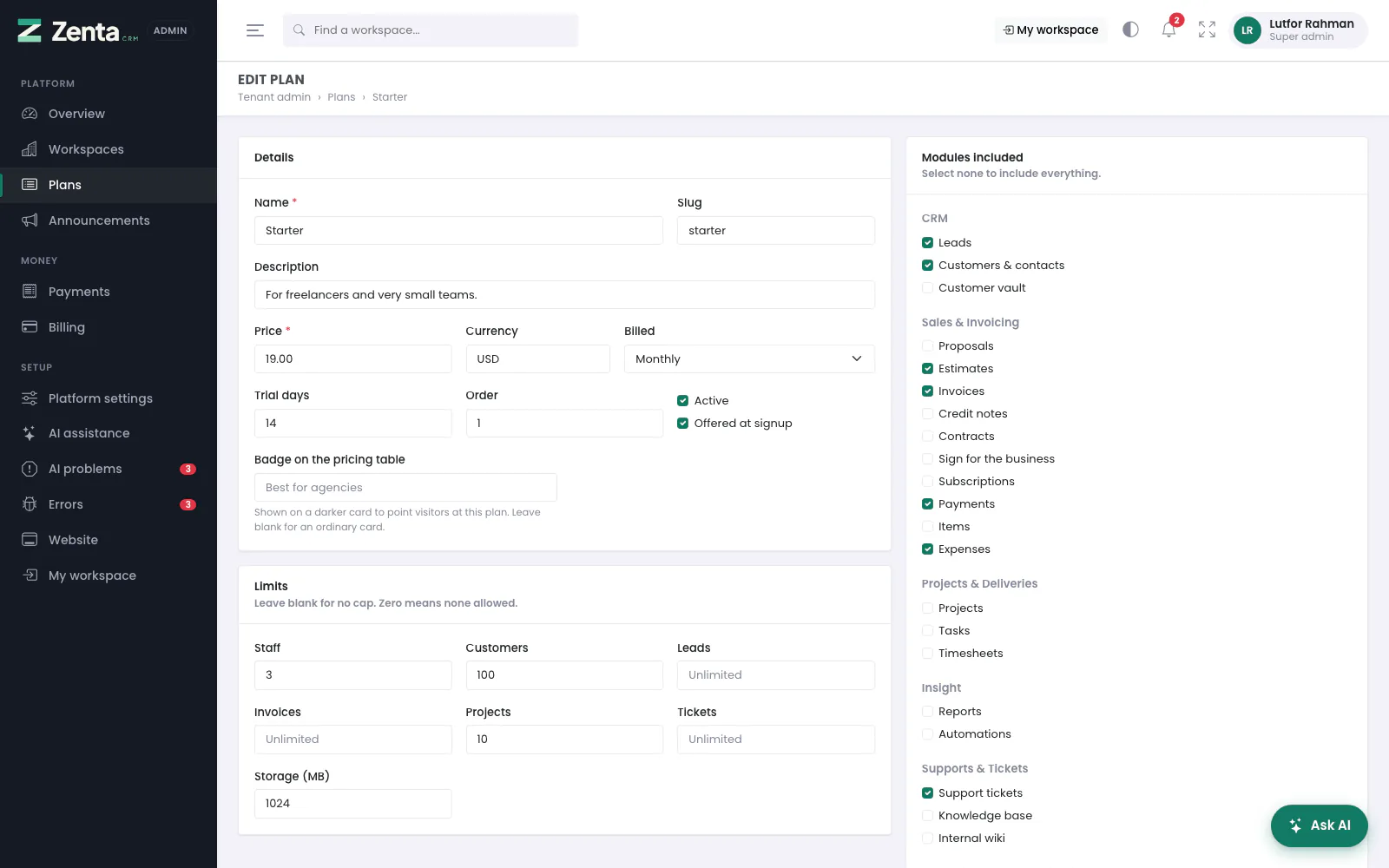 Editing a plan: its details, its limits and the modules it includes.
Details
| Field | What it does |
|---|---|
| Name | Required. Shown to customers. |
| Slug | Lower-case letters, numbers and hyphens. Left blank, it is made from the name. Must be unique. |
| Description | One line, up to 500 characters, shown under the name. |
| Price and Currency | The price per period, and a three-letter currency code such as USD. |
| Billed | Monthly, Yearly or One off (a lifetime plan). A one-off plan counts for nothing in monthly recurring revenue. |
| Trial days | 0 to 365. Zero means no trial: a paid plan is charged at sign-up. |
| Order | Where the plan sits in lists and on the pricing page, lowest first. |
| Active | Off retires the plan without touching the workspaces on it. |
| Offered at signup | Shows it publicly. Leave it off for plans you only assign by hand. |
Limits
Caps on staff, customers, leads, invoices, projects, tickets and storage (in MB). Blank means no cap; zero means none allowed — the two are kept apart on purpose.
Modules included
Tick the parts of the application a workspace on this plan can reach, grouped as they are in the staff menu. Tick none to include everything. AI is not in the list: it runs on the platform's key and is switched on per workspace, under AI assistance.
Press Save plan. A new plan opens for editing once it is saved.
What a plan actually does
Both halves are enforced by the application, not printed on a pricing page and forgotten:
- A module the plan leaves out is switched off for that workspace exactly as if they had switched it off themselves: the menu entry goes, the permission gate closes, and the pages answer 404. Their Modules screen shows it as Not included in your plan and will not let them turn it on.
- A limit refuses the record that would go over it — from the form, from an import, from the API and from an automation alike, because the check is on the record rather than on the screen. The refusal says which plan setting stopped it.
A workspace sees its own usage against its own plan on Subscription (under Organisation in the sidebar), beside the plans that would raise it.
Deleting a plan
Delete, at the bottom of the plan's page, then confirm. A plan that still has workspaces on it cannot be deleted — they would lose their feature set entirely. Move them to another plan first (from each workspace's page), or untick Active to retire the plan instead.
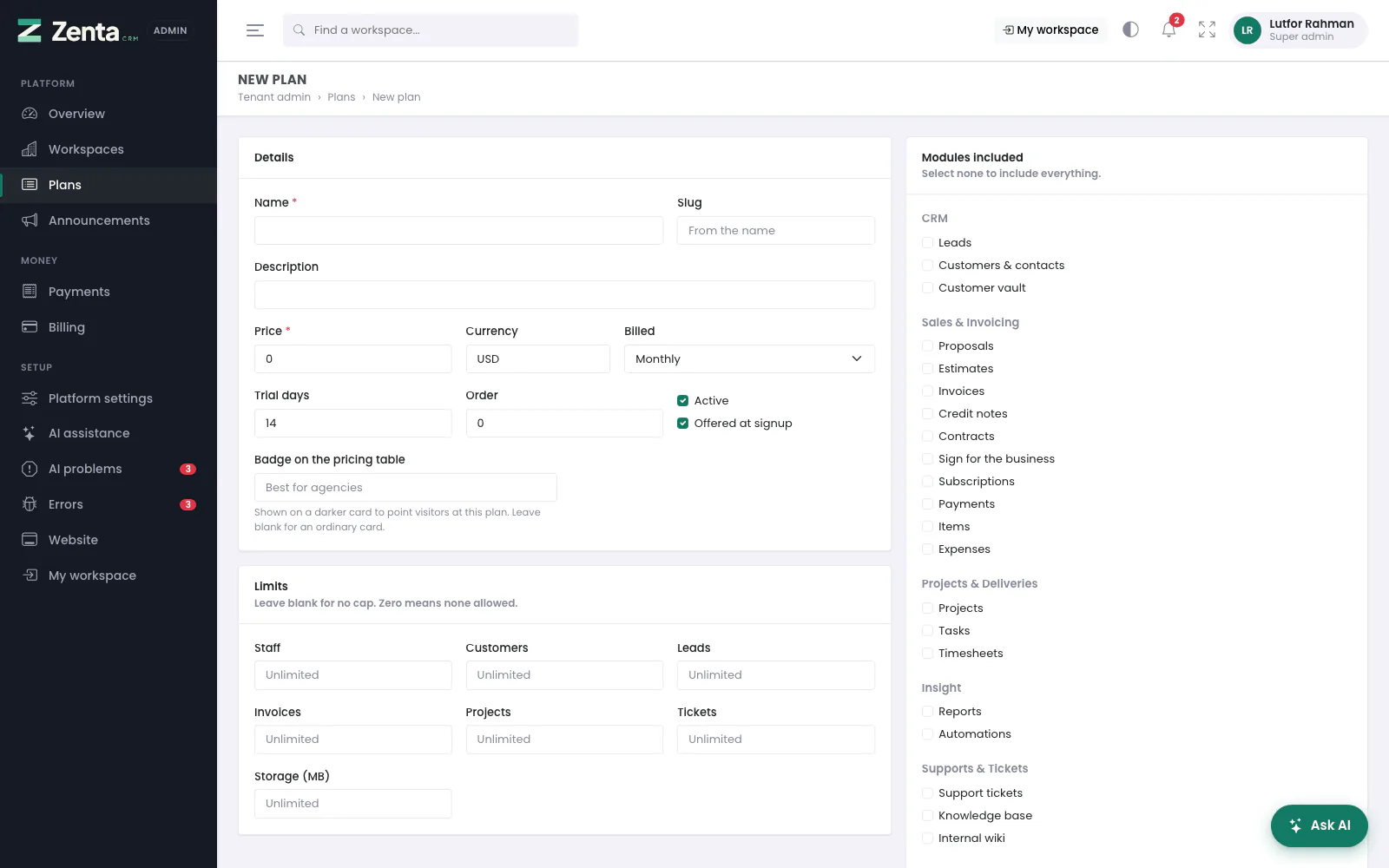 A new plan starts monthly, active, public, with a 14-day trial.
Addresses on this page
For reference and for anyone scripting against the panel. Everything here needs a signed-in super admin at the platform's own address; anybody else gets 403.
| Method | Address | What it does |
|---|---|---|
GET | tenant/admin/plans | The list. |
GET | tenant/admin/plans/create | The New plan form. |
POST | tenant/admin/plans | Creates the plan. |
GET | tenant/admin/plans/{plan}/edit | Edits a plan. |
PUT | tenant/admin/plans/{plan} | Saves it. |
DELETE | tenant/admin/plans/{plan} | Deletes it, if no workspace is on it. |