Pages and the website menu
Pages of your own for the public site, the portal or your team — and the public menu and footer.
Writing pages and the menu needs the Settings → Edit permission; seeing the list needs Settings → View. The front page and the blog are built on a screen of their own, Settings → Website.
Custom pages
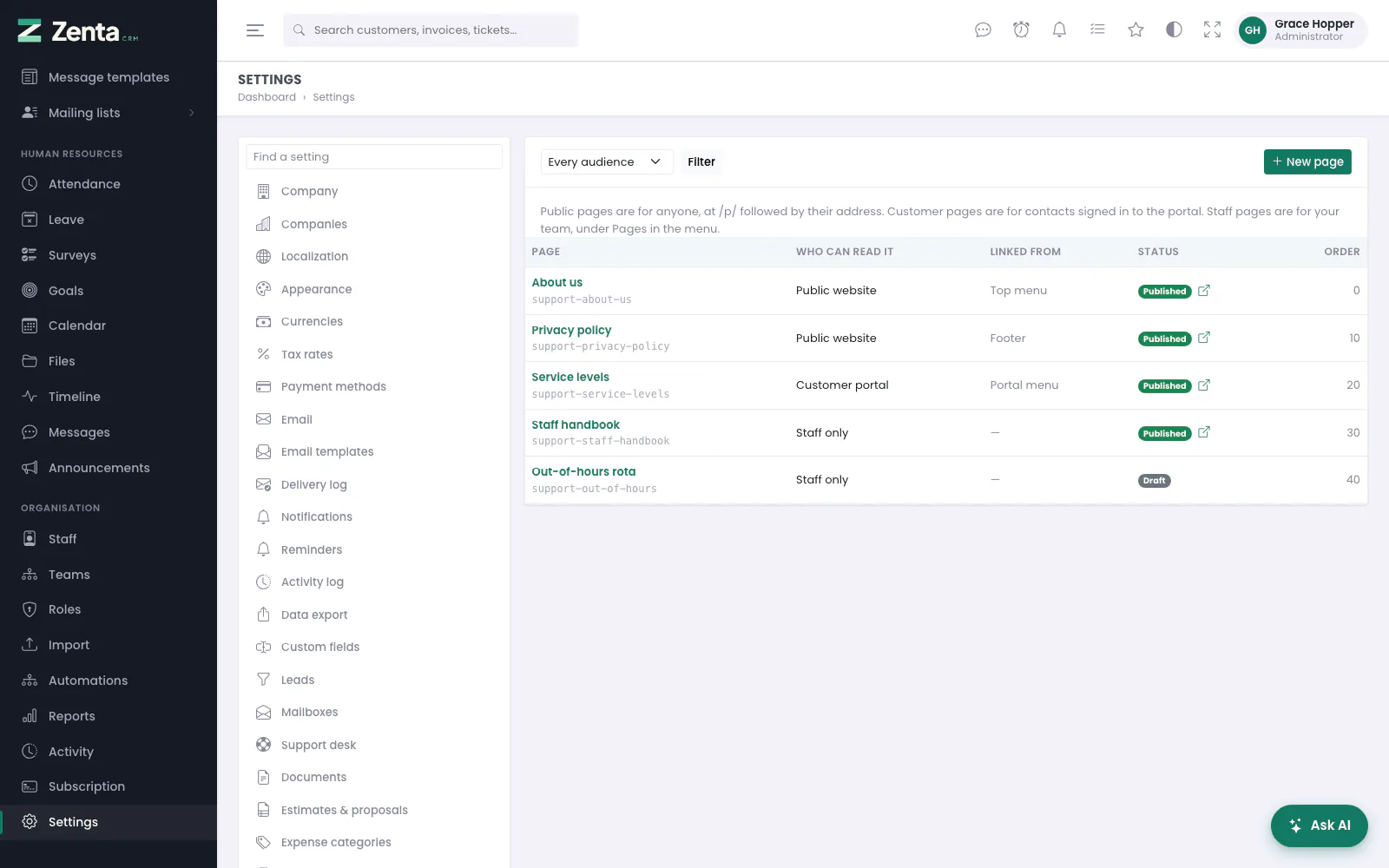 Settings → Pages: every page, who can read it, where it is linked from, and whether it is published.
Settings → Pages is where you write pages of your own: an "About us", a price list, a privacy policy, a staff handbook. The list shows each page's title and address, who can read it, where it is linked from (Top menu, Footer, Portal menu), whether it is Published or a Draft — a published page has an to open it — and its order. Narrow it to one audience with the Who can read it filter and Filter.
Writing a page
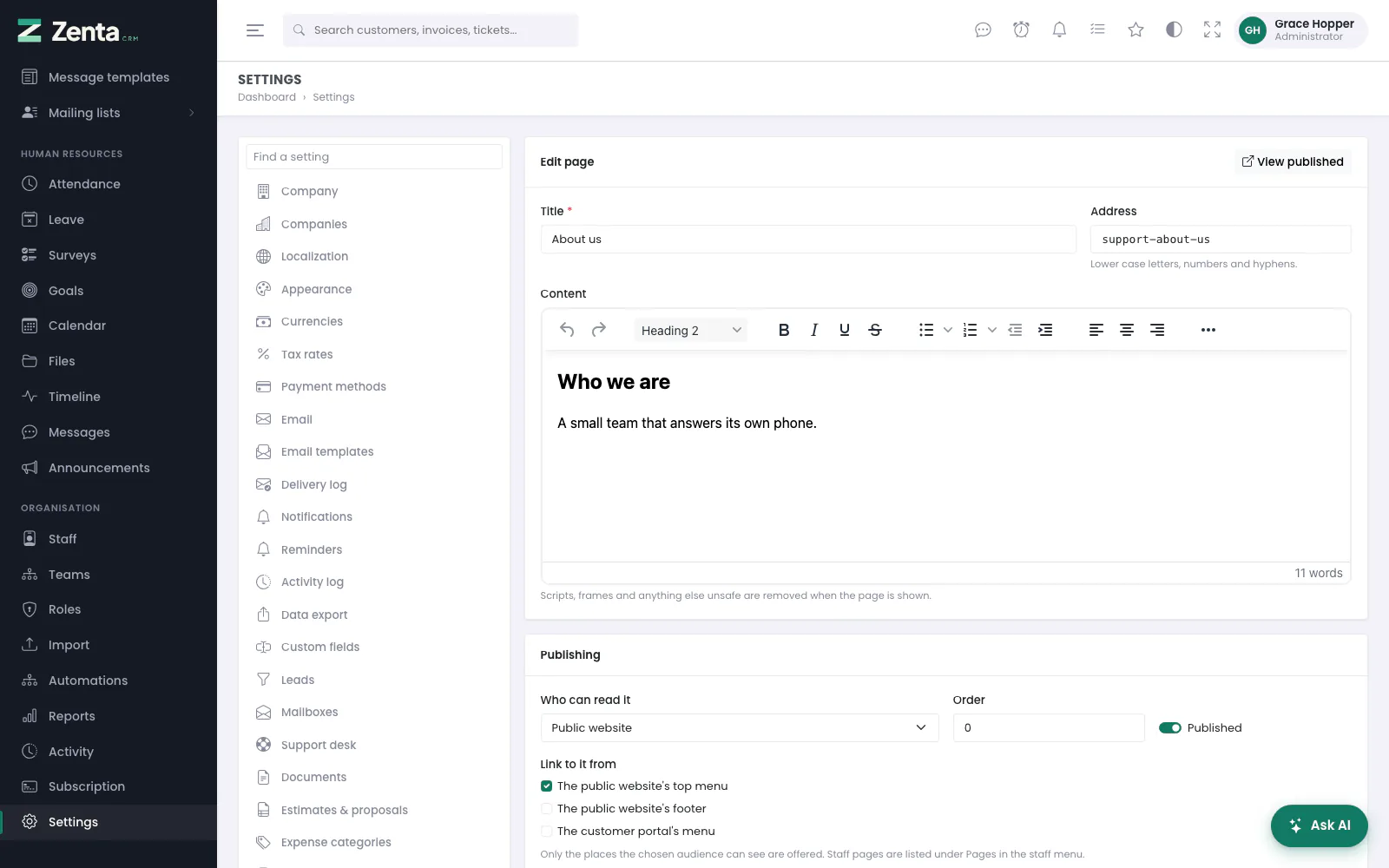 Editing a page: title, address and content, then who can read it and where it is linked from.
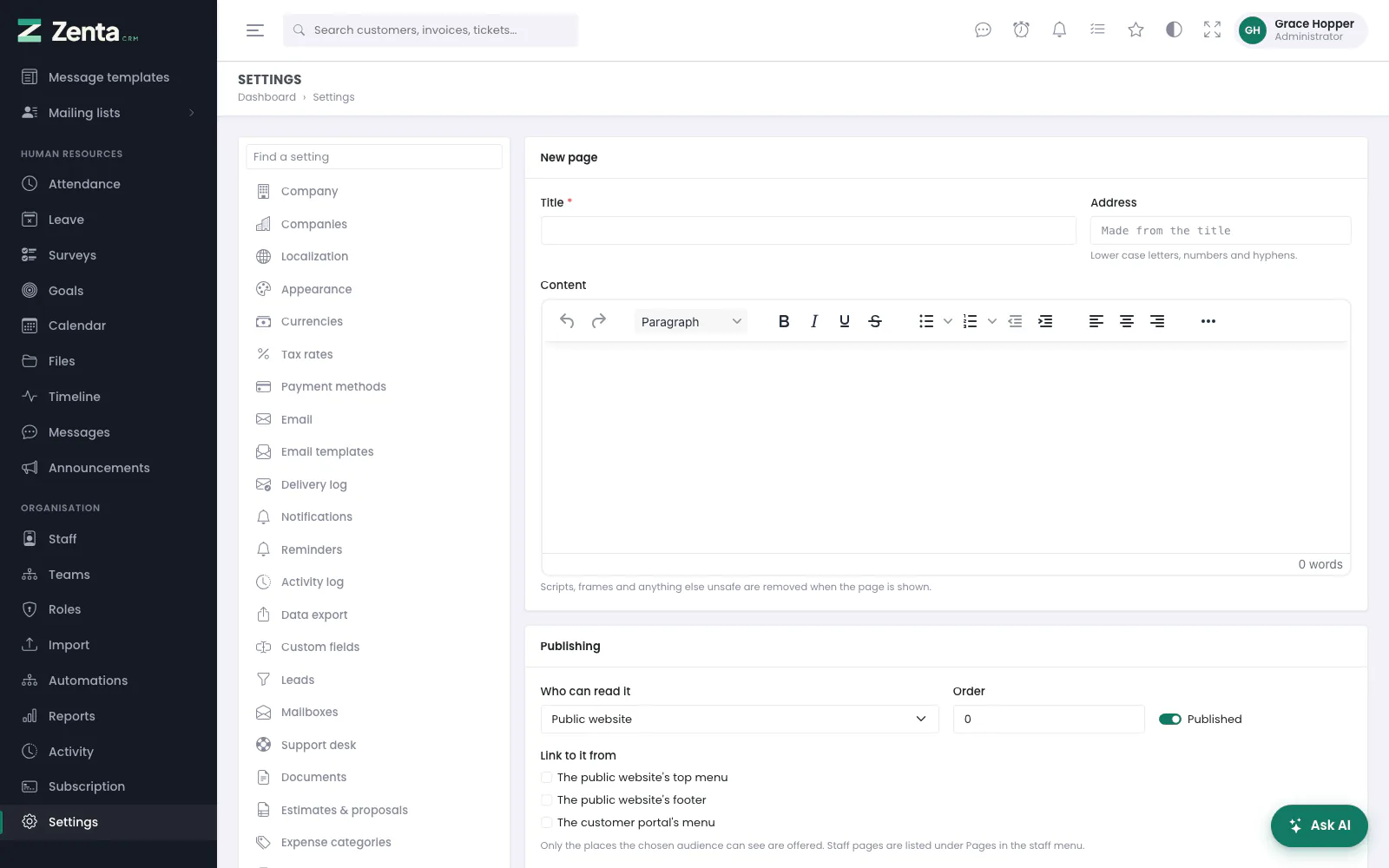 A new page starts public and published.
Press New page, give it a Title and write it in the formatting editor under Content. Under Publishing, Who can read it:
| Who can read it | Where it is |
|---|---|
| Public website | Anyone, at /p/ followed by its address, for example /p/about-us. |
| Customer portal | Contacts signed in to the portal, at /portal/pages/…. Visitors who are not signed in are sent to the portal sign-in. |
| Staff only | Everyone on your team, under Pages in the staff menu. |
The Address is made from the title if you leave it blank, numbered if
that one is taken. It may only use lower-case letters, numbers and single hyphens, and must
be unique in your workspace; the words the system uses itself (create,
edit, new, index, admin,
portal, api) are refused. Untick Published to
keep a page as a draft: nobody can open a draft except people who can edit pages.
Order sets the order wherever the page is listed.
Link to it from adds the page to The public website's top menu, The public website's footer or The customer portal's menu. Only the places its audience can see are kept — the two public-website places need a public page, and the portal menu takes a public or a customer page — so a staff page never appears in a public menu.
Press Save page. A published page has View published at the top of its edit screen.
javascript: links are
removed whenever a page is shown, so a page pasted from somewhere else
cannot run code in a visitor's browser.
Deleting a page
Delete, at the bottom of the edit screen, then confirm. Links to it stop working, and it drops out of any menu it was in.
On a SaaS install each workspace has its own pages, found at its own address, exactly like the public knowledge base.
Staff pages
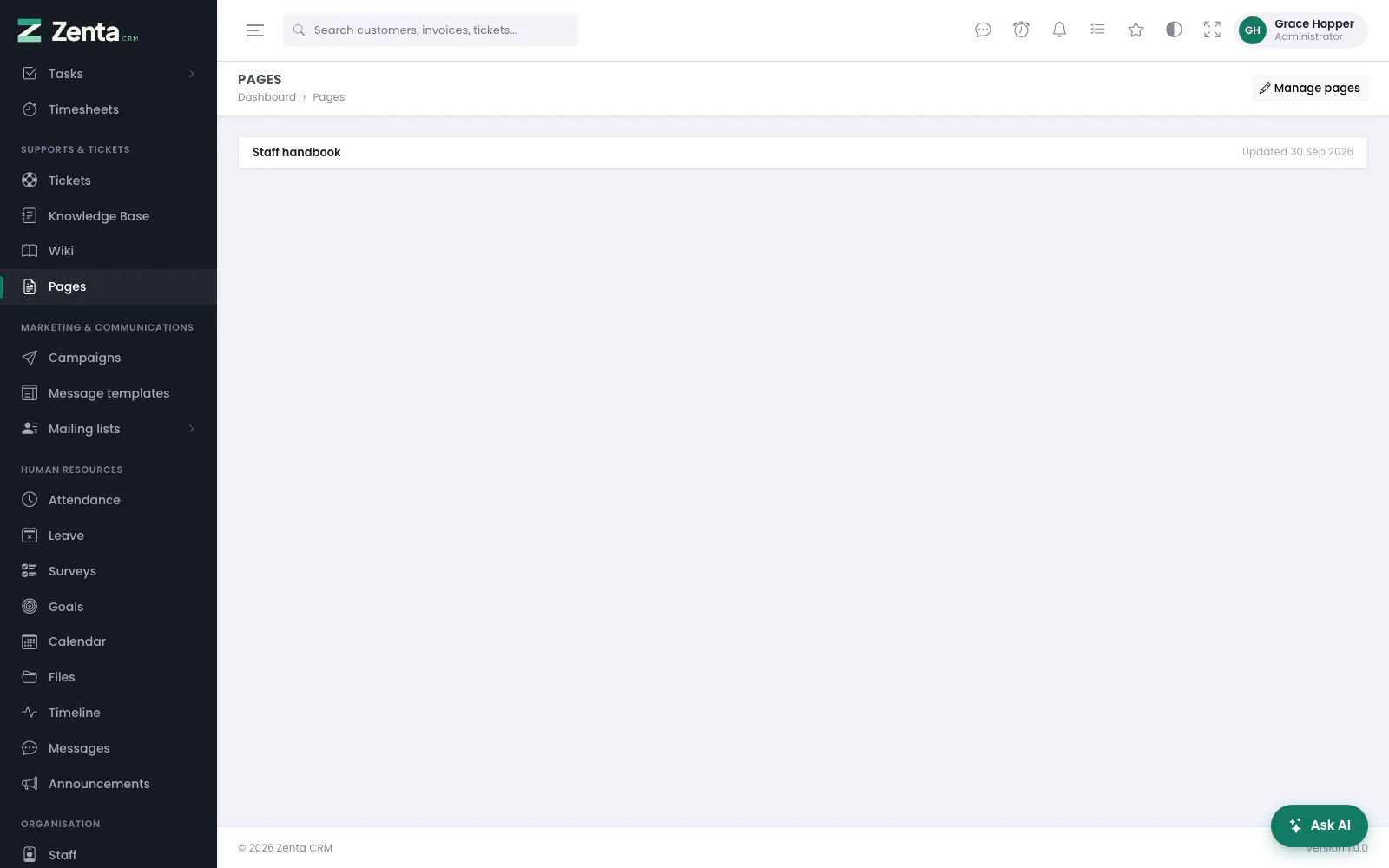 Pages in the staff menu: every published staff-only page.
Pages in the staff menu lists every published staff-only page, with when it was last updated; there is no permission to set, because "staff only" means every member of staff. Click one to read it. Whoever can edit settings also has Manage pages, which goes to Settings → Pages.
 A staff page as the team reads it.
A page opens under its own address, /admin/pages/ followed by its address.
People who can edit pages see an Edit button, and can open a draft to
check it before it goes out — it carries a note saying it is a draft. To everybody
else a draft does not exist yet.
Website menu & footer
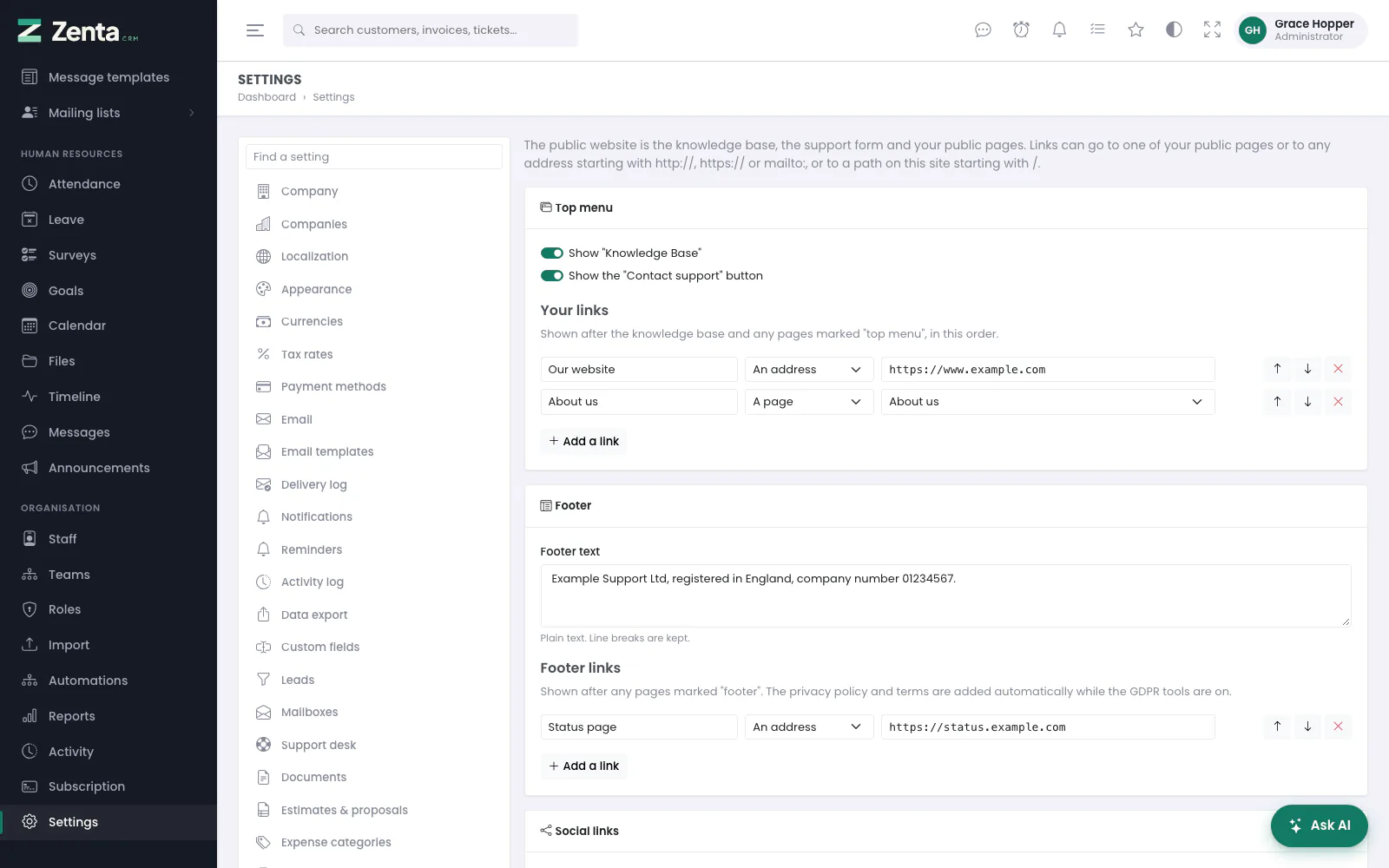 Settings → Website menu & footer: the top menu, your links, the footer text and footer links.
Settings → Website menu & footer controls the bar across the top of the public pages (the knowledge base, the support form and your public pages) and the footer underneath them.
- Show "Knowledge Base" and Show the "Contact support" button hide or show the two built-in links. The support button also needs the public support form switched on (the screen says when it is off), and either link disappears if its module is switched off under Settings → Modules.
- Your links: press Add a link, type a label, and choose whether it goes to An address or A page (any public page; drafts are marked). Use the arrows to change the order and to remove one. Up to twenty links in each list.
- Footer text: a line or two of plain text, such as your company registration. Line breaks are kept.
- Footer links: as above, shown after any pages marked for the footer. The privacy policy and terms are added automatically while the GDPR tools are on.
- Social links: an address for any of Website, LinkedIn, X, Facebook, Instagram, YouTube, GitHub, Mastodon, TikTok and WhatsApp, shown as icons under the footer. Leave one blank and it is not shown.
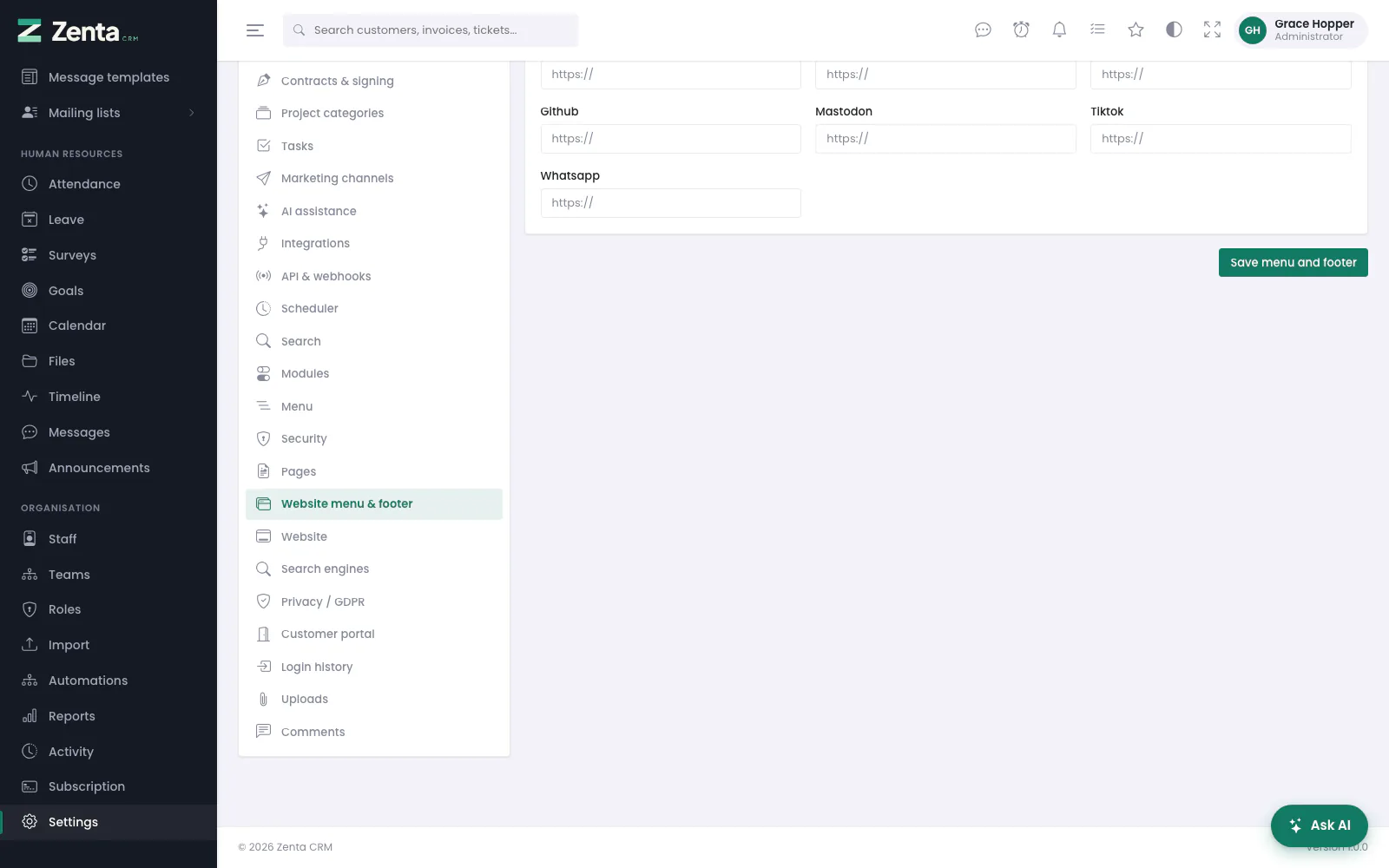 Further down: the social links, and Save menu and footer.
Press Save menu and footer. A row left completely blank is ignored; every other link needs a label, and an address or a page.
The top menu reads: Knowledge Base, then pages marked "top menu", then your
links in the order you arranged them, with the support button last. An
address must start with http://, https:// or
mailto:, or be a path on this site starting with
/; anything else is refused when you save. A link to a page
follows the page if you change its address, and disappears if the page is
unpublished.
Addresses on this page
For reference and for anyone scripting against the panel. Everything here needs somebody signed in to the workspace whose role allows it; anybody else is refused.
| Method | Address | What it does |
|---|---|---|
GET | admin/settings/pages | Settings → Pages, with a visibility filter. |
GET | admin/settings/pages/create | The new-page form. |
POST | admin/settings/pages | Saves a new page. |
GET | admin/settings/pages/{page}/edit | The edit-page form. |
PUT | admin/settings/pages/{page} | Saves a page. |
DELETE | admin/settings/pages/{page} | Deletes a page. |
GET | admin/pages | Pages in the staff menu: the published staff-only pages. |
GET | admin/pages/{slug} | One staff page. A draft only for people who can edit pages. |
GET | admin/settings/site-menu | Settings → Website menu & footer. |
PUT | admin/settings/site-menu | Saves the menu, footer and social links. |