Modules and menus
Switch whole parts of the product off, and arrange the menus the way your team works.
Three screens under Settings shape the workspace around the way your business works: Modules switches off whole parts of the product, Menu arranges the staff sidebar, the customer portal menu and the Settings menu, and Security keeps the staff area and the portal to the networks you name (see Security and sign-ins). All three are per workspace, and all three need the Settings → Edit permission to change.
Modules
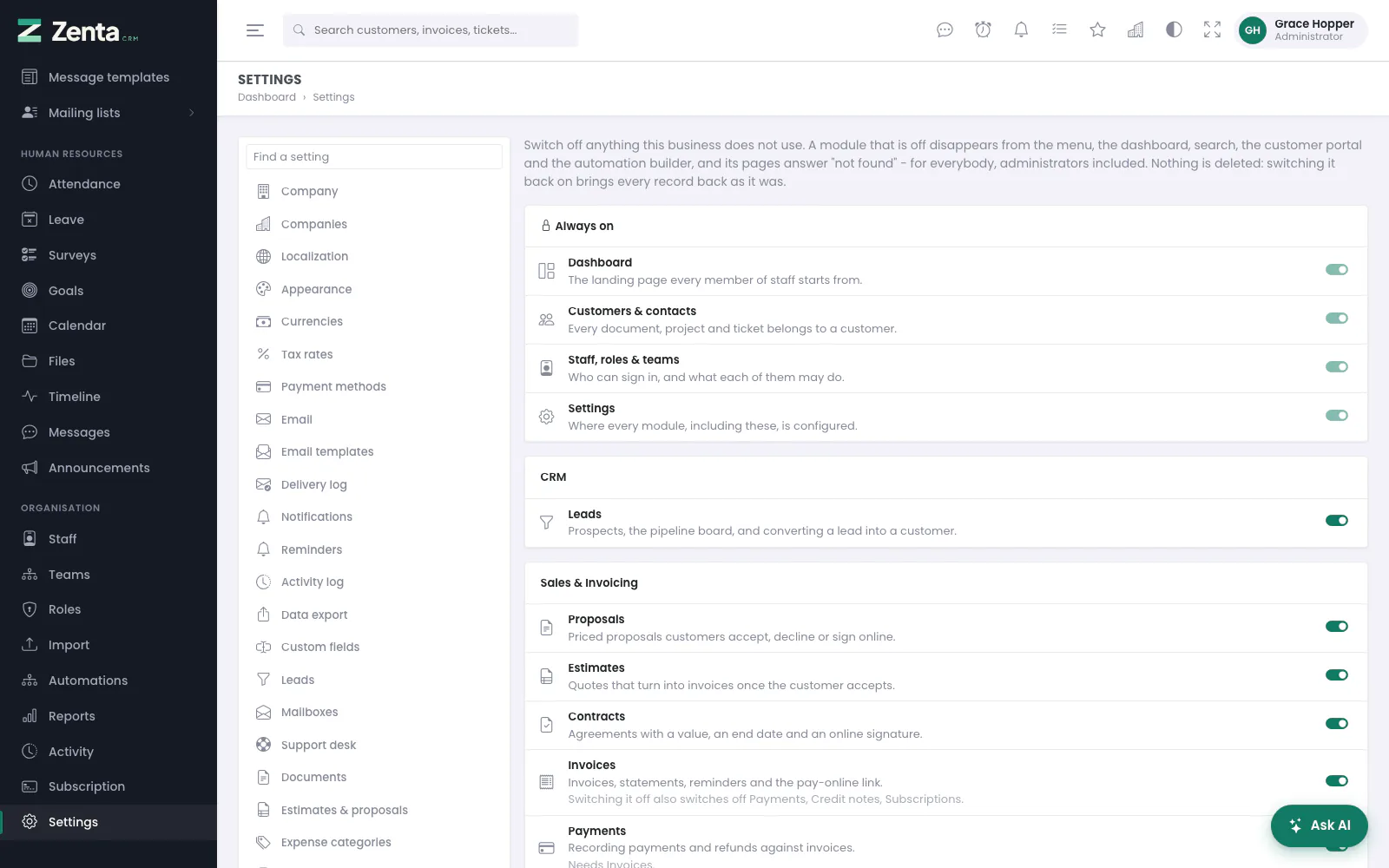 Modules. Switching one off hides its menu entries and closes its pages.
Settings → Modules lists every module with a switch and a one-line description, grouped as in the sidebar: CRM (Leads); Sales & Invoicing (Proposals, Estimates, Contracts, Invoices, Payments, Credit notes, Subscriptions, Items, Expenses); Projects & Deliveries (Projects, Tasks, Timesheets); Insight (Automations, Reports, AI assistance); Supports & Tickets (Support tickets, Knowledge base, Internal wiki); Marketing & Communications (Marketing); Human Resources (Attendance, Leave, Surveys, Goals, Calendar, Files, Team timeline, Messages, Announcements); and Organisation (Import). Everything is on until you switch it off.
- Open Settings → Modules.
- Switch off anything the business does not use.
- Press Save modules. The page reloads with the new menu.
A module that is off, for everybody including administrators:
- disappears from the sidebar, the dashboard panels and global search;
- has its screens answer not found (a bookmarked link included);
- has its permissions refused, so buttons and tabs for it on other screens go too;
- leaves the customer portal (its menu entry, its pages and its panel on the portal overview) and any public page it owns: the public knowledge base goes with Knowledge base; the public support form with Support tickets; survey links with Surveys; the pay-online link with Invoices; mailing-list sign-up pages with Marketing;
- is no longer offered in the automation builder, as a trigger or as a step (for example Open a ticket goes with Support tickets, the AI steps with AI assistance);
- takes its own entry out of the Settings menu, where it has one (AI assistance, Marketing channels, Leave types).
Modules that need another
Some modules only make sense with another one on. Payments, Credit notes and Subscriptions need Invoices; Timesheets needs Tasks. Each one says so under its description. Switching Invoices off switches its dependants off on the screen as well and locks them until Invoices is back on; the server refuses to save a module that is on while something it needs is off.
Modules your plan does not include
On a SaaS install, a module the workspace's plan does not include is shown with a locked switch and Not included in your plan, rather than hidden, so you can see it exists. AI assistance may instead say Switched on by your platform administrator. Neither can be switched on from here: the server refuses it whatever the form sends.
What cannot be switched off
The Dashboard, Customers & contacts, Staff, roles & teams and Settings are listed at the top with a locked switch. Every document belongs to a customer, and Settings is where everything else is switched back on.
| For developers | Where |
|---|---|
| What each module owns: permission modules, route-name patterns, Settings entries, automation triggers and steps, and what it requires | config/modules.php |
| The routes that answer 404 | App\Http\Middleware\EnsureModuleIsEnabled, on the web group |
| Asking in PHP / Blade | app(App\Support\Configuration\Modules::class)->enabled('leads') / @module('leads') ... @endmodule |
Menu
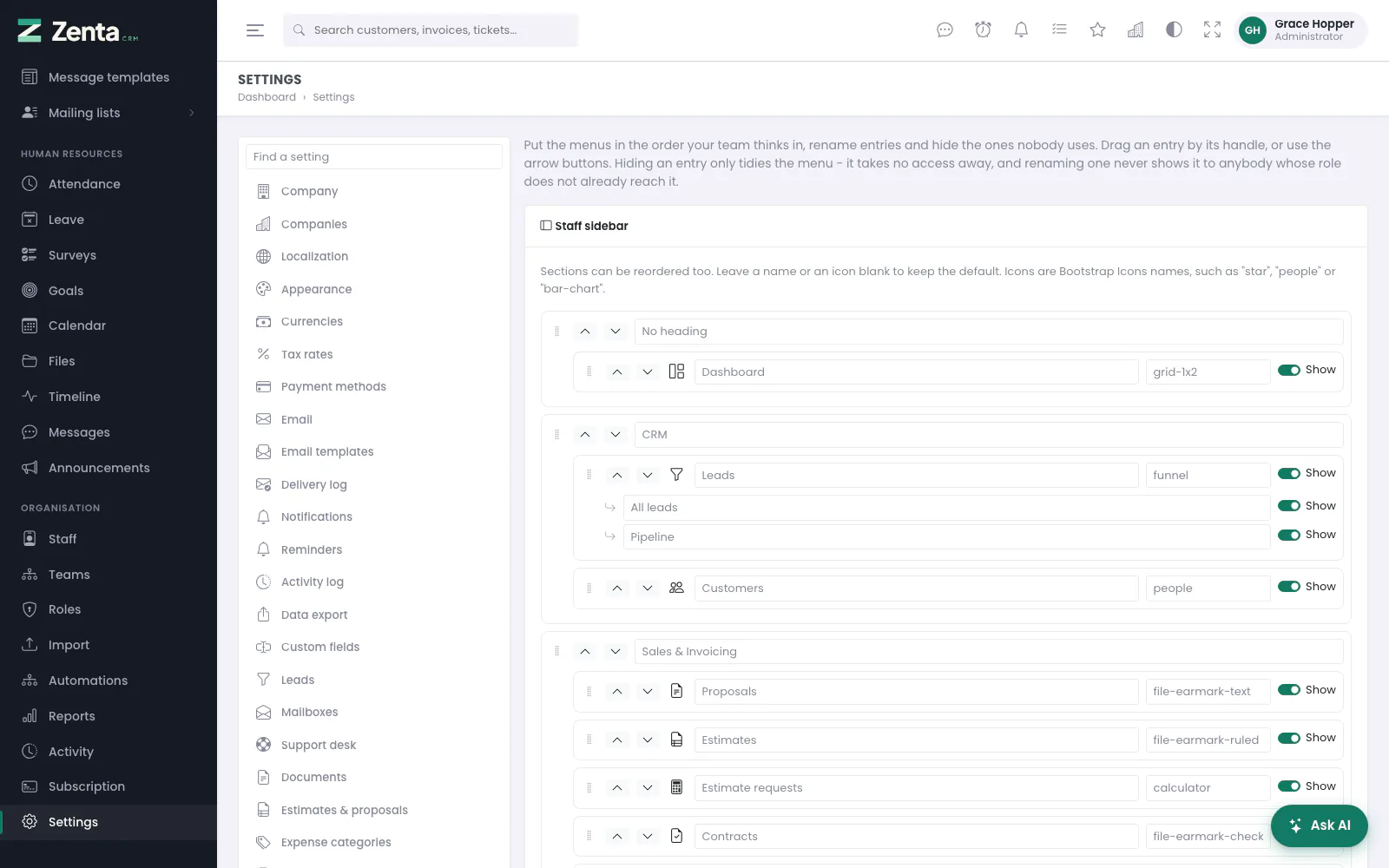 The menu editor: order, headings, icons and what to hide.
Settings → Menu has three parts — the staff sidebar, the customer portal menu and the Settings menu — each saved on its own with its own button, and each with a Reset to default button that, after you confirm, puts that menu back exactly as shipped: its original order, names and icons, with everything shown again. The other two menus are not touched.
Staff sidebar
- Order: drag a section or an item by its handle, or use the arrow buttons beside it (they work from the keyboard, and a screen reader announces the new position). Items move within their section; sections move among themselves.
- Rename: type a new name in the box; leave it blank to keep the default. Section headings can be renamed too.
- Icon: type a Bootstrap Icons
name such as
star,peopleorbar-chart- the box suggests names as you type and the preview updates. A name the bundled icon font does not have is refused when you save. - Show: switch an entry off to take it out of the menu. Items with sub-entries (Leads, Tasks, Mailing lists) can have each sub-entry renamed or hidden.
- An entry whose module is switched off is marked Module off; it is shown once the module is back on.
Press Save sidebar. The page reloads with the new menu.
Customer portal
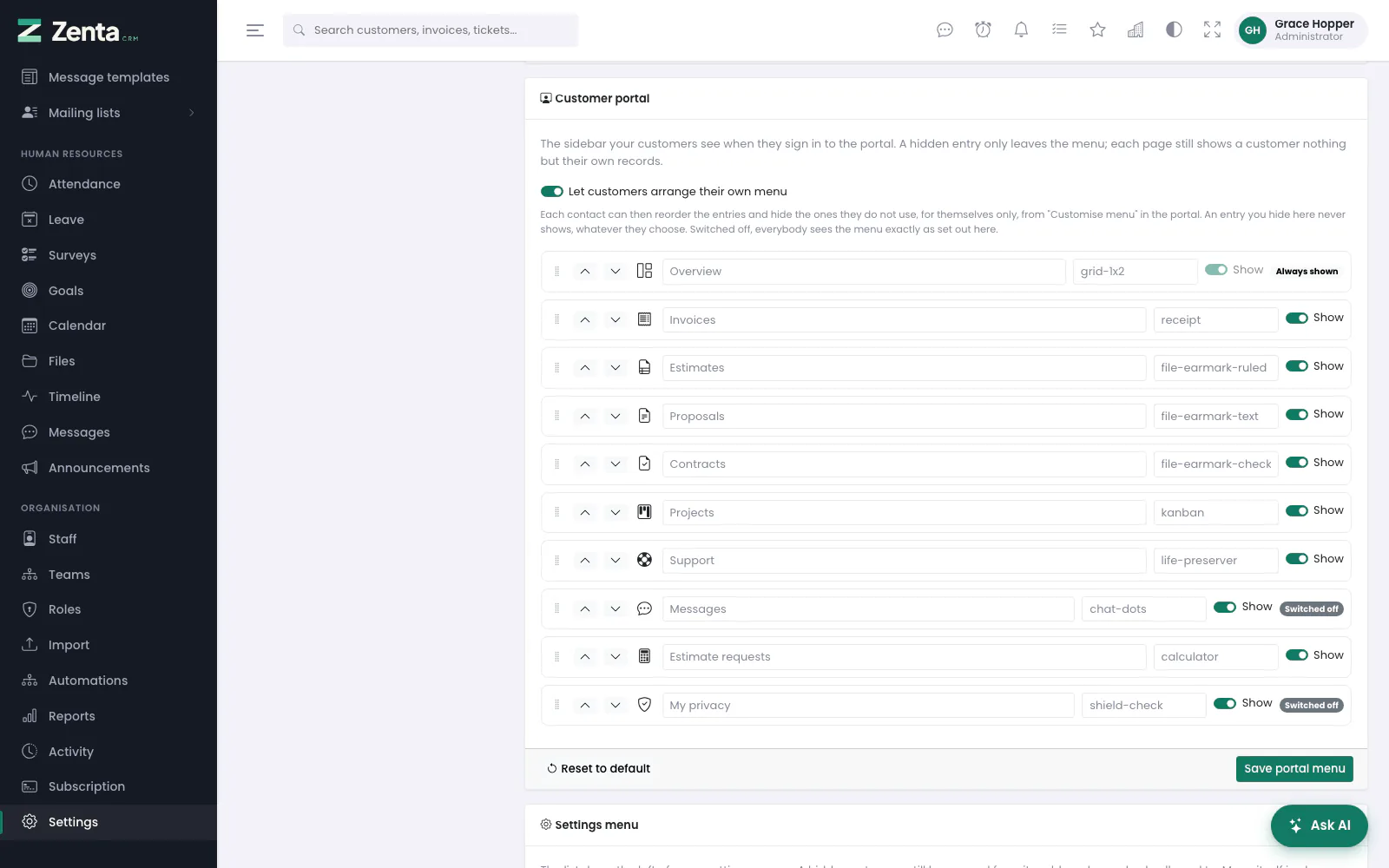 The customer portal menu. Entries for something switched off elsewhere are marked.
The same for the sidebar your customers see in the portal: reorder, rename, re-icon and hide Overview, Invoices, Estimates, Proposals, Contracts, Projects, Support, Messages, Estimate requests and My privacy. Overview is always shown. An entry for something that is switched off where it is set up is marked Switched off, and appears once it is switched on. A hidden entry only leaves the menu; each portal page still shows a customer nothing but their own company's records.
Let customers arrange their own menu lets each contact reorder the entries and hide the ones they do not use, for themselves only, from Customise menu in the portal. An entry you hide here never shows, whatever they choose. Switched off, everybody sees the menu exactly as set out here. Press Save portal menu.
Settings menu
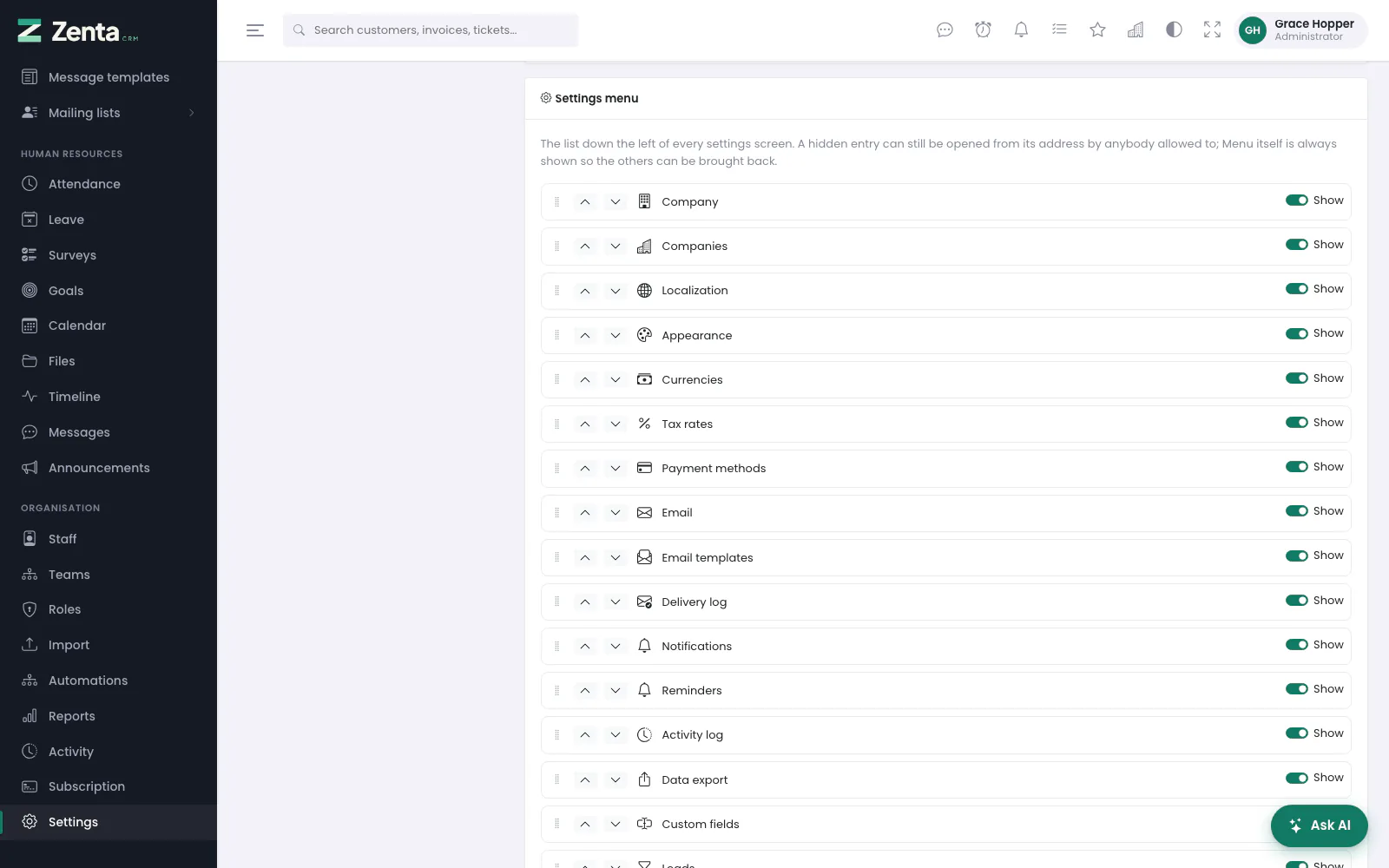 The Settings menu: the list down the left of every settings screen.
The list down the left of every settings screen can be reordered and trimmed, then saved with Save settings menu. Entries keep the names of the screens they open. Menu itself is always shown, so anything hidden can be brought back. A hidden entry can still be opened from its address by anybody allowed to.
Plugins that add their own entries - through the navigation.sections,
portal.navigation or settings.sections filters - appear in all
three editors and can be arranged like the rest. An entry added by an update appears in
its default place until you move it.
Addresses on this page
For reference and for anyone scripting against the panel. Everything here needs somebody signed in to the workspace whose role allows it; anybody else is refused.
| Method | Address | What it does |
|---|---|---|
GET | admin/settings/modules | The module switches. |
PUT | admin/settings/modules | Save modules. Refused if a module that is on needs one that is off. |
GET | admin/settings/menu | The three menu editors. |
PUT | admin/settings/menu/sidebar | Save sidebar: order, names, icons and what is shown in the staff sidebar. |
PUT | admin/settings/menu/portal | Save portal menu: the customer portal menu, and whether customers may arrange their own. |
PUT | admin/settings/menu/setup | Save settings menu: order and visibility of the Settings list. |
POST | admin/settings/menu/{menu}/reset | Reset to default for one menu: sidebar, portal or setup (the Settings menu). |