The CRM admin panel
Where a workspace's staff do their work: signing in, finding your way around, your own account, and the things that follow you from page to page.
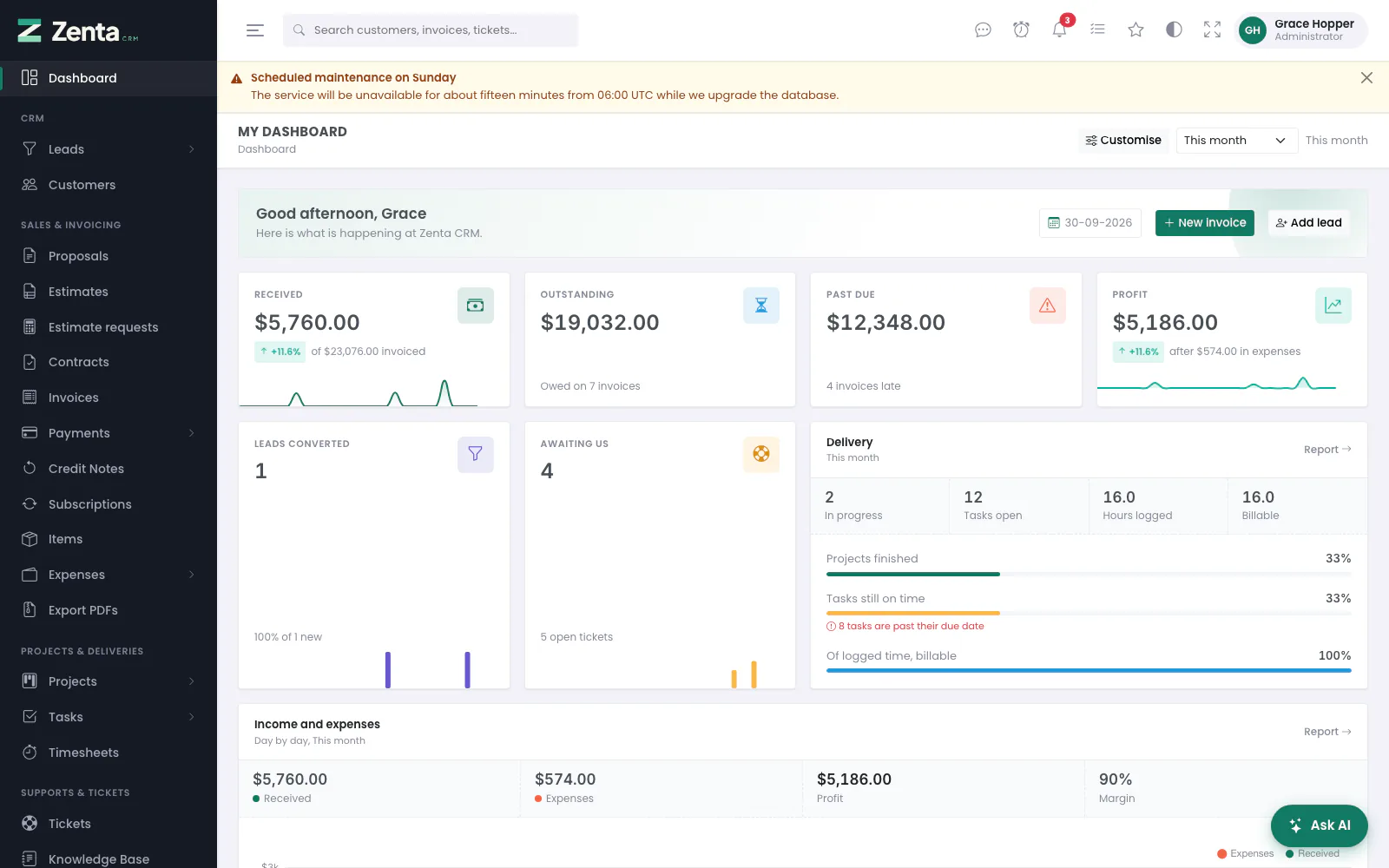 The panel: the menu down the left, the top bar, a notice from the platform, and the dashboard.
The CRM admin panel is everything under /admin: the screens your staff use
to run the business — leads and customers, quotes and invoices, projects, tickets,
campaigns, people and settings. Your customers never see it; they have the
customer portal. Whoever runs the platform has a third area,
the Tenant admin.
Who uses it
Every staff account of the workspace. What each person sees is decided
by their role: a menu item, a button or a whole screen
their role does not reach is simply not there, and an address typed in by hand is
refused. Administrators see everything. A customer's contact who tries an
/admin address is refused, whatever their portal account allows.
Signing in
Go to /login on your workspace's address. Enter your Email
address and Password and press Sign in.
- Keep me signed in keeps you signed in on that browser after it is closed.
- Forgot password? emails you a link to choose a new one.
- Continue with Google and Continue with Facebook appear when the workspace has set them up, and work only for an account that already exists (see Integrations).
- A wrong password and an unknown address get the same answer, and repeated failures from the same address and IP are locked out for a while.
After signing in you land on the dashboard, or on the page you were trying to open. A super admin lands in the Tenant admin area instead. Every attempt, successful or not, is recorded and shown on My account and to an administrator under Login history. A deactivated account cannot sign in.
To sign out, open the account menu at the top right (your initials) and choose Sign out.
Finding your way around
The menu
The menu down the left starts with Dashboard, then has a heading for each part of the product. As shipped, the headings and what is under them are:
| Heading | Items |
|---|---|
| CRM | Leads (All leads, Pipeline), Customers |
| Sales & Invoicing | Proposals, Estimates, Estimate requests, Contracts, Invoices, Payments (All payments, Batch payments), Credit Notes, Subscriptions, Items, Expenses (All expenses, Standing expenses), Export PDFs |
| Projects & Deliveries | Projects (All projects, Templates), Tasks (All tasks, Board), Timesheets |
| Supports & Tickets | Tickets, Knowledge Base, Wiki, Pages |
| Marketing & Communications | Campaigns, Message templates, Mailing lists (Lists, All subscribers) |
| Human Resources | Attendance, Leave, Surveys, Goals, Calendar, Files, Timeline, Messages, Announcements |
| Organisation | Staff, Teams, Roles, Import, Automations, Reports, Activity, Subscription, Settings |
What a particular person sees is shorter:
- An item their role does not reach is left out, and so is a heading with nothing left under it.
- A module switched off under Settings → Modules leaves the menu for everybody.
- Subscription is there only when the product runs as a multi-workspace service, and only for people who may edit settings.
- Activity needs View on staff with the scope All records, not only on staff as such: somebody who sees only their own team's staff does not get the workspace's log (see The activity log).
- A workspace can rename, reorder, re-icon and hide items under Settings → Menu, and plugins can add their own. Nothing done there can show an item to somebody whose role does not reach it.
An item with an arrow (Leads, Projects, Tasks, Mailing lists) opens to show the screens inside it. Opening one closes whichever was open, and the one holding the screen you are on opens itself when the page loads.
 The menu as a rail of icons, with a section's links flown out beside it.
The three lines at the top left narrow the menu to a rail of icons, giving the page more room. Hovering an icon on the rail flies that section's links out beside it, so nothing becomes unreachable. The choice is remembered in your browser and applied before the page is drawn, so the menu does not jump on load — and it is yours alone, not the workspace's.
On a screen narrower than 992 pixels the menu becomes a drawer over the page: the same three lines open it, and following a link, clicking beside it or pressing Esc closes it again.
The top bar
From left to right, after the three lines:
| Control | What it does |
|---|---|
| The search box | Search customers, invoices, tickets... Searches the records you may open as you type. Press / anywhere to jump to it. See Search, filters and bulk actions. |
| Messages | Opens Messages. The badge counts conversations waiting for you, staff chat and customer messages together. Hidden when the Messages module is off. See Messages. |
| Reminders | Opens your reminders. The badge counts those that have come due. See Personal reminders. |
| Notifications | The bell: notices about work that is yours, with an unread count. See Notifications. |
| My list | Your own to-do list, which nobody else can see. See Your own to-do list. |
| Starred | The records you have starred. See Starring records. |
| Tenant admin | Only for a super admin: the platform's own screens. |
| Toggle light / dark | Switches between the light and dark look. Your choice, remembered in your browser; the workspace's default is set under Appearance. |
| Full screen | Fills the screen with the panel; press it again, or Esc, to leave. Hidden on narrow screens and in browsers that cannot do it. |
| Your initials | The account menu: Tenant admin (super admins only), My account, and Sign out. |
 The account menu under your initials.
On a phone the top bar sheds the My list and Starred buttons to make room; My list moves into the account menu. Starring itself still works on each record.
Where the workspace allows the AI assistant, an Ask AI button sits at the bottom right of every screen (Ctrl+K, or ⌘+K on a Mac). See AI assistance.
The page itself
Under the top bar, every screen has a band with its title, the trail back to where you came from, and that screen's own buttons on the right — New invoice, Export, Compact and so on. The footer shows the version of the product you are running. When a super admin has signed in as you to help, a band across the top says so on every page.
The dashboard at a glance
Dashboard, at the top of the menu, is where you land. It opens with a greeting, today's date and, if your role allows them, New invoice and Add lead. Below are panels — money received and outstanding, leads, tickets, delivery, income and expenses, your own tasks and tickets and more — each shown only if your role can see the module it summarises. The period menu at the top right changes the dates the panels cover, and Customise chooses and arranges the panels.
You can keep several dashboards of your own and switch between them. All of that is described in Reports and dashboards.
Notices from the platform
A yellow, blue or red band above the page is a notice from whoever runs the platform — planned maintenance, say, or a note about your subscription. Up to three of them are shown at once, the most urgent first. Your own workspace's announcements marked to show as a banner appear in the same place (see Announcements).
The at the right of a band dismisses it. It disappears at once and does not come back for you; your colleagues still see it until they dismiss it themselves. A notice the platform has marked as not dismissible has no and stays until it ends. Notices are shown to staff only, never in the customer portal, and they still appear on the page a workspace sees when its subscription has lapsed. They are written under Tenant admin → Announcements.
My account
 My account: your language and time zone, then Password, your signature, and your recent sign-ins.
Open the account menu under your initials and choose My account. It holds the choices that are yours alone; nobody needs a permission to use it, and nothing here changes what anybody may do. The card on the left shows your name, email address and role. Your name and email are changed by an administrator on your staff record; your password you can change yourself, below.
Language and time zone
Only for you. Everybody else keeps the workspace settings.
- Language — any language the workspace has switched on, or Workspace default. If an administrator later switches your language off, the workspace language is used and the screen says why.
- Time zone — times on screen are shown in this zone. Documents sent to customers keep the workspace zone.
Press Save changes; the page reloads in your choice. See Languages and time zones for how these combine with the workspace's own.
Password
Type your current password first, then the new one twice. We email you to say it was changed. Fill in Current password, New password (at least eight characters) and Confirm new password, and press Change my password.
- A wrong current password is refused: That is not your current password. Asking for the current one means a session left open on a shared computer is not enough to take the account over. Six tries a minute at most.
- Once it is changed you get the Password changed confirmation email (Settings → Email templates), so a change you did not make does not go unnoticed.
- "Remember me" on your other devices stops working: they ask you to sign in again when their session ends. This browser stays signed in.
- A forgotten password is still reset from the sign-in page, with Forgot password?.
My signature
Shown to people whose role has the Sign for the business right. Draw your signature in the box with the mouse, a finger or a pen, and press Save signature. Clear empties the box to start again. When you sign a contract for the business you can then use the saved signature instead of drawing one each time (see Signing for the business and E-signature).
- An empty box is refused, and so is a drawing with no ink in it.
- Once one is saved it is shown at the top of the card. Draw a new one replaces it.
- Remove it deletes your saved signature, after you confirm. Contracts you have already signed keep the signature they were signed with: it is copied onto each one when you sign.
Only you can set your signature: it is your mark on documents, so an administrator editing your staff record cannot put one there for you.
Recent sign-ins
Your last ten attempts to sign in, successful or not: When, Result, How, IP address and Browser. Something you do not recognise is a reason to change your password.
Starring records
 The Starred menu in the top bar, grouped by kind of record.
Leads, customers, projects, tasks, tickets, invoices, estimates, proposals and contracts have a Star button at the top of their page. Press it to star the record; the button turns into Starred. Press it again to remove the star. Stars are private: nobody else sees what you starred.
- The Starred menu in the top bar lists your starred records, grouped by kind, most recently starred first, up to 25 of them. Click one to open it.
- The lists of those records have a Starred only button above the table, which shows just the ones you starred. Press it again to see everything.
- A star never lets you see something you otherwise could not. If your permissions change and you lose sight of a record, it leaves your Starred menu too, and a record you cannot see cannot be starred.
Addresses on this page
For reference and for anyone scripting against the panel. Everything here needs somebody signed in to the workspace whose role allows it; anybody else is refused.
| Method | Address | What it does |
|---|---|---|
GET | admin/account | My account. |
PUT | admin/account | Saves your language and time zone. |
PUT | admin/account/password | Changes your own password (current_password, password, password_confirmation). Six tries a minute. |
POST | admin/account/signature | Saves the signature you drew. |
DELETE | admin/account/signature | Removes your saved signature. |
GET | admin/stars | Your starred records, for the Starred menu (used by the page itself). |
POST | admin/stars/{type}/{id} | Stars a record, or removes its star. |
POST | admin/platform-notices/{announcement}/dismiss | Dismisses a notice from the platform, for you only. |