Tasks
The task list, board and timeline, the task page with its checklist, dependencies and comments, repeating tasks, priorities, checklist templates and your own to-do list.
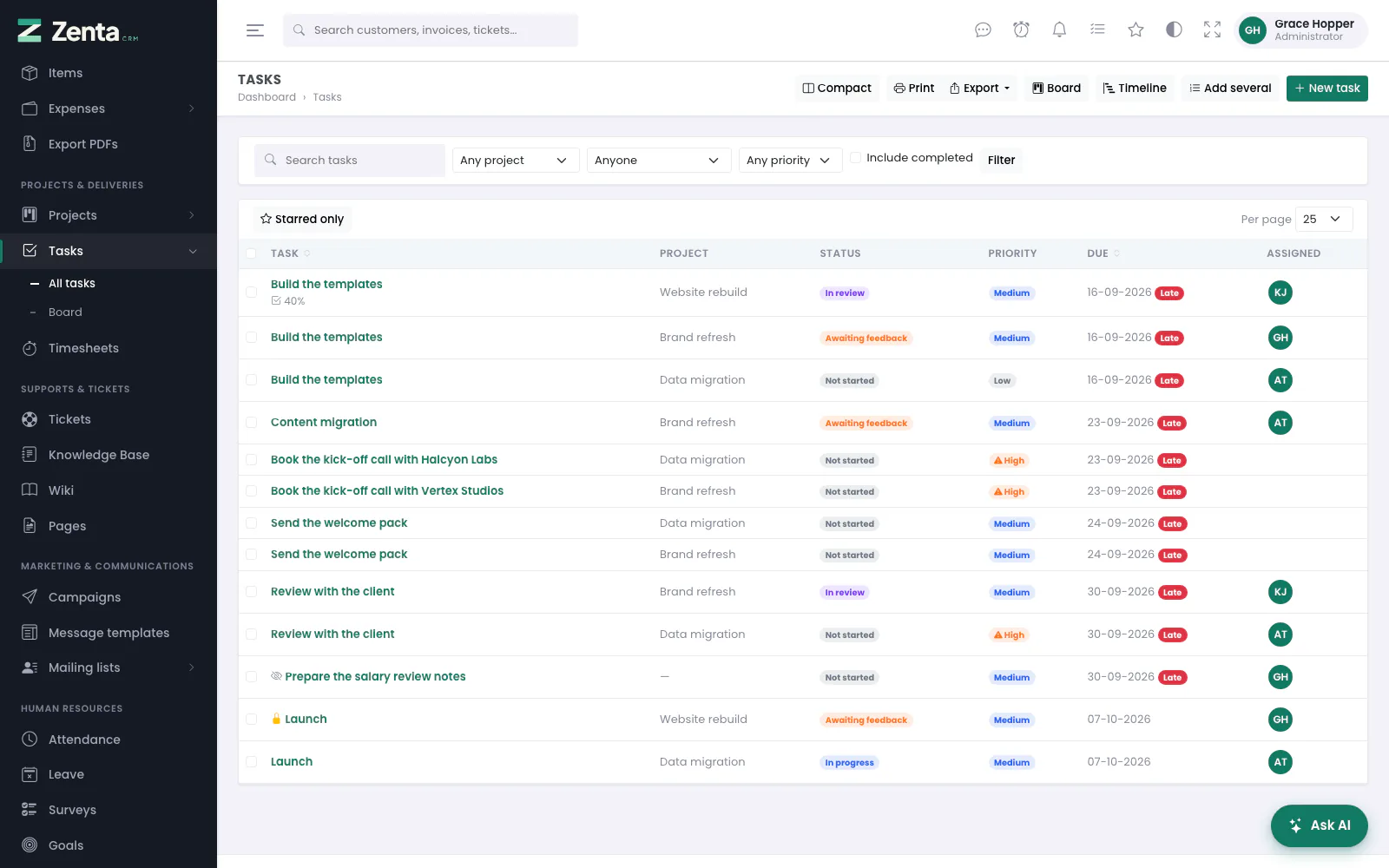 All tasks: project, status, priority, due date and assignees. A padlock marks a blocked task, an eye a private one.
The task list
Tasks → All tasks. One row per task you may see: its title (with the checklist's percentage under it when it has one), project, status, priority, due date — with a Late badge once it has passed — and the first few people it is assigned to. Small markers before the title say a task is waiting for another (, hover for which), repeats () or is private ().
Tasks can belong to a project, hang off another record — a lead, a customer, an invoice, an estimate, a proposal, a contract, a credit note, a subscription or an expense — or stand alone. Task statuses are the workspace's own (see Customising), and one or more of them is marked completed; that flag is what drives project progress and the "not finished" figures.
- Search tasks, Any project, Anyone (assigned to) and Any priority narrow the list; press Filter. Any project offers only the projects you can open, as does the Project box on the task form and in Add several. Finished tasks are left out until you tick Include completed.
- Tasks of a project set to Hide its tasks from the main task table are left out too — unless the list is filtered to that project.
- Starred only, Per page and the sortable headings (Task, Due) work as on the other lists. Export and Print give what the list shows.
- Board, Timeline, Add several and New task are at the top right.
Changing many tasks at once
Tick tasks (or the box in the heading for the whole page) and a bar appears with Assign to, Change status, Change priority, Make private, Make visible to everyone, Move to a project, Add a tag, Remove a tag and Delete. Each needs permission to edit tasks; Delete needs permission to delete them. See Search and bulk actions for how the bar behaves.
The compact layout
 Compact: the list narrowed on the left, the chosen task's details on the right.
Compact at the top narrows the list to the title and status and shows the task you click in a pane beside it: its project, status, priority and whether it is late, the start and due dates, who it is assigned to, the checklist's progress, when it last changed and its description. The up and down arrow keys move through the list and Enter opens the full page, as does Open in the pane. Press the button again to go back to the full list. The choice is remembered for you.
Creating and editing a task
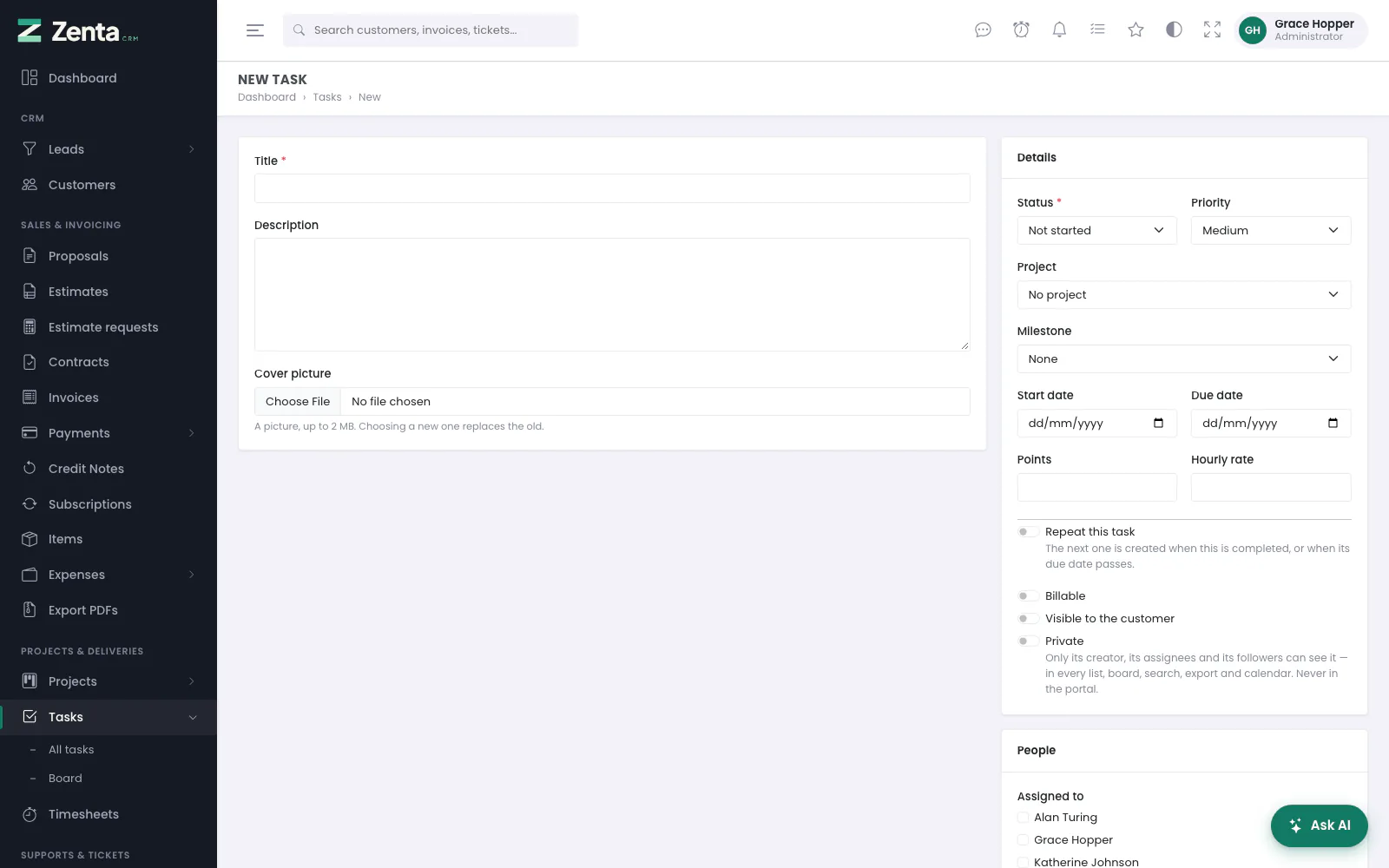 A new task: title, description and cover picture on the left; details and people on the right.
New task opens the form as a page of its own; so does Edit on a task. New task on a project's page opens it with that project chosen.
| Field | What it does |
|---|---|
| Title | Required. |
| Description | What the work is. |
| Cover picture | A picture drawn across the top of the board card and the task page (below). |
| Status, Priority | Status is required and starts on the first column; the priority starts on the workspace's default. |
| Project, Milestone | A milestone only counts within its own project; one from another project is dropped when the task is saved. |
| Start date, Due date | The due date cannot be before the start. The due date is what reminders, the Late badge and repeats work from. |
| Points, Hourly rate | An estimate of size, and the task's own rate for a project billed by task hours. |
| Repeat this task | Makes the task one of a series (below). |
| Billable | Whether time on it is billable; a timer started on the task follows this. |
| Visible to the customer | Lets the customer see the task in the portal, where the project allows tasks to be seen. |
| Private | Only its creator, assignees and followers can see it (below). |
| Assigned to, Followers | Tick-boxes for the staff. Assignees own the work; followers are kept informed. Newly assigned people are notified. |
Custom fields set up for tasks appear on the form too. Press Create task or Save changes. A save that would move a task into a completed status while it still waits for an unfinished task is refused, and the message names the tasks in the way.
The task page
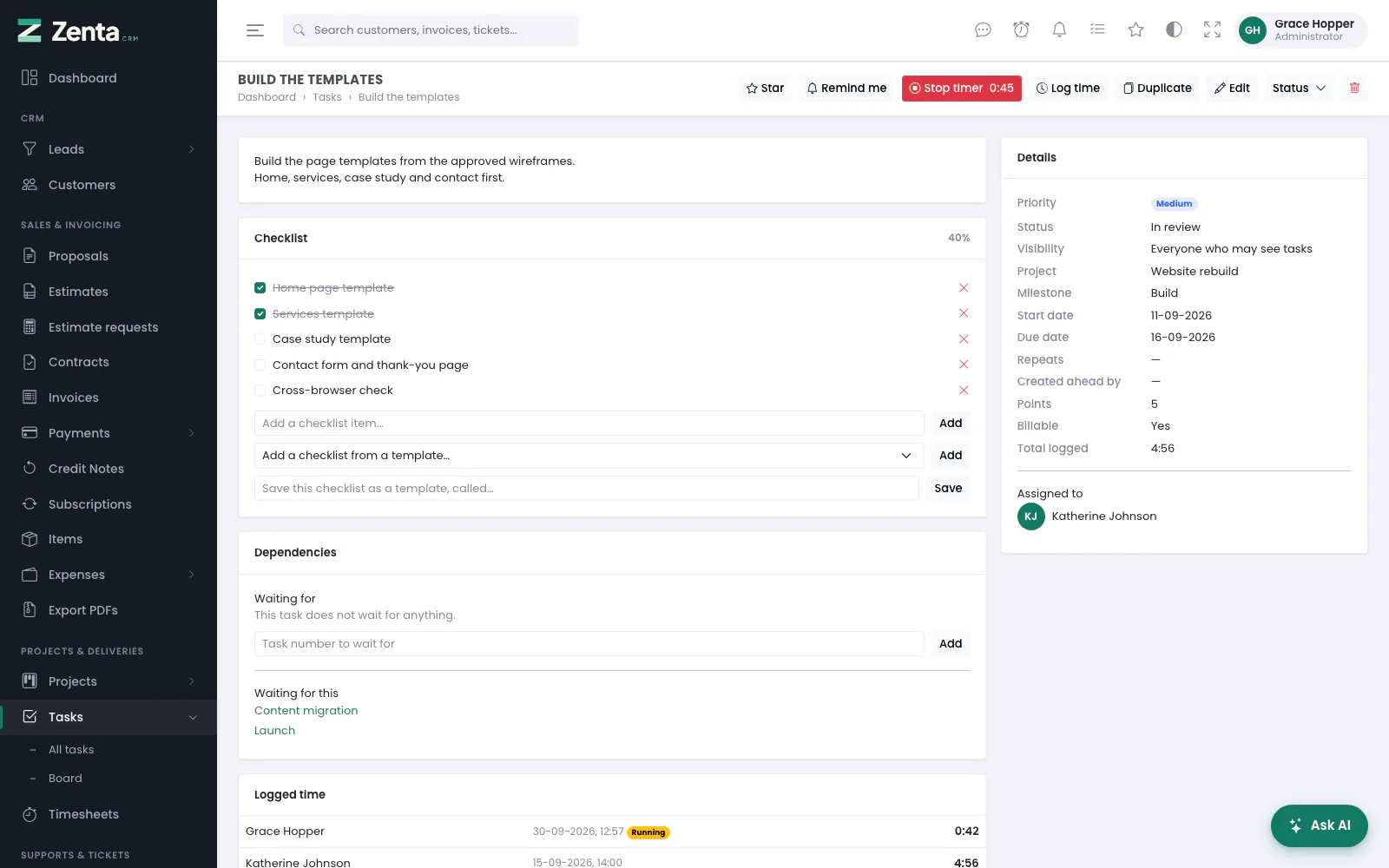 One task: its description, checklist and dependencies, the time logged against it and its details.
The buttons along the top:
| Button | What it does |
|---|---|
| Star, Remind me | As on other records; Run a workflow joins them when a manual automation applies to tasks. |
| Start timer / Stop timer | Your own timer on this task; the running time counts up on the button. See Timers. |
| Log time | Records time by hand against this task. |
| Duplicate | Copies the task (below). |
| Edit | The task form. |
| Status | A menu of the statuses; choose one to move the task there without opening the form. |
| Deletes the task after asking. Needs permission to delete tasks. |
The Details card on the right shows the priority, status, visibility, project, milestone, dates, how it repeats, points, whether it is billable and the total time logged, then who it is assigned to and, for a repeating task, its other occurrences. Under the checklist and dependencies come Logged time (every entry, a running timer marked Running), Commits when a code repository mentions the task (see Integrations), and the comments.
The checklist
- Add an item: type in Add a checklist item… and press Add. Items go to the end.
- Tick or untick an item with its box; the percentage at the top of the card updates as you go.
- Remove an item: the red × beside it, then confirm.
- From a template: choose one in Add a checklist from a template… and press Add. The items are added after whatever is already there, none of them ticked.
- As a template: type a name in Save this checklist as a template, called… and press Save. Only the wording is kept, never the ticks. This box is for people who may edit settings.
Adding, ticking and removing need permission to edit tasks.
Tasks that wait for other tasks
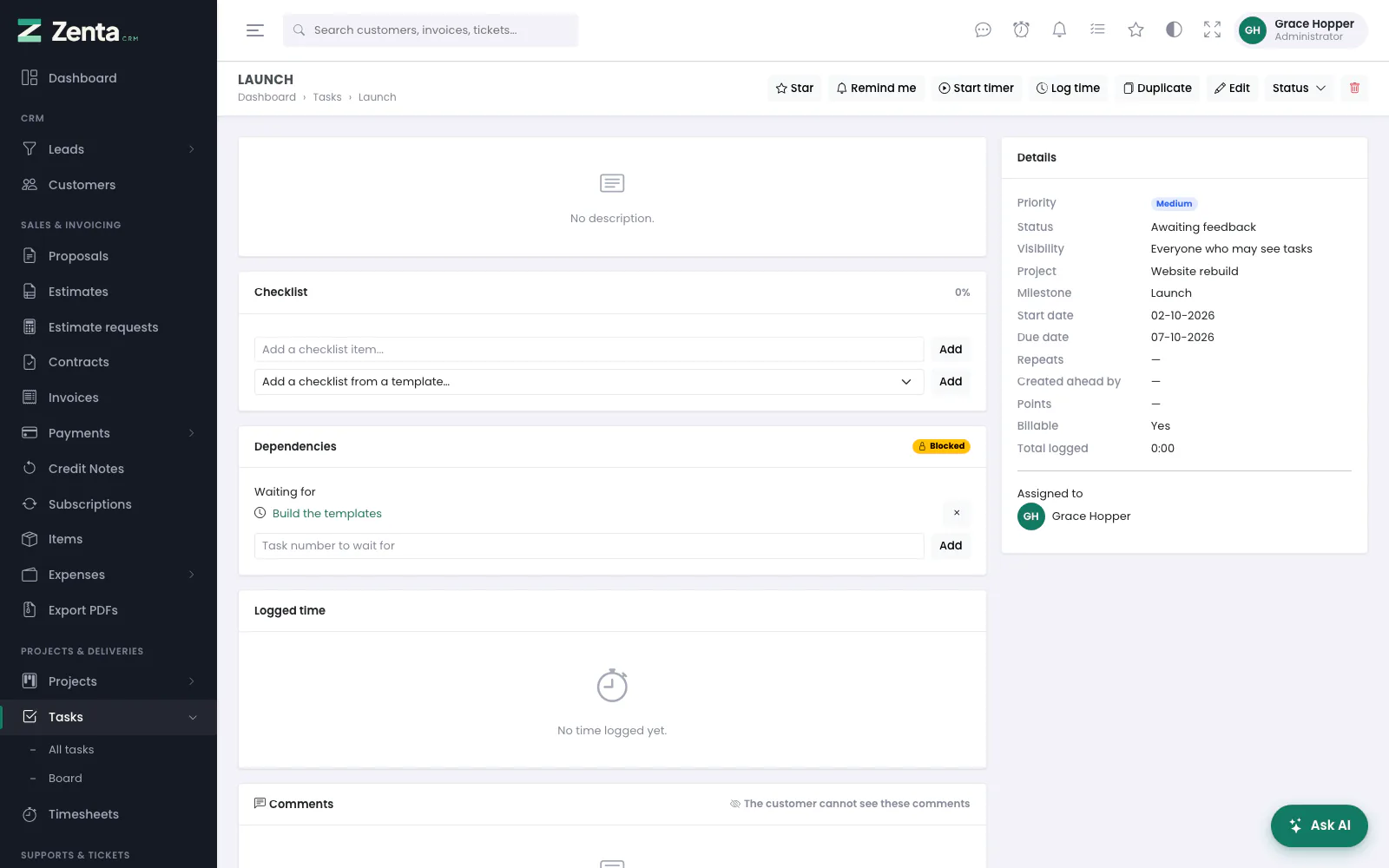 A blocked task: what it waits for, with the × that stops it waiting.
Under Dependencies, type the number of a task this one waits for into Task number to wait for and press Add. It then cannot be moved to a completed status until that one is done — on the form, on the board or from the Status menu — and the refusal names what is in the way rather than counting it. The card is marked Blocked while anything it waits for is unfinished.
The × beside a task under Waiting for stops waiting for it. Waiting for this lists the tasks that wait for this one. Only tasks you can see can be named, and circular waits are refused when the link is added, including ones that close through a third task. A blocked task shows a padlock on the board and in the list. Both need permission to edit tasks.
Comments
 The task's thread: a pinned comment at the top, an internal one marked, and the form to write another.
Anyone who can open the task can comment: type in Write a comment…, attach up to five files and press Post comment. The task's assignees, followers and creator are notified. A comment is shared with the customer — when the task is visible to them and their project lets them read comments — unless Internal - staff only is ticked; the card's heading says which applies.
- Make internal / Share with customer changes an existing comment, and its files follow. A customer's own comment cannot be made internal.
- Pin moves a comment to the top of the thread and marks it; Unpin puts it back in order. Several pinned comments sit newest pin first.
- Delete removes a comment and its files, after asking.
Pinning is for staff who may edit the task — it is a decision about what everybody reads first. A customer's own comment can be pinned, but only from this side, and pinning is unrelated to whether a comment is internal: an internal comment stays out of the portal whether it is pinned or not. The author can make their own comment internal or delete it; for somebody else's you need permission to edit tasks (internal) or delete them (delete).
Cover pictures
A task can carry one picture, chosen on the task form under Cover picture. It is drawn across the top of the board card and across the top of the task page — useful for design work, screenshots of a bug, or a photograph of the thing being built.
Only picture files are accepted (JPG, PNG, GIF and WebP), within the workspace's own upload size limit (Settings → Uploads). Choosing a new one replaces the old and deletes it; Remove beside the current picture on the form takes it off altogether, after asking.
The board
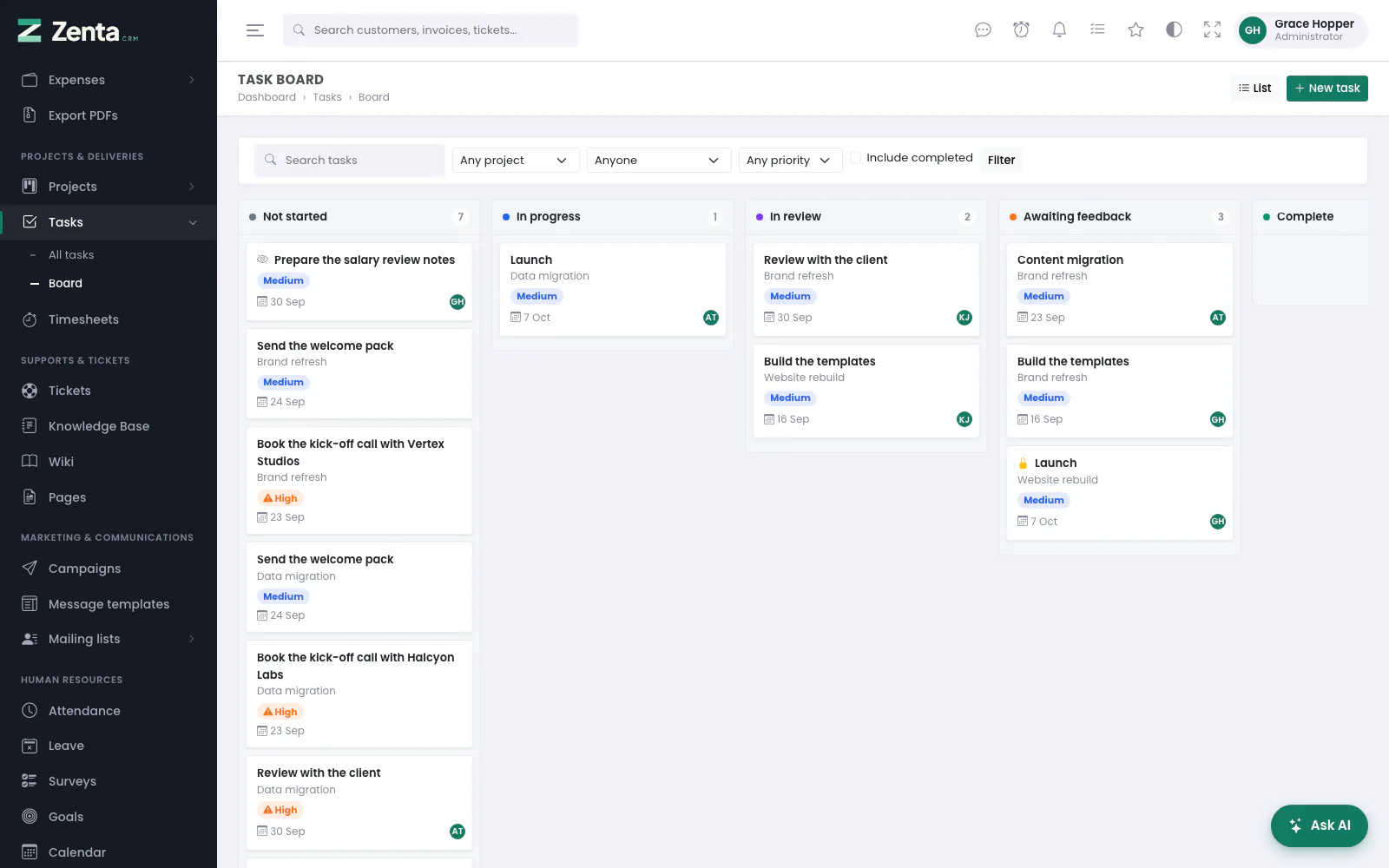 The task board: a column per status, each card with its project, priority, due date and assignees.
Tasks → Board shows the same tasks as the list, one column per status, with the same filters above it. Each card shows the project, the priority, the due date, who it is assigned to and its cover picture; padlock, repeat and private markers appear as on the list. With permission to edit tasks, drag a card to another column to change its status; a move into a completed column is refused while the task waits for an unfinished one, and the card goes back. List returns to the list.
The timeline
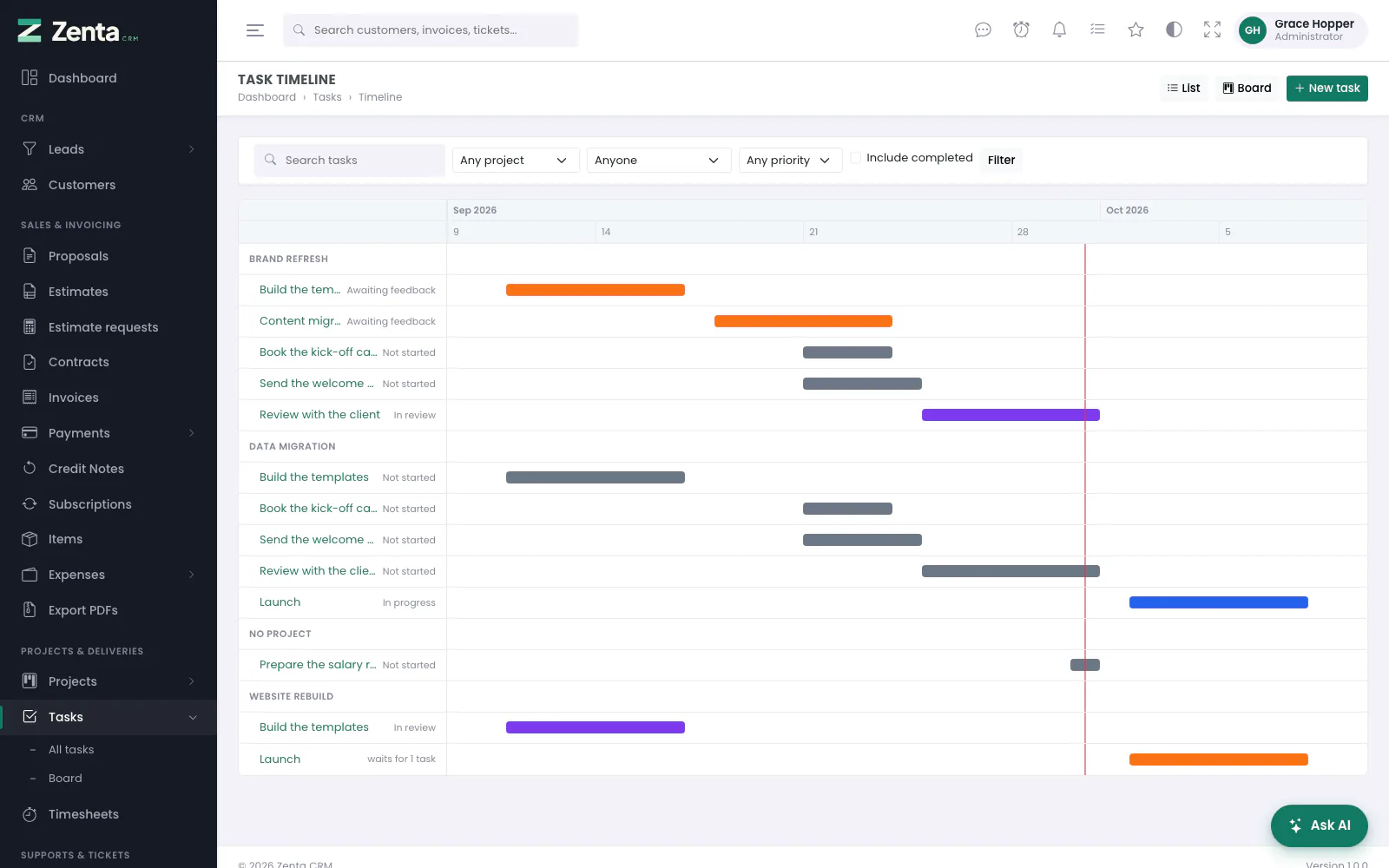 The task timeline: every task you can see, drawn along a calendar and grouped by project.
Timeline on the task list draws the same tasks as a Gantt chart: one bar per task, in its status's colour, grouped by project, with today marked. It reads the filters above it exactly as the list does, so narrowing to one project or one priority narrows the chart.
A task that waits for others says so on its label rather than having arrows drawn to them — the chart is built out of ordinary page elements so that it prints and works with scripts switched off, and an honest line of text beats an arrow that only half of your team can see. A task with neither a start date nor a due date has nothing to draw and is left out. Above three hundred tasks the chart stops and says so; narrow the filters.
Tasks that come back
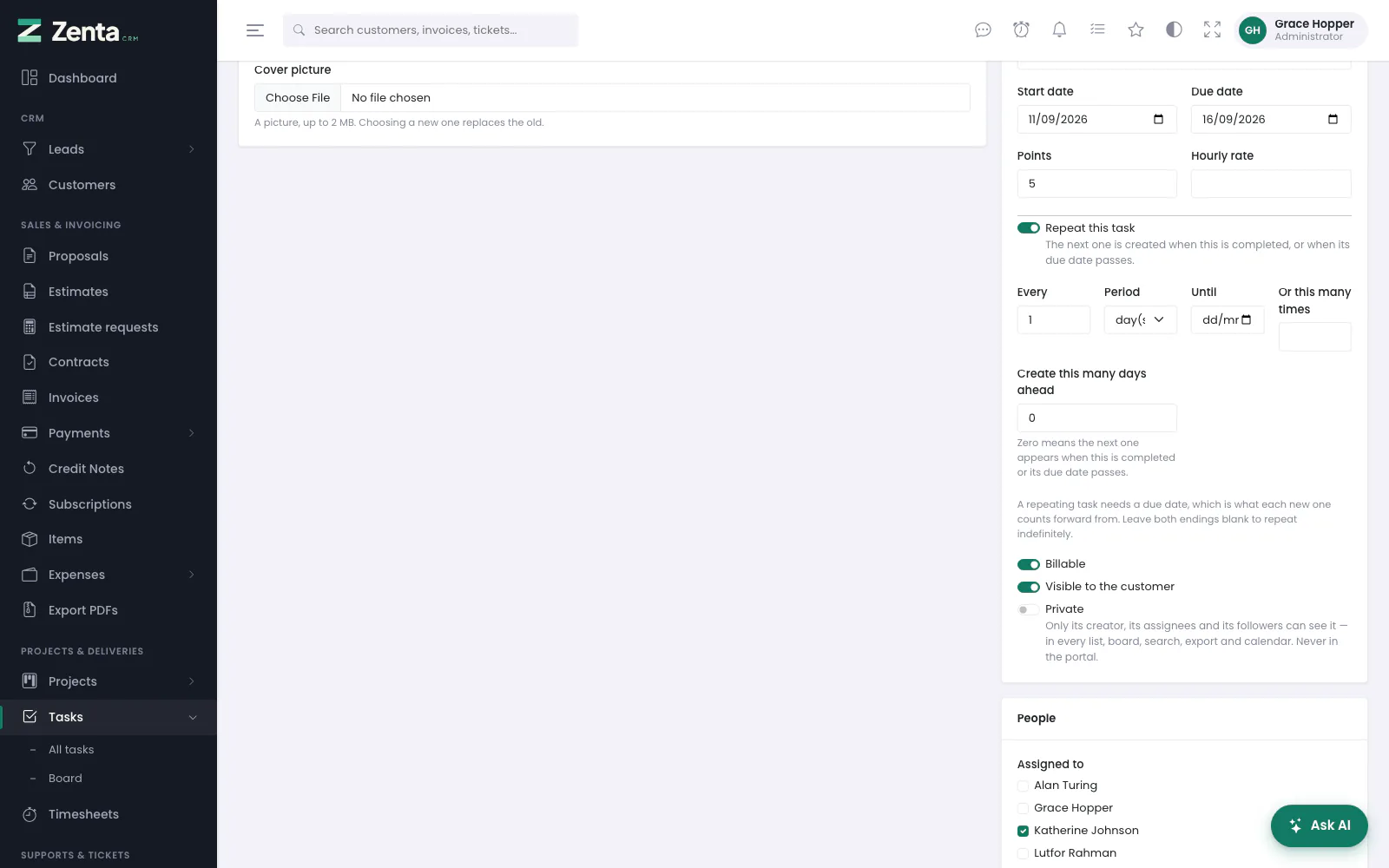 Repeat this task: how often, until when or how many times, and how far ahead to create the next one.
Turn on Repeat this task on the form and choose how often: Every so many day(s), week(s), month(s) or year(s). A repeating task needs a due date — that is what each new one counts forward from.
The next occurrence is a real task of its own, not the same row with its dates moved: it keeps its own time, its own assignees and its own history, so "was February's done, and by whom" is a question with an answer. It is created when the current one is completed, and by a nightly sweep once its due date passes if nobody gets round to it. Both together never produce two. The task page lists the series' other occurrences.
The assignees, the followers and the checklist come across; the ticks on the checklist do not. Stop the series with an end date (Until), a number of occurrences (Or this many times, from 2 to 365), or by turning the switch off. Leave both endings blank to repeat indefinitely.
Create this many days ahead brings the next one forward. Leave it at zero and the next occurrence appears when the current one is completed, or when its due date passes. Set it to, say, 14 and the nightly sweep creates the next occurrence as soon as its due date is a fortnight away, so whoever has to do it can see it coming. The maximum is 90 days — a larger figure would have one nightly run build years of work at once.
Duplicating a task
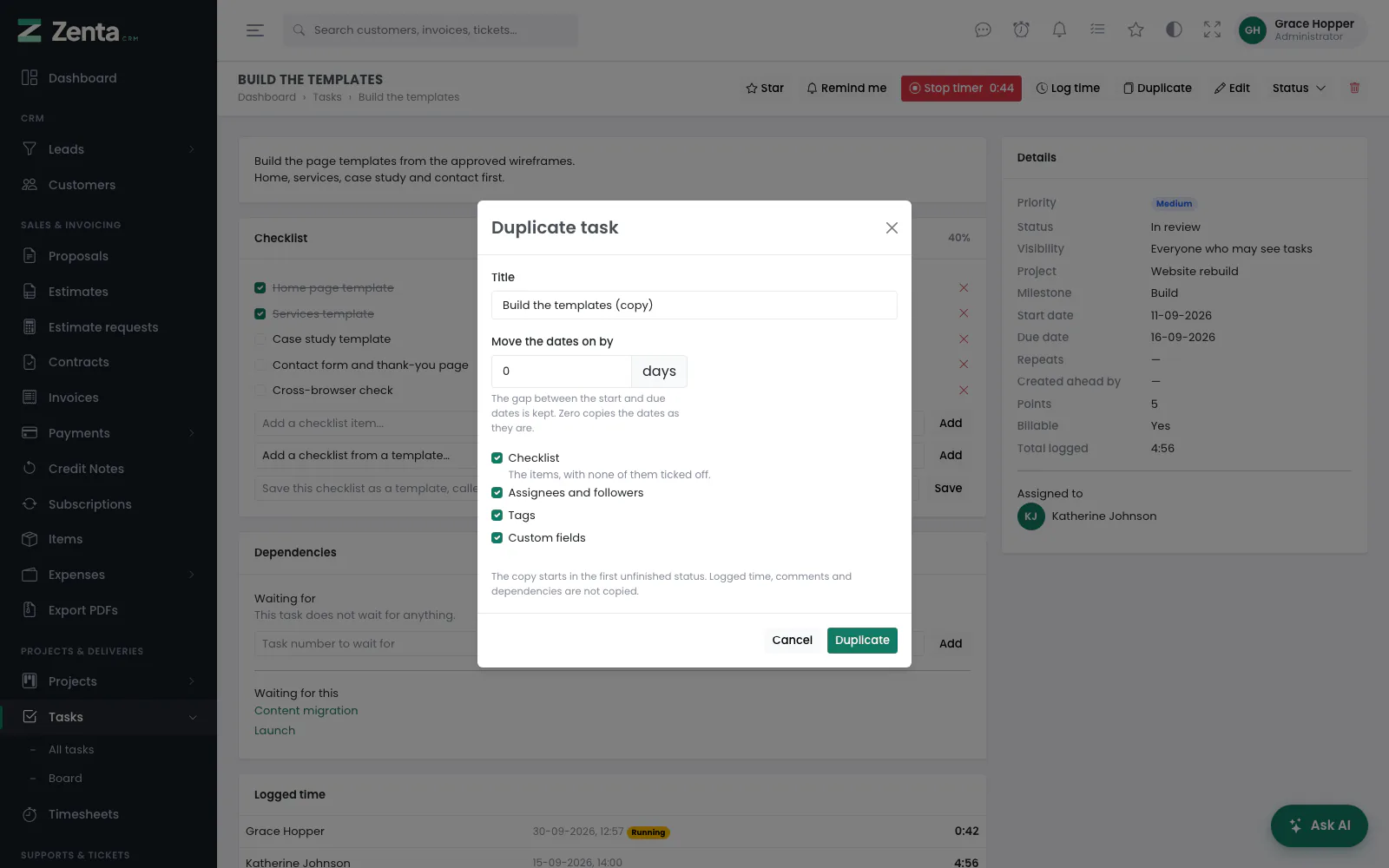 Duplicate task: a title for the copy, how far to move the dates, and what to copy.
Duplicate at the top of a task opens a small dialog: a Title for the copy (it starts as "… (copy)"), Move the dates on by so many days (up to a year either way; zero copies the dates as they are), and tick-boxes for the Checklist, the Assignees and followers, the Tags and the Custom fields. Everything is ticked to begin with. Press Duplicate and you are taken to the copy.
The gap between the start and due dates is kept, so a fortnight's work stays a fortnight. The copy starts in the first unfinished status, with its checklist unticked. What is never copied is everything that happened to the original: its logged time, its comments, its dependencies and its place in a repeating series. Needs permission to create tasks.
Adding several tasks at once
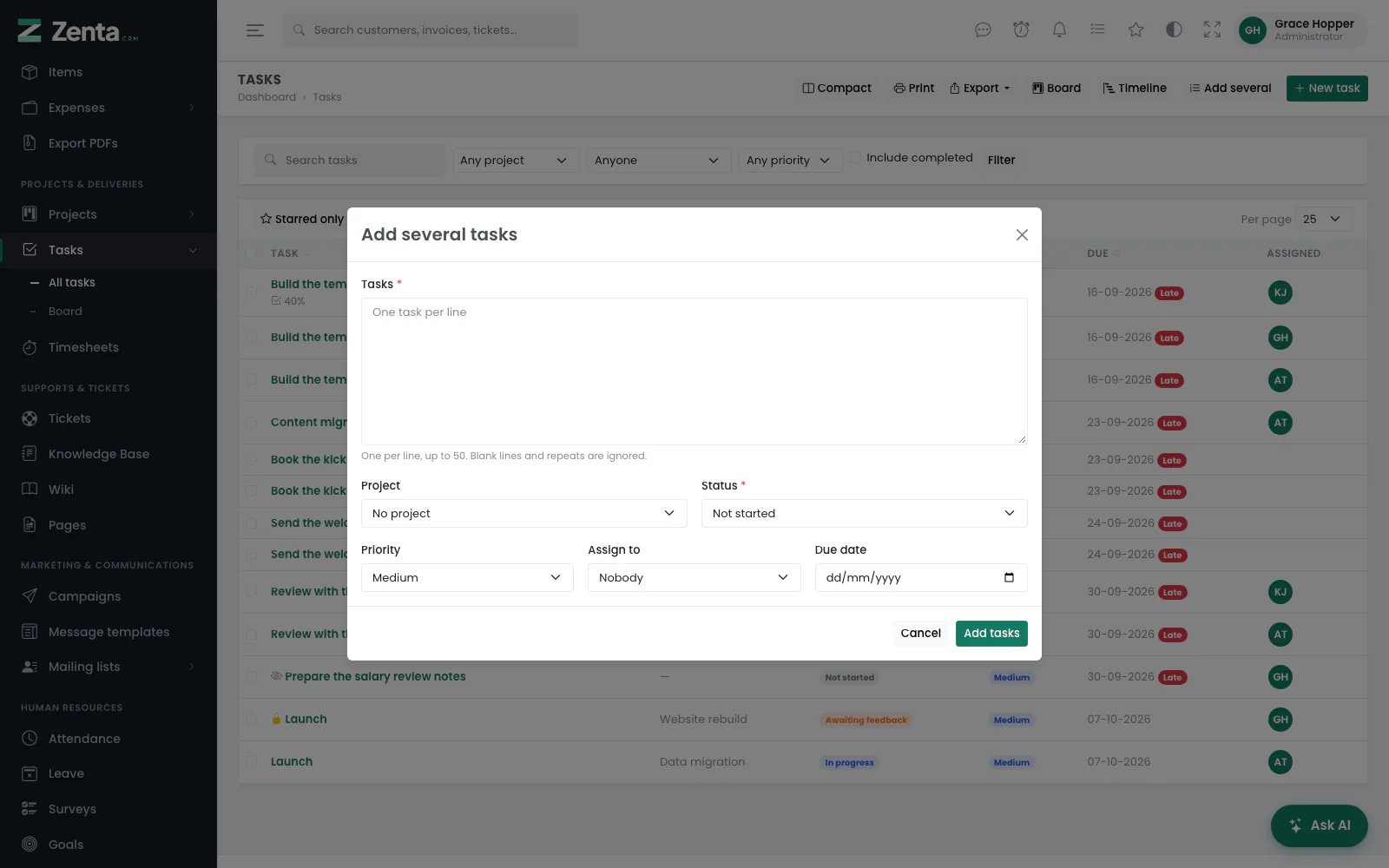 Add several tasks: one per line, with the project, status, priority, assignee and due date they share.
Add several on the task list opens a box for the fifteen minutes after a meeting. Type one task per line — up to fifty — and choose the Project, Status (required), Priority, Assign to and Due date they all share, then press Add tasks. Blank lines and repeated lines are ignored, and the person they are assigned to is told once the tasks exist.
Deleting a task
The button at the top of a task, then confirm (Delete this task? Time already logged against it is kept.); or tick tasks on the list and use Delete on the bulk bar. You are taken back to the list, and the project's progress is worked out again without it. Time logged against the task stays on the timesheets. Needs permission to delete tasks. Deleting a project deletes its tasks too.
Private tasks
Private on the task form means what it says: only the task's creator, its assignees and its followers can see it. Everybody else gets the list without it, the board without it, and a "no such task" if they type its address.
This is a different switch from Visible to the customer. That one is about the client; this one is about your own colleagues. A task with both ticked is still hidden from the portal — a private task belongs to a handful of named people, and a customer is not one of them.
Two bulk actions, Make private and Make visible to everyone, set the flag on a ticked selection.
Labels on tasks
Task priorities
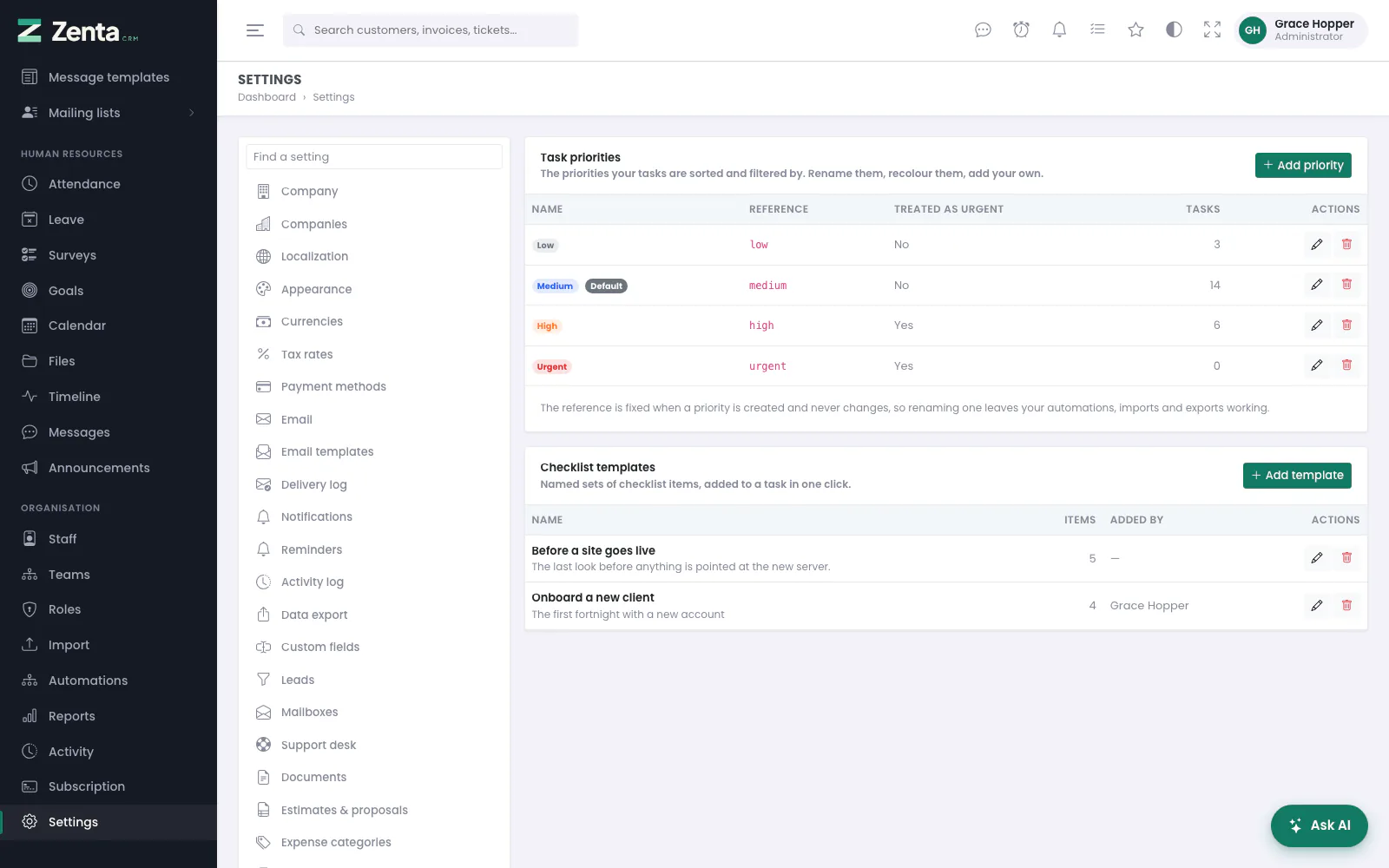 Settings → Tasks: the priorities with their fixed references, and the checklist templates.
Priorities are yours to define, like task statuses. Go to Settings → Tasks to rename them, recolour them, reorder them or add your own. Every install starts with Low, Medium, High and Urgent, and an upgrade turns whatever your tasks already had into exactly those four rows, so nothing moves on the day you update. The list shows each priority's reference, whether it is treated as urgent and how many tasks are on it. Viewing needs permission to view settings; changes need permission to edit them.
Add priority opens a dialog; the beside a priority opens the same one filled in. Press Add priority or Save changes.
| Setting | What it does |
|---|---|
| Name | What everybody reads, on the list, the board, the task page and the customer portal. Unique in the workspace. |
| Colour | The pill's colour wherever the priority is shown. |
| Order | Lowest first, in every picker and filter. |
| Start new tasks on this one | The default. Exactly one priority is the default; turning it on here turns it off elsewhere. |
| Treat as urgent | Tasks on this priority are flagged on the list and the board as work to look at first, and automations can test for it. |
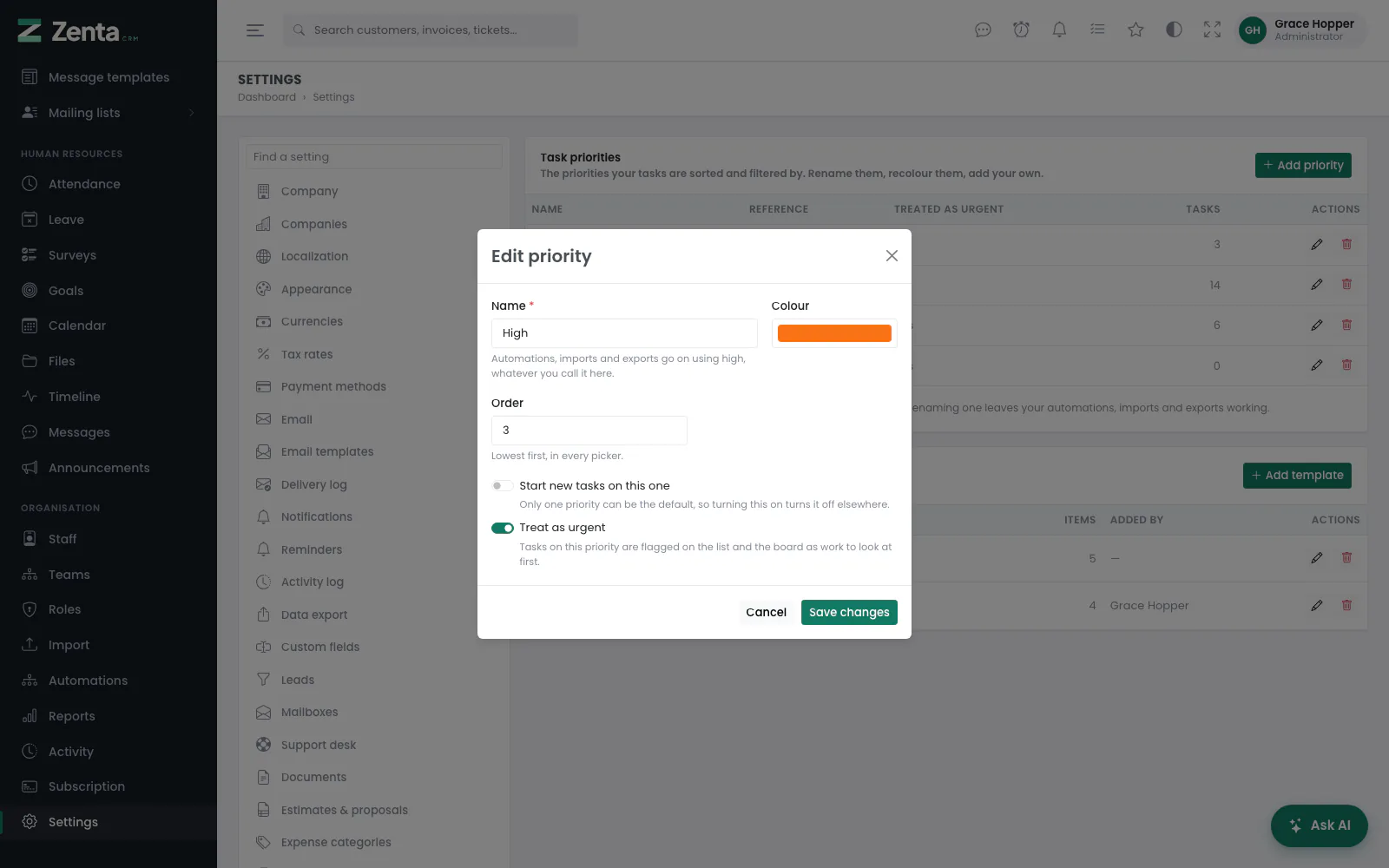 Editing a priority. The note under the name gives the reference automations go on using.
low,
medium, high, urgent — shown on the
settings screen beside its name. The reference is set when the priority is created,
and is what an automation condition compares, what a spreadsheet column says and what
the API sends; it never changes. Rename "Urgent" to "Critical" and every rule you have
already written goes on matching.
The button removes a priority after asking. Its tasks are moved to the default priority rather than left with nothing, and the message says where they went; removing the default hands that role to the priority its tasks moved to. The last remaining priority cannot be removed.
Where priorities are used
- The task form, the list filter, the board card and the task page.
- Change priority on the bulk bar, when tasks are ticked on the list.
- Imports — the Priority column is matched against your own list by name or by reference, in any case. Anything unrecognised falls back to the default.
- Exports — the priority's name, which the import accepts back, so a file exported here re-imports cleanly.
- Automations — see below.
Automations and the API
Create a task offers your own priorities instead of four fixed words, and Change a field → Priority accepts a priority by name or by reference. Rules written before priorities became your own keep working unchanged.
These fields are in a task's payload — in conditions, in placeholders and in webhook deliveries:
| Field | Is |
|---|---|
task.priority | The reference, unchanged: urgent, high… |
task.priority_name | The priority's name as it stands today. |
task.is_high_priority | Whether its priority is marked "treat as urgent". |
task.is_private | Whether the task is private. |
Checklist templates
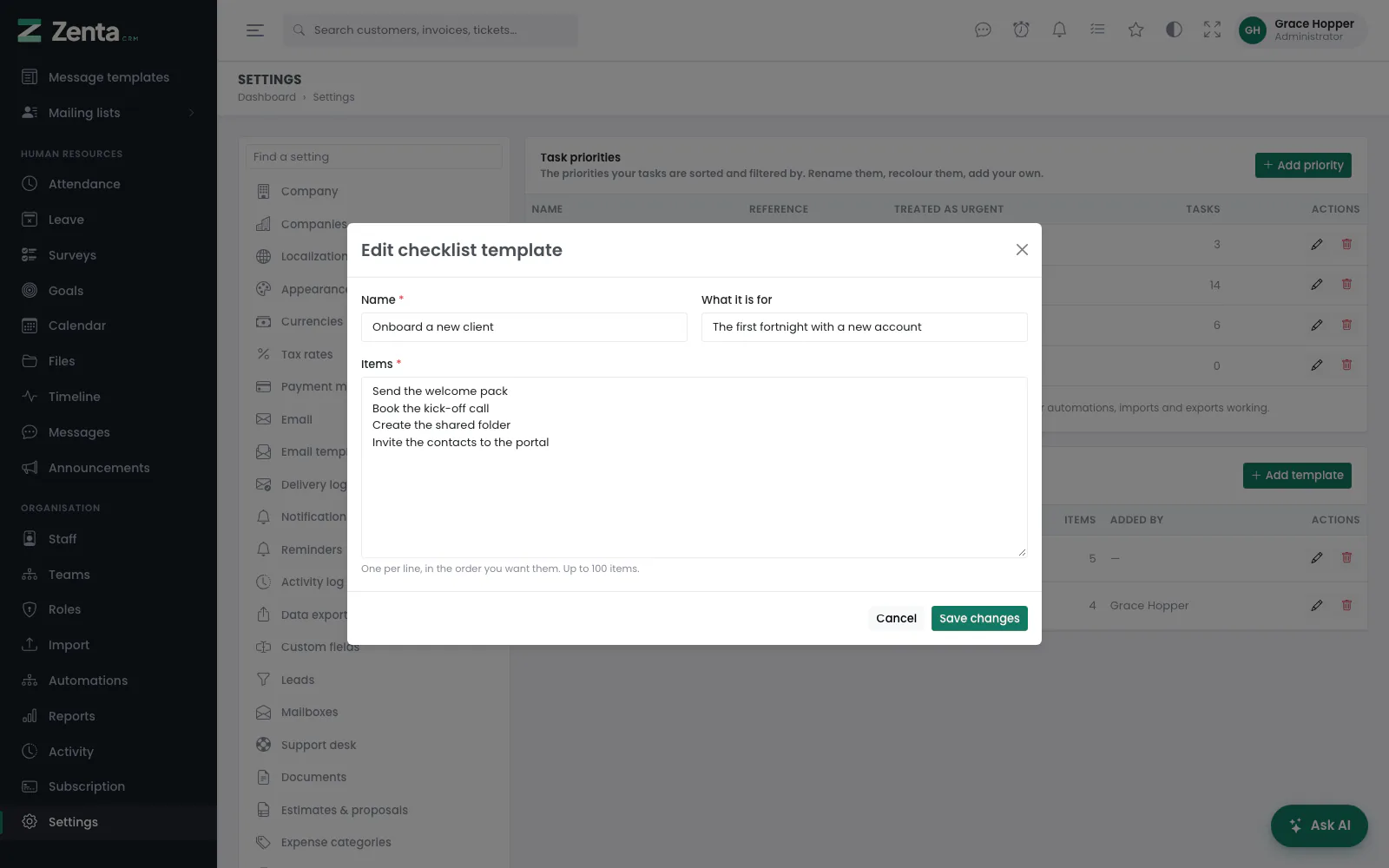 A checklist template: a name, what it is for, and the items one per line.
The twelve steps of "onboard a new client" are worth typing once. Under Settings → Tasks, in the Checklist templates card, press Add template: a Name (required, unique), What it is for, and the Items one per line in the order you want them — up to a hundred. Press Add template.
The beside a template opens it again; change the lines (reordering is moving a line) and press Save changes. The button removes a template after asking. Both need permission to edit settings. A template can also be made from a task's checklist (above).
Your own to-do list
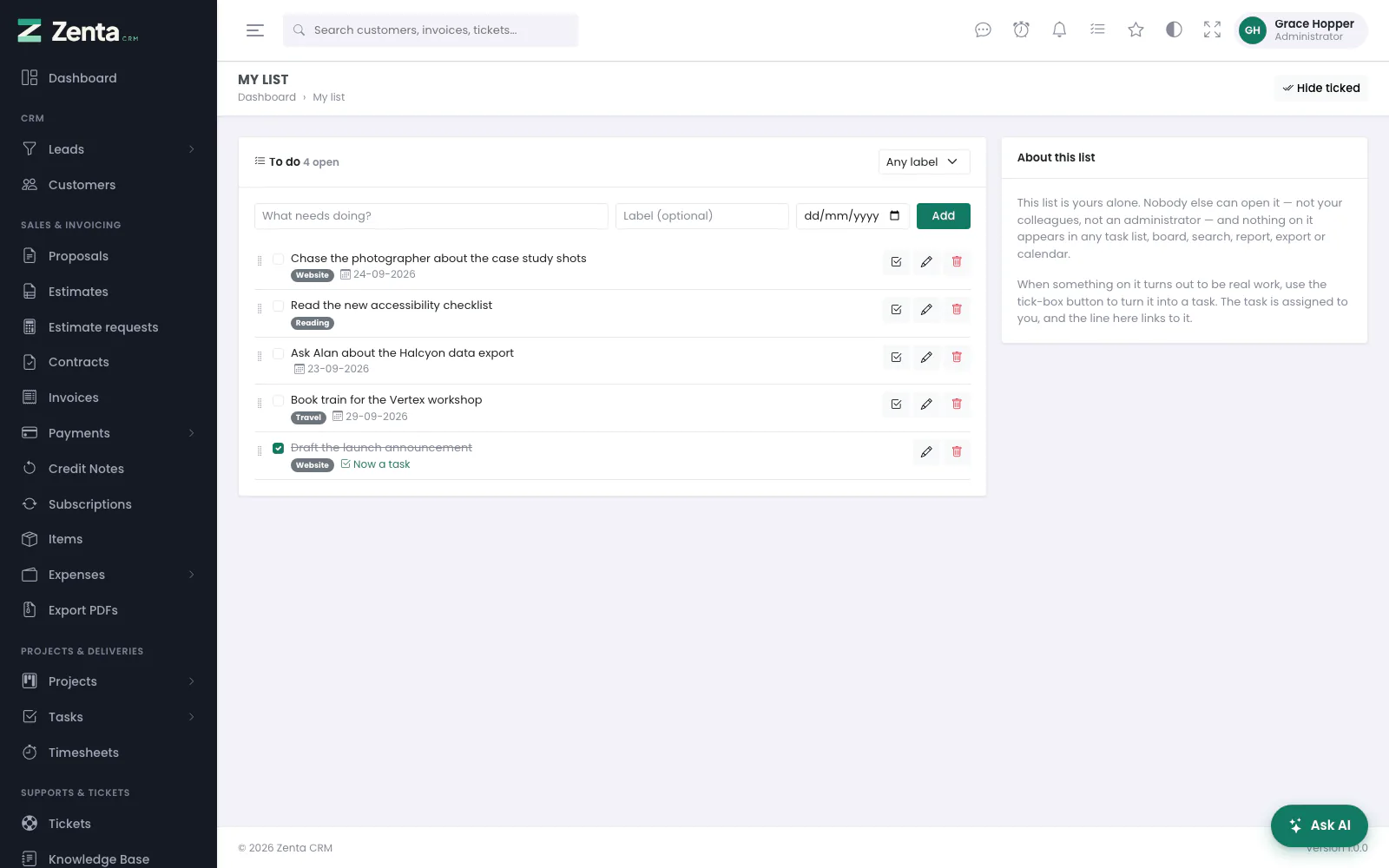 My list: private to the person signed in. A line turned into a task links to it.
The tick-list icon in the top bar opens My list: the scrap of paper beside the keyboard, kept in the CRM. Everybody signed in has one; no permission is needed.
- Add a line: type in What needs doing?, give it a Label of your own and a date if you want them, and press Add. New lines go to the bottom. A list holds up to 500 open lines.
- Tick it off with the box beside it; tick again to bring it back. Hide ticked / Show ticked at the top decides whether ticked lines stay on screen.
- Reorder: drag a line by its handle into the order you mean to work them. The order is saved as you drop.
- Filter by one of your labels with Any label.
- Edit: the opens a dialog with the line, its Label, Due date and Notes; press Save changes.
- Remove: the , then confirm.
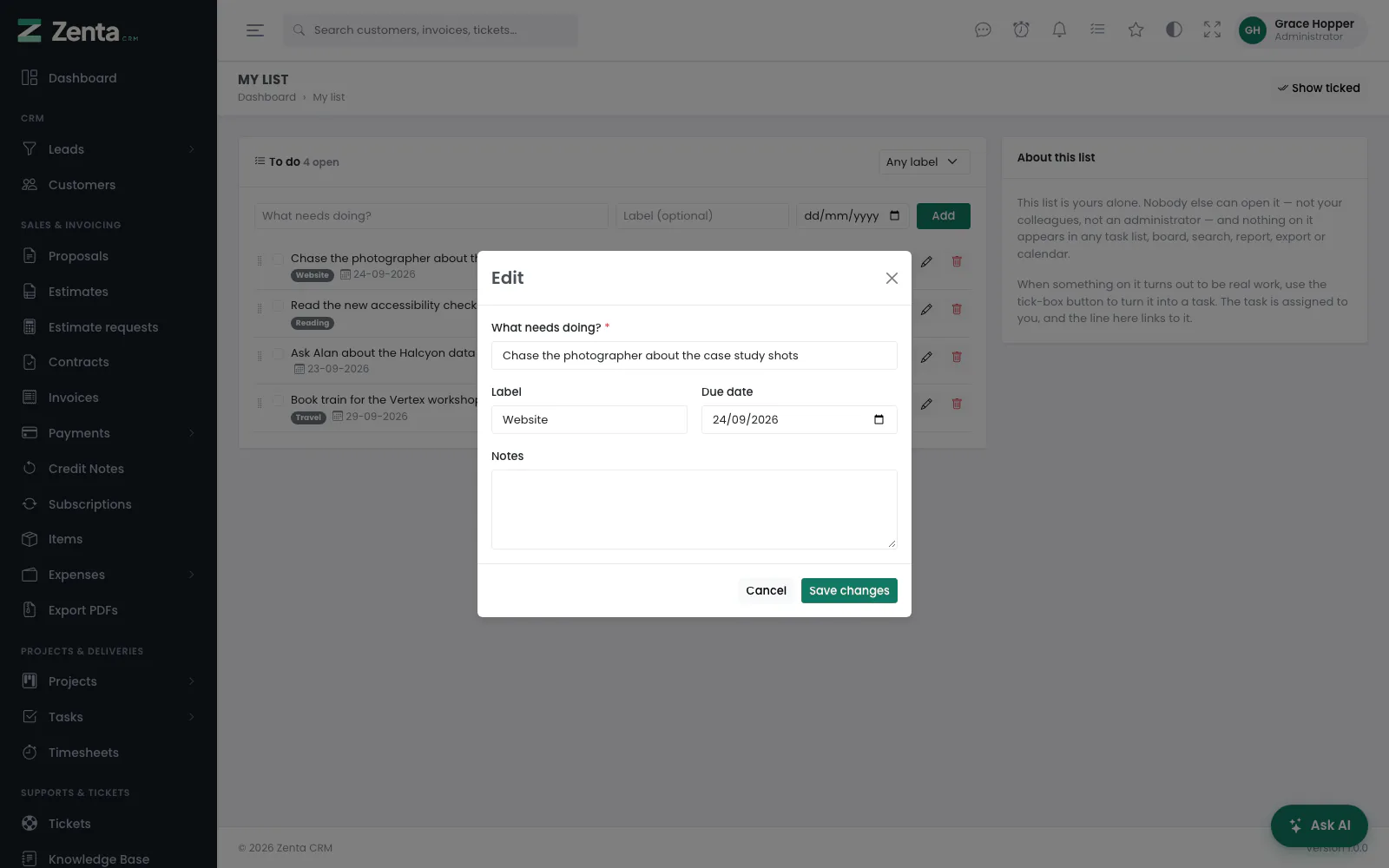 Editing a line on My list: the text, a label, a due date and notes.
When a line turns out to be real work, Turn this into a task (the tick-box button beside it) asks, then creates a proper task with the same title, your notes as its description, its due date carried over, the first task status, and you as its assignee. The line is then ticked off and shows Now a task, linking to it. A line can only become a task once, and the button is only there for people who may create tasks.
Addresses on this page
For reference and for anyone scripting against the panel. Everything here needs somebody signed in to the workspace whose role allows it; anybody else is refused.
| Method | Address | What it does |
|---|---|---|
GET | admin/tasks | The task list, with q, project, assignee, priority and show_completed. |
GET | admin/tasks/{task}/peek | The task's details for the compact pane; used by the page itself. |
GET | admin/tasks/board | The task board. |
PATCH | admin/tasks/{task}/move | Moves a task to a status and position; used by the board and the Status menu. |
GET | admin/tasks/timeline | The task timeline, with the same filters as the list. |
GET | admin/tasks/create | The New task form; ?project= chooses the project. |
POST | admin/tasks | Creates a task. |
GET | admin/tasks/{task} | The task page. |
GET | admin/tasks/{task}/edit | The task form, filled in. |
PUT | admin/tasks/{task} | Saves the task form. |
DELETE | admin/tasks/{task} | Deletes a task. |
DELETE | admin/tasks/{task}/cover | Removes the task's cover picture. |
GET | admin/tasks/{task}/duplicate | The Duplicate task dialog. |
POST | admin/tasks/{task}/duplicate | Makes the copy. |
GET | admin/tasks/add-several | The Add several tasks dialog. |
POST | admin/tasks/add-several | Creates one task per line. |
POST | admin/tasks/{task}/checklist | Adds a checklist item. |
PATCH | admin/tasks/{task}/checklist/{item} | Ticks or unticks a checklist item. |
DELETE | admin/tasks/{task}/checklist/{item} | Removes a checklist item. |
POST | admin/tasks/{task}/checklist/from-template | Adds a checklist template's items to the task. |
POST | admin/tasks/{task}/checklist/save-template | Saves the task's checklist as a new template. |
POST | admin/tasks/{task}/dependencies | Makes the task wait for another. |
DELETE | admin/tasks/{task}/dependencies/{dependency} | Stops it waiting for that task. |
POST | admin/tasks/{task}/comments | Posts a comment on the task. |
PATCH | admin/tasks/{task}/comments/{comment}/internal | Makes a comment internal, or shares it with the customer. |
PATCH | admin/tasks/{task}/comments/{comment}/pin | Pins or unpins a comment. |
DELETE | admin/tasks/{task}/comments/{comment} | Deletes a comment and its files. |
GET | admin/settings/task-priorities | Settings → Tasks: priorities and checklist templates. |
GET | admin/settings/task-priorities/create | The Add priority dialog. |
POST | admin/settings/task-priorities | Adds a priority. |
GET | admin/settings/task-priorities/{priority}/edit | The Edit priority dialog. |
PUT | admin/settings/task-priorities/{priority} | Saves a priority. |
DELETE | admin/settings/task-priorities/{priority} | Removes a priority and moves its tasks. |
GET | admin/settings/checklist-templates/create | The Add checklist template dialog. |
POST | admin/settings/checklist-templates | Adds a checklist template. |
GET | admin/settings/checklist-templates/{template}/edit | The Edit checklist template dialog. |
PUT | admin/settings/checklist-templates/{template} | Saves a checklist template. |
DELETE | admin/settings/checklist-templates/{template} | Removes a checklist template. |
GET | admin/my-list | My list, with label and show_done. |
POST | admin/my-list | Adds a line. |
POST | admin/my-list/order | Saves the order after a drag; used by the page itself. |
GET | admin/my-list/{todo}/edit | The Edit dialog for a line. |
PUT | admin/my-list/{todo} | Saves a line. |
PATCH | admin/my-list/{todo}/tick | Ticks a line off, or brings it back. |
POST | admin/my-list/{todo}/task | Turns a line into a task assigned to you. |
DELETE | admin/my-list/{todo} | Removes a line. |